
When working in Microsoft Word, one of the simplest yet most essential formatting tools you’ll use is margins. The settings of your margins can dramatically impact your document’s professionalism. This is true whether you’re preparing an academic essay, a business report, or a printable form. Margins influence the overall presentation of a document. Changing the margins alters its entire appearance.
In this detailed tutorial, we’ll explore three ways to adjust margins in Word. We will use methods that are easy for beginners. These methods are also powerful enough for advanced users.
Watch the Video Tutorial
If you prefer to see this in action, the full video walkthrough is below, showing each method step by step.
Introduction: Why Adjusting Margins in Word Matters
Margins define the space between your text and the edge of your paper. They provide balance, improve readability, and ensure your document looks clean and professional.
Incorrect margins can cause text to run off the page or appear cramped. Properly set margins help your content look neat and well-structured. This is important, especially when printing or submitting digital files.
Understanding Margins in Microsoft Word
What Are Margins and How Do They Affect Your Document?
In Microsoft Word, margins control how much white space surrounds your text. Each page has four main margins — top, bottom, left, and right. Adjusting these can make your text appear more centered, symmetrical, or spaced out depending on your needs.
Default Margin Settings Explained
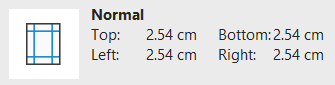
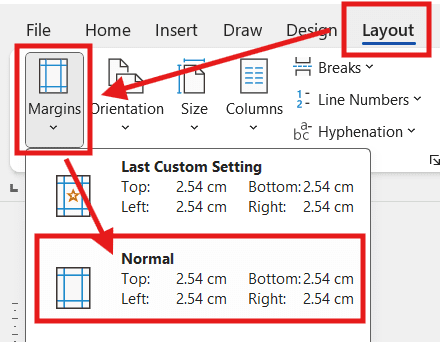
By default, Word sets margins to 2.54 cm (1 inch) on all sides. This “Normal” layout is ideal for most standard documents such as essays, letters, and reports. However, Word also offers several preset margin layouts for flexibility.
Method 1: Adjust Margins Using Preset Layout Options
This is the quickest and easiest method, perfect for users who want instant results without deep customization.
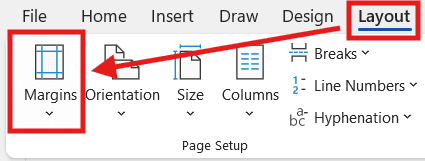
Step 1: Go to the Layout Tab
At the top of the Word window, click “Layout” (or “Page Layout” in older versions). This tab contains all the tools related to document structure, including margins, orientation, and size.
Step 2: Explore the Preset Margin Options
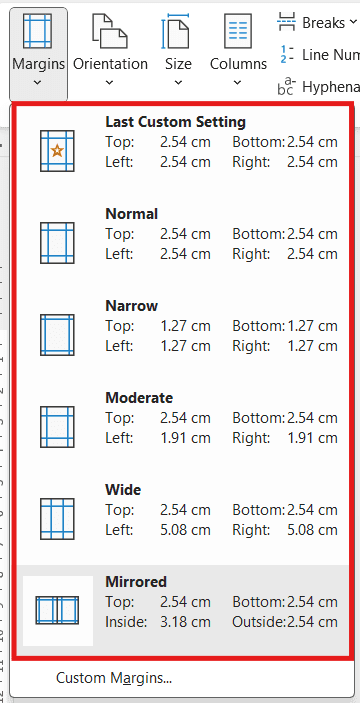
Click the “Margins” button. A dropdown menu appears with five presets:
- Normal (2.54 cm) – The default, ideal for most documents.
- Narrow (1.27 cm) – Allows more text on each page.
- Moderate – Balances white space for reports or printouts.
- Wide – Adds breathing room, perfect for notes or binding.
- Mirrored – Designed for double-sided or book layouts.
When to Use Each Preset Margin Type
Use Normal for general documents, Narrow for saving paper, and Wide for academic submissions. The Mirrored option is useful when preparing booklets or printed manuals.
Method 2: Customize Margins with the Page Setup Dialog Box
When you need more control, this method lets you set exact measurements for each margin.
Step 1: Open Custom Margins
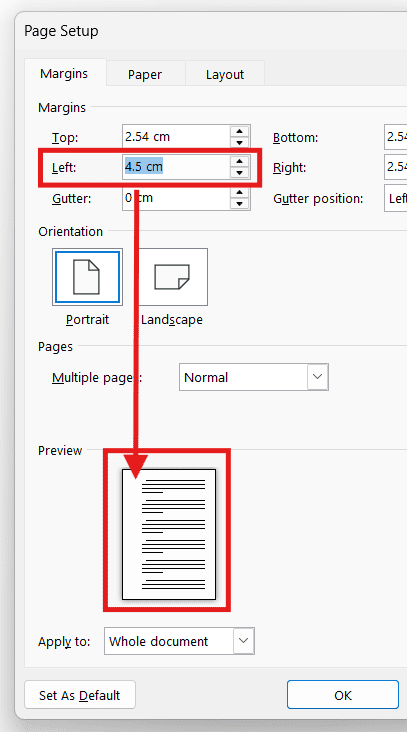
Go to Layout > Margins > Custom Margins.
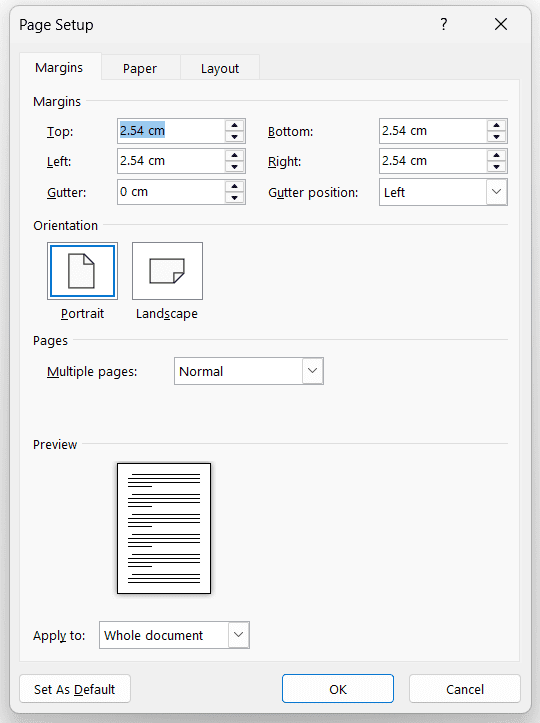
A Page Setup dialog box will appear, offering detailed options.
Step 2: Adjust Left, Right, Top, and Bottom Margins Manually
Enter your desired measurements (in cm or inches). You can make one side wider or narrower as needed — for example, a wider left margin for binding.
Step 3: Preview Changes Before Applying
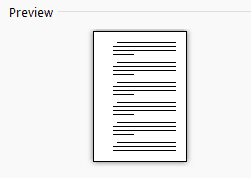
The Preview section is at the bottom of the dialog box. It shows how your document will look after applying your custom margins. This helps avoid mistakes before committing.
Step 4: Apply to Entire Document or Selected Sections
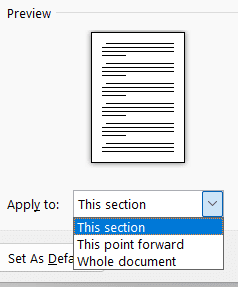
Under “Apply to”, you can choose:
- Whole Document – Apply margins to all pages.
- This Section Only – You will need page breaks for this.
- This Point Forward – Apply new margins from your cursor position onward.
Bonus Tip: Setting Margins as Default for Future Documents
Click “Set as Default” to make your custom margins the new default for all future documents. This method is perfect for consistent formatting.
Method 3: Adjust Margins Using the Ruler Tool
This hands-on method gives you visual control over margins using the ruler at the top and side of your workspace.
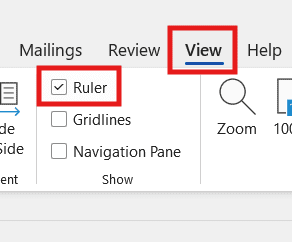
Step 1: Enable the Ruler View
Go to the View tab and tick the Ruler checkbox. This displays horizontal and vertical rulers on your screen.
Step 2: Adjust Left and Right Margins Manually
Hover over the ruler until you see a double-headed arrow labeled “Left Margin” or “Right Margin.”
Click and drag to adjust — moving right narrows the text area, while moving left expands it.

Step 3: Modify Top and Bottom Margins Using the Ruler
Scroll to the top or bottom of your document. Drag the gray margin area up or down to change spacing.

Best Practices for Precision Margin Adjustments
- Hold Alt (Windows) or Option (Mac) while dragging for finer adjustments.
- Zoom in for more precision.
- Always preview print layout before finalizing.
Common Margin Mistakes and How to Fix Them
Uneven Margins and Alignment Issues
If text appears misaligned, ensure your paragraph indents haven’t been altered. Indents can sometimes mimic margin changes.
Resetting Margins to Default
Go to Layout > Margins > Normal to reset everything to Word’s default (2.54 cm each side).
Pro Tips for Professional Document Formatting
Optimal Margin Sizes for Resumes, Essays, and Reports
| Document Type | Recommended Margins |
|---|---|
| Resume | 2–2.5 cm |
| Academic Essay | 2.54 cm (Standard) |
| Business Report | 2–3 cm |
| Booklet or Brochure | Mirrored, 2.54 cm inside margin |
How Margins Affect Printing and Page Layout
Margins prevent text from being cut off when printing. Always test your document in Print Preview mode before sending it off.
FAQs: Three Ways to Adjust Margins in Word
1. How do I make custom margins the default in Word?
Go to Layout > Margins > Custom Margins, then click “Set as Default.”
2. Why can’t I change my margins in Word?
Ensure the document isn’t restricted or in “Read-Only” mode.
3. Can I set different margins for different sections?
Yes — use section breaks and apply margin changes to “This Section Only.”
4. What’s the best margin for printing booklets?
Use Mirrored Margins with an inside margin of 3 cm.
5. Why are my margins uneven when printing?
Printer settings might override Word’s layout. Check printer properties before printing.
6. How do I show or hide the ruler in Word?
Go to View > Ruler to toggle visibility.
Conclusion: Mastering Margins in Word with Ease
Adjusting margins in Microsoft Word is a simple but powerful skill that can elevate your document’s appearance and readability. You may use preset layouts. Alternatively, you can apply custom settings or make manual ruler adjustments. Mastering these three methods ensures your pages always look polished and professional.
For more tutorials like this, visit Word Made Easy — your go-to resource for quick, practical Microsoft Word guides.

More Microsoft Word Tutorials

Looking for more help with Microsoft Word? Browse all step-by-step Word tutorials covering formatting, layout, pages, and document setup.
👉 View all Microsoft Word tutorials: https://wordmadeeasy.org/microsoft-word/

Prefer watching instead of reading? Many Word tutorials are also available as short, step-by-step videos on the Word Made Easy YouTube channel.

















Leave a Reply