
When working in Microsoft Word, indentation helps structure your text and improve readability. Whether you are writing an essay, report, or professional document, knowing how to indent text properly is an essential skill.
In this guide, you’ll learn how to indent text in Word. These include using the ruler, keyboard shortcuts, and the Paragraph settings for more advanced indentation options.
Why Indentation Is Important in Word
Indentation controls how text sits on the page. Used correctly, it helps:
- Improve document structure
- Make text easier to read
- Create professional layouts
- Meet academic or formatting requirements
Word offers both simple and advanced tools to manage indentation depending on your needs.
Watch the Video Tutorial
If you prefer to see this in action, the full video walkthrough is below, showing each method step by step.
Turn On the Ruler in Word
The ruler makes indentation much easier.
To enable it:
- Click the View tab
- Tick Ruler
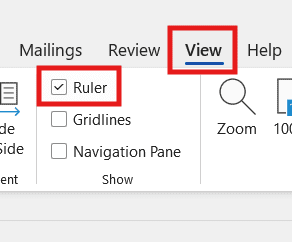
The ruler will now appear at the top of your document.
Indent Paragraphs Using the Ruler
To indent entire paragraphs:
- Highlight the paragraph(s)
- On the ruler, select the bottom rectangle (Left Indent)
- Click and drag it to the right
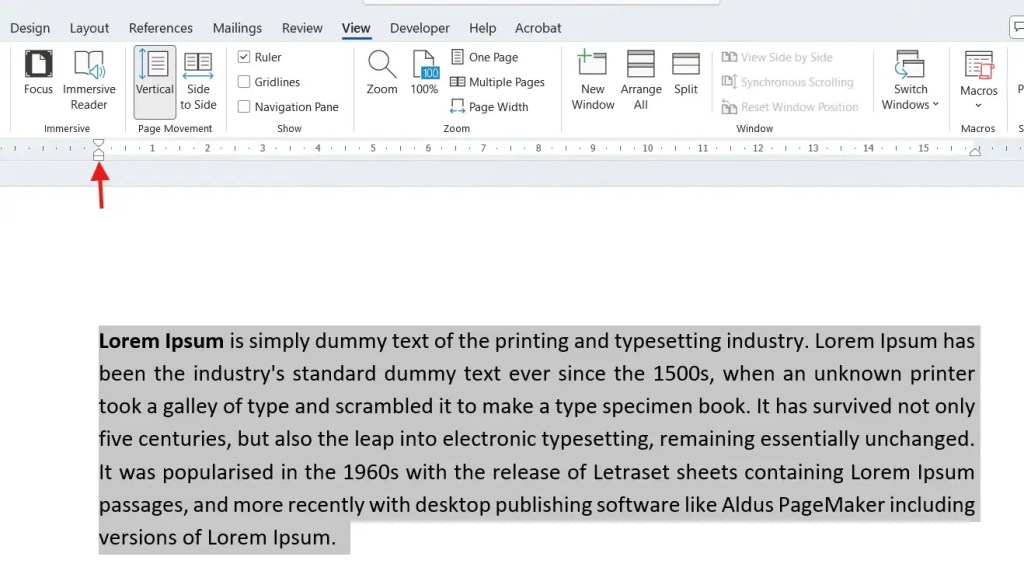
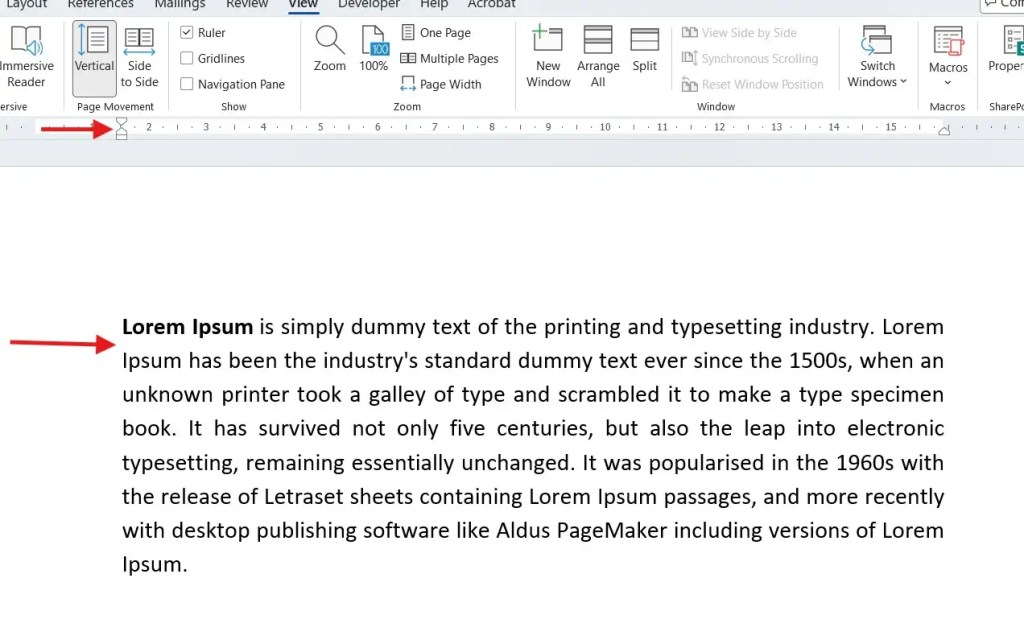
A vertical guide line appears, showing where the text will move. The measurement is based on the ruler, so you can see the exact centimetres being applied.
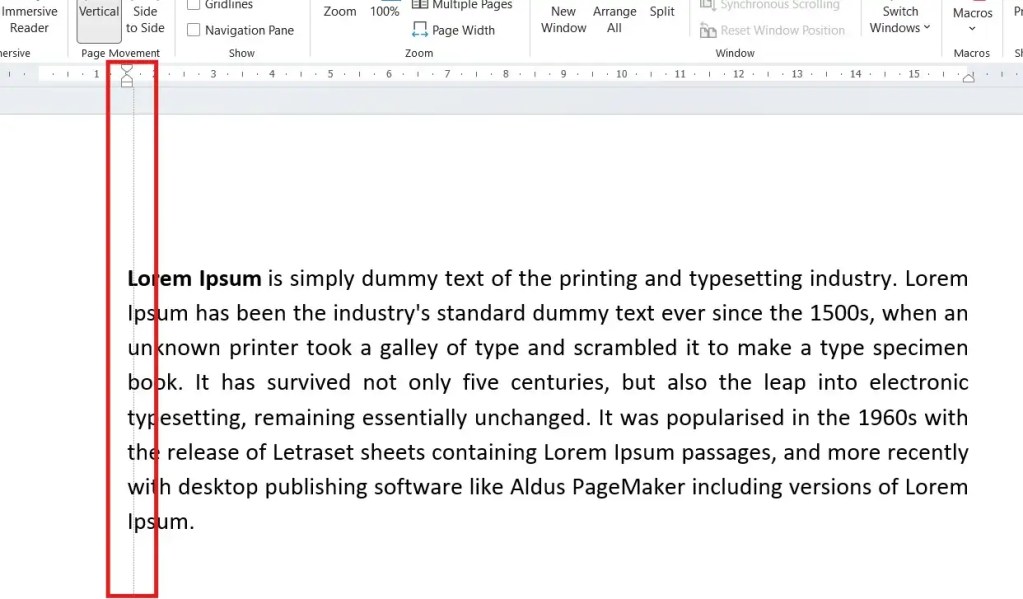
You can move it back at any time to return to the default position.
Indent the First Line of a Paragraph
To indent only the first line:
- Highlight the paragraph(s)
- Select the top triangle on the ruler (First Line Indent)
- Drag it to the right

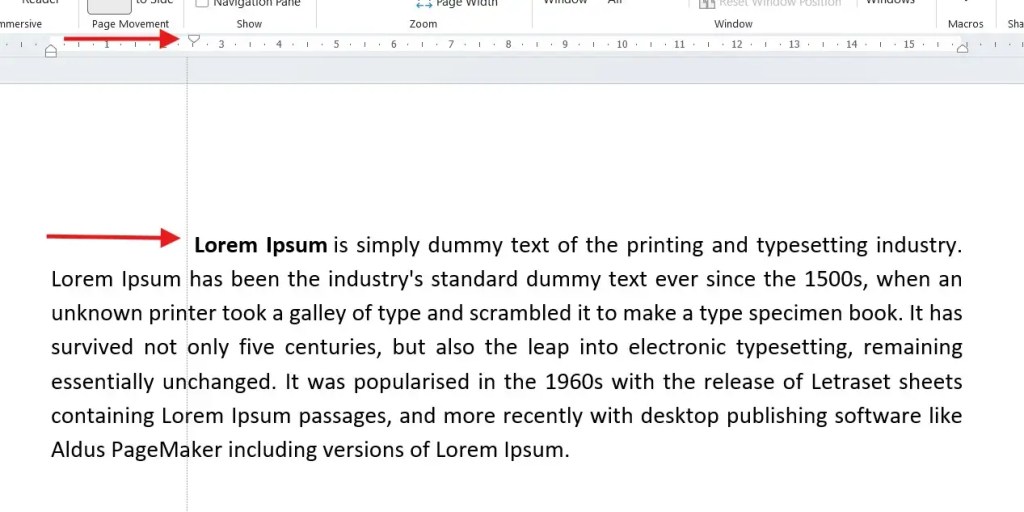
Only the first line of each paragraph will move, leaving the rest of the text aligned normally.
Indent Selected Paragraphs Only
You do not have to indent the entire document.
You can:
- Place the cursor in a single paragraph
- Highlight two or three paragraphs only
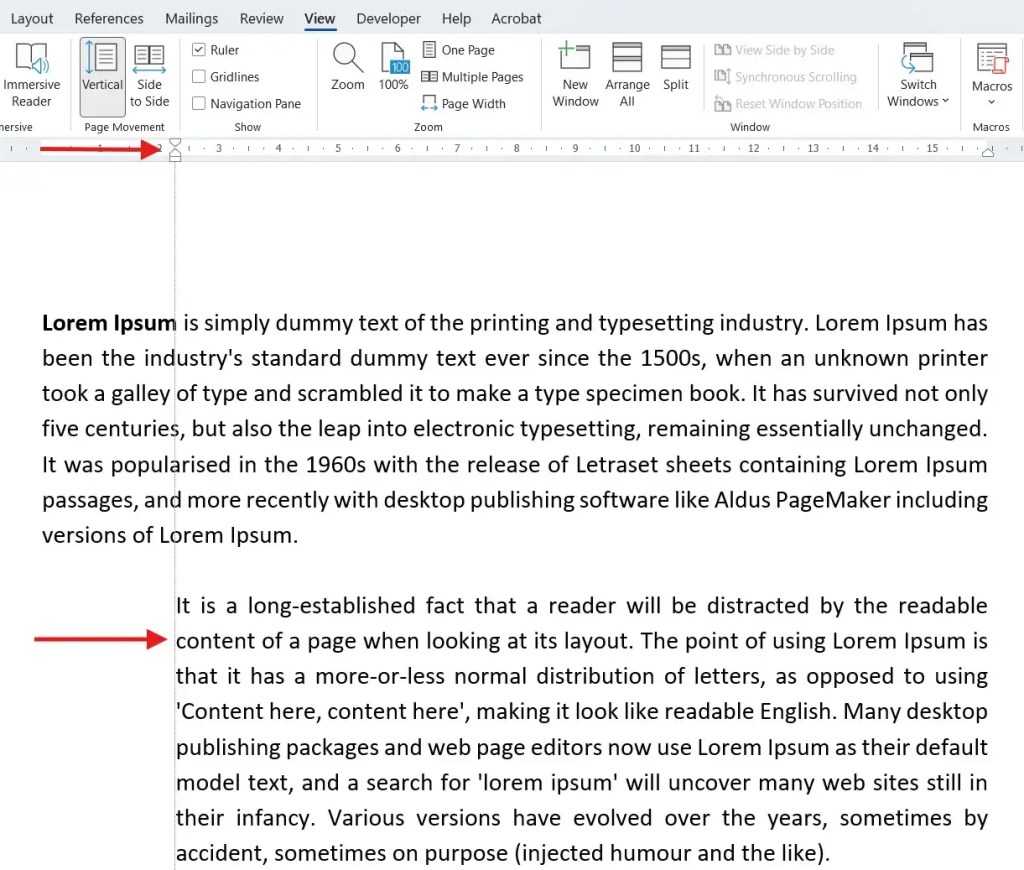
Then apply indentation using the ruler. Only the selected paragraphs will be affected.
Use Keyboard Shortcuts to Indent Text
For quick indentation:
- Select the text
- Press Ctrl + M to indent
Each press increases the indentation.
You can also click Increase Indent on the Home tab.

Use the Tab Key for First-Line Indents
To indent just the first line of a paragraph:
- Place the cursor at the start of the paragraph
- Press Tab
This creates a first-line indent based on Word’s default tab stop.
Open Paragraph Settings
For more control:
- Go to the Home tab
- Click the small arrow in the Paragraph section
- The Paragraph window will open
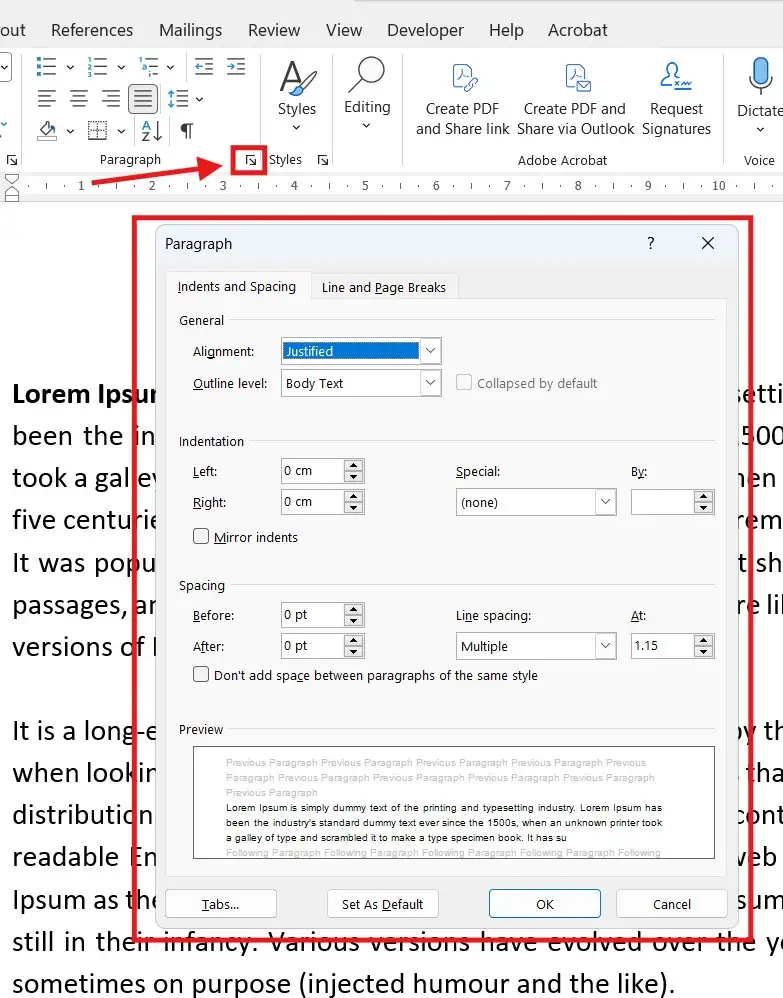
Use the Preview box at the bottom to see changes before applying them.
Set Left and Right Indentation
In the Indentation section:
- Adjust Left to move text in from the left margin
- Adjust Right to move text in from the right margin
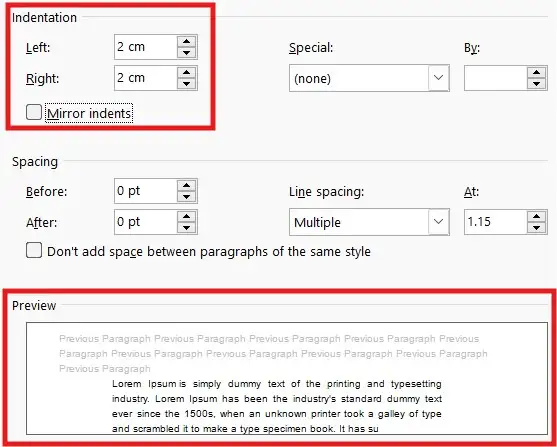
For example, setting both to 2 cm creates equal spacing on each side.
Use First Line and Hanging Indents
Under Special:
- First line indents only the first line
- Hanging indents all lines except the first
You can also adjust the exact measurement used.
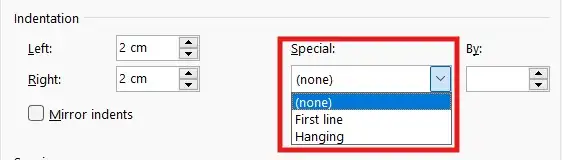
These are commonly used in essays, references, and bibliographies.
Change Default Tab Stops
To change how far the Tab key moves text:
- Open Paragraph Settings
- Click Tabs
- Change Default tab stops (e.g. from 1.27 cm to 2 cm)
- Click OK
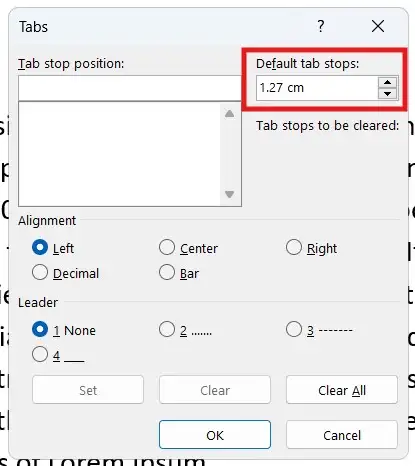
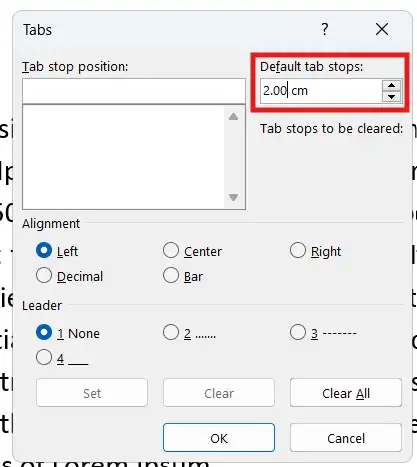
The Tab key will now move text by the new amount.
Create Lines Using Tab Stops
You can also use tab stops to create dividing lines.
- Highlight the paragraph
- Open Paragraph Settings → Tabs
- Enter 4 cm as a new default tab stop position
- Enter 4 cm as a new tab stop position
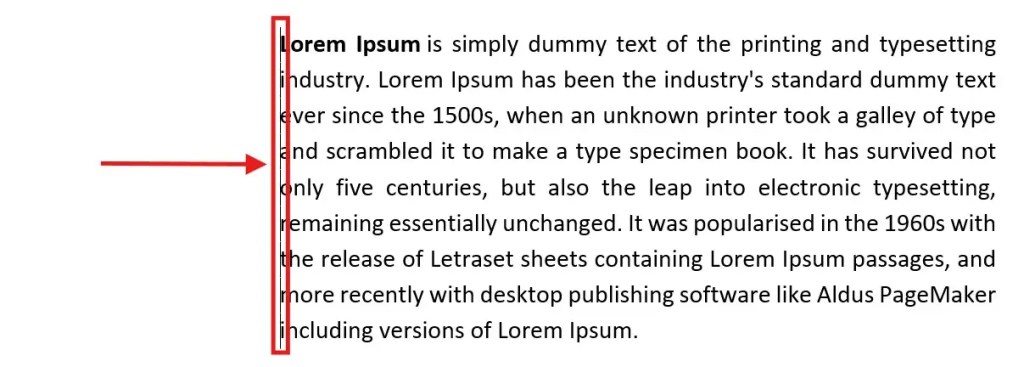
- Select Bar
- Click Set, then OK
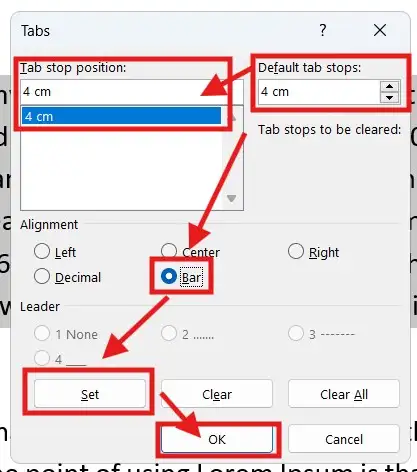
A vertical line appears at the chosen position.
Use Dots, Dashes, or Underscores with Tabs
Instead of empty space, you can add leaders:
- Open Paragraph Settings → Tabs
- Set a tab position
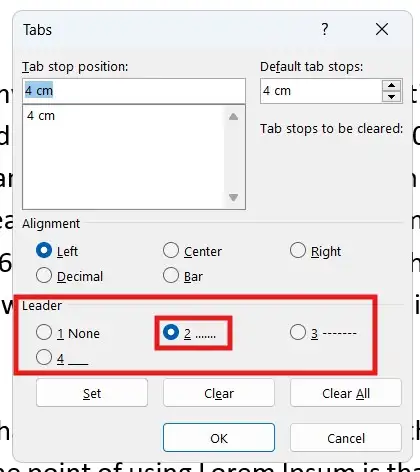
- Choose a leader:
- Dots
- Dashes
- Underscores
- Click Set, then OK
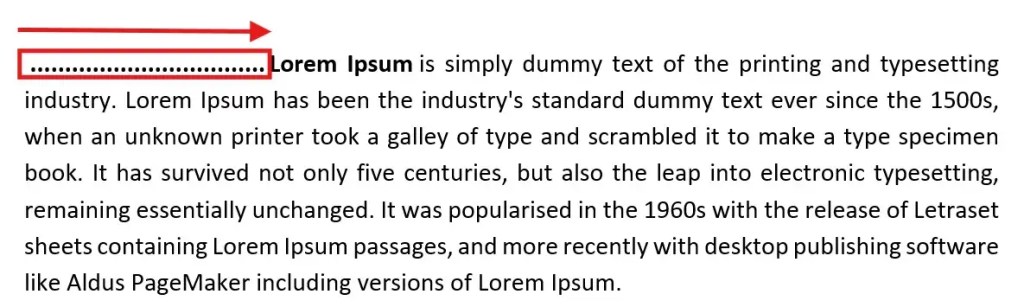
This is useful for structured layouts, contents pages, or forms.
FAQs
What is the easiest way to indent text?
Using the ruler or pressing Ctrl + M is the quickest method.
How do I indent only the first line?
Use the First Line Indent marker on the ruler or press Tab at the start of the paragraph.
What is a hanging indent used for?
Hanging indents are commonly used for references and bibliographies.
Can I change how far the Tab key indents?
Yes. You can change default tab stops in Paragraph settings.
Does indentation affect the whole document?
Only selected text is affected unless you set changes as the default.
Conclusion
Indentation is a powerful formatting tool in Microsoft Word. Whether you use the ruler, keyboard shortcuts, or advanced Paragraph settings, each method gives you control over how your text is displayed.
By understanding these three indentation methods, you can format documents more efficiently and create clean, professional layouts every time.
Small adjustments like these make a big difference in the overall quality of your Word documents.

More Microsoft Word Tutorials

Looking for more help with Microsoft Word? Browse all step-by-step Word tutorials covering formatting, layout, pages, and document setup.
👉 View all Microsoft Word tutorials: https://wordmadeeasy.org/microsoft-word/

Prefer watching instead of reading? Many Word tutorials are also available as short, step-by-step videos on the Word Made Easy YouTube channel.














Leave a Reply