
If you have several Microsoft Word documents, you can quickly combine them into a single file. There’s an effective way to do this without copying and pasting each document manually.
In this example, imagine you have multiple Word files open. These could be several fact sheets. You want to merge them into one complete document that opens all at once. Follow the steps below.
Watch the Video Tutorial
If you prefer to see this in action, the full video walkthrough is below, showing each method step by step.
Step-by-Step: Merging Word Documents
- Open Microsoft Word
Make sure all the documents you want to combine are saved and closed, or easily accessible. - Create a new blank document
Go to File → New → Blank Document. This will be the file where all other documents are merged.

- Insert text from existing files
- Click Insert in the top menu
- Select Object
- Click the drop-down arrow
- Choose Text from File
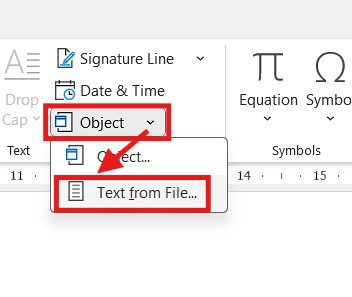
- Select the documents to merge
Select all the Word documents you want to combine. - Click Insert
Word will automatically add the contents of each selected document into your new file.

Conclusion
Once merged, you may need to do some light editing to adjust formatting, headings, or spacing. If you’re handling a lot of documents, this method is faster and cleaner. It is more efficient than copying and pasting content one file at a time.
This approach is especially useful for:
- Reports
- Fact files
- Assignments
- Training materials
- Compiling chapters into one document
That’s all there is to it — a simple and effective way to merge multiple Word documents into one.
FAQs
Does merging Word documents change the formatting?
Sometimes. Most formatting is preserved. Headings, spacing, page breaks, or styles may need minor adjustments after merging. This is especially true if the original files use different styles.
Can I merge Word documents in a specific order?
Yes. The documents are merged in the order you select them. To control the sequence, select the files carefully or rename them numerically before inserting.
Is there a faster way than copying and pasting each document?
Absolutely. Using Text from File is much faster than copying and pasting, especially when working with many documents.
Can I merge Word documents with images and tables?
Yes. Images, tables, and most embedded content are included when you merge documents. However, you should review the final file to ensure everything appears correctly.
Does this method work on all versions of Microsoft Word?
This feature works on most modern versions of Microsoft Word, including Word 2016, 2019, 2021, and Microsoft 365 on Windows.
Can I undo the merge if something goes wrong?
Yes. You can undo the merge immediately using Ctrl + Z, or simply close the document without saving and start again.
Can I merge Word documents on a Mac?
Yes, but the steps may differ slightly. Mac users can still insert text from files, though menu labels and locations may vary.
What’s the best use case for merging Word documents?
Merging documents is ideal for combining reports, fact files, or chapters. It is also useful for combining assignments or training materials. You can merge any project created across multiple Word files.

More Microsoft Word Tutorials

Looking for more help with Microsoft Word? Browse all step-by-step Word tutorials covering formatting, layout, pages, and document setup.
👉 View all Microsoft Word tutorials: https://wordmadeeasy.org/microsoft-word/

Prefer watching instead of reading? Many Word tutorials are also available as short, step-by-step videos on the Word Made Easy YouTube channel.





















Leave a Reply