
When working in Microsoft Word, footers often repeat on every page by default. This is fine for simple documents, but it becomes a problem when you need different footers on different pages.
This guide shows you how to correctly add different footers in Word using Different First Page and Section Breaks. This method fixes the issue properly and avoids common mistakes.
By default, all pages in a Word document belong to the same section.
This means:
- Footers are linked together
- Editing one footer changes them all
- Each page shares the same footer content
To use different footers, Word needs to treat pages as separate sections.
Watch the Video Tutorial
If you prefer to see this in action, the full video walkthrough is below, showing each method step by step.
The Quick Fix: Different First Page
If you only need a different footer on the first page, this is the fastest method.
Steps
- Go to the first page
- Double-click the footer
- The Header & Footer tab opens
- Tick Different First Page
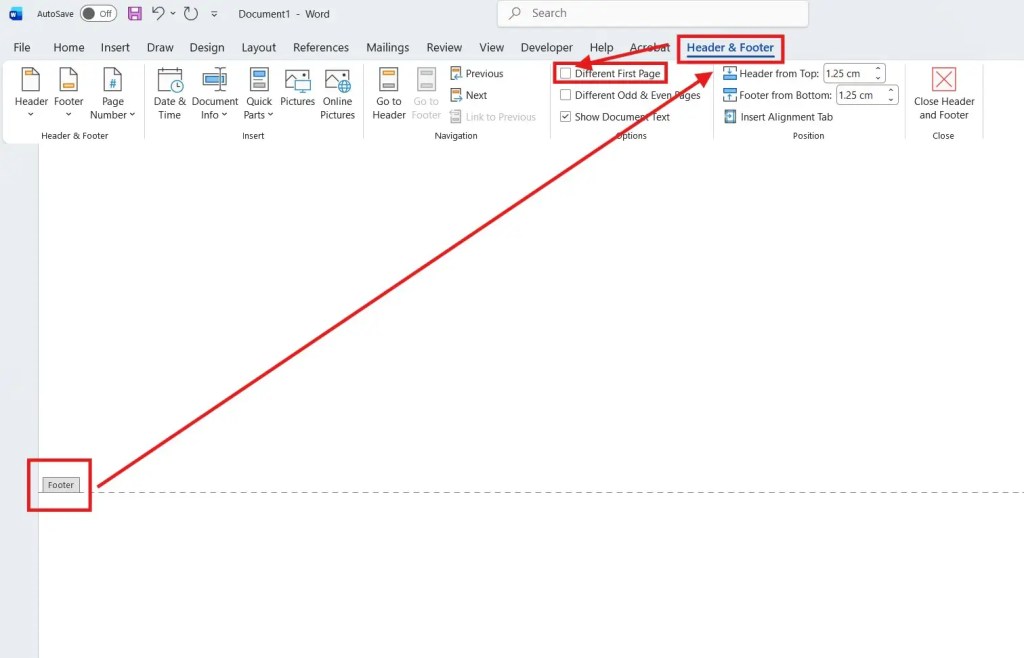
You’ll know it’s enabled because Word displays First Page Footer.
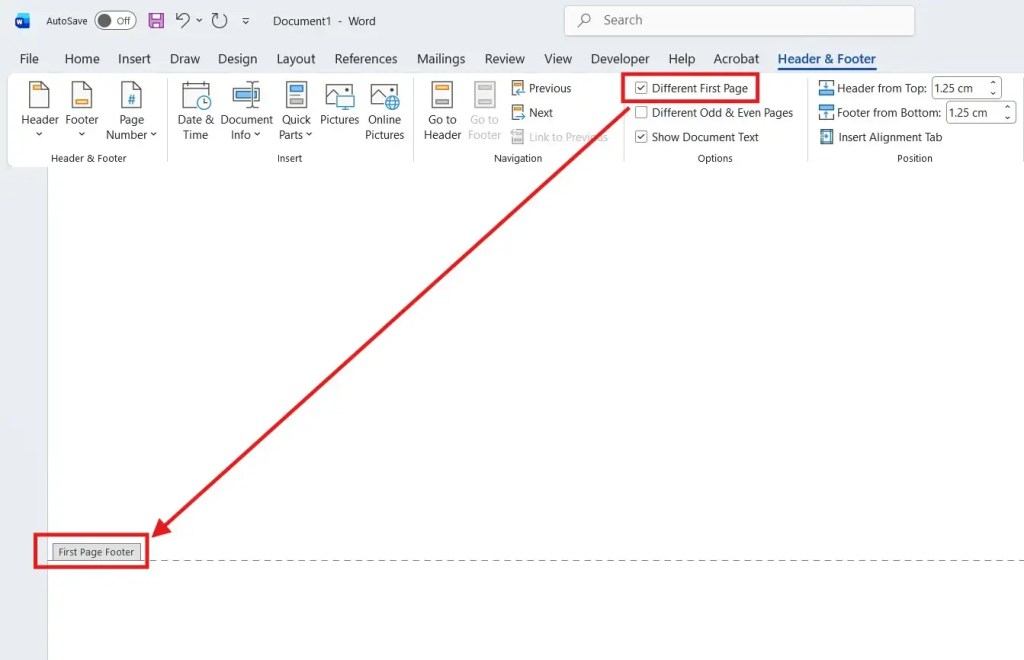
You can now type a unique footer for page one, and it will not affect the rest of the document.
Why This Method Has Limitations
The Different First Page option only applies to:
- Page one
- The rest of the document as a group
If you insert another page later, it will share the same footer as page two.
To give every page its own footer, you must use section breaks.
Understanding Sections in Word
A section controls:
- Headers
- Footers
- Page layout
As long as pages are in the same section, their footers remain linked.
To use different footers, each page must start a new section.
Step 1: Add a New Section
Follow these steps carefully.
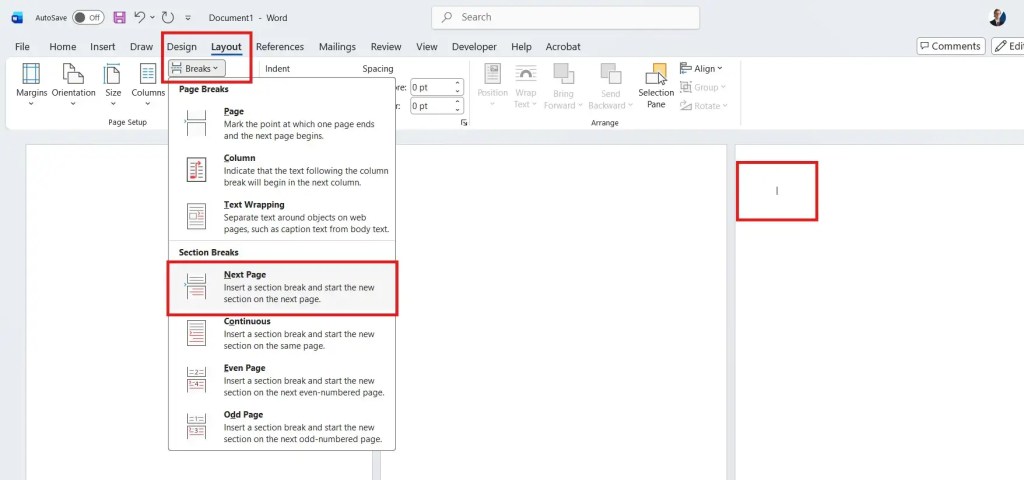
- Click on the page that should start the new footer
- Go to Layout
- Click Breaks
- Select Next Page
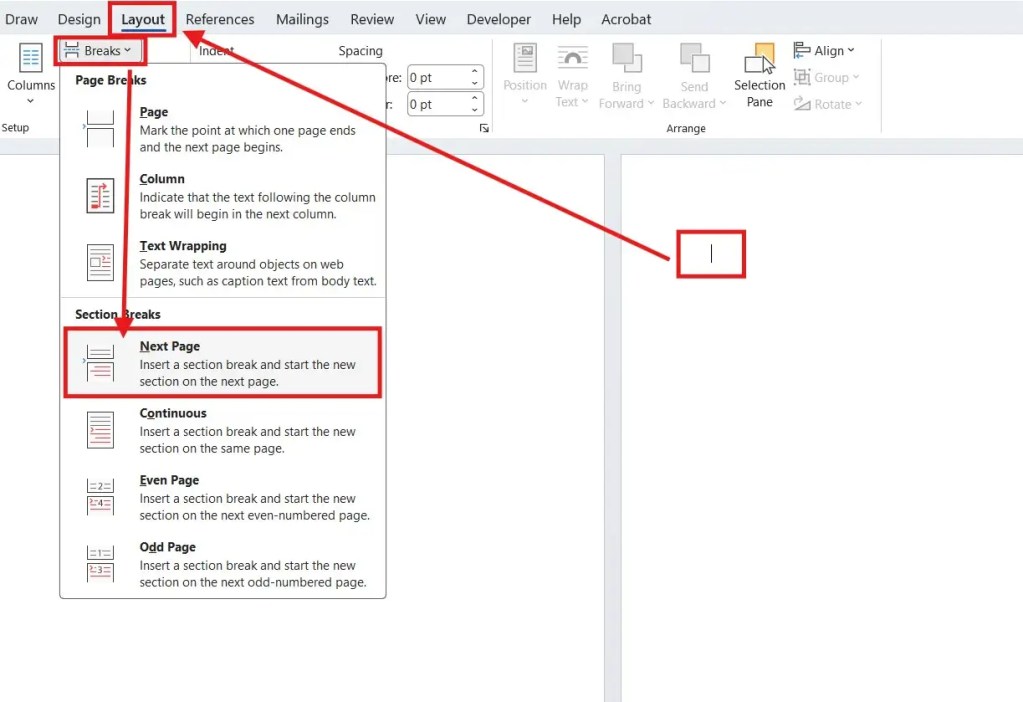
Word now creates a new section starting on that page.
Step 2: Unlink Footers Correctly
This is the most important step.
- Double-click the footer on the new page
- Look for Link to Previous
- Click it to turn it off
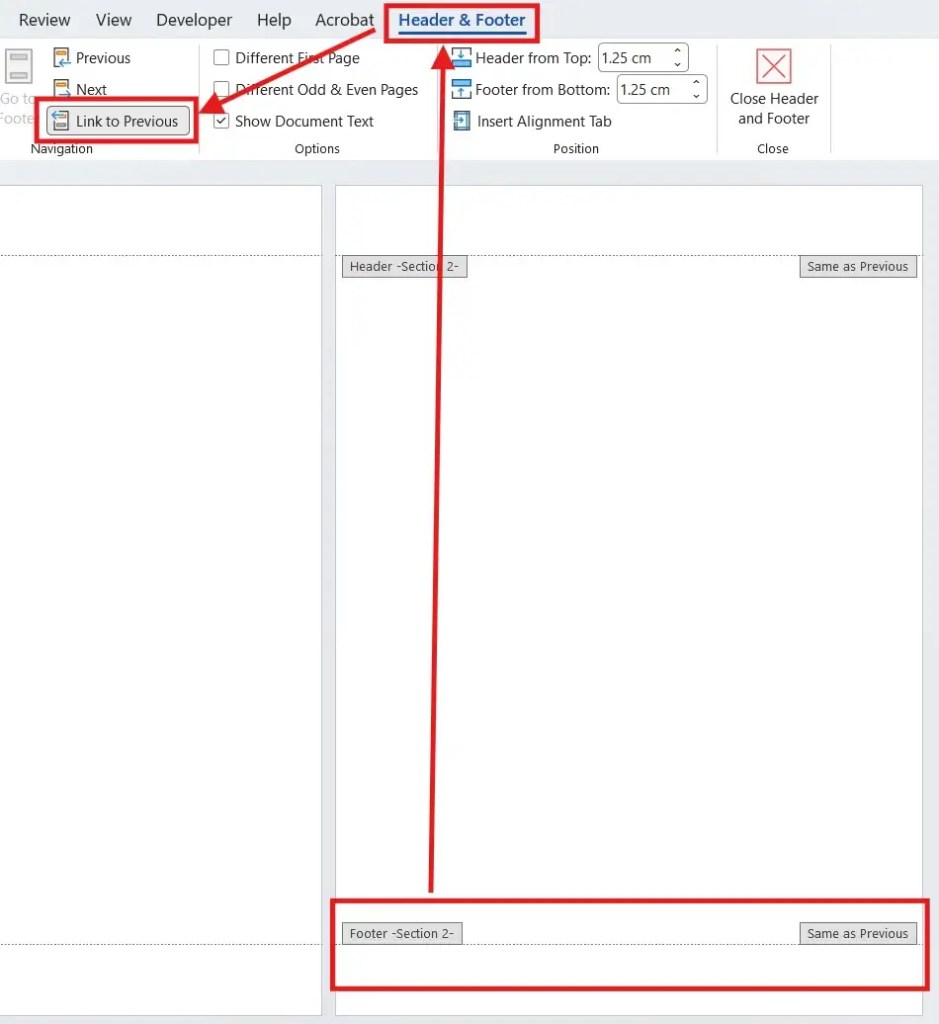
You’ll know it’s disabled when Same as Previous disappears.
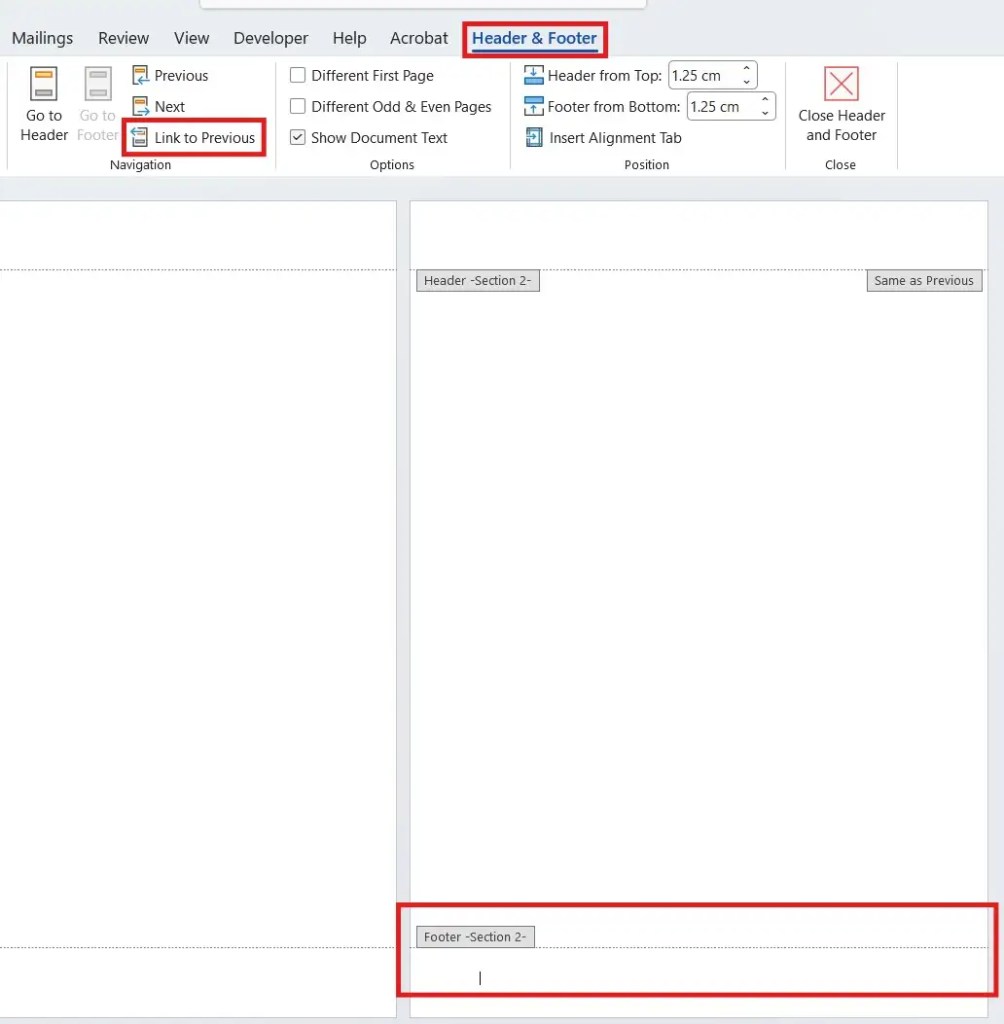
You can now type a new footer without affecting earlier pages.
To repeat the process:
- Insert a new blank page
- Select where the new footer should start
- Go to Layout → Breaks → Next Page
- Double-click the footer
- Turn off Link to Previous
- Type the new footer text
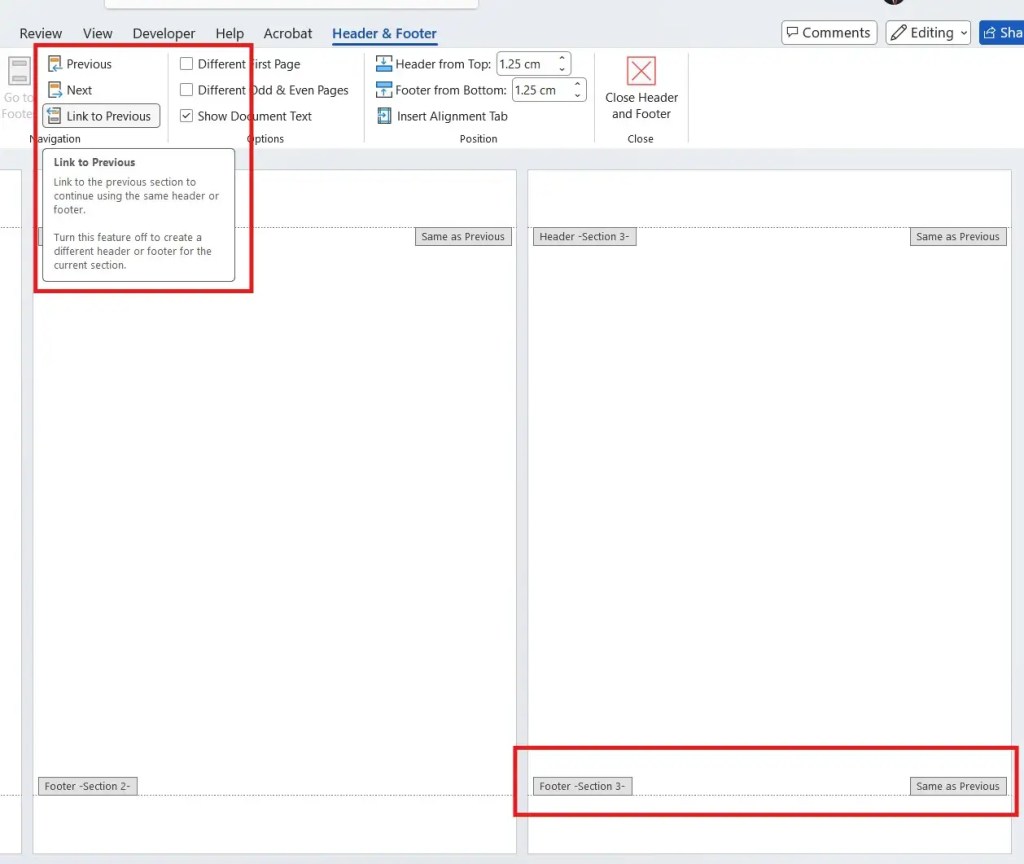
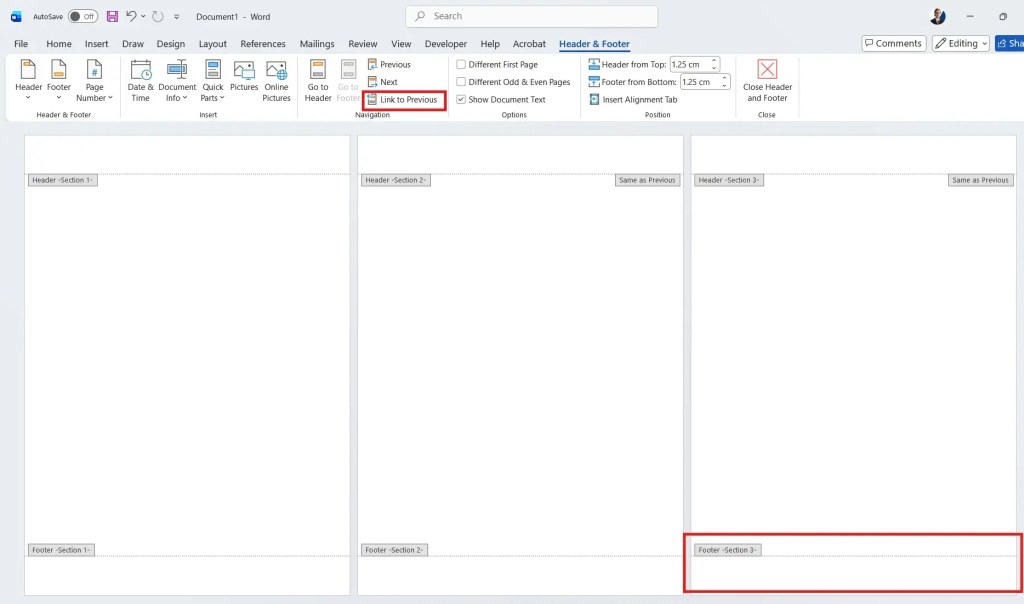
Each section now has its own independent footer.

- Forgetting to turn off Link to Previous
- Editing the header instead of the footer
- Assuming Different First Page works for all pages
- Not checking section numbers
Important: Headers and footers follow separate rules. Always double-click the footer, not the header.
FAQs
Why does my footer keep changing on every page?
Your pages are in the same section and the footers are linked.
Can I have a different footer on every page in Word?
Yes. Each page must start a new section, and footers must be unlinked.
What does “Link to Previous” mean?
It means the footer copies content from the previous section.
Do headers and footers behave the same way?
No. Headers and footers are controlled separately and must be edited individually.
Is Different First Page enough for most documents?
Only if you need one unique first-page footer. For multiple footers, use sections.
Will this work in Microsoft 365 and older versions?
Yes. Section breaks and footer linking work in most modern desktop versions of Word.
Conclusion
Adding different footers in Microsoft Word requires more than simply typing new text. Footers repeat because pages share the same section.
By using Section Breaks and disabling Link to Previous, you gain full control over footer content on every page. This method works reliably and prevents formatting issues later.
Once you understand how sections work, managing headers and footers in Word becomes much easier—especially for longer or more complex documents.

More Microsoft Word Tutorials

Looking for more help with Microsoft Word? Browse all step-by-step Word tutorials covering formatting, layout, pages, and document setup.
👉 View all Microsoft Word tutorials: https://wordmadeeasy.org/microsoft-word/

Prefer watching instead of reading? Many Word tutorials are also available as short, step-by-step videos on the Word Made Easy YouTube channel.













Leave a Reply