
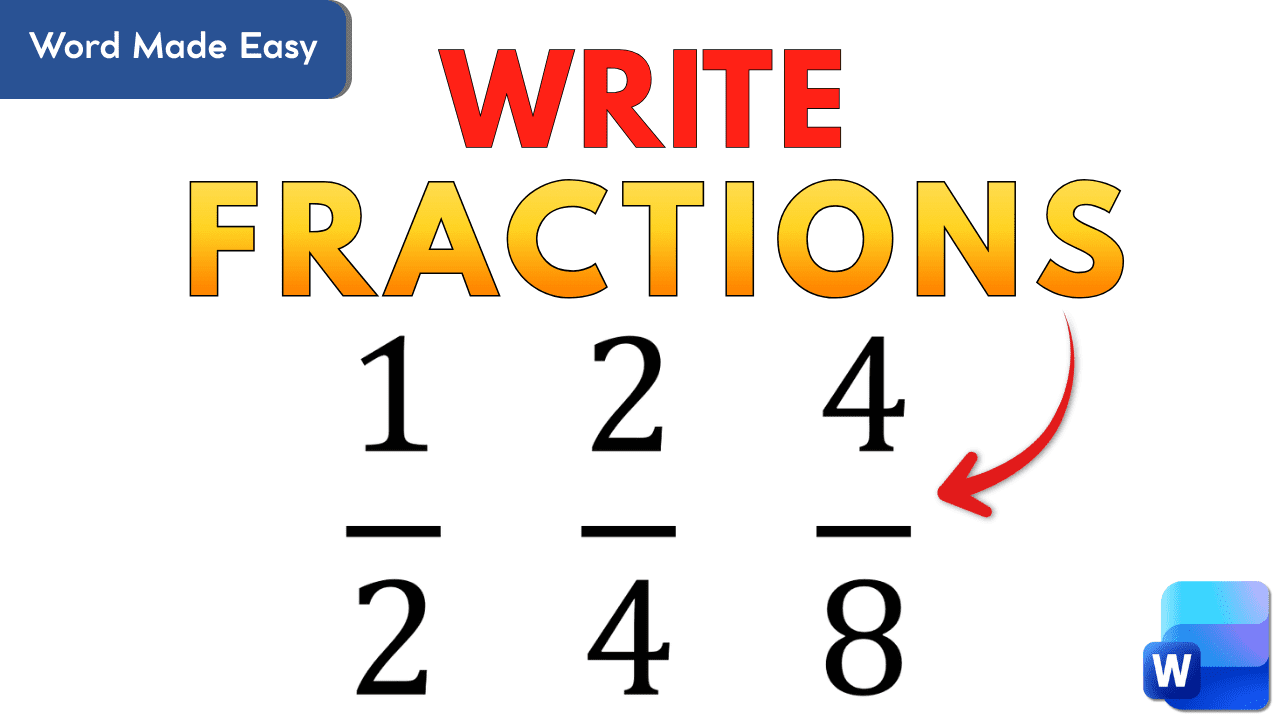
Writing fractions in Microsoft Word can feel confusing at first. Still, once you understand the built-in tools, the process becomes quick and simple. This guide explains how to write fractions in Word using clear steps that anyone can follow.
Whether you are a student, teacher, or professional, neat fractions improve the look of your documents. More importantly, Word includes an Equation tool that formats fractions correctly every time. As a result, you no longer need to rely on messy typing or spacing tricks.
Why Use the Equation Tool for Fractions in Microsoft Word
Microsoft Word offers an Equation feature designed for math content. Instead of typing numbers manually, this tool creates clean and professional fractions.
Here are a few key benefits:
- Fractions stay aligned and readable
- Formatting remains consistent
- Editing is fast and easy

Because of these advantages, the Equation tool is the best option for writing fractions.
Watch the Video Tutorial
If you prefer to see this in action, the full video walkthrough is below, showing each method step by step.
Method 1: Writing Fractions Using the Insert Equation Tool
First, open your document in Microsoft Word.
Next, click the Insert tab at the top of the screen.
Then, select Equation and choose Insert New Equation.

As a result, Word opens a special box for mathematical entry.
Once you do this, Word opens an equation box where you can type math expressions.
Creating a Fraction Quickly
To write a fraction:
- Type the numerator
- Add a forward slash ( / )
- Type the denominator
- Press the spacebar
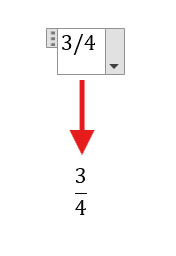
For example, typing 1/2 and pressing space instantly turns it into a proper fraction. This method works for most basic fractions.
Method 2: Writing Multiple Fractions in One Line
Sometimes, you need more than one fraction in a sentence or equation. Fortunately, Word makes this easy.
After finishing your first fraction:
- Press the spacebar twice
- Start typing the next fraction
This method is useful for comparisons or math exercises.
Method 3: Writing Improper Fractions in Word
Improper fractions work the same way as regular ones.
For instance, typing 7/3 and pressing space creates a correctly formatted improper fraction.
In other words, no extra steps are needed. Word handles the formatting automatically.
Method 4: Using Fraction Templates for Advanced Formatting
If you want more control over how fractions look, Word includes ready-made templates.
How to Access Fraction Templates
First, go to Insert → Equation → Insert New Equation.
Next, click the Fraction button in the Equation Design menu.
Then, choose a style like:
- Stacked fraction
- Skewed fraction
- Linear fraction
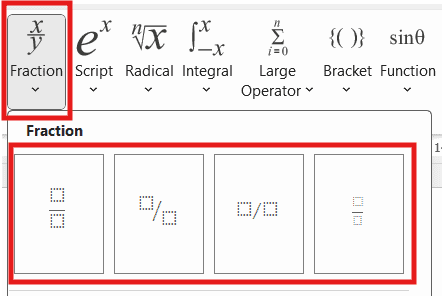
Finally, click inside each box and enter your numbers.
This choice is ideal for worksheets, exams, and formal documents.
Helpful Keyboard Shortcut
To save time, press Alt + = on your keyboard.
As a result, the Equation Editor opens instantly.
This shortcut is especially helpful when working with many equations.
FAQs: How to Write Fractions in Word
Can I write fractions without the Equation tool?
Yes, but they will not look professional or consistent.
Does this work in all versions of Word?
Yes, most modern versions support these features.
Can fractions be edited later?
Absolutely. Simply click the fraction and change the numbers.
Are fractions printable?
Yes, equation-based fractions print clearly.
Can I copy fractions between documents?
Yes, the formatting stays intact.
Which fraction style is best for school work?
Stacked fractions are usually the best choice.
Final Thoughts
Learning how to write fractions in Word is a valuable skill that improves document quality. By using the Equation tool and fraction templates, you can create clean and professional fractions in seconds.
Once you practice a few times, the process becomes second nature. As a result, your documents will look clearer, more polished, and easier to understand.

More Microsoft Word Tutorials

Looking for more help with Microsoft Word? Browse all step-by-step Word tutorials covering formatting, layout, pages, and document setup.
👉 View all Microsoft Word tutorials: https://wordmadeeasy.org/microsoft-word/

Prefer watching instead of reading? Many Word tutorials are also available as short, step-by-step videos on the Word Made Easy YouTube channel.














Leave a Reply