
Common symbol alt codes cover the everyday signs that are not on the keyboard: ticks, crosses, check boxes, bullets, ©, ™ and proper dashes. This guide lists 36 of them with two ways to type each, and if you want interactive boxes people can click, see how to insert tick marks in Word.
In this guide, you’ll learn the codes for ticks and boxes, bullets and shapes, legal and business marks and punctuation, plus which of them Word already types for you. Everything here works in Word for Windows in Microsoft 365, Word 2021, 2019 and 2016.
Download the Free PDF Cheat Sheet
All 36 common symbol alt codes in this guide fit on a free one-page A4 printable PDF. Print it for your desk or keep it open while you work.
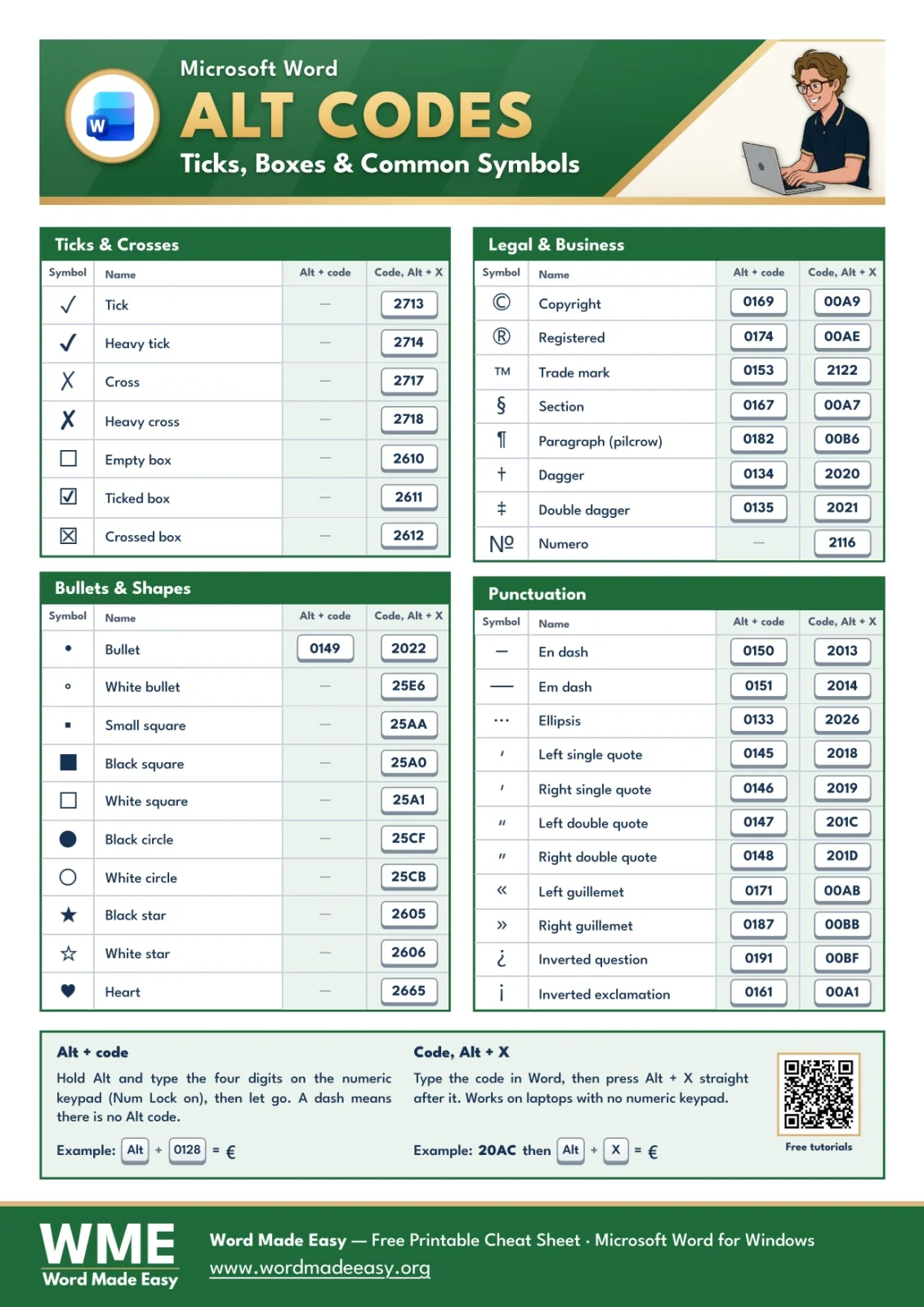
What This Common Symbols Cheat Sheet Covers
The sheet groups the symbols by job: marking things done, building lists, labelling legal text and getting punctuation right. Nineteen of them have a classic Alt code; every one has an Alt + X code.
It is most useful when you need to:
- Make a printed checklist with ☐ boxes or ✓ ticks.
- Add ©, ® or ™ to a report, a product name or a footer.
- Use a real en dash or em dash instead of a hyphen.
- Switch between straight and curly quotes or add «guillemets».
How to Type an Alt Code in Word
An Alt code is a four-digit number you type on the numeric keypad while holding Alt. Word turns the number into the symbol the moment you let go. The leading zero matters: Alt + 0128 gives €, while the same digits without the zero give a different character.
Steps:
- Click where you want the symbol.
- Make sure Num Lock is on (the keypad light is lit).
- Hold down Alt.
- Type the four digits on the numeric keypad, not the number row above the letters.
- Let go of Alt. The symbol appears.
👉 The symbol takes the font of the text around it, so it matches your document.
How to Use Alt + X in Word
Alt + X is a Word feature that turns a Unicode code into its symbol. It works for every symbol on the sheet, including the ones with no Alt code, and it does not need a numeric keypad, so it is the method to use on a laptop.
Steps:
- Type the code from the Alt + X code column, for example 2713.
- Leave the cursor straight after the code.
- Press Alt + X. The code changes to ✓.
👉 Press Alt + X again straight after the symbol to turn it back into its code. If the code sits right after other letters or numbers, add a space first, or Word may read them as part of the code.
Tick, Cross and Check Box Codes
Ticks and boxes have no classic Alt code, so use the Alt + X code.
| Symbol | Name | Alt code | Alt + X code |
|---|---|---|---|
| ✓ | Tick | — | 2713 then Alt + X |
| ✔ | Heavy tick | — | 2714 then Alt + X |
| ✗ | Cross | — | 2717 then Alt + X |
| ✘ | Heavy cross | — | 2718 then Alt + X |
| ☐ | Empty box | — | 2610 then Alt + X |
| ☑ | Ticked box | — | 2611 then Alt + X |
| ☒ | Crossed box | — | 2612 then Alt + X |
👉 These boxes are printed symbols. For a box you can tick on screen, use a content control — see how to insert tick marks in Word.
Bullet and Shape Codes
| Symbol | Name | Alt code | Alt + X code |
|---|---|---|---|
| • | Bullet | Alt + 0149 | 2022 then Alt + X |
| ◦ | White bullet | — | 25E6 then Alt + X |
| ▪ | Small square | — | 25AA then Alt + X |
| ■ | Black square | — | 25A0 then Alt + X |
| □ | White square | — | 25A1 then Alt + X |
| ● | Black circle | — | 25CF then Alt + X |
| ○ | White circle | — | 25CB then Alt + X |
| ★ | Black star | — | 2605 then Alt + X |
| ☆ | White star | — | 2606 then Alt + X |
| ♥ | Heart | — | 2665 then Alt + X |
👉 To use any of these as list bullets, see how to create bulleted lists in Word and pick Define New Bullet.
Legal and Business Symbol Alt Codes
| Symbol | Name | Alt code | Alt + X code |
|---|---|---|---|
| © | Copyright | Alt + 0169 | 00A9 then Alt + X |
| ® | Registered | Alt + 0174 | 00AE then Alt + X |
| ™ | Trade mark | Alt + 0153 | 2122 then Alt + X |
| § | Section | Alt + 0167 | 00A7 then Alt + X |
| ¶ | Paragraph (pilcrow) | Alt + 0182 | 00B6 then Alt + X |
| † | Dagger | Alt + 0134 | 2020 then Alt + X |
| ‡ | Double dagger | Alt + 0135 | 2021 then Alt + X |
| № | Numero | — | 2116 then Alt + X |
👉 Word also turns (c), (r) and ™ into ©, ® and ™ as you type.
Punctuation Alt Codes
| Symbol | Name | Alt code | Alt + X code |
|---|---|---|---|
| – | En dash | Alt + 0150 | 2013 then Alt + X |
| — | Em dash | Alt + 0151 | 2014 then Alt + X |
| … | Ellipsis | Alt + 0133 | 2026 then Alt + X |
| ‘ | Left single quote | Alt + 0145 | 2018 then Alt + X |
| ’ | Right single quote | Alt + 0146 | 2019 then Alt + X |
| “ | Left double quote | Alt + 0147 | 201C then Alt + X |
| ” | Right double quote | Alt + 0148 | 201D then Alt + X |
| « | Left guillemet | Alt + 0171 | 00AB then Alt + X |
| » | Right guillemet | Alt + 0187 | 00BB then Alt + X |
| ¿ | Inverted question | Alt + 0191 | 00BF then Alt + X |
| ¡ | Inverted exclamation | Alt + 0161 | 00A1 then Alt + X |
👉 For more on long dashes, see how to create an em dash in Word.
Common Problems and Fixes
- Nothing happens, or a different character appears: turn on Num Lock and use the numeric keypad. The number row above the letters does not work for Alt codes.
- No numeric keypad: use the Alt + X code instead. It needs no keypad.
- Alt + X changes the wrong text: put a space before the code so Word does not include the letters in front of it.
- An empty box appears: the font has no picture for that symbol. Select it and pick a fuller font such as Aptos, Segoe UI or Arial — see how to change the font in Word.
Pro Tips for Common Symbol Alt Codes
- Word types curly quotes for you when “Straight quotes with smart quotes” is on in AutoFormat As You Type.
- Two hyphens between words become an en or em dash as you type, through the same AutoFormat setting.
- Use § and ¶ with a non-breaking space (Ctrl + Shift + Space) so “§ 4” never splits across lines.
- Keep the legal document shortcuts cheat sheet with this one if you draft contracts.
FAQs
What is the Alt code for a tick in Word?
A tick has no classic Alt code. Type 2713 and press Alt + X for ✓, or 2714 for the heavy ✔.
How do I type a check box symbol?
Type 2610 and press Alt + X for ☐. Use 2611 for ☑ and 2612 for ☒.
What is the Alt code for the copyright symbol?
Hold Alt and type 0169 on the numeric keypad for ©, or type (c) and let AutoCorrect change it.
What is the Alt code for the trade mark symbol?
Hold Alt and type 0153 on the numeric keypad for ™, or type 2122 and press Alt + X.
What are the Alt codes for the en dash and em dash?
Alt + 0150 gives the en dash (–) and Alt + 0151 gives the em dash (—).
What is the Alt code for a bullet point?
Hold Alt and type 0149 on the numeric keypad for •, or type 2022 and press Alt + X.
Conclusion
Common symbol alt codes cover the signs you reach for every week — ticks, boxes, bullets, © and proper dashes — without opening a menu.
Download the free PDF, and for French, Spanish and German letters, the companion guide to accented letter alt codes in Word completes the set.
Related Tutorials
Word Tutorials
Recent Microsoft Word Tutorials
Browse the complete collection for help with formatting, layout, pages, tables, images, and document setup.
For Microsoft support documentation, visit the official Microsoft guidance.
Leave a Reply