Word Formatting Basics
Word Formatting Basics in Microsoft Word
Formatting is what transforms plain text into a clear, professional, and well-structured document. In Microsoft Word, formatting controls how your content looks, how it flows across the page, and how easy it is for readers to understand.
If you’ve ever struggled with uneven spacing, messy alignment, inconsistent fonts, or documents that “just don’t look right,” formatting is the key to fixing it.
This section brings together step-by-step tutorials that teach you the core formatting skills every Microsoft Word user should master.
What Does Formatting Mean in Microsoft Word?
Formatting refers to the visual presentation of your document. While typing creates the content, formatting controls how that content appears on the page.
In Microsoft Word, formatting includes:
-
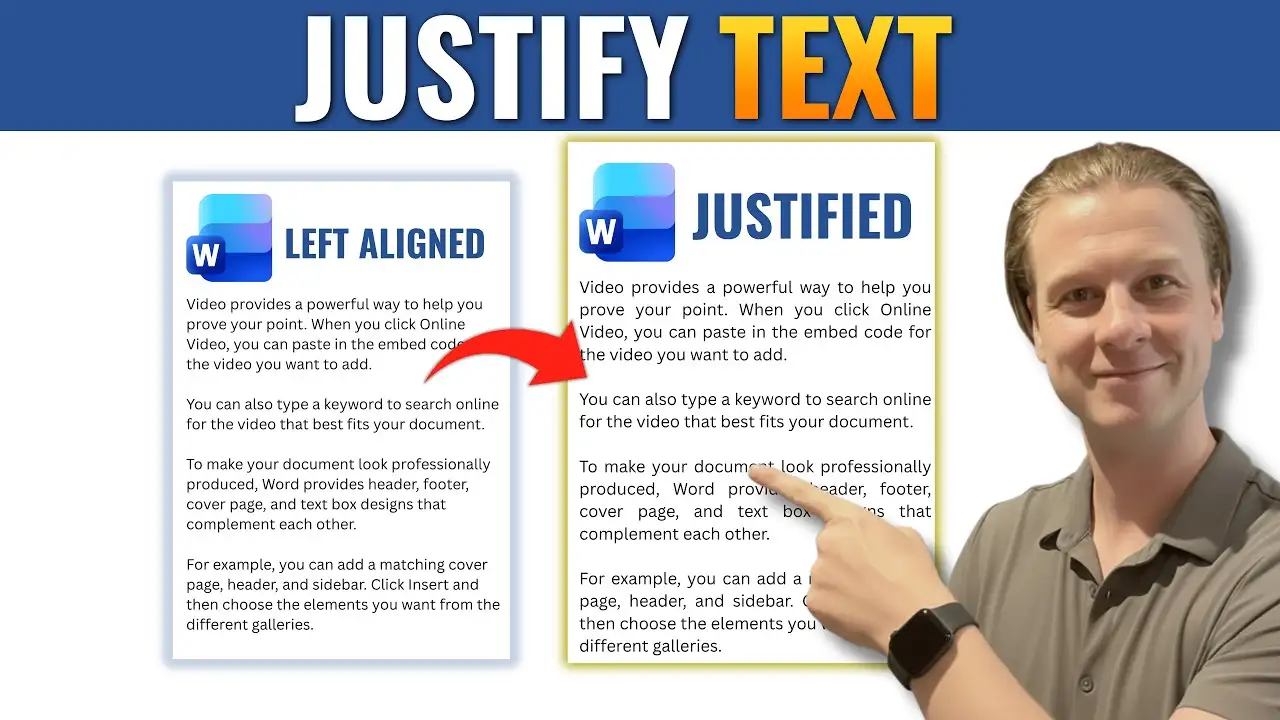
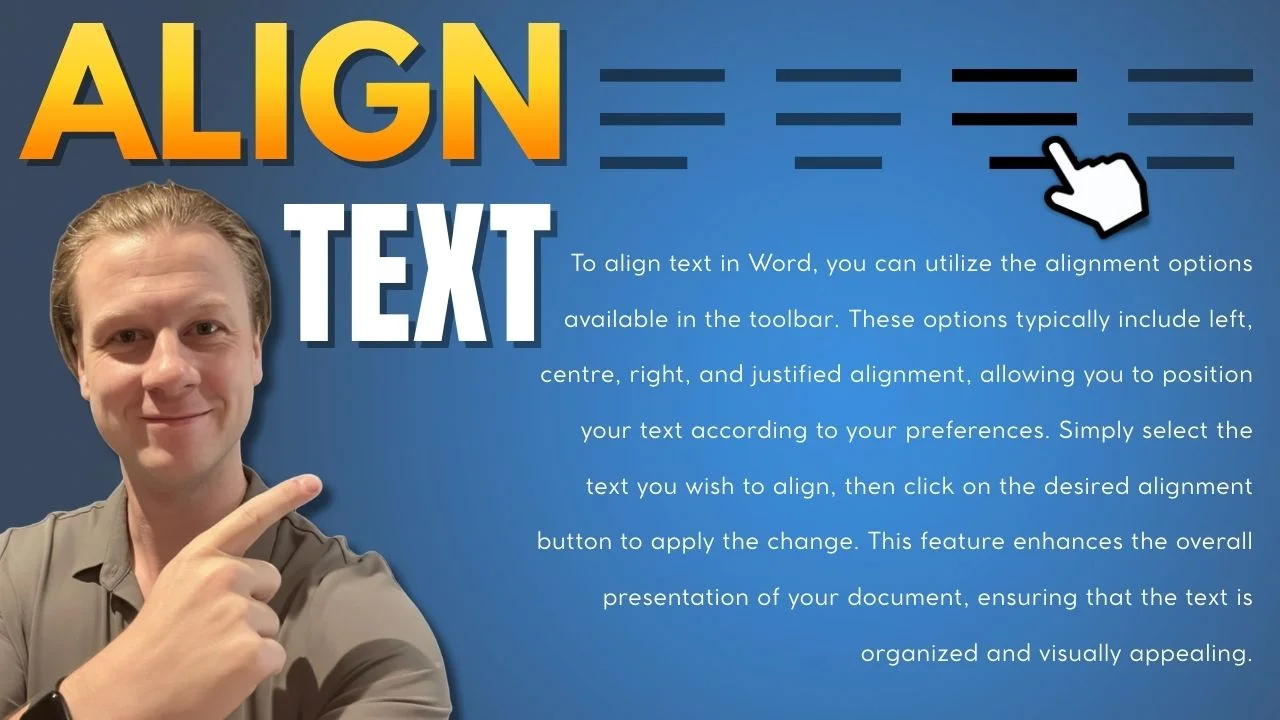
Text alignment (left, center, right, justified)
-
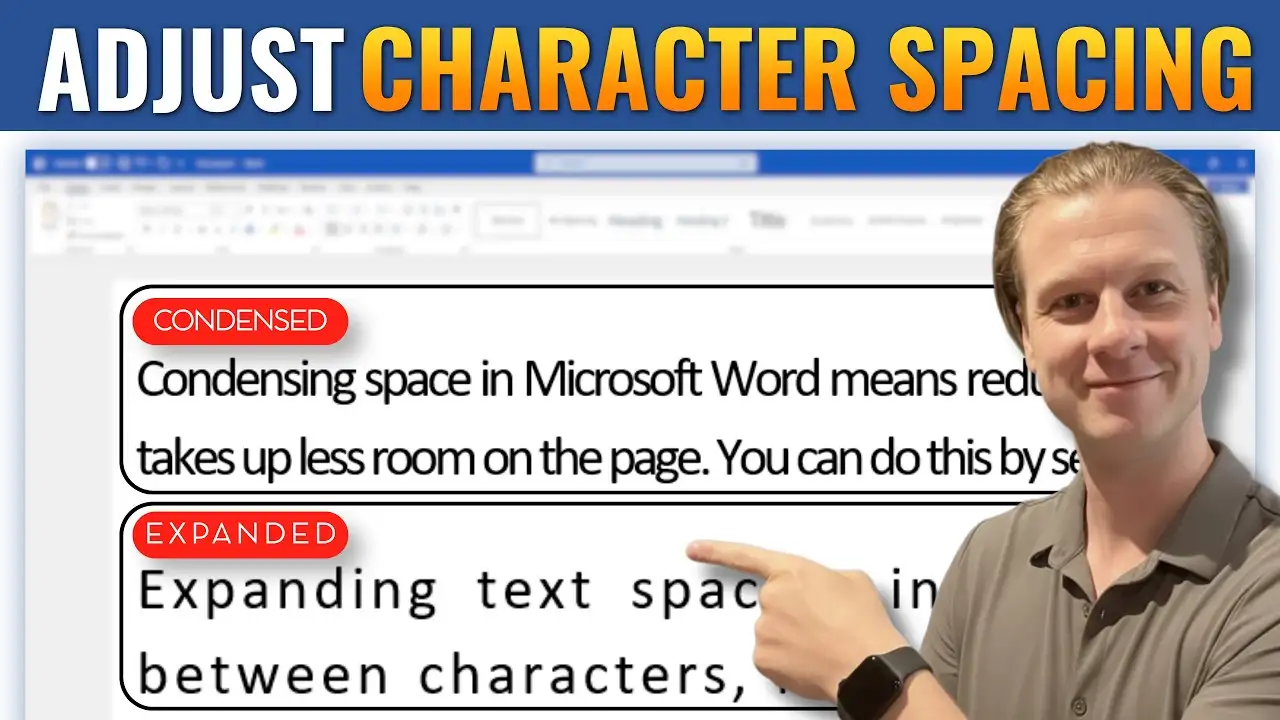
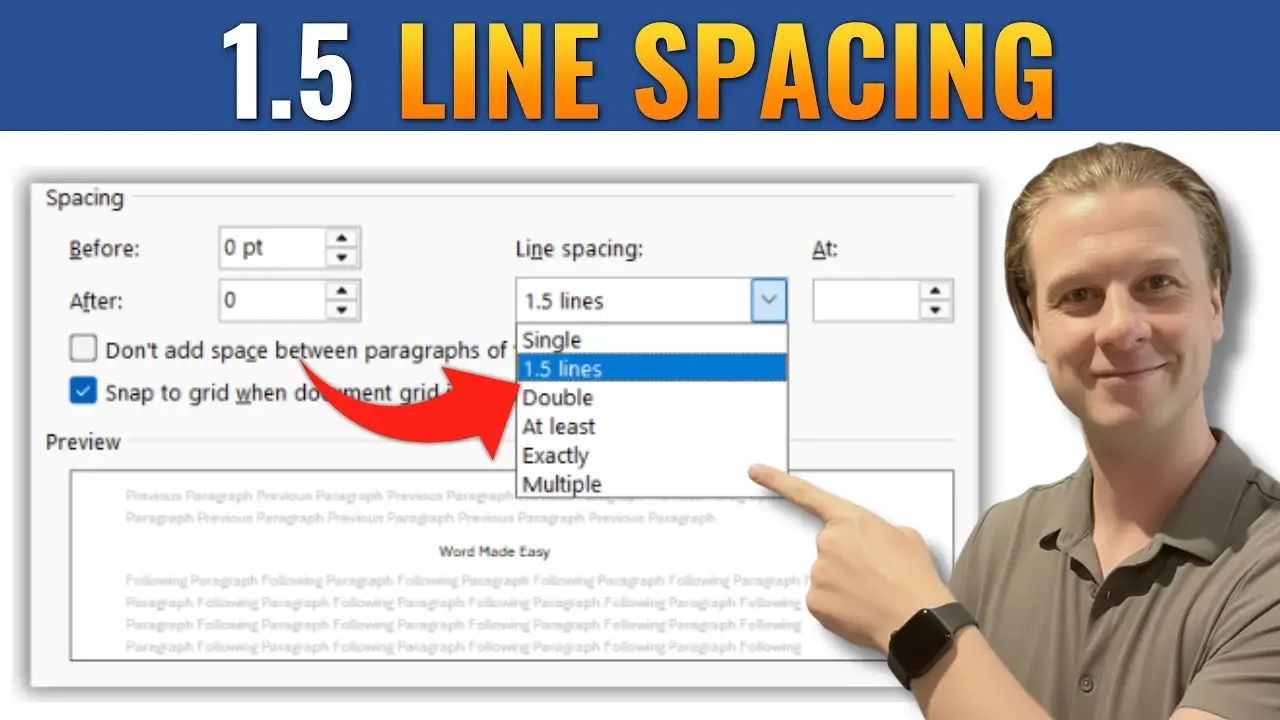
Line spacing and paragraph spacing
-
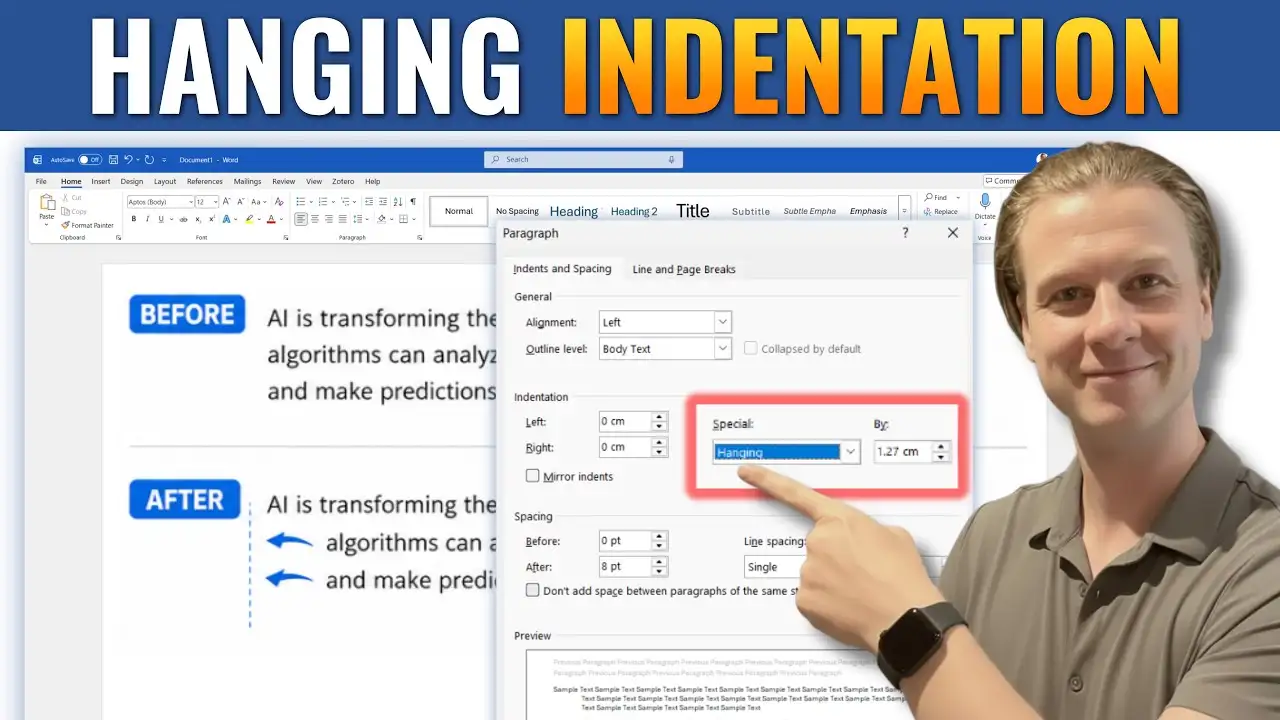
Indentation settings
-
Margins and page layout controls
-
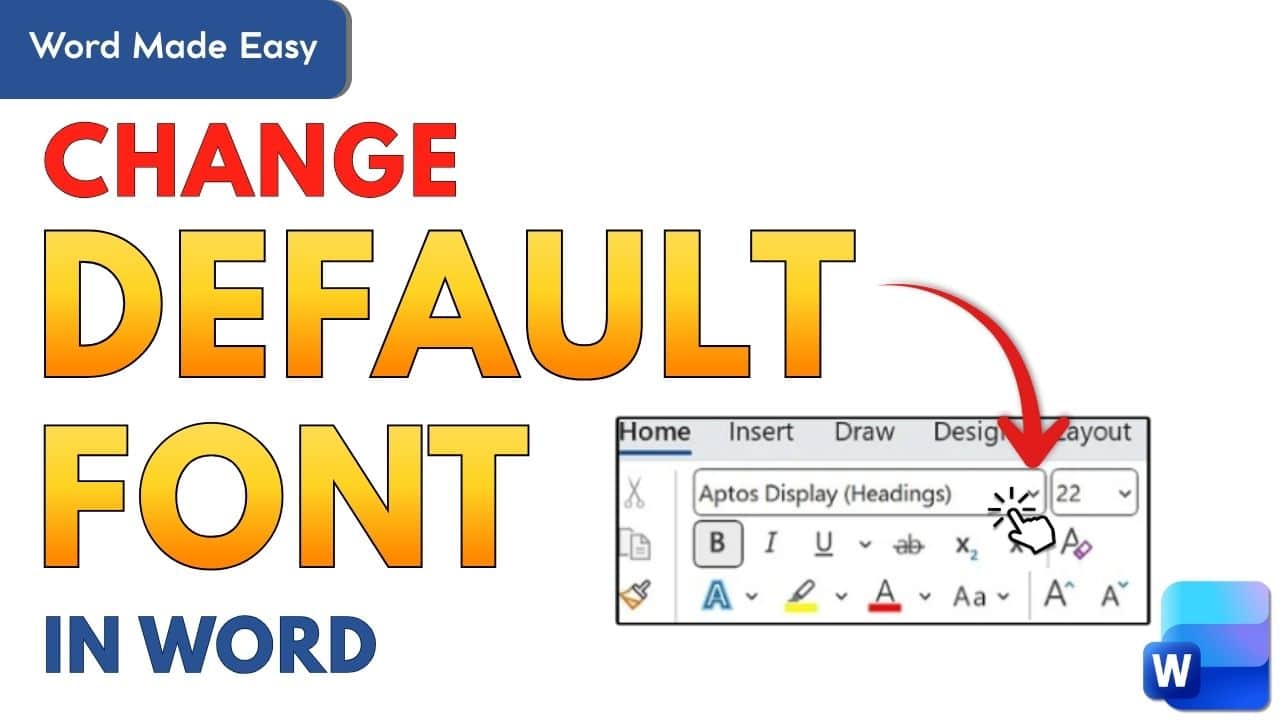
Fonts, font sizes, and text styles
-
Paragraph formatting options
Two documents can contain identical text but look completely different depending on how they are formatted. Proper formatting improves clarity, structure, and professionalism.
Why Learning Word Formatting Is Important
Many users rely on quick fixes like pressing the spacebar repeatedly or hitting Enter multiple times to adjust spacing. While these shortcuts might work temporarily, they often create bigger layout problems later.
Learning to use Word’s built-in formatting tools correctly allows you to:
-
Create clean, professional documents
-
Maintain consistent spacing and alignment
-
Format assignments, reports, and resources properly
-
Avoid layout errors and broken formatting
-
Edit documents faster and more efficiently
Good formatting saves time and prevents frustration.
Core Formatting Skills You Should Master
To build a strong foundation in Microsoft Word, focus on mastering these essential skills:
Text Alignment and Justification
Understand when to use left alignment, centered headings, right alignment, or justified text — and how alignment affects readability.
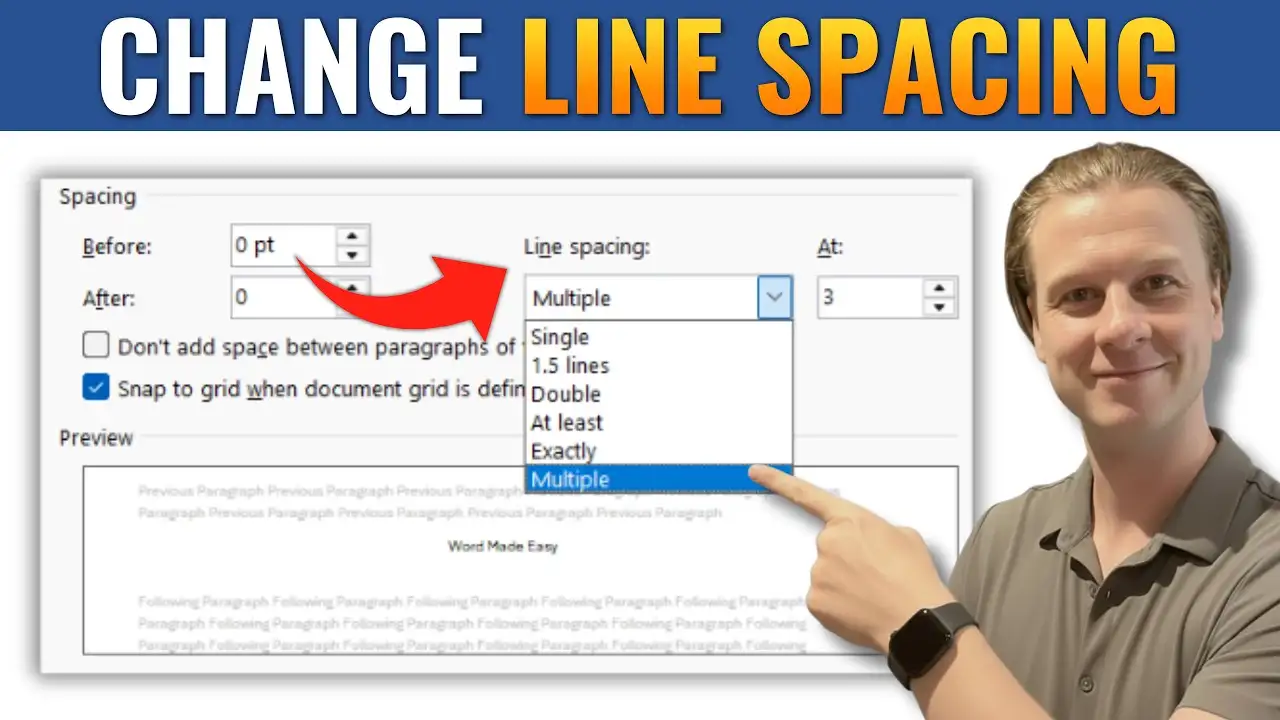
Line and Paragraph Spacing
Learn how to control spacing between lines and paragraphs to create clean, well-organized documents.
Indentation and Paragraph Structure
Use proper indentation tools instead of manual spacing to maintain consistent formatting throughout your document.
Margins and Page Setup
Adjust margins and layout settings to meet academic, professional, or printing requirements.
Fonts and Styles
Apply consistent fonts and built-in styles to keep your document structured and easy to update.
Each tutorial in this section focuses on one of these skills and explains the process clearly, step by step.
Common Formatting Mistakes to Avoid
When learning Microsoft Word formatting, beginners often make avoidable errors, including:
-
Using multiple spaces to align text
-
Pressing Enter repeatedly to create gaps
-
Ignoring paragraph spacing settings
-
Manually adjusting layout instead of using built-in tools
-
Not using heading styles for structure
Understanding how Word handles formatting behind the scenes helps you avoid these problems entirely.
What You’ll Learn in This Section
By working through the guides below, you’ll learn how to:
-
Format text clearly and professionally
-
Control alignment, spacing, and indentation
-
Set margins and layout correctly
-
Improve document structure and readability
-
Create consistent formatting across entire documents
Whether you’re new to Microsoft Word or refining your existing skills, this section provides practical tutorials that help you format documents correctly and confidently.