
Adjusting line spacing in Word is one of the fastest ways to make a document easier to read — and it’s often the first formatting change required for academic essays, business reports, and any document where readability matters. For a focused walkthrough on a specific value, see the guide on how to set 1.5 line spacing in Word.
In this guide, you’ll learn four reliable methods to change line spacing — using the Home tab, keyboard shortcuts, custom values, and the Normal style — plus how to fix the most common problems that stop spacing from updating.
What Is Line Spacing in Word?
Line spacing controls the vertical space between lines of text inside a paragraph. It’s the single biggest factor in how dense or airy a document feels on the page.
By default, Word uses:
- 1.08 spacing in Word 365 and newer versions
- 1.15 spacing in Word 2007 through 2021
Changing line spacing can make your document easier to read, tighten a long piece into fewer pages, or meet a specific formatting standard such as double spacing — for that specific use case, see the dedicated walkthrough on how to use double line spacing in Microsoft Word.
Watch the Video Tutorial
If you prefer to see this in action, the full video walkthrough is below, showing each method step by step.
How to Change Line Spacing in Word: Step-by-Step
There are four ways to change line spacing in Word. Use the Home tab for visual control, keyboard shortcuts for speed, custom values for exact precision, and the Normal style when you want spacing to stay the default in every new document.
Method 1: How to Change Line Spacing in Word from the Home Tab
This is the most beginner-friendly route — every spacing option sits behind a single dropdown.
Steps:
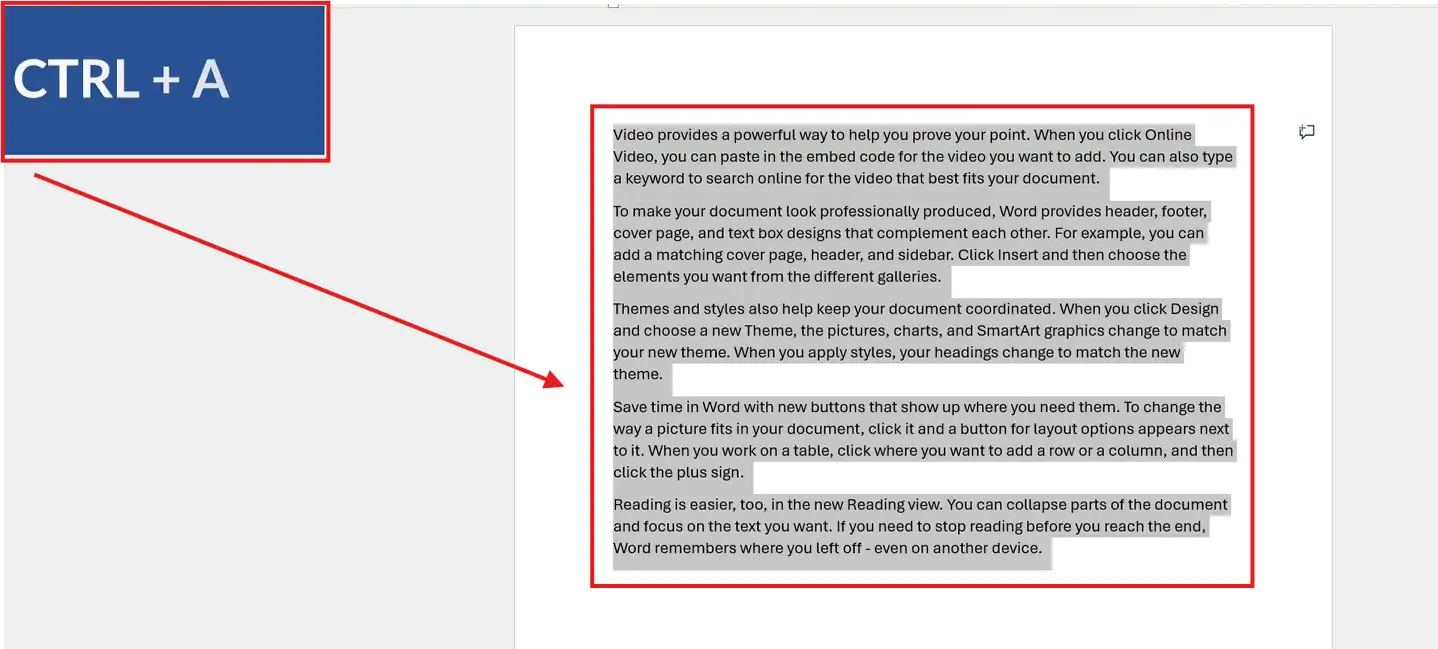
- Select your text by clicking and dragging, or press Ctrl + A to select everything
- Go to the Home tab
- In the Paragraph group, click the Line and Paragraph Spacing icon (two blue arrows)
- Choose a spacing option from the dropdown:
- 1.0 → Single spacing
- 1.15 → Slightly spaced
- 1.5 → One-and-a-half spacing
- 2.0 → Double spacing
- 2.5 / 3.0 → Larger spacing
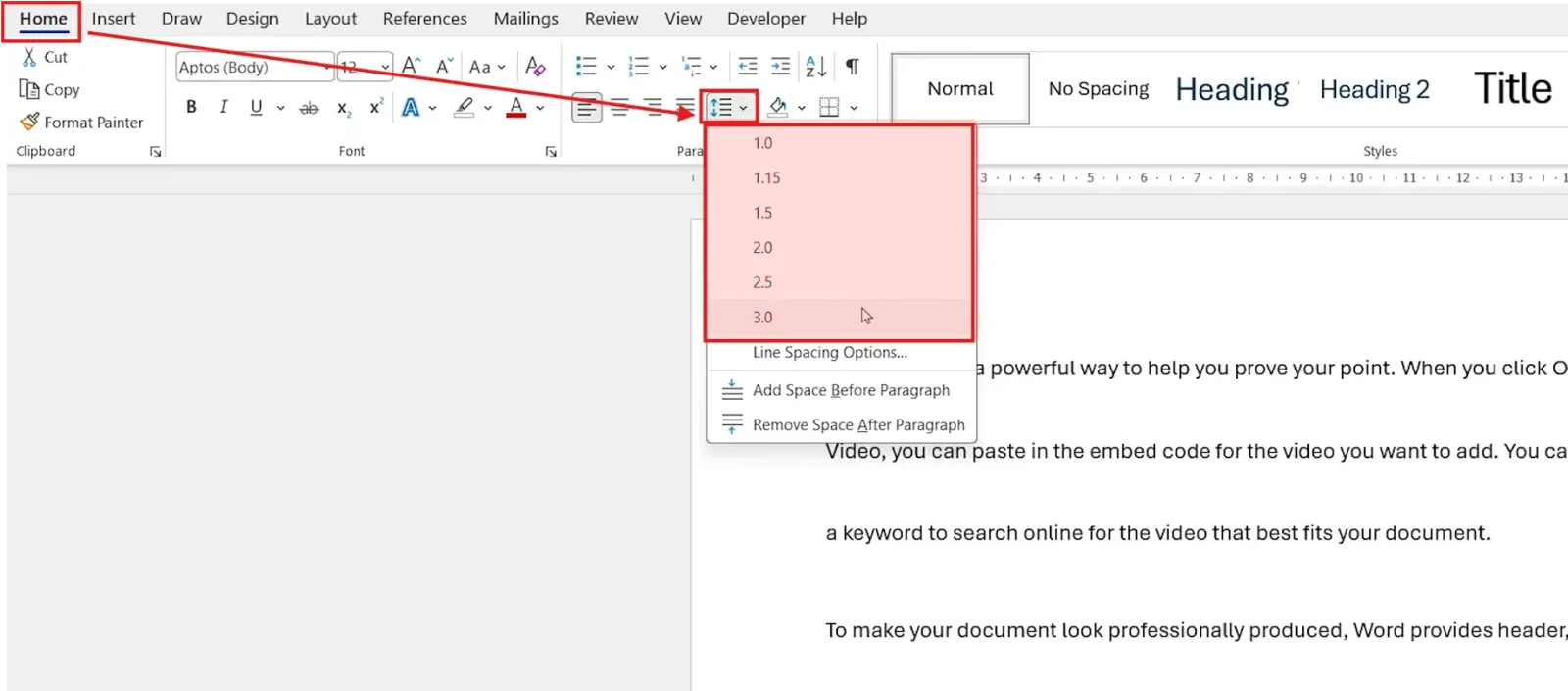
👉 The spacing updates instantly across the selected text.
Method 2: How to Change Line Spacing in Word Using Keyboard Shortcuts
If you format documents every day, the shortcut method is the fastest — see the full Microsoft Word keyboard shortcuts cheat sheet for more time-savers.
Shortcuts:
- Ctrl + 1 → Single spacing
- Ctrl + 2 → Double spacing
- Ctrl + 5 → 1.5 spacing
👉 Select your text first with Ctrl + A, then apply any of the three shortcuts above.
Method 3: How to Set Custom Line Spacing in Word
If you need a specific spacing value the dropdown doesn’t offer — say 1.3 for tight academic text or 2.6 for an oversized print layout — use the Line Spacing Options dialog box.
Steps:
- Select your text with Ctrl + A
- Go to Home → Line and Paragraph Spacing
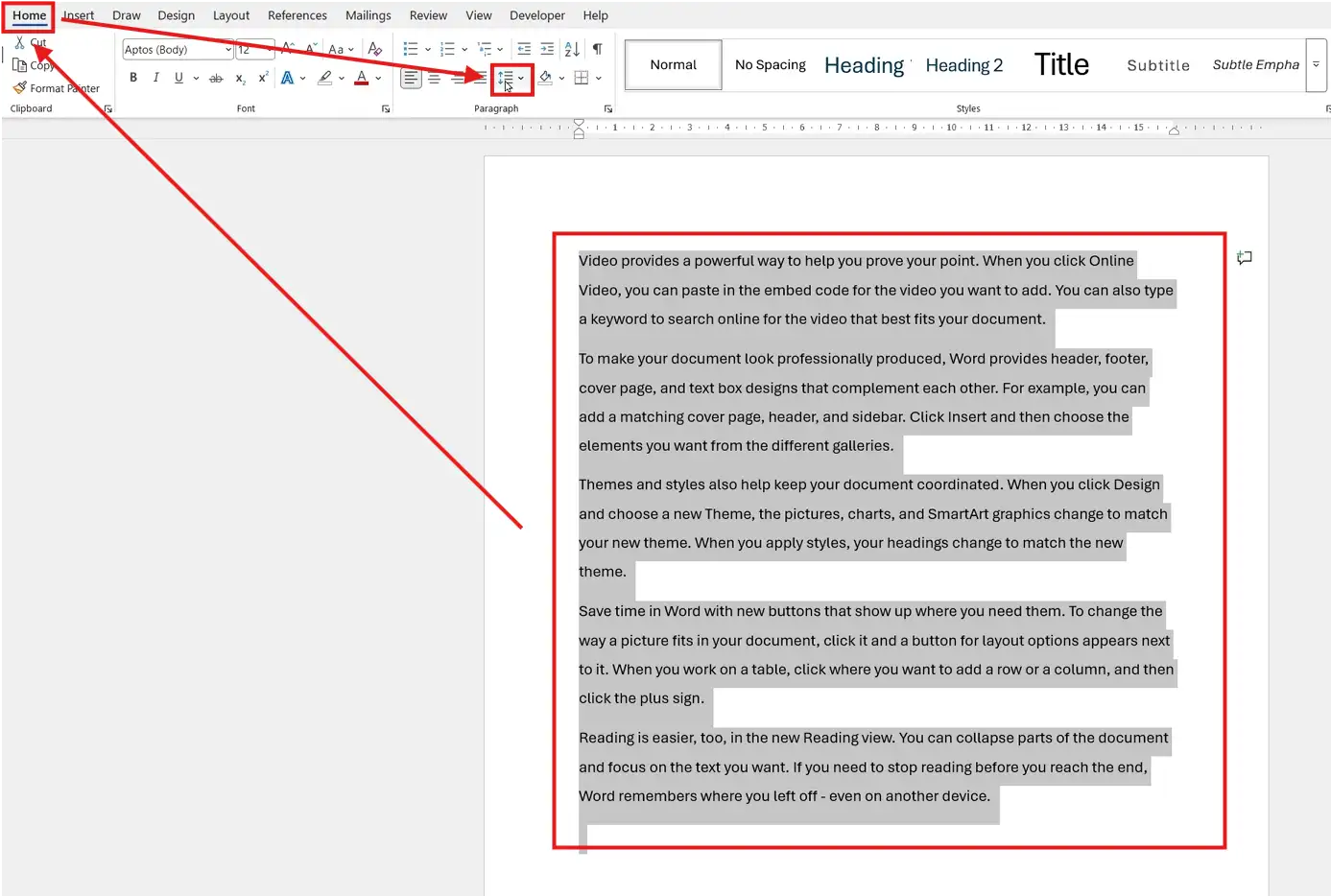
- Click Line Spacing Options at the bottom of the dropdown

- Under Line spacing, select Multiple
- In the At box, enter your desired value (e.g. 2.6)
- Click OK to apply
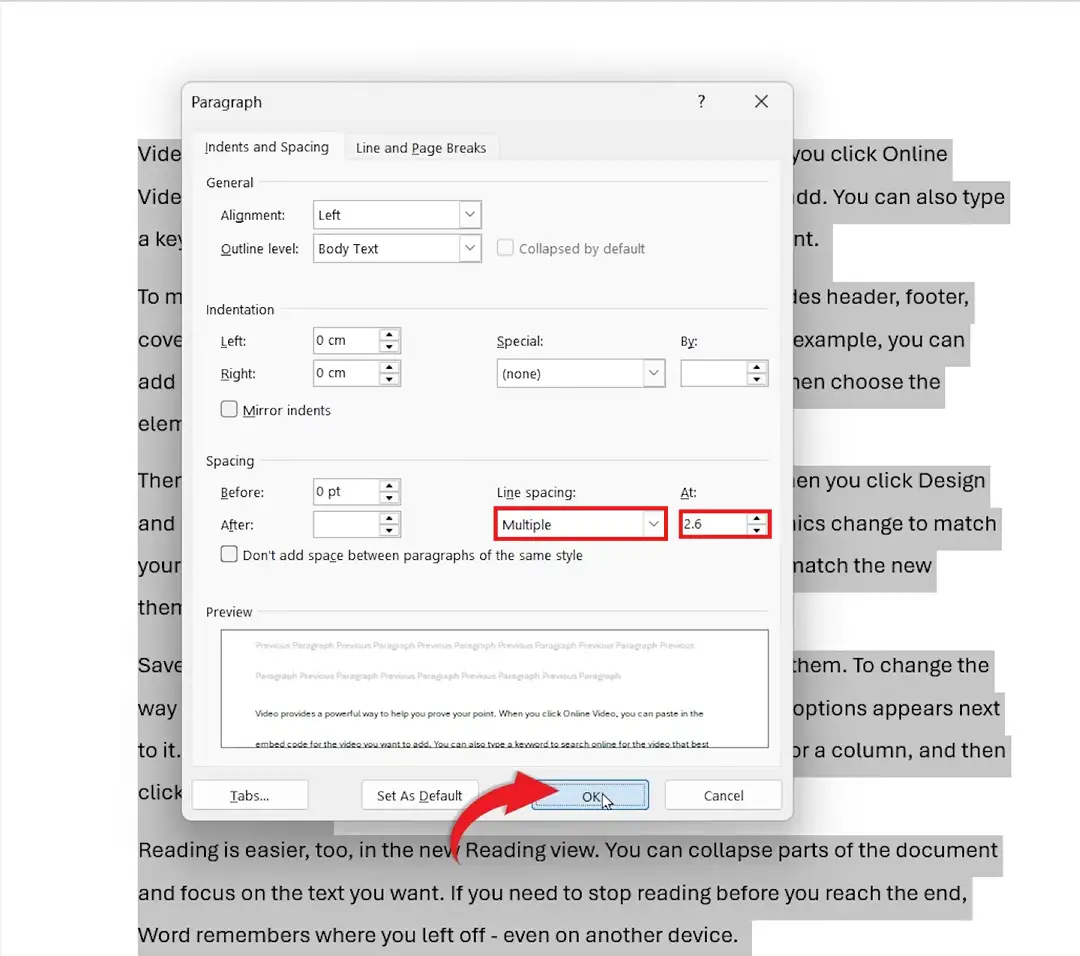
👉 Your custom spacing applies immediately across the selected text.
Method 4: How to Set Default Line Spacing in Word by Modifying the Normal Style
If you want Word to always open with your preferred spacing, change the Normal style — the same approach used to change the default font in Word.
Steps:
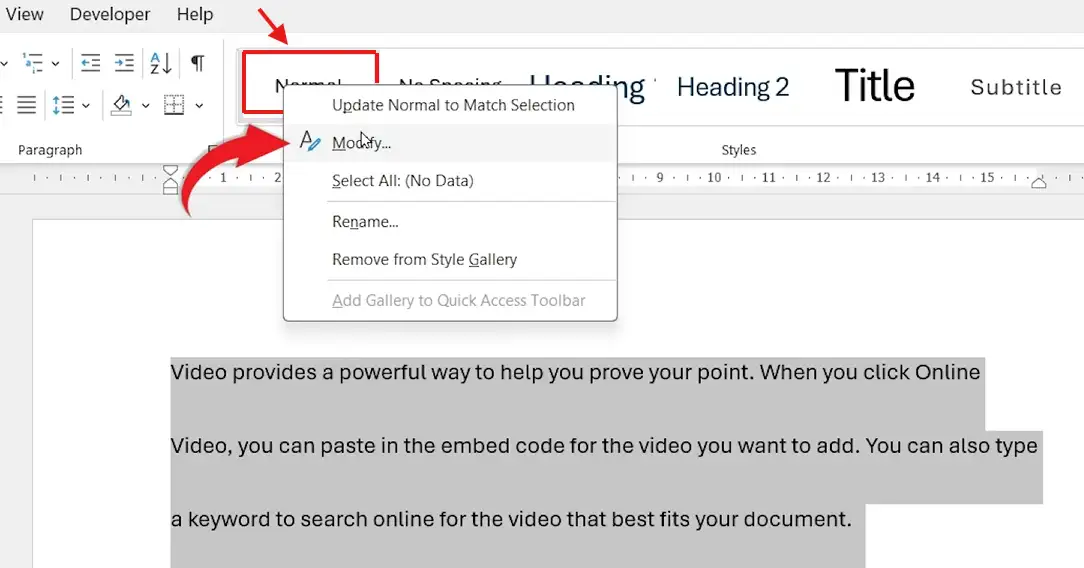
- On the Home tab, find the Styles group
- Right-click the Normal style
- Click Modify
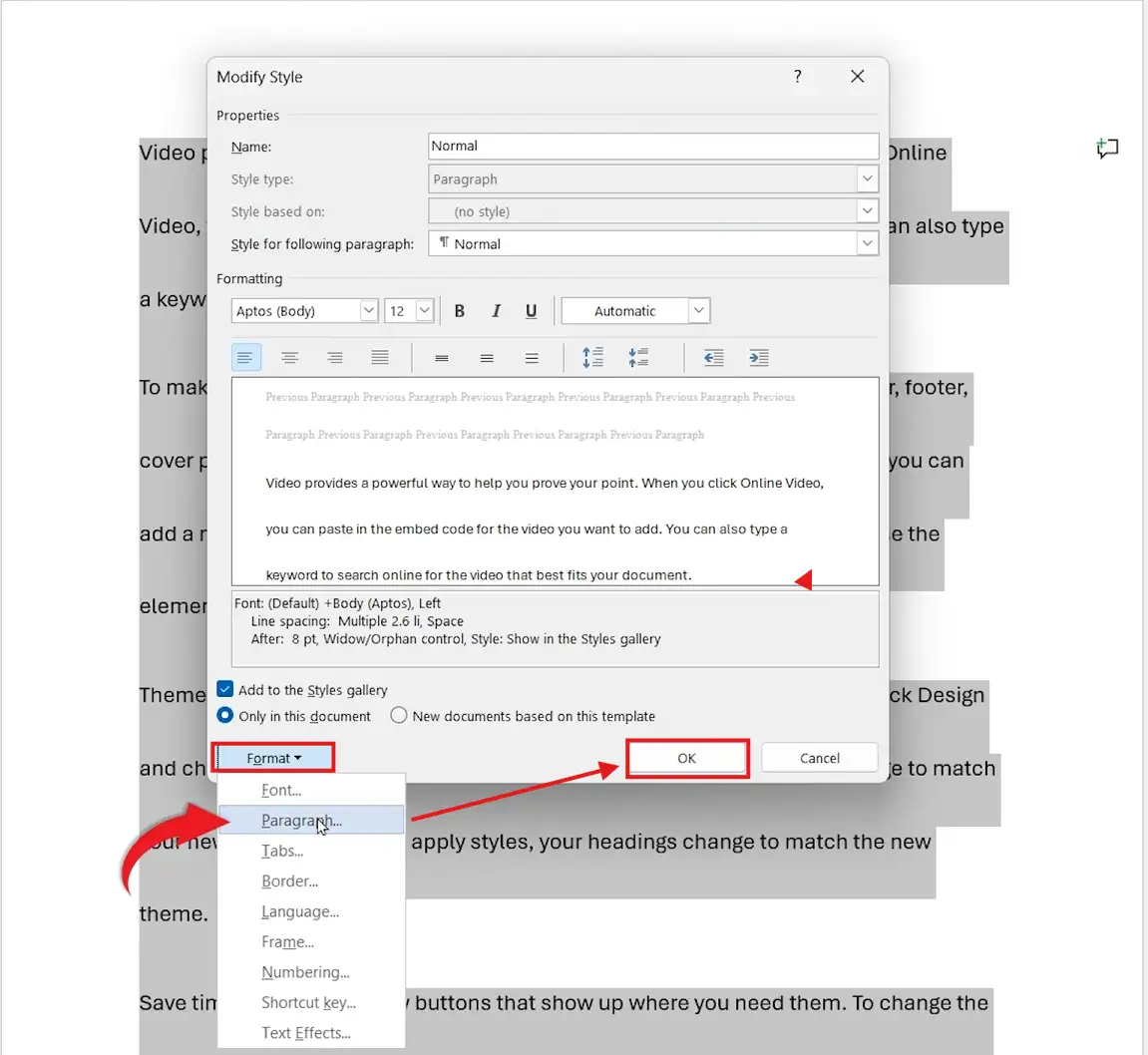
- In the Modify Style dialog, click Format → Paragraph
- Set your preferred line spacing value
- Tick New documents based on this template
- Click OK, then OK again
👉 Every new document using the Normal template now opens with your preferred line spacing.
Which Method Should You Use?
Every method delivers the same end result — pick the one that matches the job.
| Method | Best For | Speed |
|---|---|---|
| Home tab dropdown | Beginners and visual users | Fast |
| Keyboard shortcuts | Daily Word users who want speed | Fastest |
| Custom Line Spacing Options | Specific values like 1.3 or 2.6 | Slower but precise |
| Modify Normal style | Setting a permanent default | One-off setup |
Common Problems When Changing Line Spacing in Word
If line spacing isn’t behaving the way you expect, one of these four issues is usually the cause.
Spacing won’t change after I apply it
No text is selected. Press Ctrl + A to select the whole document, then reapply the spacing using the Home tab dropdown or a shortcut.
Only one paragraph updates when I want the whole document
Line spacing only applies to selected paragraphs. Select all the text with Ctrl + A before applying spacing, or modify the Normal style so it applies globally.
Spacing keeps resetting back to the default
A paragraph style is overriding your change. Modify the underlying style (Method 4) so your spacing is baked into the Normal style rather than fighting it.
The spacing looks wider than the value I selected
Word is adding extra space before or after the paragraph on top of your line spacing. Open the Paragraph dialog box and set Before and After to 0 pt so only the line spacing controls the layout.
Pro Tips
- Set your preferred spacing on the Normal style first — it saves repeating the same step every time you start a new document.
- Pair 1.5 line spacing with justified alignment for the cleanest academic look — see how to justify text in Microsoft Word for the full setup.
- For mixed spacing (cover page single-spaced, body double-spaced), apply spacing section by section instead of to the whole document at once.
- If your style guide demands a precise value like 1.3 or 1.7, use Method 3 — the dropdown only offers preset values, not custom ones.
FAQs
What is the default line spacing in Word?
The default line spacing in Word is 1.08 in Word 365 and newer versions, and 1.15 in Word 2007 through 2021. Word 2003 and earlier used 1.0 (single spacing) as the default.
How do I double space a document in Word?
Select your text with Ctrl + A, then press Ctrl + 2. You can also choose 2.0 from the Home tab Line and Paragraph Spacing dropdown.
Can I use custom line spacing values in Word?
Yes. Open Home → Line and Paragraph Spacing → Line Spacing Options, choose Multiple under Line spacing, and enter the exact value you need — for example 1.3, 2.6, or any other number.
Why is my line spacing not changing in Word?
Either no text is selected, or your paragraph style is overriding the setting. Select the text with Ctrl + A, or modify the Normal style directly to lock the new spacing in place.
How do I make line spacing consistent across all my Word documents?
Modify the Normal style with your preferred spacing and tick New documents based on this template. Every new document will then open with that spacing applied automatically.
Should I use 1.5 line spacing or double spacing?
It depends on the requirement. Many universities now accept 1.5 spacing as standard, while double spacing is still required for some journals and editorial submissions. Always check the style guide before submitting.
How do I change line spacing in Word on Mac?
The Home tab dropdown and Paragraph dialog work identically on Mac. The keyboard shortcuts use ⌘ instead of Ctrl — so ⌘ + 1 for single, ⌘ + 2 for double, and ⌘ + 5 for 1.5 spacing.
What’s the difference between line spacing and paragraph spacing?
Line spacing controls the space between lines inside a paragraph. Paragraph spacing (the Before and After values) controls the space between paragraphs. Both sit in the Paragraph dialog box and work independently of each other.
Conclusion
Changing line spacing in Word takes seconds once you know the route — the Home tab dropdown for visual control, keyboard shortcuts for speed, Line Spacing Options for custom values, or the Normal style for a permanent default.
If you need a specific spacing value next, the focused guide on how to single space in Word walks through the same methods for tightening a document back to 1.0 spacing in a few clicks.
Related Tutorials
- How to Use Double Line Spacing in Microsoft Word
- How to Set 1.5 Line Spacing in Word
- Microsoft Word Keyboard Shortcuts Cheat Sheet
Word Tutorials
Recent Microsoft Word Tutorials
Browse the complete collection for help with formatting, layout, pages, tables, images, and document setup.
For Microsoft support documentation, visit the official Microsoft guidance.
Leave a Reply