
To view two pages side by side in Word, open the View tab and select Side to Side under Page Movement. Pages sit next to each other and you move through the document horizontally, like turning pages in a book.
In this guide, you’ll learn 2 easy methods to view two pages side by side in Word, why one of them locks the zoom control and the other does not, and how to get back to a single page.
What Does Viewing Two Pages Side by Side Do?
It changes how one document is displayed, nothing more. Your pages, margins and layout are untouched — Word simply arranges the pages across the screen rather than stacking them down it. Useful for checking facing pages, reviewing a spread before printing, or seeing how a long document flows.
Word gives you three settings, spread across two groups on the View tab:
- Side to Side (Page Movement group) — pages sit beside each other and you scroll horizontally.
- Multiple Pages (Zoom group) — pages sit beside each other but scrolling stays vertical, and the zoom controls keep working.
- One Page (Zoom group) — back to a single page filling the window.
This is about pages within one file. Putting two separate documents beside each other is a different feature — see how to merge documents in Word if the goal is combining them instead.
Watch the Video Tutorial
If you prefer to see this in action, the full video walkthrough is below, showing each method step by step.
How to View Two Pages Side by Side in Word: Step-by-Step
Both methods put two pages beside each other. The difference is what you give up: Side to Side takes the zoom slider away, Multiple Pages keeps it. Your document needs at least two pages either way.
Method 1: How to View Two Pages Side by Side in Word with Side to Side
Word’s book-style reading view. Pages turn horizontally rather than scrolling down.
Select Side to Side
- Open a document with at least two pages.
- Select the View tab.
- In the Page Movement group, select Side to Side.
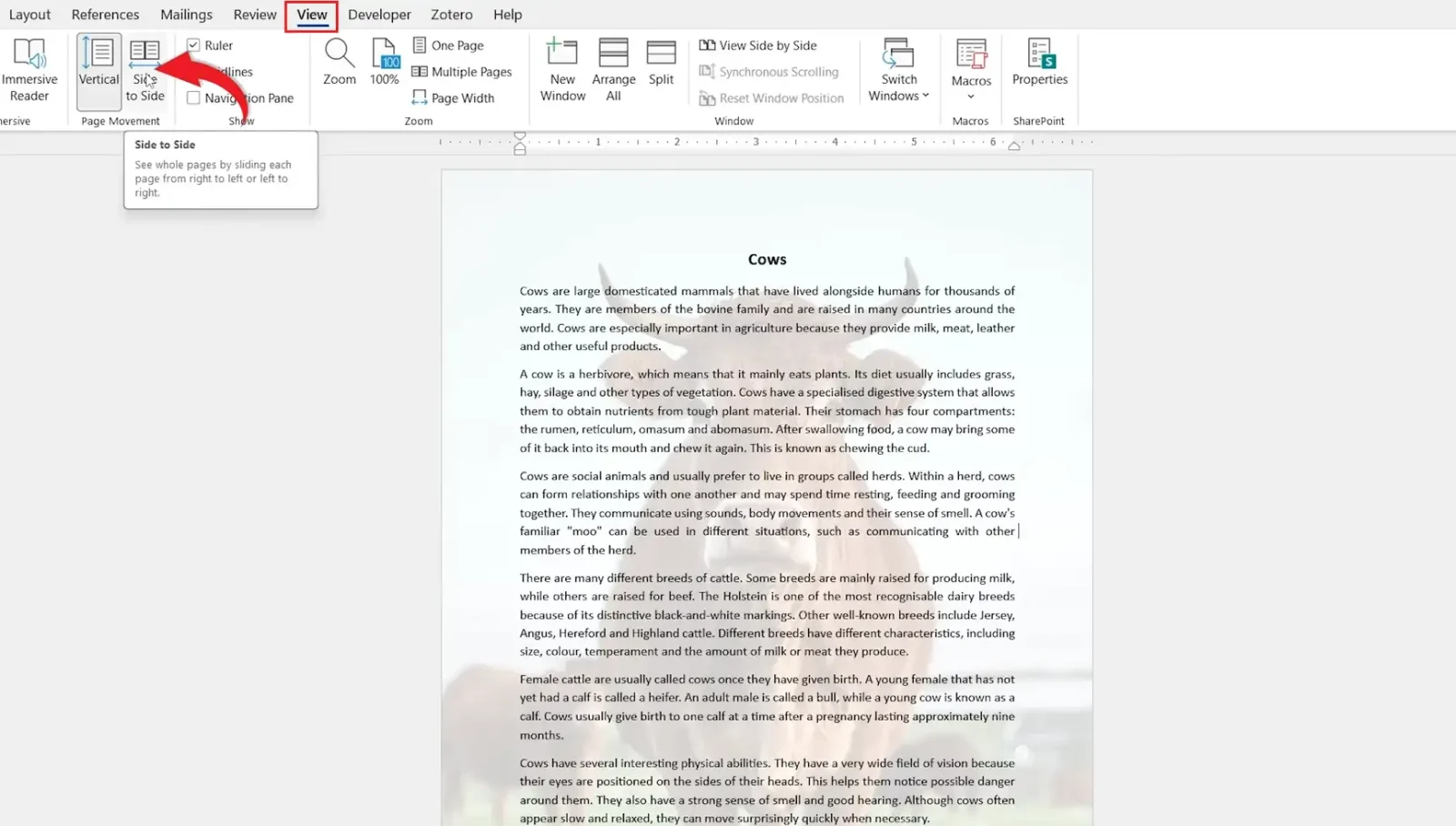
👉 The pages sit beside each other and Word fits them to your window automatically. Scroll horizontally, or use Page Down and the arrow keys to turn pages.
Understand the Zoom Limitation
Side to Side sizes the pages to the window and takes the decision out of your hands — the zoom slider stops responding while it is active. That is by design, not a fault, because the view depends on both pages fitting exactly.
👉 If the text is too small to read as a result, Method 2 is the answer.
Method 2: How to View Two Pages Side by Side in Word with Multiple Pages
Same side-by-side layout, but the zoom stays under your control. This is the better choice for actually working in the document rather than reading it.
Switch Page Movement Back to Vertical
- Select the View tab.
- In the Page Movement group, select Vertical.
👉 Skipping this leaves Side to Side in charge and Multiple Pages will not behave as expected. The two settings work against each other.
Select Multiple Pages
- Stay on the View tab.
- In the Zoom group, select Multiple Pages.
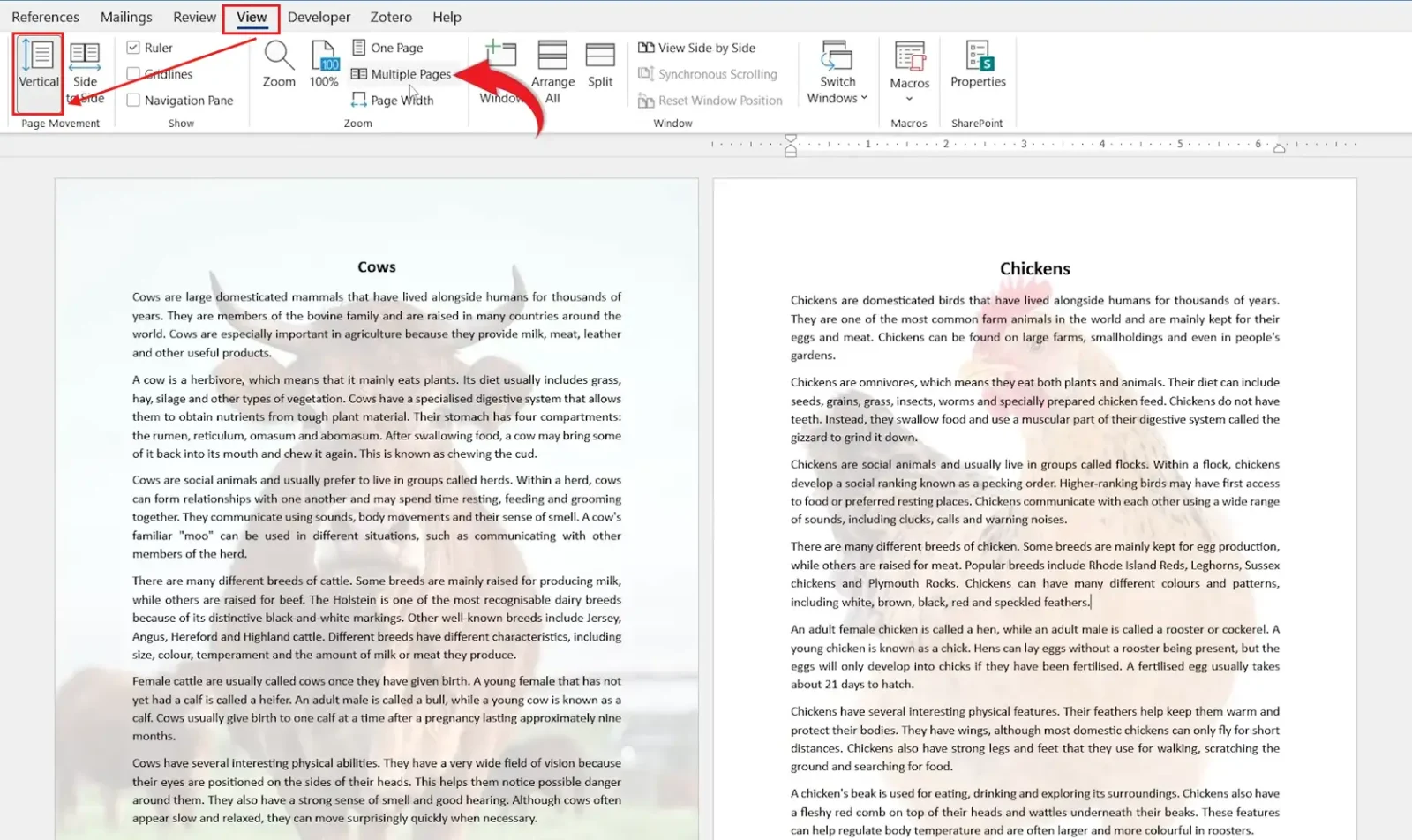
👉 Pages appear side by side and scrolling stays vertical. Note that Multiple Pages lives in the Zoom group, not Page Movement — that is why the two settings can be combined.
Adjust the Zoom
Use the zoom slider at the bottom right, or hold Ctrl and scroll the mouse wheel. The side-by-side layout survives moderate zooming.
👉 Past a certain point the pages no longer fit across the window and Word drops back to a single column. Reduce the zoom and the pair returns.
Which Method Should You Use?
| Approach | Best For | What You Do |
|---|---|---|
| Method 1 — Side to Side | Reading through a document like a book | View → Page Movement → Side to Side |
| Method 2 — Multiple Pages | Working in the document with zoom control | View → Vertical, then Zoom → Multiple Pages |
| One Page | Back to normal | View → Vertical, then Zoom → One Page |
Best choice: Multiple Pages for anything you are editing. Side to Side reads beautifully but the fixed zoom makes it a reviewing view, not a working one.
Common Problems When Viewing Two Pages Side by Side
Only One Page Shows
Either the document has only one page, or your window is too narrow for two. Maximise the Word window and check the document is longer than a page — Word cannot show a second page that does not exist.
The Zoom Slider Does Nothing
Side to Side is active and controls the page size itself. Switch Page Movement back to Vertical and use Multiple Pages instead.
Zooming Collapses the Pages into One Column
Two pages no longer fit across the window at that magnification. Reduce the zoom until they sit side by side again. On a smaller screen the usable range is narrow — around 50 to 70 per cent on most laptops.
The Text Is Too Small to Read
Two full pages across one screen halves the effective size of everything. If you need to read rather than scan, this is the wrong view — use One Page, or split the difference with Read Mode on the View tab, which reflows the text into readable columns.
Pro Tips for Viewing Two Pages Side by Side in Word
- Side to Side is the closest Word gets to a book view — useful for a final read-through before printing a booklet or report.
- Hold Ctrl and scroll the mouse wheel to zoom, rather than reaching for the slider each time.
- The view resets when you close the document. It is a display preference for the session, not a saved property of the file.
- Checking a spread before printing? Print Preview shows the same pairing without changing your working view.
- Facing pages that do not pair as expected usually means an odd number of pages before them — how to remove a page break in Word covers finding the culprit.
FAQs
How do I view two pages side by side in Word?
Open the View tab and select Side to Side under Page Movement. Alternatively select Vertical, then Multiple Pages in the Zoom group.
What is the difference between Side to Side and Multiple Pages?
Side to Side scrolls horizontally and fixes the zoom. Multiple Pages keeps vertical scrolling and leaves the zoom controls working.
Why can’t I zoom in Side to Side view?
Side to Side sizes the pages to fit your window, so it takes control of the zoom. Use Vertical → Multiple Pages when you need to zoom.
Why do my pages collapse into one column when I zoom?
Two pages no longer fit across the window at that magnification. Reduce the zoom and the side-by-side layout returns.
How do I return to the normal Word page view?
Select View → Vertical, then One Page in the Zoom group.
Does this change how my document prints?
No. It is a screen display setting only. Page size, margins and layout are unaffected, and the document prints exactly as before.
Does Word remember the side-by-side view next time?
No. The view resets when you close the document, because it is a session display preference rather than part of the file.
Can I view more than two pages at once?
Yes. Reduce the zoom while Multiple Pages is active and Word fits three or more pages across the window.
Conclusion
To view two pages side by side in Word, use Side to Side for a book-style read or Vertical → Multiple Pages when you need the zoom. Both are display settings and neither affects the document itself.
The fixed zoom in Side to Side is the thing that catches people out. If the slider stops responding, that setting is why — switch to Multiple Pages and it comes back.
Reviewing a spread before printing is usually the reason people reach for this view — how to print a booklet in Word covers what happens next.
Related Tutorials
- How to Print a Booklet in Word: 5 Easy Steps
- How to Rearrange Pages in Word
- How to Change Page Size in Word: 3 Easy Methods
Word Tutorials
Recent Microsoft Word Tutorials
Browse the complete collection for help with formatting, layout, pages, tables, images, and document setup.
For Microsoft support documentation, visit the official Microsoft guidance.
Leave a Reply