
To open Word in safe mode, press Windows + R, type winword /safe and select OK. Word starts without add-ins, custom toolbars or your Normal template, which is what makes it useful for tracking down why Word is misbehaving.
In this guide, you’ll learn 2 easy methods to open Word in safe mode, how to confirm it actually started that way, and what the result tells you about where the fault lies.
What Is Word Safe Mode?
Safe mode starts Word with everything optional switched off. No add-ins load, no customised ribbon or toolbars appear, your Normal template is bypassed and AutoCorrect entries are ignored. What remains is Word as Microsoft shipped it.
That makes it a diagnostic tool rather than a repair. It does not fix anything — it tells you which half of the problem you are dealing with.
- Problem disappears in safe mode — the cause is an add-in, a corrupted Normal template or a ribbon customisation.
- Problem persists in safe mode — the cause is the document itself, or the Word installation.
- Nothing you do in safe mode is permanent. Close Word and everything returns.
Watch the Video Tutorial
If you prefer to see this in action, the full video walkthrough is below, showing each method step by step.
How to Open Word in Safe Mode: Step-by-Step
Both methods reach the same place. Method 1 uses a command, Method 2 uses a keyboard modifier. Close Word first either way — safe mode cannot start while a normal instance is running.
Method 1: How to Open Word in Safe Mode Using Run
The reliable route. It works regardless of how Word is pinned or shortcut on your machine.
Close Word Completely
Close every open Word window. If Word has frozen, open Task Manager with Ctrl + Shift + Esc and end the Microsoft Word process — a hung instance will block safe mode from starting.
Open the Run Window
- Press Windows + R.
- The Run window opens in the bottom-left corner of the screen.
Enter the Safe Mode Command
- Type
winword /safe. - Select OK.
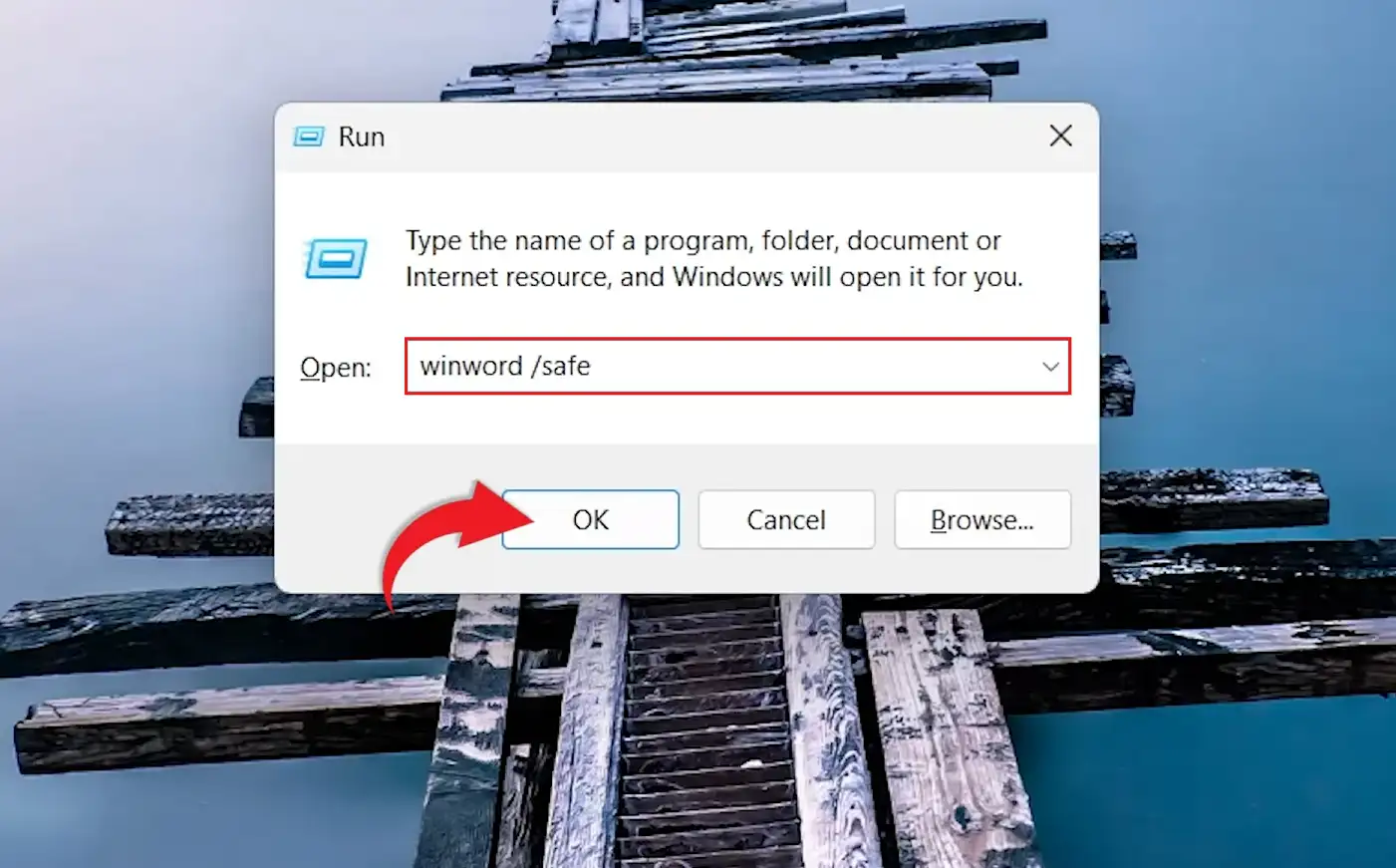
👉 The space before /safe is not optional. winword/safe returns an error; winword /safe works. That single space is the most common failure.
Confirm Word Is in Safe Mode
Look at the title bar at the top of the Word window. It shows Safe Mode after the name, for example Microsoft Word – Safe Mode. If those two words are missing, Word has started normally and the command did not take effect.

👉 If Word asks about Office Open XML formats on startup, select Office Open XML formats and then OK.
Test the Problem Document
- Select File, then Open.
- Browse to the document that has been causing trouble.
- Reproduce whatever went wrong before.
👉 This is the whole point of the exercise. Working normally in safe mode means an add-in or your Normal template is at fault. Still broken means the document or the installation is. Either way you have halved the search — and if the file will not open at all, how to recover an unsaved Word document covers the recovery routes.
Method 2: How to Open Word in Safe Mode with Ctrl
No command to remember. Hold a key while Word launches and it offers safe mode itself.
Find Word in Windows
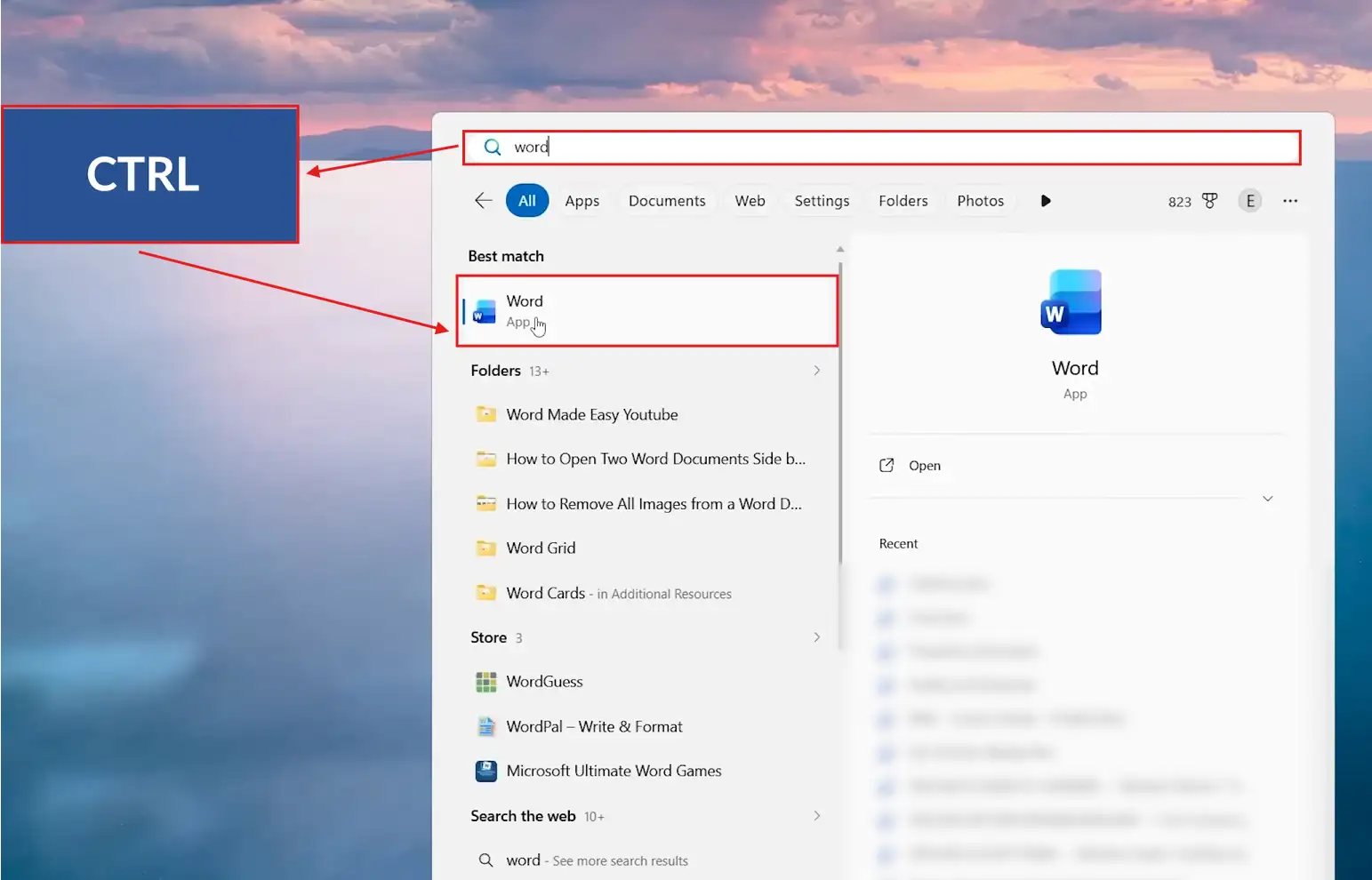
- Press the Windows key.
- Type Word.
- Locate the Word app in the results.
Hold Ctrl and Open Word
- Hold down Ctrl.
- Keeping it held, open the Word app.
- Keep holding until the confirmation prompt appears.
- Select Yes.
👉 Word asks whether you want to start in safe mode. Releasing Ctrl too early is why the prompt sometimes never appears — hold it until you see the dialog. Then check the title bar as before.
Which Method Should You Use?
| Approach | Best For | What You Do |
|---|---|---|
| Method 1 — Run command | Reliability, and repeat troubleshooting | Windows + R, then winword /safe |
| Method 2 — Hold Ctrl | One-off checks, nothing to remember | Hold Ctrl while launching Word |
Best choice: Method 1. It gives the same result every time, where holding Ctrl depends on timing and occasionally does not register.
Common Problems When Opening Word in Safe Mode
Windows Cannot Find winword
Check the space before /safe first. If the command is right and Windows still cannot find it, your Office installation is not on the system path — use Method 2 instead, which does not depend on it.
The Title Bar Does Not Say Safe Mode
Word was already running when you issued the command, so Windows simply brought the existing window forward. Close every Word window, check Task Manager for a lingering process, then try again.
The Problem Happens in Safe Mode Too
That rules out add-ins and your template, which is useful information rather than a dead end. The fault is in the document or the installation. Try the document on another computer to separate the two.
Features Are Missing or Greyed Out
Expected. Safe mode disables add-ins, customised toolbars and some settings, and Word will not save changes to templates or preferences while it is active. Do your testing here, then restart normally to work.
Pro Tips for Opening Word in Safe Mode
- Safe mode confirms the cause but does not remove it. Once it points at add-ins, disable them one at a time in File → Options → Add-ins to find the culprit.
- A corrupted Normal.dotm causes many “Word is broken” symptoms. Rename it and Word rebuilds a clean one on next launch.
- The same switch works across Office —
excel /safeandpowerpnt /safebehave identically. - Test in safe mode before reinstalling Office. Most problems that look like a broken installation are a single add-in.
- Add-ins are the usual suspect, and citation tools are among the most common — see how to add the Developer tab in Word for reaching the add-in controls.
FAQs
How do I open Word in safe mode?
To open Word in safe mode, press Windows + R, type winword /safe and select OK. You can also hold Ctrl while launching the Word app.
What command opens Word in safe mode?
winword /safe, entered in the Windows Run window. The space before the slash is required.
What does safe mode disable in Word?
Add-ins, customised toolbars and ribbons, your Normal template and AutoCorrect entries. Word starts as installed, with no personal customisation loaded.
Can I open Word in safe mode without the Run command?
Yes. Hold Ctrl while opening Word and keep it held until Word asks whether to start in safe mode, then select Yes.
How do I know Word is in safe mode?
The title bar at the top of the window includes (Safe Mode) after the document name. If it is absent, Word started normally.
What does it mean if the problem still happens in safe mode?
Add-ins and your template are not the cause. The fault is likely in the document itself or the Word installation.
How do I exit Word safe mode?
Close Word and reopen it normally. Safe mode applies only to that session and nothing needs to be switched back.
Does safe mode work for Excel and PowerPoint?
Yes. Use excel /safe or powerpnt /safe in the Run window, or hold Ctrl while launching either app.
Conclusion
To open Word in safe mode, run winword /safe or hold Ctrl while launching Word. Check the title bar for (Safe Mode) before you conclude anything — a normal start looks identical otherwise.
Safe mode is a diagnosis, not a cure. If the problem vanishes, work through your add-ins. If it survives, the document or the installation is where to look next. Either answer saves you from reinstalling Office on a guess.
If the document is the culprit and you need what was in it, start with how to recover an unsaved Word document.
Related Tutorials
- How to Recover an Unsaved Word Document: 2 Methods
- How to Password Protect a Word Document
- How to Turn Off AutoCorrect in Word
Word Tutorials
Recently Added on Word Made Easy
Browse the complete collection for help with formatting, layout, pages, tables, images, and document setup.
For Microsoft support documentation, visit the official Microsoft guidance.

Leave a Reply