
If you want to learn how to password protect a Word document, this guide covers the 3 easy methods: full encryption, a modify password, or restricted editing. Each one locks confidential files and controls who can open or change them – essential for personal data, business templates, and shared forms, including those you’ve built using fillable forms in Word.
In this guide, you’ll learn:
- The 3 password protection methods in Word
- How to apply each method step-by-step
- When to use each one
- Security limitations and best practices
- How to remove or change a password later
Watch the Video Tutorial
If you prefer to see this in action, the full video walkthrough is below, showing each method step by step.
Why Password Protect a Word Document?
Before you learn how to password protect a Word document, it helps to understand why it matters. Word’s built-in password options aren’t just technical features – they’re practical tools for controlling how your documents are accessed and edited. Use it when you’re:
- A teacher sharing templates or feedback forms
- A business professional handling staff files, contracts, or HR documents
- A student storing private info in one Word file
- A freelancer sharing client deliverables
- An employee dealing with confidential reports
When you password protect a Word document, you ensure your files are seen, edited, or filled only how you want.
The 3 Ways to Password Protect a Word Document
There are three different ways to password protect a Word document, each with a different level of security. The right one depends on what you want: to lock the entire file, prevent edits only, or restrict specific actions like commenting and form-filling.
Method 1: How to Password Protect a Word Document With Encryption (Most Secure)
This is the most secure way to password protect a Word document. The file is fully encrypted – no one can open it without entering the correct password.
- Open your Word document
- Click File
- Click Info
- Click Protect Document
- Choose Encrypt with Password
- Type a strong password
- Re-enter it to confirm
- Click OK
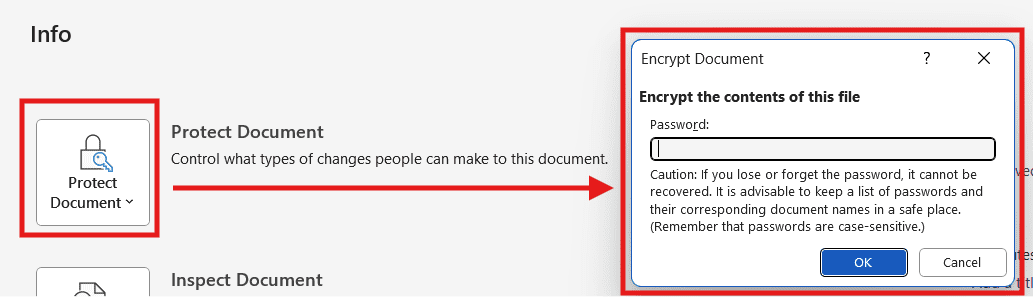
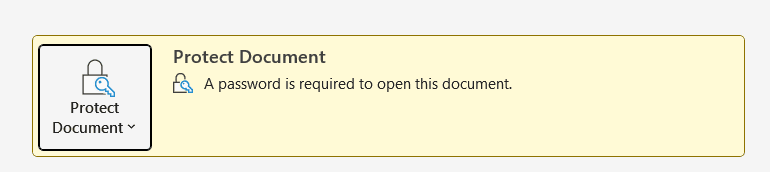
That’s it. The next time someone tries to open the document, Word will ask for the password.
⚠️ Important: If you forget this password, you cannot recover it. There’s no reset option. Always store the password somewhere safe – a password manager is the best option.
Method 2: How to Password Protect a Word Document for Editing Only
This method lets anyone open the file and read it, but only users with the password can make edits. Everyone else sees a read-only version. It’s perfect for sharing reports, templates, or documents where you want feedback without risking accidental changes.
- Click File
- Click Save As (or Save a Copy)
- In the Save window, click Tools (usually near the bottom-right)
- Select General Options
- Set a Password to modify
- Click OK, re-enter the password, and save the document
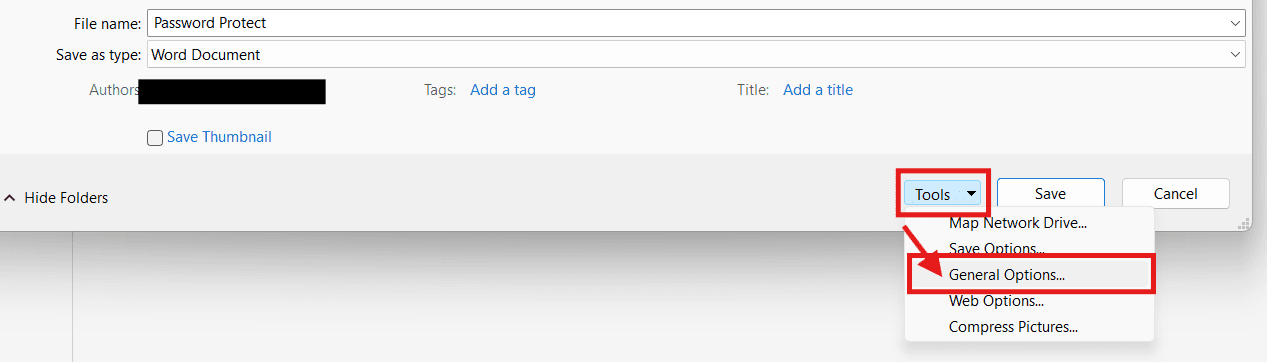
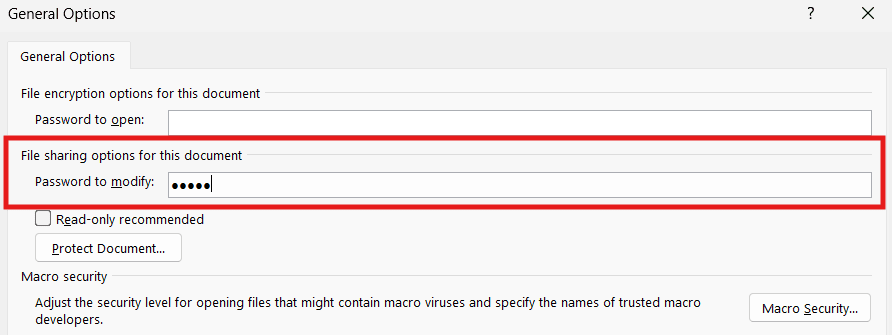
Method 2 is ideal for documents that require feedback but shouldn’t be freely altered – particularly useful if you’ve merged multiple Word documents into one file and want to lock it down.
Method 3: How to Password Protect a Word Document With Restricted Editing
The third way to password protect a Word document is by restricting specific types of editing. This is perfect for forms, templates, and shared documents where you want users to fill in fields or leave comments – but not change the structure of the document itself.
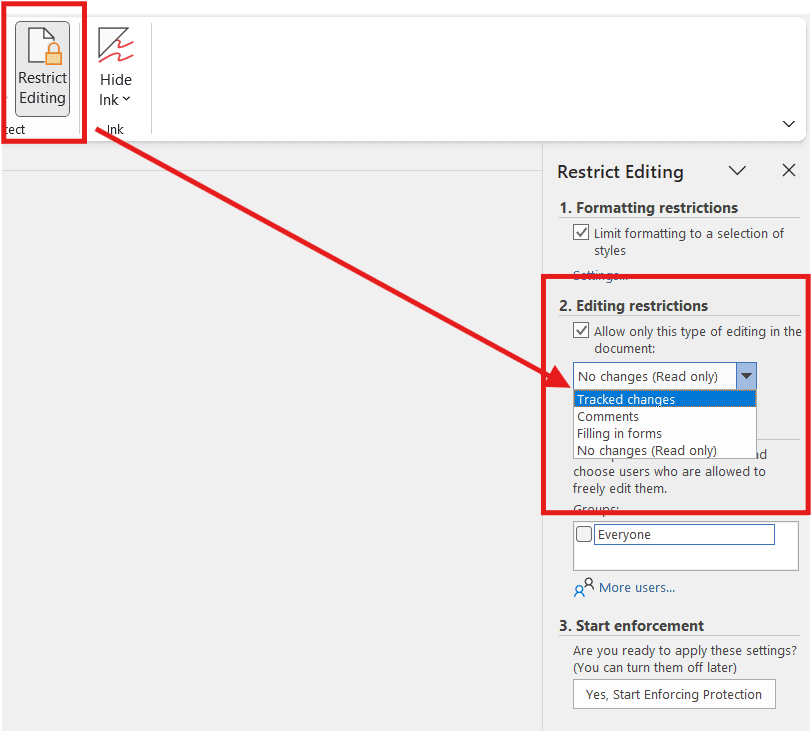
- Go to the Review tab
- Click Restrict Editing
- Tick Allow only this type of editing
- Choose what you want from the dropdown:
- No changes (Read only) – completely lock the document
- Comments – users can comment but not edit content
- Tracked changes – all edits visible and reversible
- Filling in forms – users can only fill form fields
- Click Yes, Start Enforcing Protection
- Set a password
This method doesn’t encrypt the document itself but locks down how users can interact with it. It’s the recommended approach for fillable forms and shared business templates.
Which Password Protection Method Should You Use?
| Method | Best For | Protection Level |
|---|---|---|
| Password to Open (Encryption) | Confidential files, personal data, contracts | Strongest (encrypted) |
| Password to Modify | Templates, public-facing forms, reports | Medium (read-only) |
| Restrict Editing | Feedback documents, fillable forms, formatting | Basic control (not encrypted) |
How to Encrypt a Word Document (Same as Method 1)
If you’ve searched specifically for “how to encrypt a Word document,” the technique is identical to Method 1 above. Word’s encryption uses AES-256 – the same standard used by banks and government agencies. Here’s the quick recap:
- File ? Info ? Protect Document ? Encrypt with Password
- Enter a strong password (12+ characters, mix of letters, numbers, symbols)
- Confirm the password
- Save the document
Encryption is the strongest form of password protection. Anyone without the password sees random scrambled data instead of your content – even if they have direct access to the file on disk.
How to Remove a Password From a Word Document
If you no longer need the password protection on a Word document, removing it takes seconds – but you must know the current password.
To remove an open password (Method 1):
- Open the document and enter the password
- Go to File ? Info ? Protect Document ? Encrypt with Password
- Delete the existing password (leave the field blank)
- Click OK and save the document
To remove a modify password (Method 2):
- Open the document and enter the modify password
- Go to File ? Save As ? Tools ? General Options
- Delete the password from the “password to modify” field
- Click OK and save
To remove restricted editing (Method 3):
- Go to the Review tab
- Click Restrict Editing ? Stop Protection
- Enter the password to confirm
Best Practices for Word Document Passwords
When you password protect a Word document, follow these best practices to keep it secure:
- Use 12+ characters with a mix of letters, numbers, and symbols
- Avoid dictionary words and personal info (names, dates, places)
- Use a password manager (Bitwarden, 1Password, Keeper) to store and generate strong passwords
- Don’t reuse passwords – each protected document should have its own
- Send passwords separately from the document itself (e.g., email the file, text the password)
- Document the password somewhere safe – losing it means losing the file forever
Common Issues + Fixes
| Issue | Fix |
|---|---|
| Forgot the password to open | Unfortunately unrecoverable. There is no reset. Always store passwords securely. |
| Can’t find “General Options” | It appears under Tools when saving via Save As. |
| Word Online won’t let you protect | Use the desktop version of Word for password options. |
| Password works but document still opens read-only | You may have set a modify password, not an open password – see Method 1. |
| Other users can’t open the file | Make sure they’re using Word 2007 or later. Older versions can’t open AES-256 encrypted files. |
FAQs
How do I password protect a Word document?
To password protect a Word document, go to File ? Info ? Protect Document ? Encrypt with Password. Enter a strong password, confirm it, and save. Anyone trying to open the document will need the password.
How do I encrypt a Word document?
Encrypting a Word document is the same as password protecting it for opening. Use File ? Info ? Protect Document ? Encrypt with Password. Word uses AES-256 encryption – the same standard used by financial institutions.
How do I password protect a Word document on Mac?
On Mac, go to Review ? Protect Document, then enter a password to open and/or modify. The interface is slightly different from Windows but the result is identical.
How do you password protect a Word document so others can’t edit it?
Use Method 2 – Save As ? Tools ? General Options ? set a “password to modify”. This lets others open and read the file but blocks edits unless they have the password. For more granular control, use Method 3 (Restrict Editing).
How do I remove a password from a Word document?
Open the document with the current password, then go to File ? Info ? Protect Document ? Encrypt with Password. Delete the existing password (leave the field blank), click OK, and save the file.
What happens if I forget the password to my Word document?
If you forget the password used to encrypt a Word document, there’s no way to recover it. Microsoft does not store or have access to the password. Always use a password manager to avoid this.
Is a password protected Word document really secure?
Yes – Word uses AES-256 encryption, which is industry-standard and used by banks and governments. The security depends entirely on password strength. A weak password (e.g., “password123”) can be cracked quickly; a strong 12+ character password is effectively unbreakable with current technology.
Can I password protect a Word document on Word Online?
No. Word Online (the browser version) doesn’t support password protection. You need the desktop version of Word – Windows or Mac – to add a password.
Conclusion
Now that you know how to password protect a Word document in 3 different ways – full encryption, password to modify, and restricted editing – you can choose the right method for each situation. For confidential files, use Method 1 (encryption). For shared templates, use Method 2 (modify password). For forms and feedback documents, use Method 3 (restrict editing).
Password protection isn’t about paranoia – it’s about smart document management. If you’re working with files from other sources, you may also want to convert a PDF to Word before applying protection. From shielding sensitive content to controlling how others use your file, Word’s built-in protection gives you flexible control without complicating your workflow.
New to Word? This tutorial goes with Chapter 2 of the free Microsoft Word for beginners guide: Create, save and open documents. It covers the basics step by step, with screenshots, short videos and practice files, and you can download the whole guide as a free PDF.
Related Tutorials
- How to Create a Fillable Form in Microsoft Word
- How to Convert a PDF to Word Document
- How to Merge Multiple Word Documents into One File
Word Tutorials
Recently Added on Word Made Easy
Browse the complete collection for help with formatting, layout, pages, tables, images, and document setup.
For Microsoft support documentation, visit the official Microsoft guidance.



Leave a comment
Stuck on a step, or know a quicker way? Ask or share it below.