
To split a cell in Word, right-click the cell, choose Split Cells, enter the number of columns and rows you want, and select OK. The same command is on the Table Layout tab. If you have not built your table yet, start with how to make a table in Word.
In this guide, you’ll learn both ways to split a cell, how to make two cells side by side, two stacked cells or a four-cell grid, and how to make the new cells even. The steps are for Word in Microsoft 365, Word 2021, Word 2019 and Word 2016 for Windows.
What Splitting a Cell Does
Splitting divides one table cell into smaller cells without changing the rest of the table. It is the opposite of merging cells, and it is useful when one part of a table needs more detail than the rest.
- Add two sub-headings under one heading cell.
- Make room for a value and its unit in one column.
- Create a small grid inside a larger form or timetable.
Watch the Video Tutorial
If you prefer to see this in action, the full video walkthrough is below, showing each method step by step.
Method 1: Split a Cell in Word With the Right-Click Menu
Use this method for a quick split while you are working in the table.
Steps
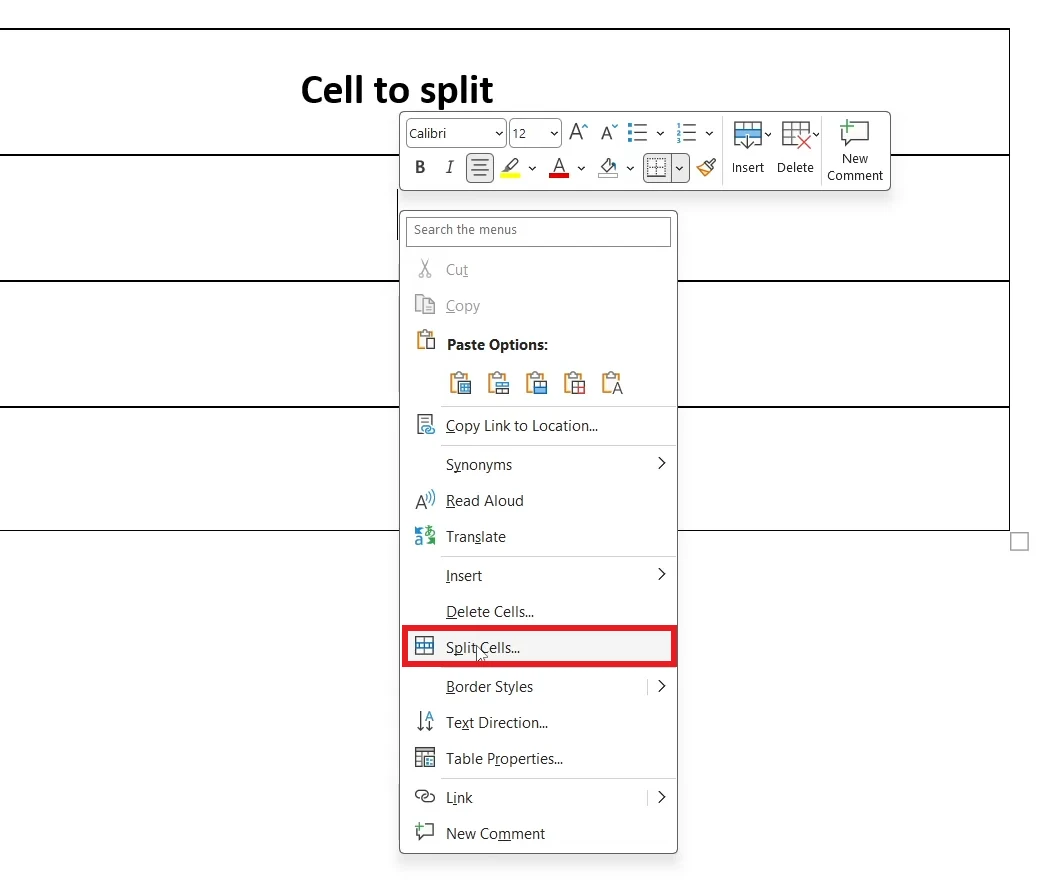
- Click inside the cell you want to split.
- Right-click and choose Split Cells.
- In Number of columns, type 2. Leave Number of rows at 1.
- Select OK.

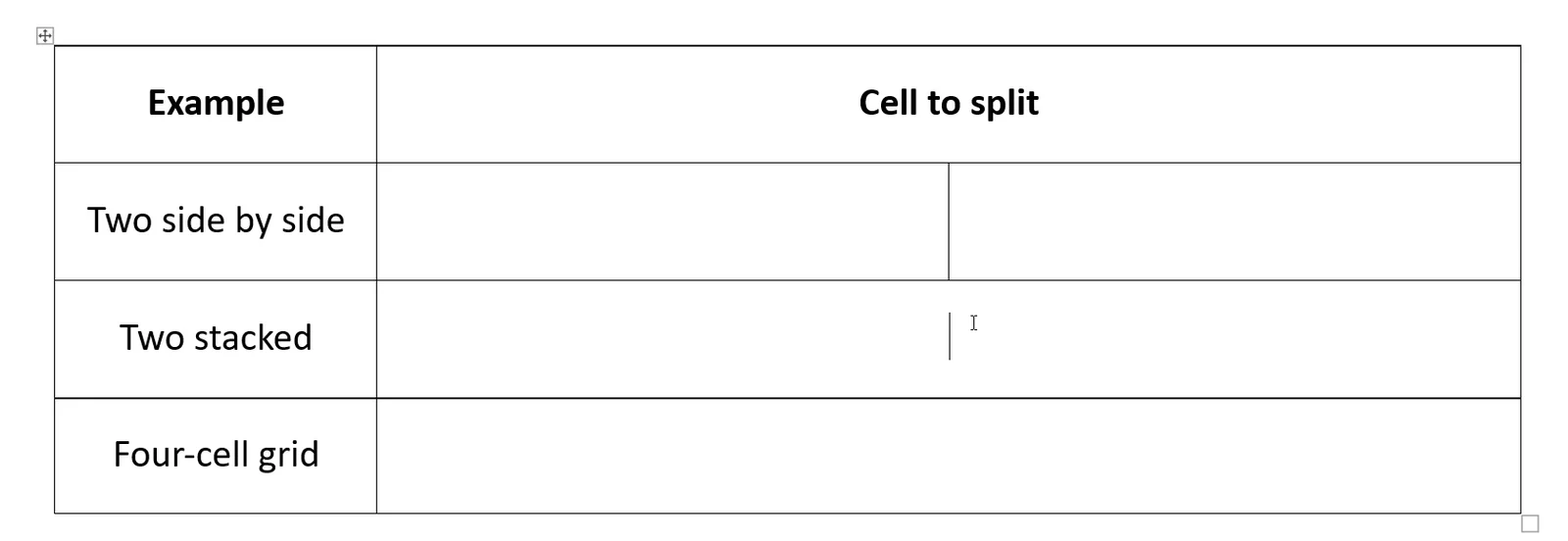
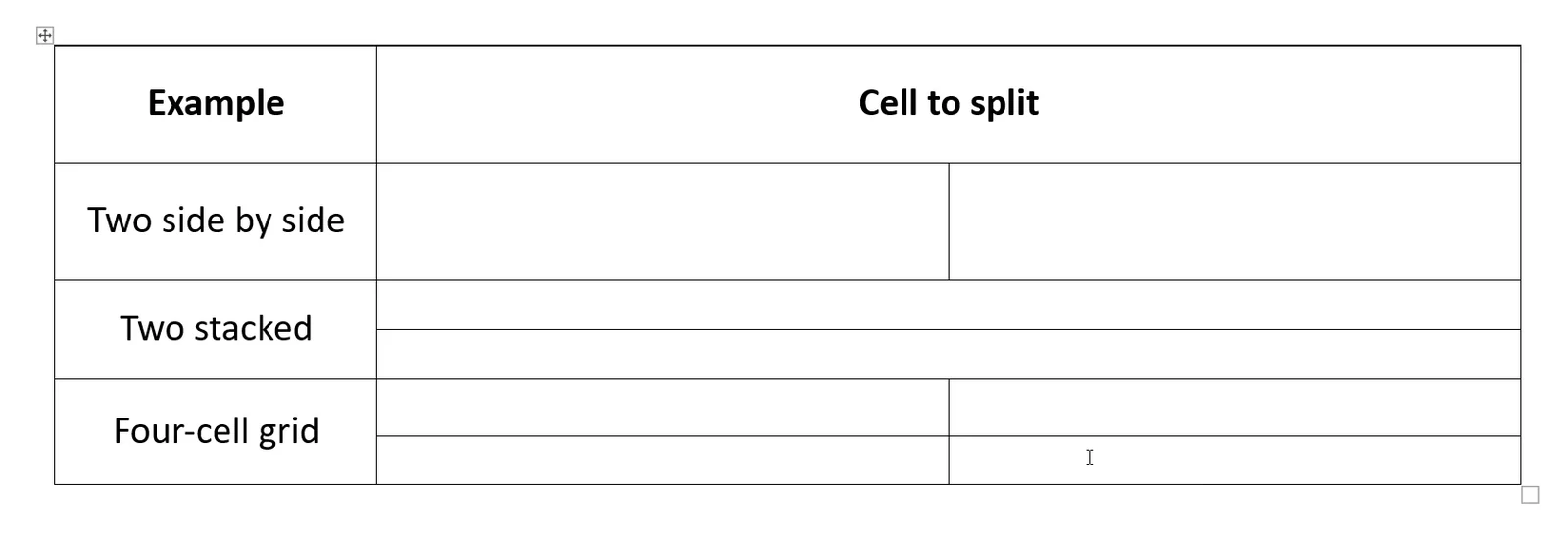
👉 The cell becomes two cells side by side.
Method 2: Split a Cell From the Table Layout Tab
Use this method when the right-click menu is crowded, or to split several selected cells at once.
Steps
- Click inside the cell you want to split.
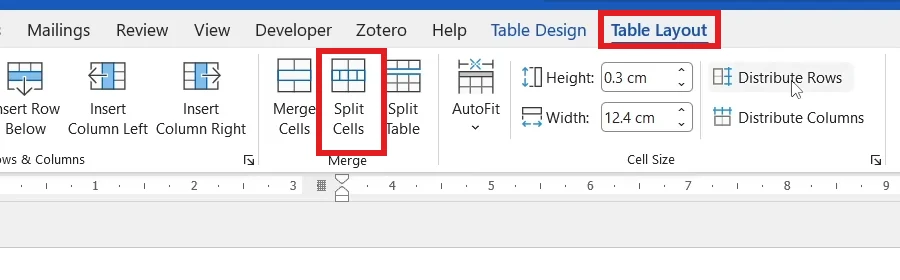
- Select the Table Layout tab, then Split Cells in the Merge group.
- Set Number of columns to 1 and Number of rows to 2, then select OK.

👉 The cell is split into two stacked cells.

Make a Four-Cell Grid
Enter numbers for both columns and rows to split a cell both ways at once.
- Click inside the cell, then open Split Cells with either method.
- Set Number of columns to 2 and Number of rows to 2, then select OK.
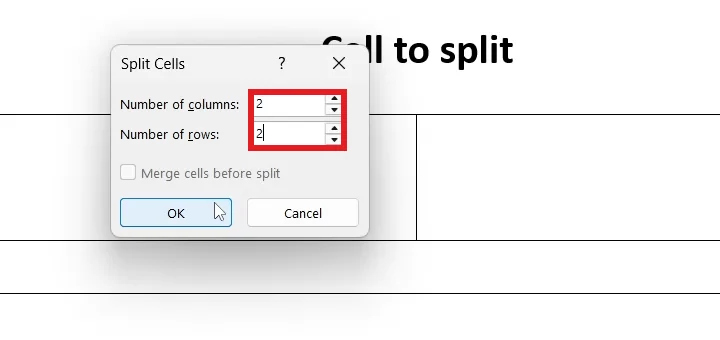
👉 One cell becomes a grid of four.
Make the New Cells Even
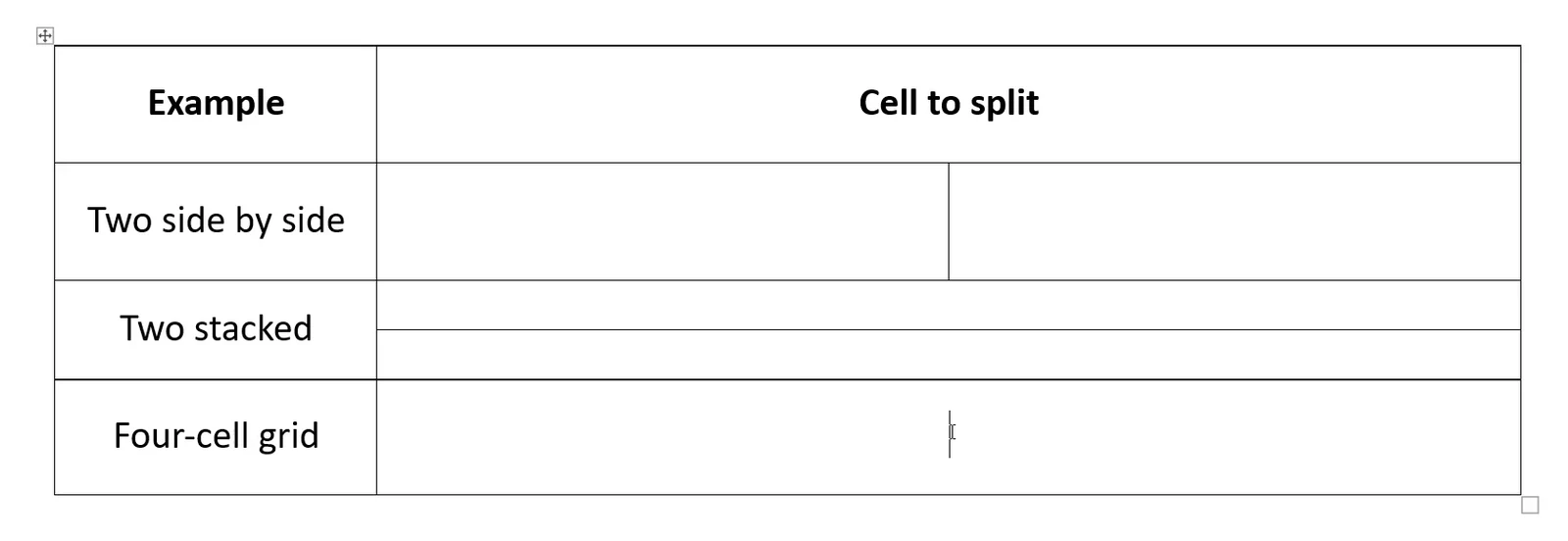
Splitting a cell into rows can leave the new cells at different heights. Distribute them to make every cell the same size.
Even Out Stacked Cells
- Click and drag across the new stacked cells to select them.
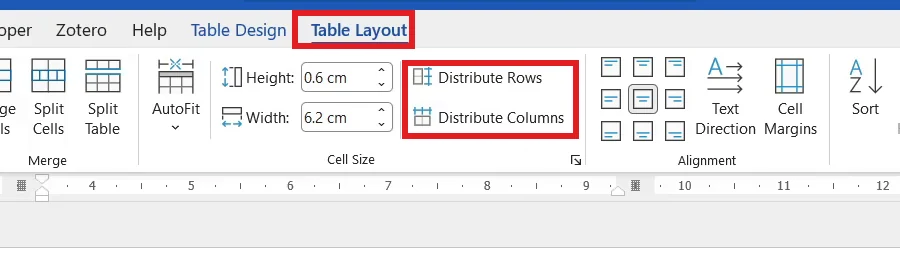
- Select the Table Layout tab, then Distribute Rows in the Cell Size group.

👉 The stacked cells are now the same height.
Even Out a Four-Cell Grid
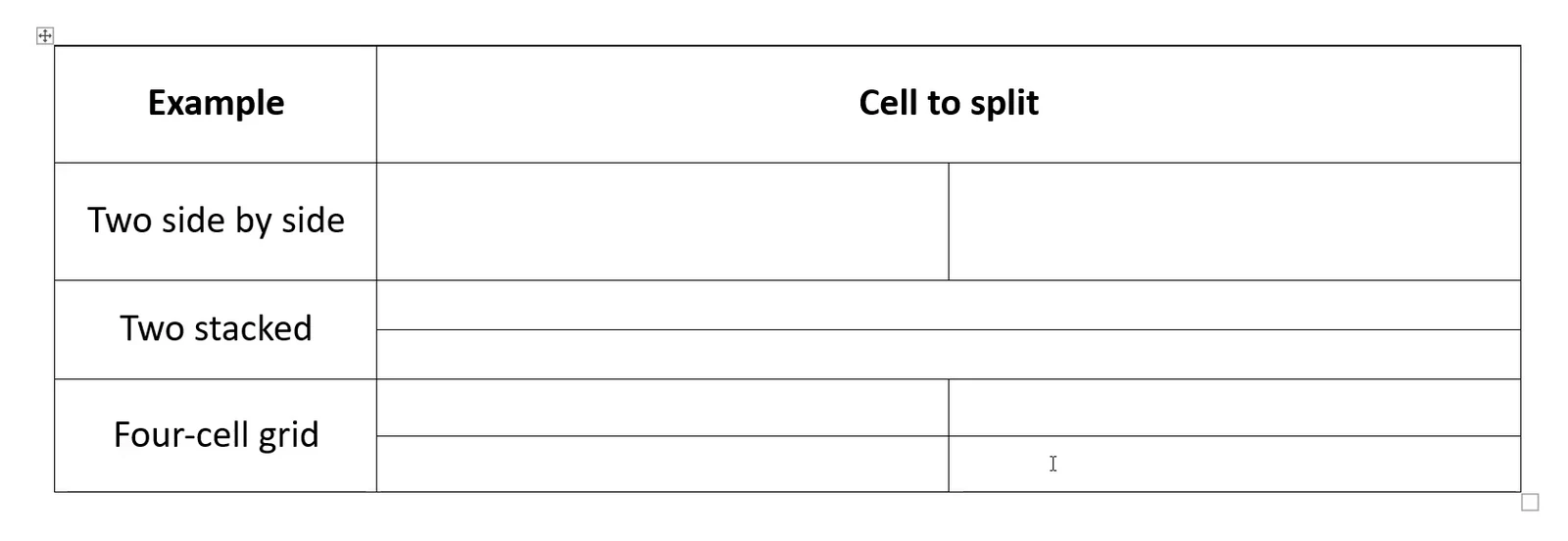
- Click and drag across all four cells of the grid.
- On the Table Layout tab, select Distribute Rows, then Distribute Columns.
👉 All four cells are now the same height and width.
Which Method Should You Use?
Right-Click Menu
Fastest for one cell while you are typing in the table.
Table Layout Tab
Best when several cells are selected, or when you prefer the ribbon.
Quick Tips
Undo a Split
Press Ctrl + Z straight away, or select the new cells and merge them again.
Merge Before Split
With several cells selected, tick Merge cells before split to re-divide them evenly.
Show the Gridlines
If a split cell has no visible border, select View Gridlines on the Table Layout tab to see where it is.
Split the Whole Table
To cut a table in two, use Split Table next to Split Cells instead.
FAQs
How do I split a cell in Word?
Right-click the cell, choose Split Cells, enter the number of columns and rows, and select OK.
Where is Split Cells in Word?
It is on the Table Layout tab, in the Merge group. The tab appears when you click inside a table.
How do I split a cell into two rows?
In the Split Cells dialog, set Number of columns to 1 and Number of rows to 2.
How do I split a cell diagonally in Word?
Word cannot split a cell diagonally. Draw a diagonal border instead from Table Design > Borders.
Why is Split Cells greyed out?
Your cursor is not inside a table. Click in a table cell and the option becomes available.
Can I undo splitting a cell?
Yes. Press Ctrl + Z straight away, or select the new cells and choose Merge Cells.
Conclusion
To split a cell in Word, right-click it and choose Split Cells, or use Split Cells on the Table Layout tab, then set the columns and rows. Microsoft covers both commands in merge or split cells in a table.
Need fewer columns after splitting? See how to remove a column from a table in Word.
Related Tutorials
- How to Merge Cells in Word: 3 Easy Methods
- How to Make a Table in Word: 3 Easy Methods
- How to Remove a Column from a Table in Word: 3 Easy Methods
Word Tutorials
Recently Added on Word Made Easy
Browse the complete collection for help with formatting, layout, pages, tables, images, and document setup.
For Microsoft support documentation, visit the official Microsoft guidance.


Leave a comment
Stuck on a step, or know a quicker way? Ask or share it below.