
To remove a column from a table in Word, select the column, right-click it and choose Delete Columns. Word deletes the column and its contents, and the remaining columns close up to fill the space.
In this guide, you’ll learn three methods: the right-click menu, the Table Layout tab and a quick Backspace shortcut. You’ll also see how to undo the change if you delete the wrong column. The steps are for Word for Windows. Removing text columns from a page layout instead? Choose Layout > Columns > One.
Before You Start
You need a Word document with a table. The examples below use a table with Name, Department and Location columns, and remove the Department column.
- To select a whole column, point just above its top border until the cursor turns into a small black down arrow, then click.
- Alternatively, click in the top cell and drag down to the bottom cell.
- Need a table to practise on? See how to insert a table in Word.
Watch the Video Tutorial
If you prefer to see this in action, the full video walkthrough is below, showing each method step by step.
Method 1: Use the Right-Click Menu
The right-click menu is the quickest way to remove a column from a table in Word.
- Select the column you want to remove.
- Right-click anywhere in the highlighted column.
- Choose Delete Columns.
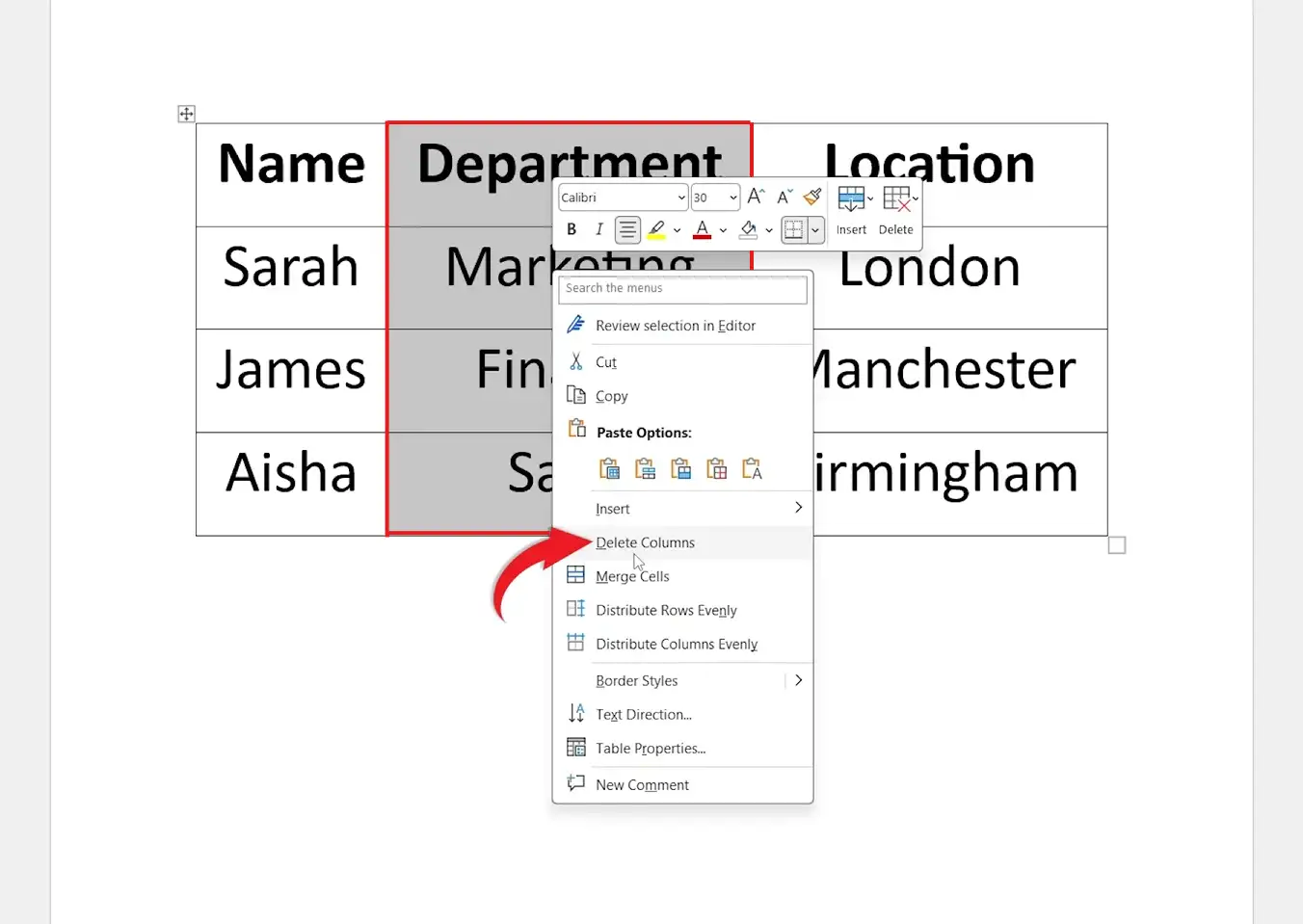
👉 The column disappears and the columns on either side move together. You can also select Delete on the small toolbar above the menu and choose Delete Columns from there.
Method 2: Use the Table Layout Tab
Use the ribbon if you prefer menus to right-clicking, or if you are already formatting the table.
- Click in any cell of the column you want to remove, or select the whole column.
- Open the Table Layout tab. It only appears while your cursor is inside a table.
- Select Delete in the Rows & Columns group.
- Choose Delete Columns.
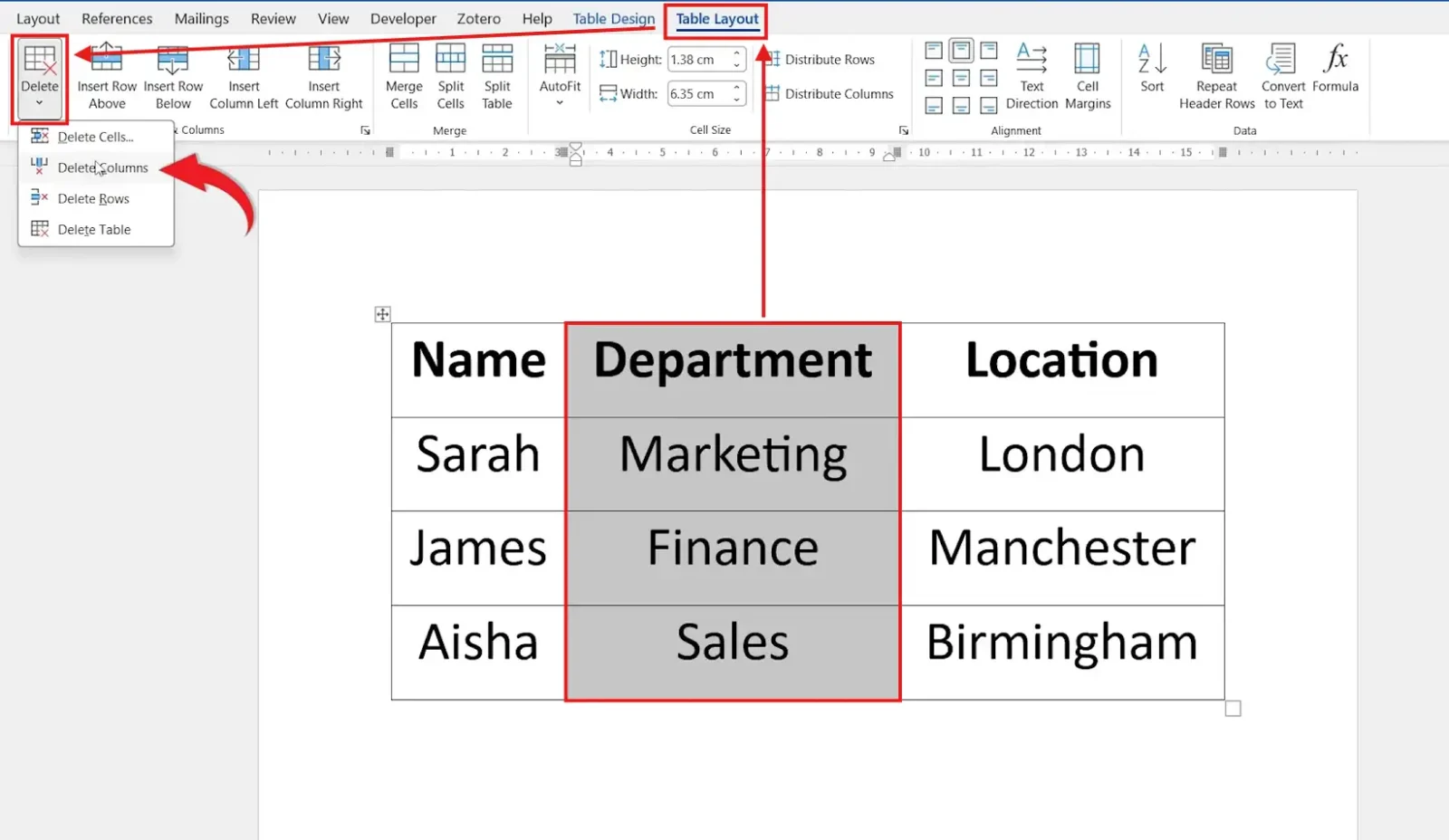
👉 Word removes the column containing your cursor. The same Delete menu has Delete Rows when you need to delete a row in a table in Word.
Method 3: Press Backspace
This is the fastest way to remove a column from a table in Word once the column is selected.
- Select the entire column.
- Press Backspace.
👉 Do not press Delete instead. The Delete key only clears the text from the cells and leaves an empty column in place. Microsoft explains the difference in its guide to deleting a row, column or cell from a table.
How to Undo a Deleted Column
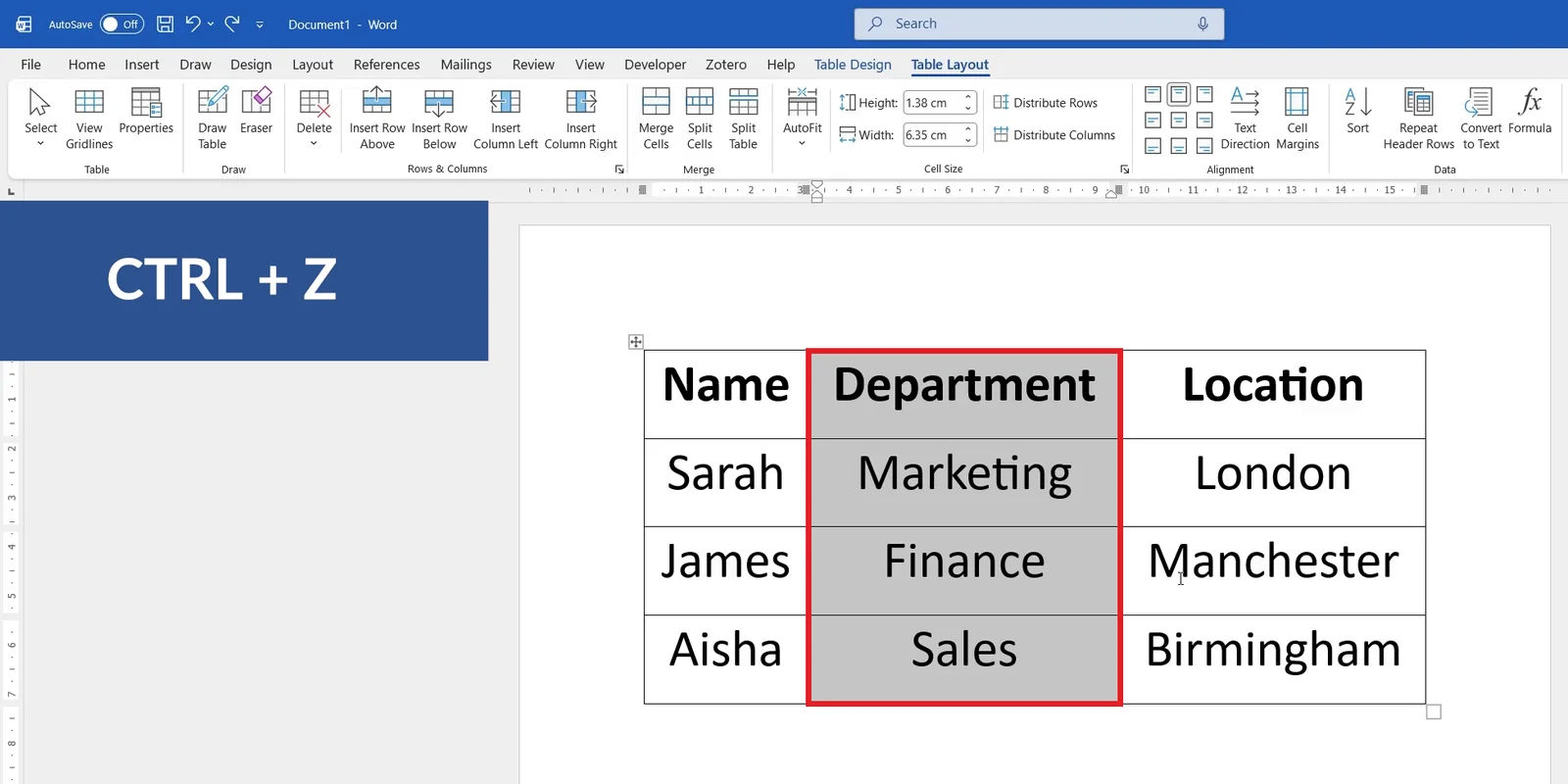
Removed the wrong column? Press Ctrl + Z straight away, or select Undo on the Quick Access Toolbar. Word restores the column with all of its contents and leaves it selected, so you can check it at a glance.
Best Way to Delete a Column in Word
| If you want to… | Use |
|---|---|
| Remove a column with the mouse | Method 1: right-click > Delete Columns |
| Work from the ribbon | Method 2: Table Layout > Delete > Delete Columns |
| Use the keyboard | Method 3: select the column and press Backspace |
| Clear the text but keep the column | Select the column and press Delete |
| Bring back a deleted column | Press Ctrl + Z |
Quick Tips
- Several columns: select them all first, then use any of the three methods.
- Keep the table width: after deleting, select the table and choose Table Layout > AutoFit > AutoFit Window to stretch the remaining columns.
- Hide instead of delete: if you only want a cleaner look, hide the table lines rather than removing data.
Common Problems
The Column Is Still There but Empty
You pressed Delete rather than Backspace. Press Ctrl + Z to bring the text back, then use Delete Columns or Backspace.
Only Some Cells Were Removed
You chose Delete Cells with Shift cells left, which moves the other cells across and can leave a ragged table. Undo, then choose Delete Columns.
There Is No Table Layout Tab
The tab only appears while the cursor is inside the table. Click any cell and it returns next to Table Design.
The Wrong Column Was Deleted
Press Ctrl + Z before you make any other change. Undo works step by step, so it may take more than one press if you kept typing.
FAQs
How do I remove a column from a table in Word?
Select the whole column, right-click it and choose Delete Columns. You can also use Table Layout > Delete > Delete Columns, or press Backspace while the whole column is selected.
Why does pressing Delete only clear the text?
The Delete key removes the contents of the selected cells but keeps the column. Press Backspace instead, or use the Delete Columns command, to remove the column itself.
How do I undo deleting a column in Word?
Press Ctrl + Z straight away, or select Undo on the Quick Access Toolbar. The column comes back with all of its contents.
Can I delete more than one column at once?
Yes. Drag across the tops of the columns you want to remove so they are all highlighted, then choose Delete Columns. Word removes every selected column in one go.
Where is Delete Columns on the ribbon?
Click inside the table to show the Table Layout tab. Select Delete in the Rows & Columns group, then choose Delete Columns.
Do I need to select the whole column?
For the Table Layout method, clicking one cell is enough, because Delete Columns removes the column that contains your cursor. For the right-click and Backspace methods, select the entire column first.
Conclusion
To remove a column from a table in Word, select the column and choose Delete Columns from the right-click menu or the Table Layout tab, or simply press Backspace. Remember that the Delete key only clears the text.
If you remove the wrong column, Ctrl + Z brings it straight back. To keep editing your tables faster, try these Word table shortcuts, or learn how to merge cells in Word.
New to Word? This tutorial goes with Chapter 9 of the free Microsoft Word for beginners guide: Tables. It covers the basics step by step, with screenshots, short videos and practice files, and you can download the whole guide as a free PDF.
Related Tutorials
- How to Delete a Row in a Table in Word: 3 Easy Methods
- How to Merge Tables in Word: 3 Easy Methods (Quick Guide)
- How to Delete Table Borders in Word: 2 Easy Methods (Quick Guide)
- How to Make a Table Smaller in Word
Word Tutorials
Recently Added on Word Made Easy
Browse the complete collection for help with formatting, layout, pages, tables, images, and document setup.
For Microsoft support documentation, visit the official Microsoft guidance.

Leave a comment
Stuck on a step, or know a quicker way? Ask or share it below.