
If you want to learn how to merge tables in Word, this guide covers the 3 easy methods. Knowing how to merge tables in Word lets you combine two separate tables into one — useful when you’ve split data across tables and need to reunite it. You’ll learn how to merge tables in Word using a keyboard shortcut, the cut-and-paste method, and a reliable convert-to-text workaround when nothing else works.
Working with tables in Microsoft Word is a great way to organise information — if you haven’t already, check out the guide on three ways to insert a table in Word before diving into merging them.
Why Tables Don’t Automatically Merge in Word
Before you learn how to merge tables in Word, it helps to understand why they may stay separate. The most common reason is text wrapping settings. If tables are not set to “None,” Word treats them as floating objects rather than inline elements — and floating tables can’t merge with each other.
Other reasons tables won’t merge include:
- Empty paragraphs or text content between the two tables
- Different table alignments (e.g., one centered, one left-aligned)
- Tables with mismatched column counts
The setup step below fixes the most common cause — text wrapping — before any merge method will work reliably.
Watch the Video Tutorial
If you prefer to see this in action, the full video walkthrough is below, showing each method step by step.
Setup Step: Set Text Wrapping to None
Before you try to merge tables in Word using any method, you must set both tables to “None” text wrapping.
For both tables:
- Select the table
- Right-click and choose Table Properties
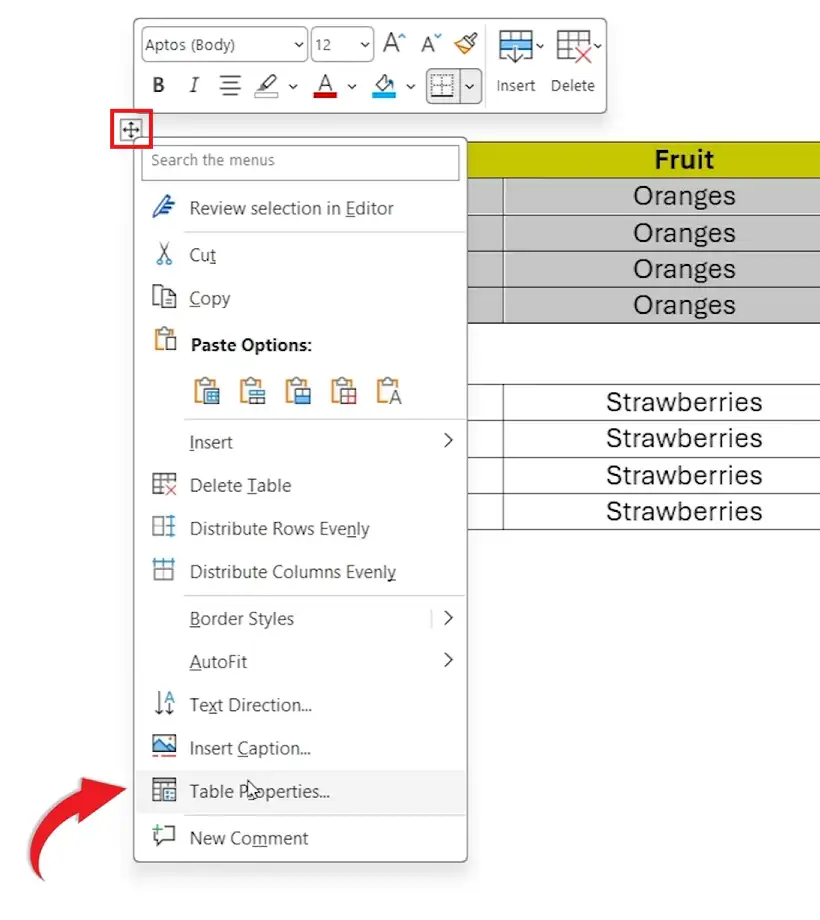
- Set Text Wrapping to None
- Then click OK
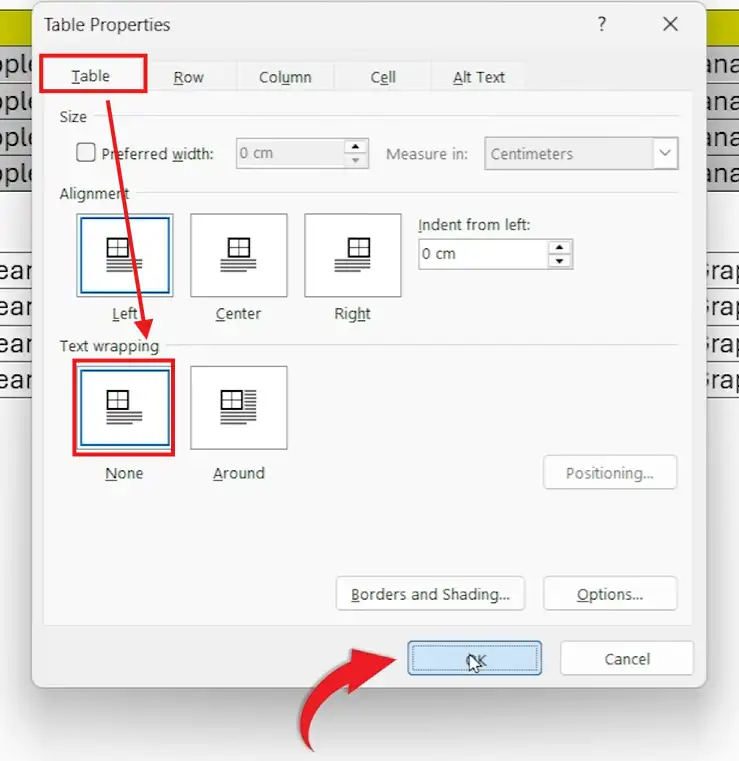
Repeat this for each table before attempting to merge them. Now you’re ready to use one of the 3 merge methods below.
Method 1: How to Merge Tables in Word Using a Keyboard Shortcut
This is the fastest way to merge tables in Word. Once text wrapping is set correctly, you can merge two tables instantly using a keyboard shortcut.
To merge the bottom table into the top table:
- Click anywhere inside the bottom table
- Press Alt + Shift + Up Arrow
👉 This moves the table up and merges it with the one above. Keep pressing the shortcut if there’s space between them.
To merge the top table into the bottom table:
- Click anywhere inside the top table
- Press Alt + Shift + Down Arrow
👉 This moves the table down and combines both tables.
Method 2: How to Merge Two Tables in Word Using Cut and Paste
When your tables are separated by multiple lines, paragraphs, or pages, the cut-and-paste method is the most reliable way to merge two tables in Word.
Steps:
- Click the move handle (small square in the top-left corner) of the table you want to move
- Press Ctrl + X to cut
- Click immediately below the first table (no empty line between)
- Press Ctrl + V to paste
👉 The two tables will merge into one. If a gap remains, position your cursor in the gap and press Backspace until the tables join.
Method 3: How to Merge Tables in Word Using Convert to Text
If the above methods don’t work, this convert-to-text workaround reliably forces tables to merge in Word.
Step 1: Convert Both Tables to Text
- Select the first table
- Go to Table Layout
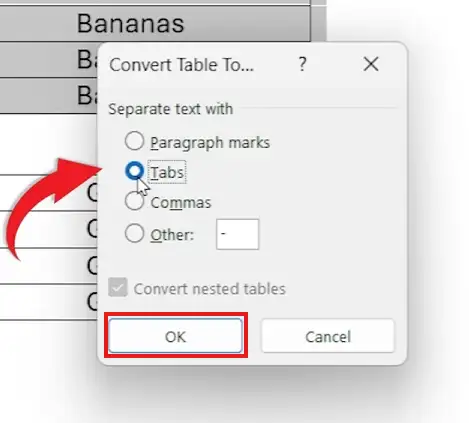
- Click Convert to Text

- Choose Tabs as the separator and click OK
- Repeat for the second table
Step 2: Remove the Gap Between Both Text Blocks
- Position your cursor between the two text blocks
- Press Backspace until they sit directly next to each other
Step 3: Convert the Combined Text Back to a Table
- Highlight all the merged text
- Go to Insert
- Click Table → Convert Text to Table
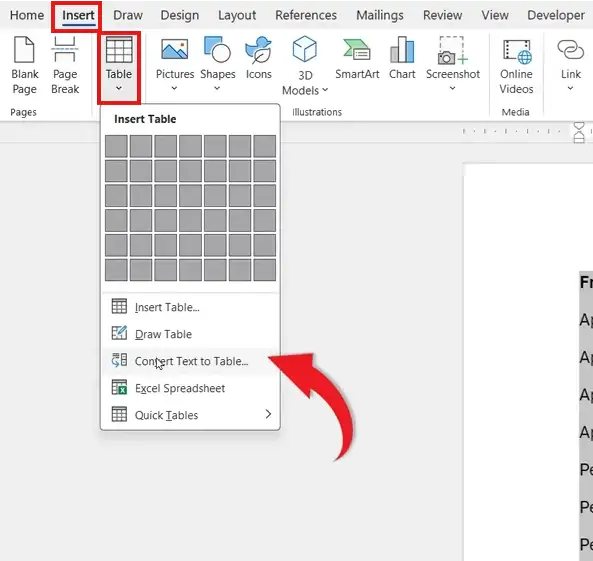
- Set the correct number of columns
- Choose Tabs as the separator
- Click OK
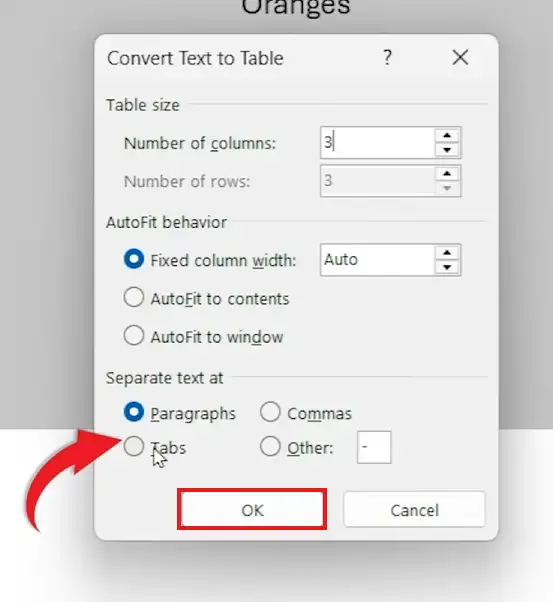
Step 4: Adjust Formatting
- Merge cells if needed
- Realign text and reapply styles
- Apply formatting to match your document layout
Which Method Should You Use to Merge Tables in Word?
| Method | Best For |
|---|---|
| Keyboard Shortcut (Alt + Shift + Arrow) | Quick merges with adjacent tables |
| Cut & Paste (Ctrl + X / Ctrl + V) | Tables separated by space, paragraphs, or pages |
| Convert to Text → Back to Table | When Word stubbornly refuses to merge tables |
Common Problems When Merging Tables in Word
Tables Won’t Merge Even After Setting Text Wrapping to None
Check for hidden paragraph marks between the tables. Press Ctrl + Shift + 8 to show formatting marks, then delete any paragraph symbols (¶) between the two tables.
Different Number of Columns
Tables with different column counts will still merge but may look misaligned. Add or remove columns in either table before merging to keep formatting clean.
Formatting Breaks After Merging
Word often defaults to the formatting of the top table. Use Table Design → Table Styles to reapply consistent formatting after the merge.
Pro Tips for Merging Tables in Word
- Always check text wrapping settings first
- Keep tables aligned with the same number of columns
- Use gridlines (Table Layout → View Gridlines) to stay organised during editing
- Show formatting marks (Ctrl + Shift + 8) to spot hidden paragraphs between tables
- Preview your document after merging to catch formatting issues
FAQs
How do I merge tables in Word?
The fastest way to merge tables in Word is to set both tables to “None” text wrapping (right-click → Table Properties), then click in the bottom table and press Alt + Shift + Up Arrow. The tables will merge automatically.
How do I merge two tables in Word?
To merge two tables in Word, both tables need to be set to “None” text wrapping. Then either use the Alt + Shift + Up/Down Arrow keyboard shortcut or cut one table (Ctrl + X) and paste it directly below the other (Ctrl + V).
Why won’t my tables merge in Word?
Most likely because text wrapping is not set to “None,” or there’s hidden content between the tables. Show formatting marks (Ctrl + Shift + 8) to spot the issue.
Is there a keyboard shortcut to merge tables in Word?
Yes. Use Alt + Shift + Up Arrow to move a table up and merge it with the one above, or Alt + Shift + Down Arrow to move it down. For more shortcuts, see the Microsoft Word keyboard shortcuts cheat sheet.
Can I merge tables with different column numbers?
Yes, but the formatting may break. Word will keep both tables but the row widths will look uneven. You may need to manually adjust columns afterward to make them match.
Will merging tables affect formatting?
Sometimes. Word usually defaults to the formatting of the top table. You may need to reapply table styles, header rows, or shading after merging.
What is the easiest way to merge tables in Word?
The keyboard shortcut (Alt + Shift + Up/Down Arrow) is the easiest if your tables are directly next to each other. For tables with content in between, the cut-and-paste method is more reliable.
Can I merge tables across different pages?
Yes. Use the cut-and-paste method (Method 2) to bring the tables together first, then they’ll merge automatically once they’re directly adjacent and both set to “None” text wrapping.
Conclusion
Now that you know how to merge tables in Word three different ways — using the Alt + Shift + Arrow keyboard shortcut, the cut-and-paste method, or the convert-to-text workaround — you can combine any two tables in seconds.
For most situations, set both tables to “None” text wrapping first, then use the keyboard shortcut. If that fails, fall back to cut-and-paste. The convert-to-text method is your last resort but works every time.
For further layout control, learn how to adjust margins in Word — it gives your tables even more breathing room on the page.
Related Tutorials
- Three Ways to Insert a Table in Word
- Microsoft Word Keyboard Shortcuts Cheat Sheet
- How to Adjust Margins in Word
Word Tutorials
Recently Added on Word Made Easy
Browse the complete collection for help with formatting, layout, pages, tables, images, and document setup.
For Microsoft support documentation, visit the official Microsoft guidance.

Leave a Reply