
When working in Microsoft Word, organizing text alphabetically can make your document cleaner and easier to read. Whether you’re sorting names, lists, or data, Word has a built-in sorting tool that makes it quick and simple.
In this guide, you’ll learn how to alphabetize text in Word, including sorting with headings and organizing names by first or last name.
Why Alphabetize Text in Word
Sorting text alphabetically helps you:
- Organize lists clearly — particularly useful in long documents structured with a table of contents in Microsoft Word
- Improve readability
- Manage names or data efficiently
- Create professional-looking documents
Watch the Video Tutorial
If you prefer to see this in action, the full video walkthrough is below, showing each method step by step.
Method 1: Sort a Simple List Alphabetically
This is the most common way to alphabetize a list.
Steps:
- Select all the text you want to sort
- Go to the Home tab
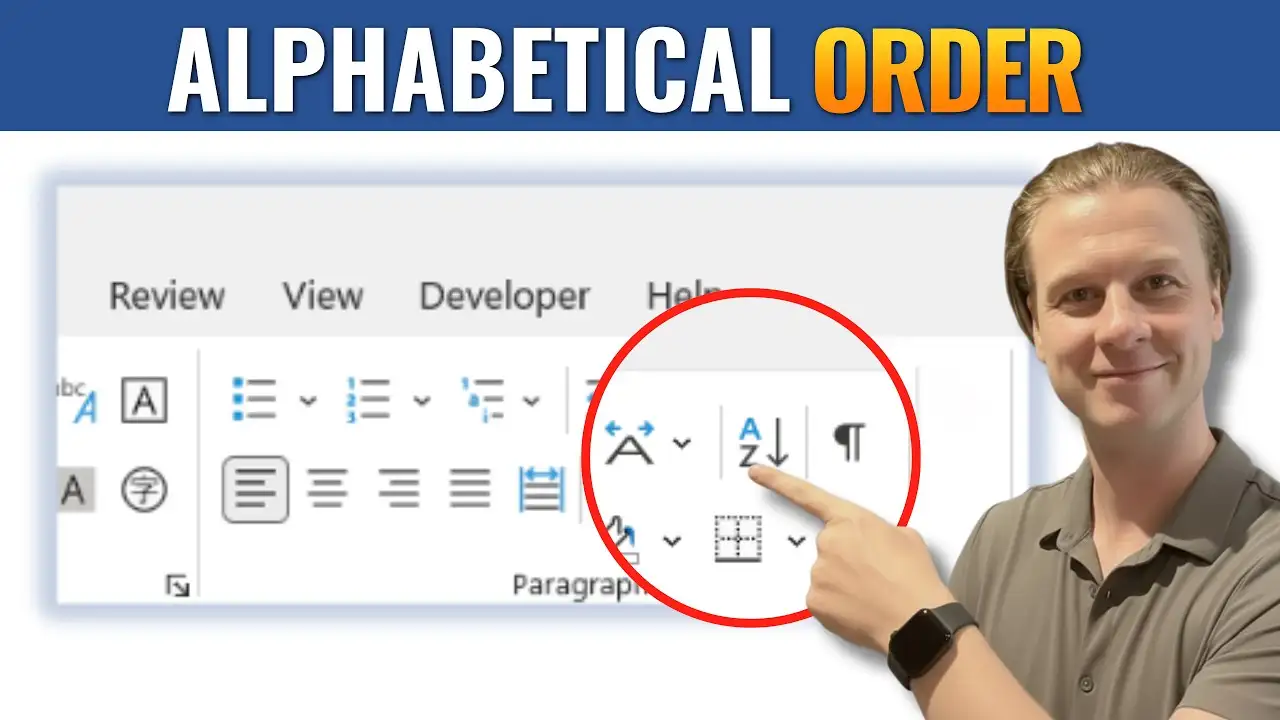
- Click the Sort (A–Z) icon
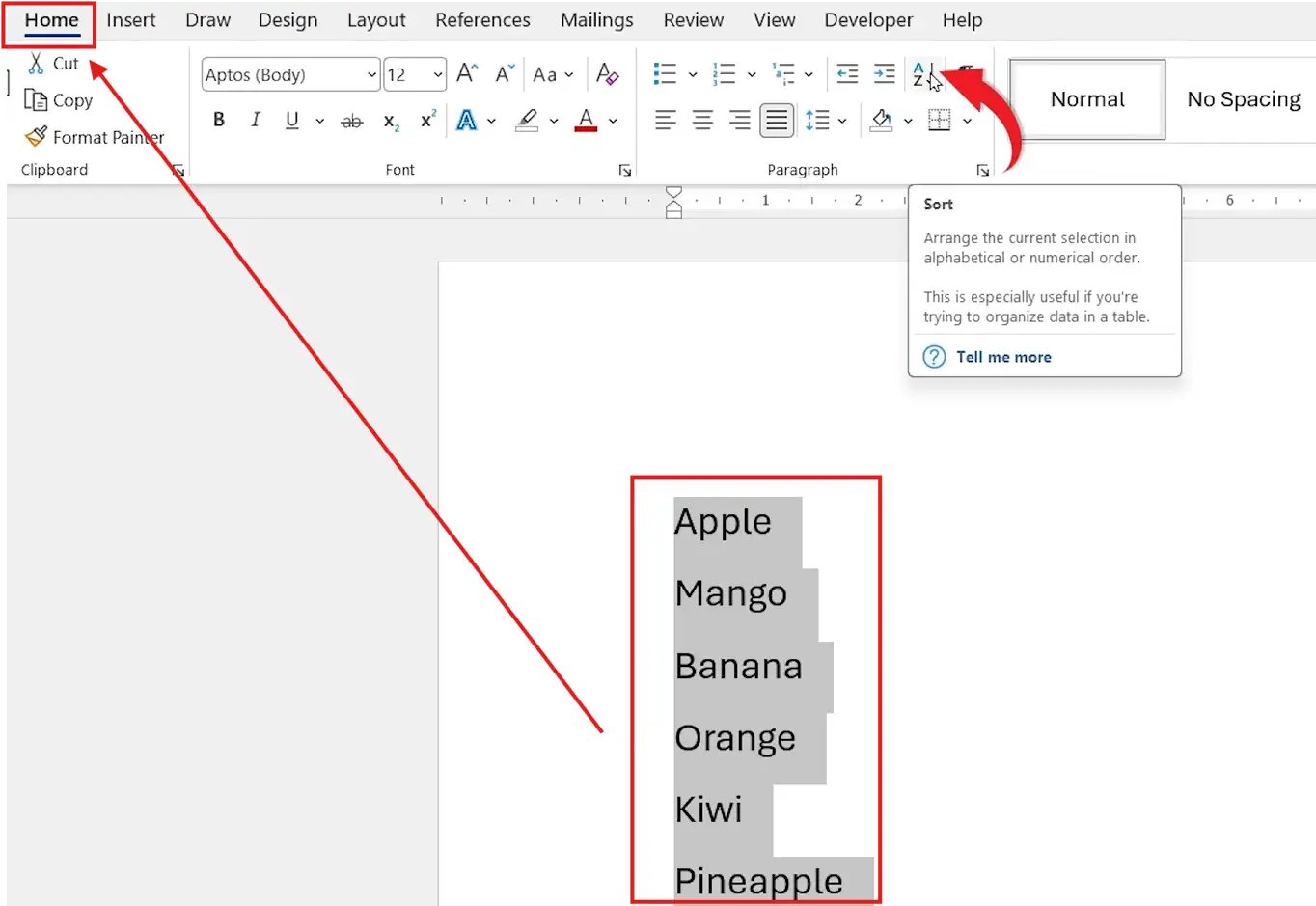
- In the dialog box:
- Set Sort by to Paragraphs
- Set Type to Text
- Choose Ascending (A–Z)
- Click OK

👉 Your list will now be sorted alphabetically.
How to Sort in Reverse Order (Z–A)
If you need reverse alphabetical order:
Steps:
- Select your text
- Click the Sort (A–Z) button
- Choose Descending (Z–A)
- Click OK
👉 Your list will be sorted from Z to A.
Method 2: Sort a List with a Header
If your list includes a heading, you can keep it in place while sorting — pairs well with how to create automatic chapters in Microsoft Word when structuring longer documents.
Steps:
- Select the entire list (including the header)
- Click the Sort (A–Z) icon

- Choose your sorting order (Ascending or Descending)
- Check Header row
- Click OK

👉 The header stays at the top while the rest of the list is sorted.
Method 3: Sort Names by First or Last Name
To sort names properly, you’ll need to separate them.
Step 1: Add a Separator
- Separate names using a comma (e.g., Smith, John)
Step 2: Sort by Field
- Select all text
- Click the Sort (A–Z) icon
- Click Options
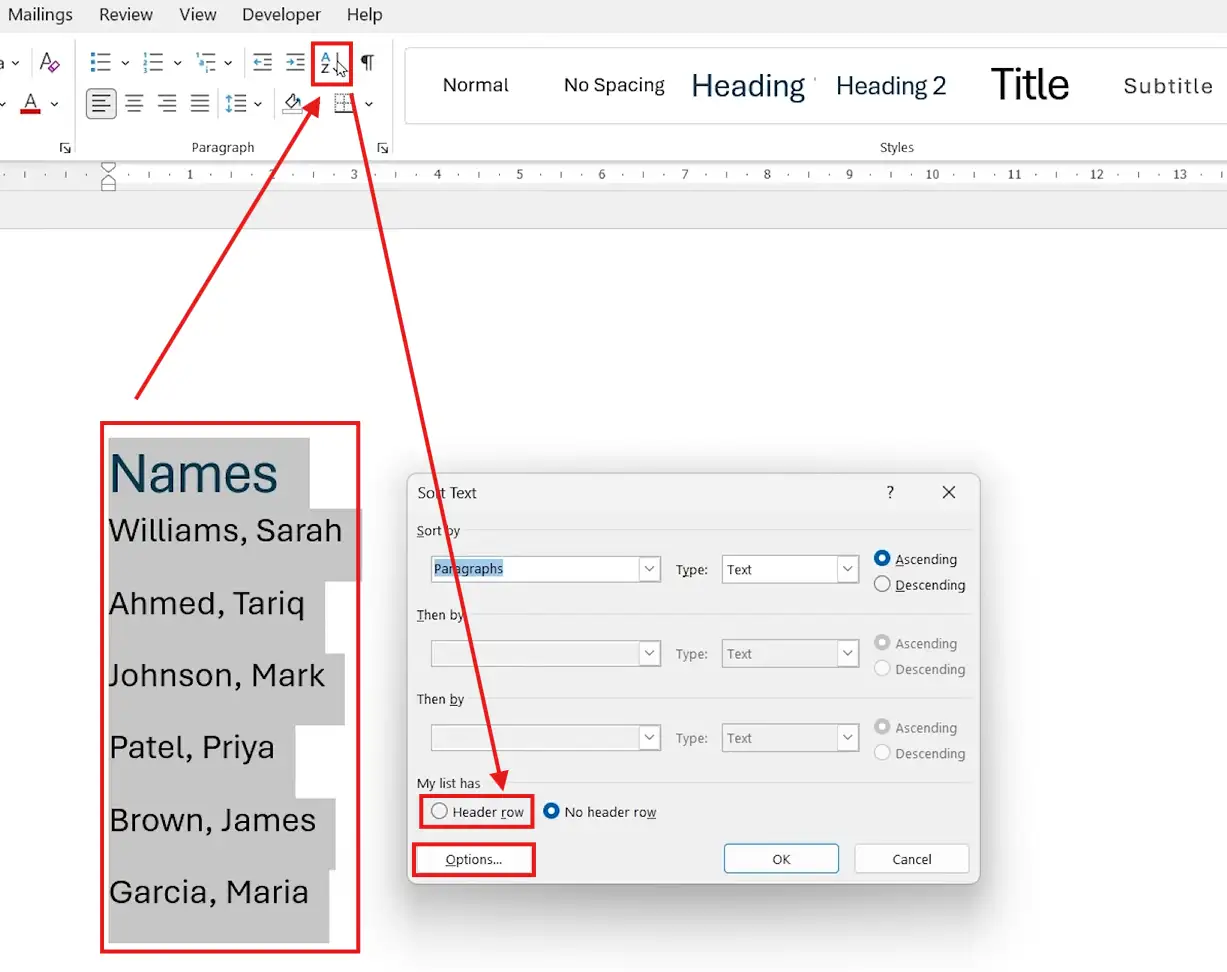
- Choose Comma as the separator
- Click OK

Sort by Last Name
- In the Sort dialog box, choose Field 1 (or the first column)
- Click OK
👉 Names are sorted alphabetically by surname.
Sort by First Name
- Repeat the steps above
- Choose Field 2 (the second column)
- Click OK
👉 Names are sorted alphabetically by first name.
When to Use Each Sorting Method
- Simple lists → Use basic A–Z sorting
- Lists with headings → Enable header row
- Names or data fields → Use separators and field sorting, useful when building tables in Word
Quick Summary (Key Takeaways)
- Use the Sort (A–Z) tool in the Home tab
- Choose Ascending for A–Z or Descending for Z–A
- Enable Header row to keep headings in place
- Use commas to separate names for advanced sorting
- Select the correct field to sort by first or last name
FAQs
Where is the sort button in Word?
It’s located in the Home tab and looks like an A–Z with a downward arrow.
Can I alphabetize only part of my document?
Yes, simply select the specific text you want to sort.
How do I keep a title from being sorted?
Check the “Header row” option in the Sort dialog box.
Can I sort names by last name in Word?
Yes, by separating names with commas and sorting by the first field.
Does sorting affect formatting?
No, sorting only changes the order of text, not its formatting.
Conclusion
Alphabetizing text in Microsoft Word is a quick and effective way to organize your content.
Whether you’re working with simple lists or complex name data, Word’s sorting tools give you full control over how your information is arranged.
Related Tutorials
- How to Create a Table of Contents in Microsoft Word
- How to Create Automatic Chapters in Microsoft Word
- Three Ways to Insert a Table in Word

Recent Microsoft Word Tutorials

Looking for more help with Microsoft Word? Browse all step-by-step Word tutorials covering formatting, layout, pages, and document setup.
👉 View all Microsoft Word tutorials: https://wordmadeeasy.org/microsoft-word/
👉 Need more support – check out the official guidance: https://support.microsoft.com/en-au

Prefer watching instead of reading? Many Word tutorials are also available as short, step-by-step videos on the Word Made Easy YouTube channel.
“`
3 inline links + manual Related Tutorials. All URLs verified live in cached sitemap.











Leave a Reply