
Printing a booklet in Microsoft Word is a great way to create professional-looking documents such as manuals, brochures, or small books.
In this guide, you’ll learn exactly how to set up your document, adjust margins, and print a booklet in Word whether your printer supports automatic duplex printing or not.
What Is Booklet Printing in Word?
Booklet printing arranges your document so that when pages are printed, folded, and stacked, they appear in the correct order like a book.
Instead of printing pages sequentially, Word automatically reorganizes them into a book fold layout, making the process much easier.
Watch the Video Tutorial
If you prefer to see this in action, the full video walkthrough is below, showing each method step by step.
Set Up Your Document for Booklet Printing
Before printing, you need to configure your page layout correctly — start with margins, similar to how you would adjust margins in Word for any standard document.
Steps to Enable Book Fold Layout
- Go to the Layout tab in the ribbon
- Click Margins
- Select Custom Margins
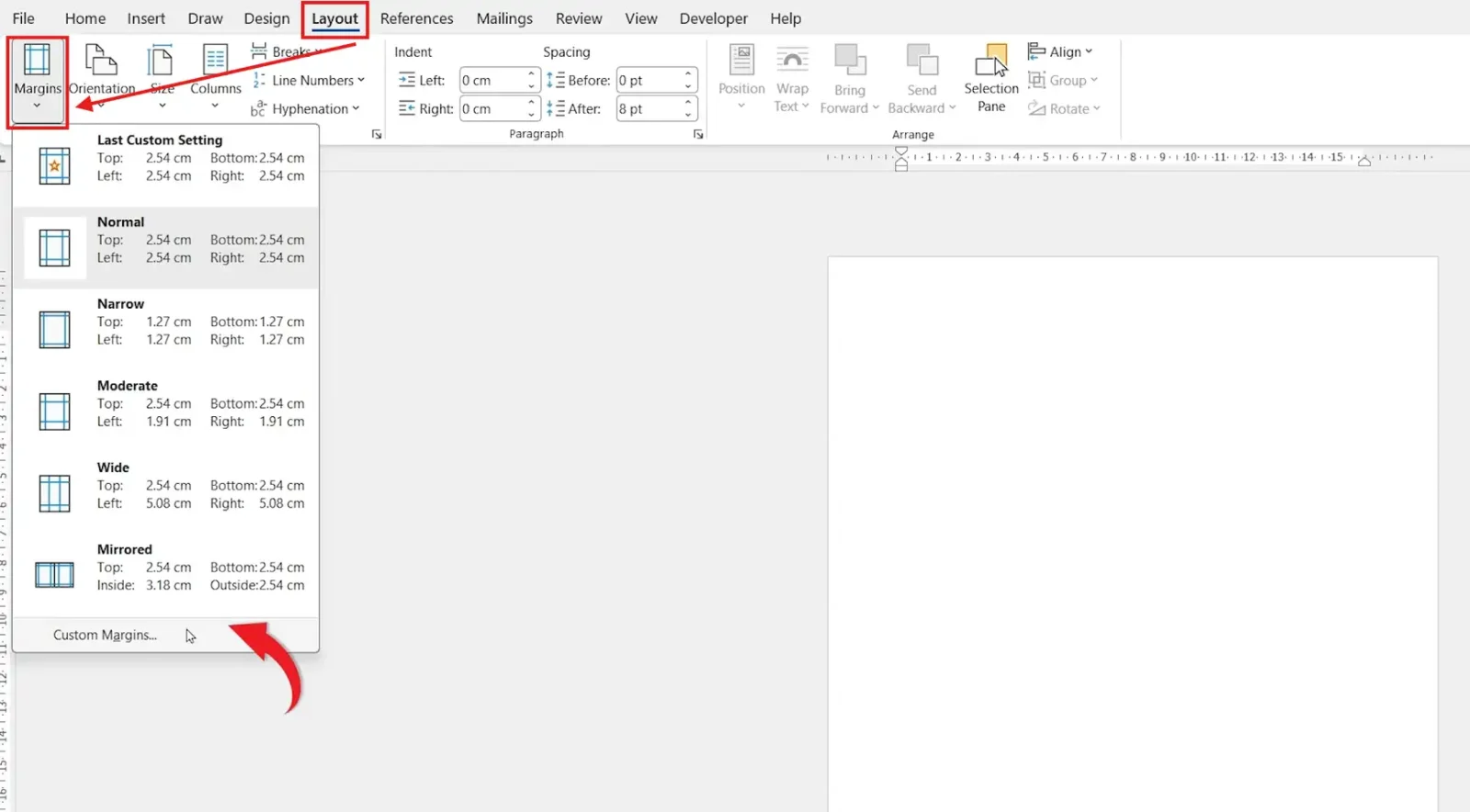
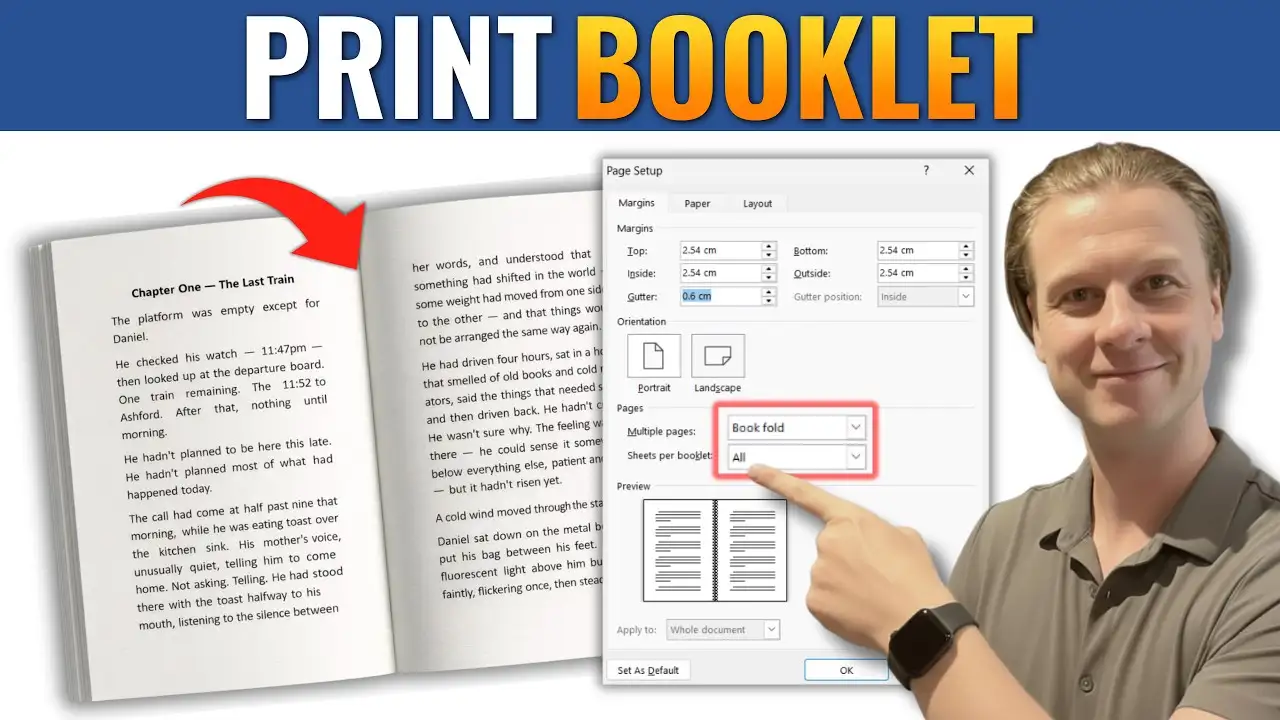
- In the Page Setup window:
- Change Orientation to Landscape (this happens automatically when you choose book fold)
- Find Multiple Pages
- Select Book fold
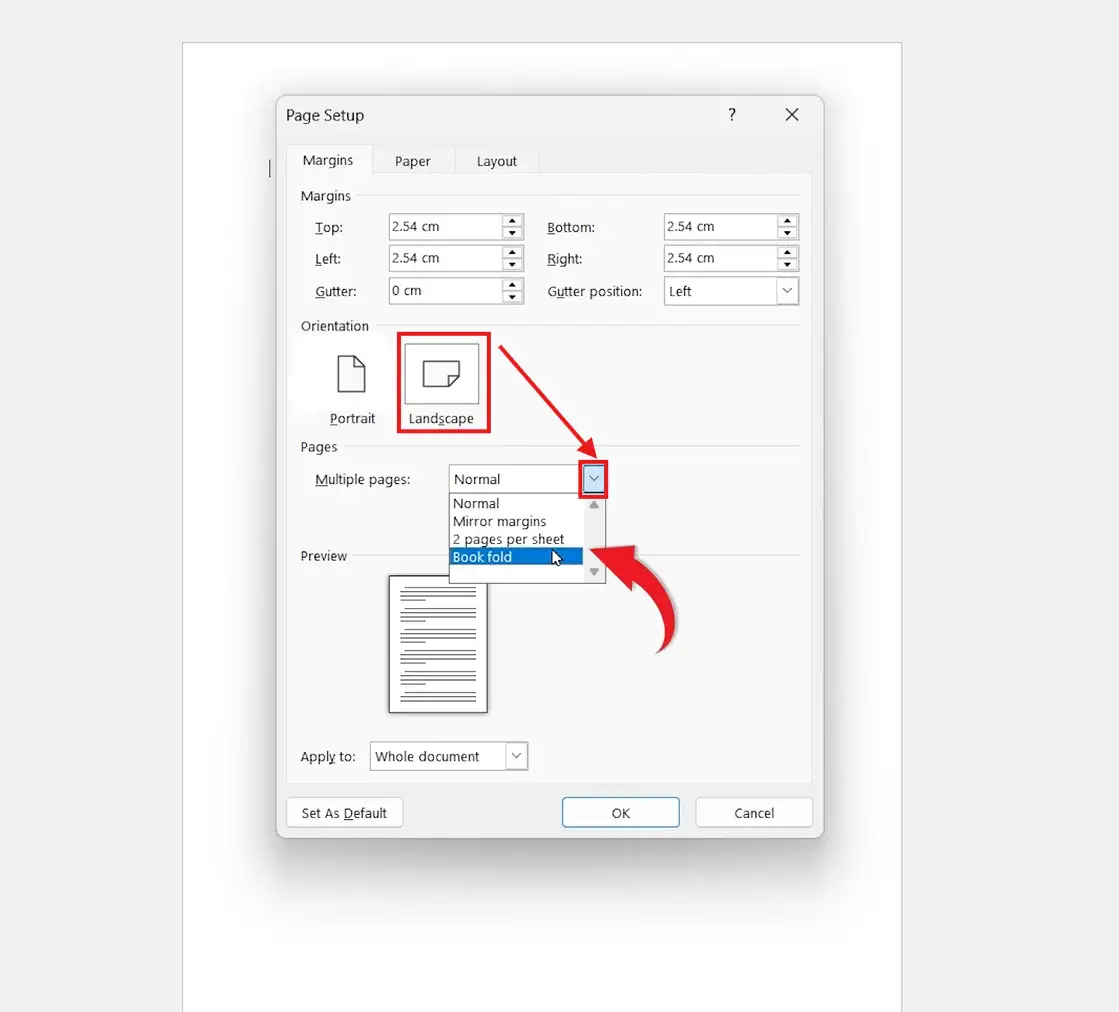
Once selected, your page will automatically split into two sections, simulating how a booklet will appear when printed and folded.
Adjust the Gutter Margin
The gutter is the inner margin where the pages will be folded or bound.
Why the Gutter Matters
- Prevents text from being hidden in the fold
- Improves readability
- Creates a professional finish
How to Adjust It
- In the Page Setup window
- Locate Gutter
- Increase the value (e.g., 0.5″ or 0.6″)
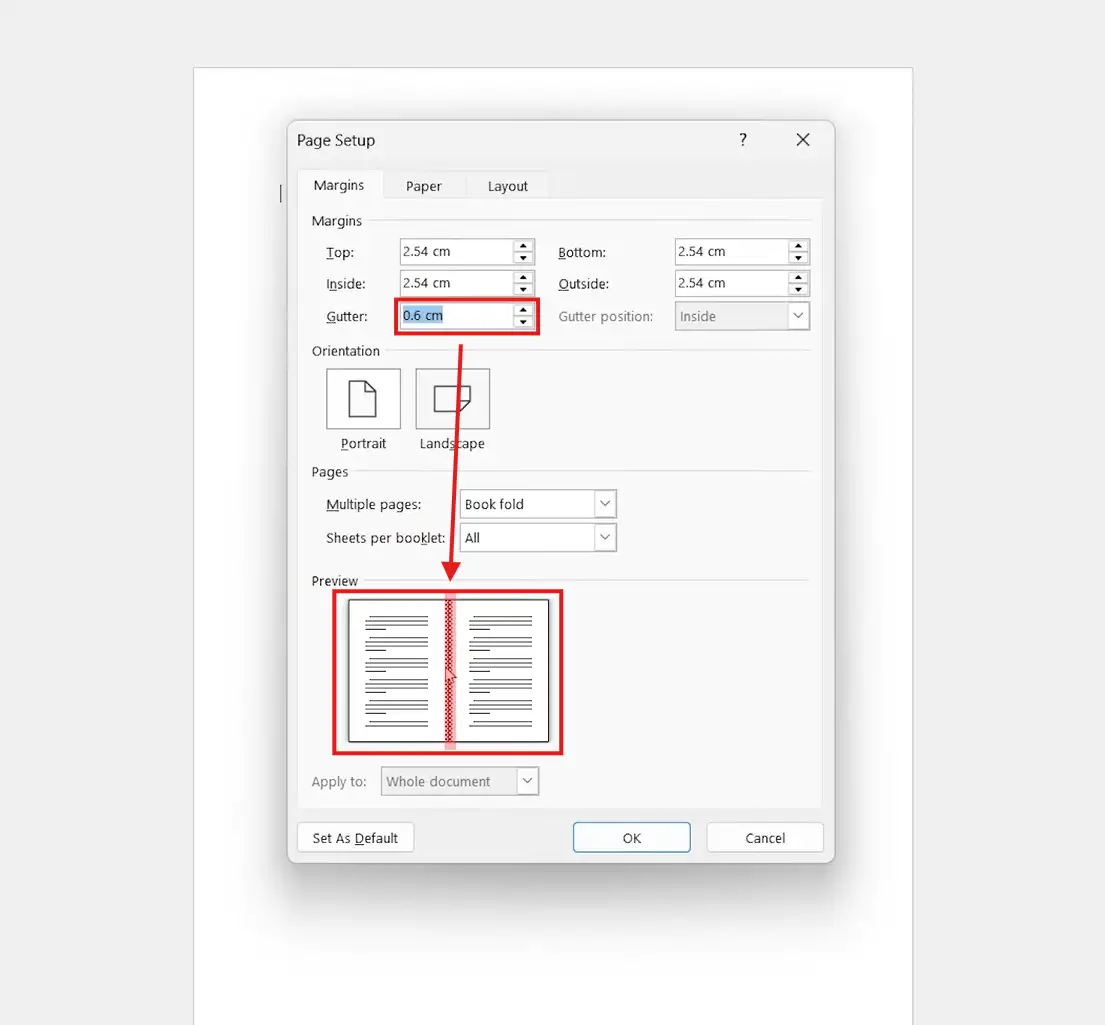
You’ll see a preview showing the non-printable area near the fold.
👉 Tip: Increase the gutter slightly for thicker booklets.
Choose Paper Size and Settings
To ensure proper printing:
- Go to the Paper tab
- Select your paper size (e.g., A4)
- Choose the correct printer tray
- Return to the Margins tab and review your settings
- Click OK
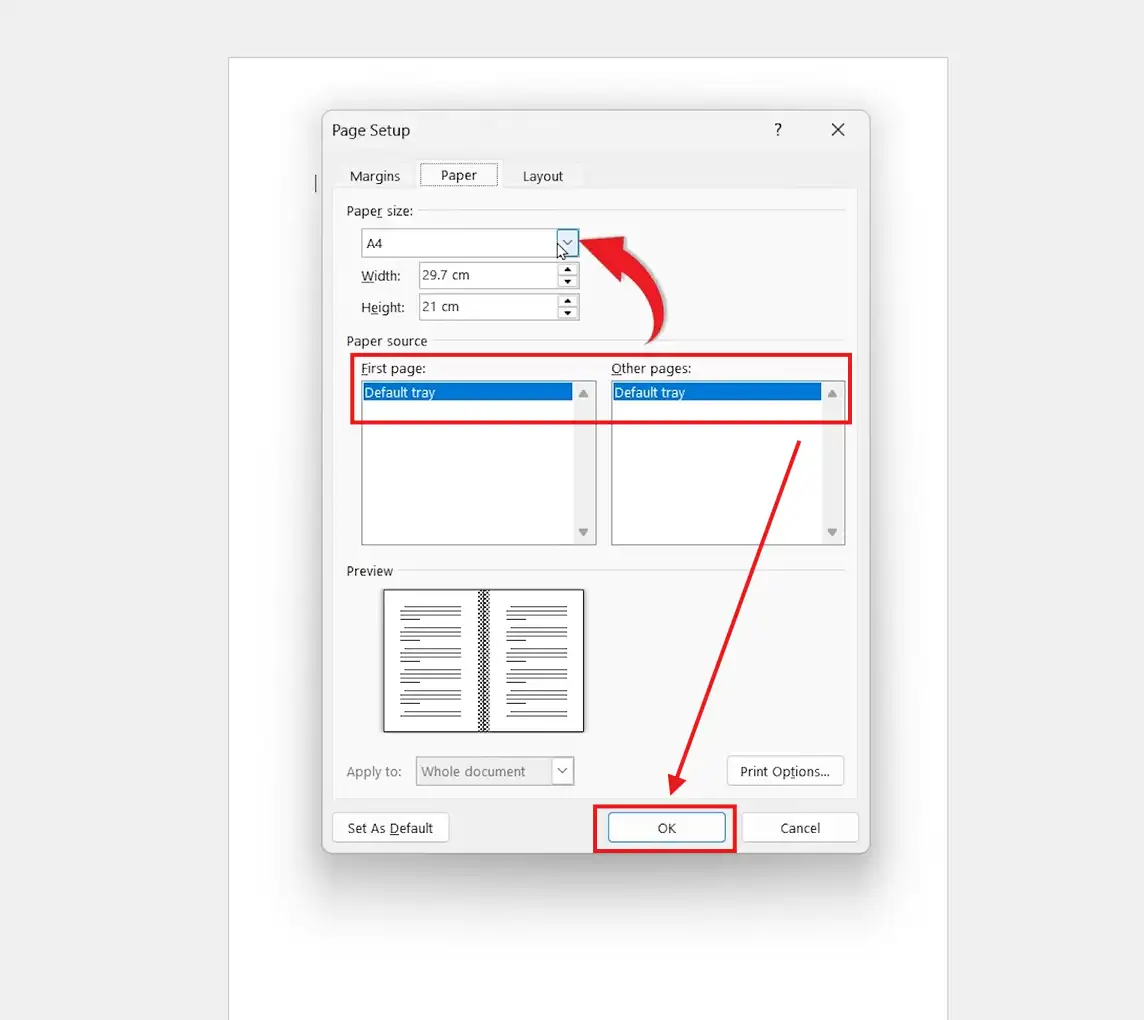
Your document will now appear in booklet format, with pages arranged for folding.
Understand Page Layout Changes
After applying book fold:
- Pages will appear side-by-side
- Margins may alternate between left and right
- This is normal and ensures proper alignment when folded
The increased gutter creates extra spacing near the center fold, preventing text from being difficult to read.
Print Your Booklet in Word
Once your layout is ready, it’s time to print — alternatively, if you want to share digitally first, see how to save a Word document as a PDF.
Steps to Print
- Press Ctrl + P
- Under Settings:
- Select Print on Both Sides (if available)
- Choose Flip pages on short edge
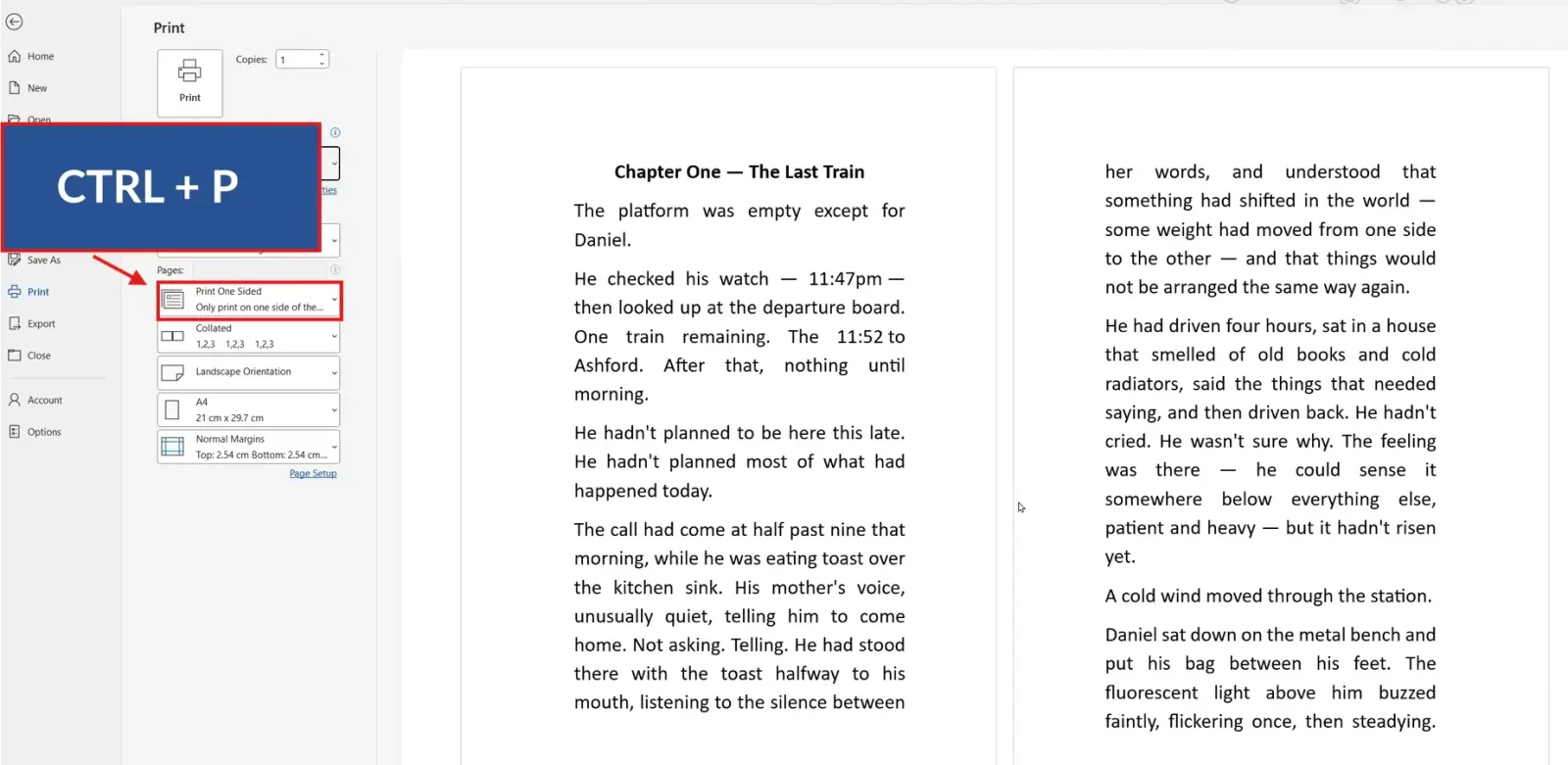
Manual vs Automatic Double-Sided Printing
Automatic Duplex Printing (Best Option)
- Printer prints both sides automatically
- Faster and more convenient
Manual Duplex Printing
If your printer doesn’t support automatic duplex:
- Select Manually Print on Both Sides
- Print the first side
- Reinsert the paper when prompted
- Let Word guide you through the process
👉 Don’t worry word provides instructions on how to refeed the paper correctly.
Make Adjustments Before Printing
If you need to tweak your booklet:
- Go back to Layout > Margins > Custom Margins
- Adjust the gutter, spacing, or layout
- Use Page Setup for quick edits
You don’t need to restart your document changes can be made anytime.
Common Issues and Fixes
Text Too Close to the Fold
Increase the gutter margin.
Pages Out of Order
Ensure “Book fold” is selected under Multiple Pages.
Printing Looks Incorrect
Double-check:
- Paper size
- Duplex settings
- Printer configuration
Best Uses for Booklet Printing
Booklet printing is ideal for:
- Instruction manuals — particularly when paired with a table of contents in Microsoft Word for easy navigation
- Event programs
- School projects
- Marketing brochures
- Small books or booklets
Pro Tips for Professional Booklets
- Use consistent margins and spacing
- Preview before printing
- Test print a few pages first
- Use thicker paper for better durability
- Keep content away from the fold area
FAQs
Can I print a booklet on any printer?
Yes, but printers with automatic duplex printing make the process easier.
What paper size should I use?
A4 is standard, but you can adjust based on your printer and project.
Why are my pages rearranged?
Word automatically reorders pages for booklet printing so they align correctly when folded.
Do I need special software?
No. Microsoft Word includes everything you need.
Conclusion
Printing a booklet in Microsoft Word is a powerful feature that allows you to create professional documents with ease.
By setting up the book fold layout, adjusting the gutter, and choosing the right print settings, you can produce clean, organized booklets ready for folding and sharing.
Once you get familiar with the process, you’ll be able to create polished booklets for any purpose quickly and efficiently.
Related Tutorials
- How to Adjust Margins in Word
- How to Save a Word Document as a PDF
- How to Create a Table of Contents in Microsoft Word

Recent Microsoft Word Tutorials

Looking for more help with Microsoft Word? Browse all step-by-step Word tutorials covering formatting, layout, pages, and document setup.
👉 View all Microsoft Word tutorials: https://wordmadeeasy.org/microsoft-word/
👉 Need more support – check out the official guidance: https://support.microsoft.com/en-au

Prefer watching instead of reading? Many Word tutorials are also available as short, step-by-step videos on the Word Made Easy YouTube channel.








Leave a Reply