
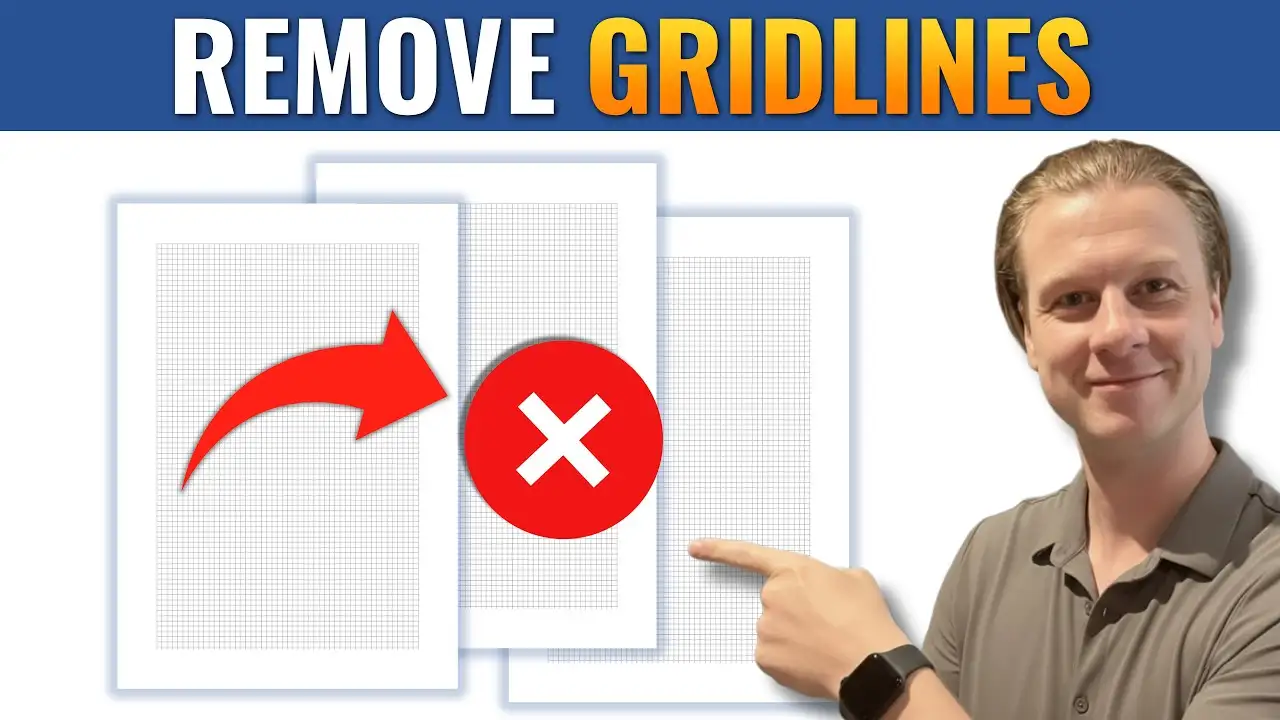
When working in Microsoft Word, you might notice faint grid patterns appearing in the background of your document. These gridlines can be confusing especially since they don’t behave like normal text or objects.
In this guide, you’ll learn how to remove gridlines in Word and understand why they appear in the first place.
Why Gridlines Appear in Word
Gridlines in Word are visual guides that help you align content more precisely — similar in purpose to formatting marks in Word, which also assist with structure but stay hidden by default. However, they can sometimes be turned on accidentally.
Common reasons you see gridlines:
- The gridlines view option was enabled
- You’re working on layout or alignment tasks
- Settings were changed unintentionally
Unlike table borders, these gridlines are part of the document view and won’t disappear by pressing delete or backspace.
Watch the Video Tutorial
If you prefer to see this in action, the full video walkthrough is below, showing each method step by step.
How to Turn Off Gridlines in Word
Removing gridlines is quick and only takes a few clicks.
Steps:
- Go to the View tab in the ribbon
- Look for the Show section
- Uncheck Gridlines
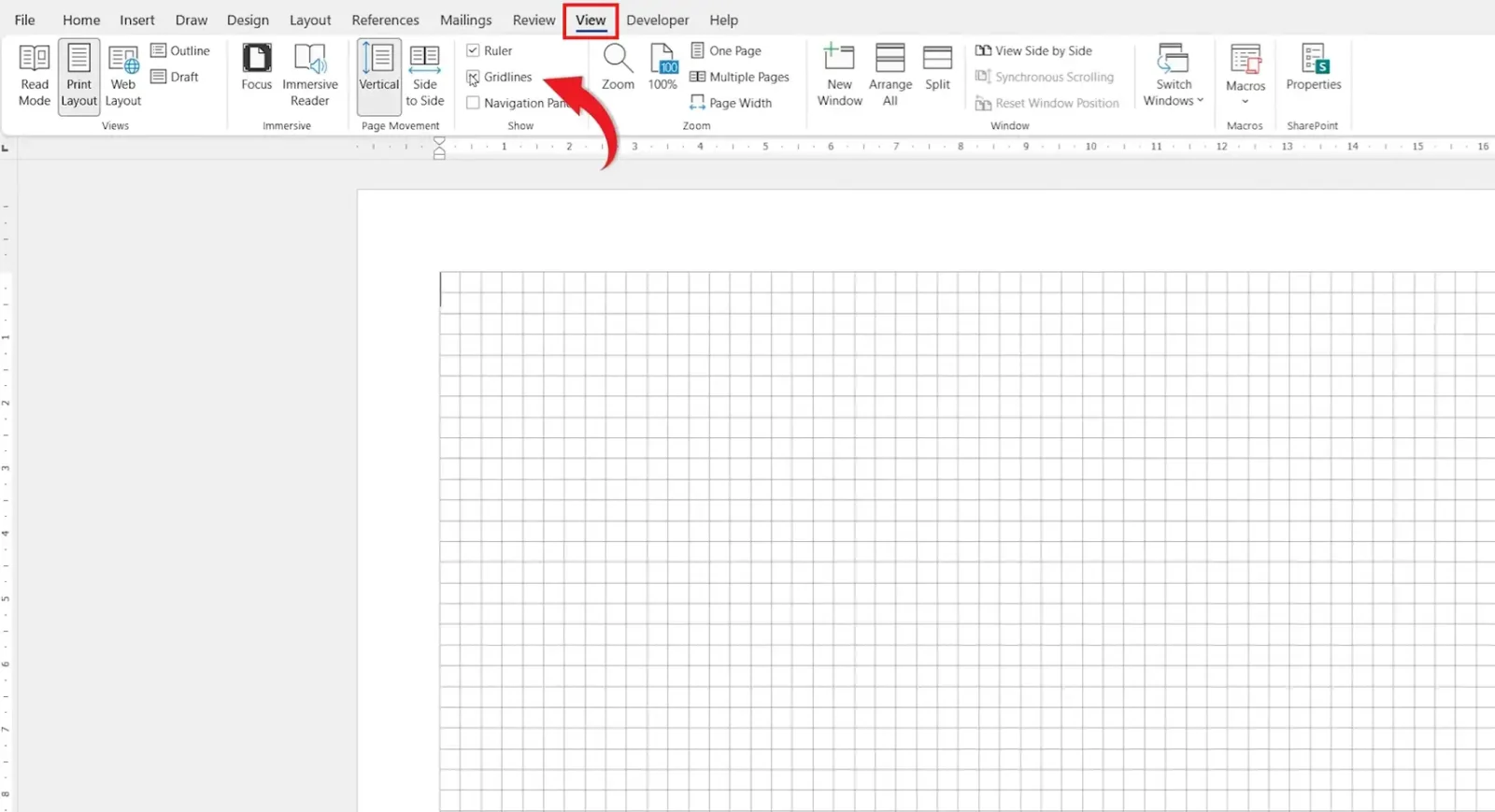
👉 The gridlines will disappear instantly from your document.
Why Backspace or Delete Doesn’t Work
If you’ve tried pressing backspace or delete and nothing happens, that’s because:
- Gridlines are not actual objects
- They are simply a display setting
- They don’t affect your document content
This means they can only be turned off through the View settings.
When to Use Gridlines
Although they can be distracting, gridlines can be useful in certain situations:
- Aligning images or shapes — particularly when you need to move an image freely in Word
- Creating structured layouts
- Designing documents with precise spacing, like when you adjust margins in Word
You can turn them on or off anytime depending on your needs.
Quick Summary (Key Takeaways)
- Gridlines are visual guides, not actual content
- They cannot be deleted using backspace or delete
- To remove them, go to View → Uncheck Gridlines
- They can be turned back on anytime for alignment help
FAQs
Do gridlines print in Microsoft Word?
No, gridlines are only visible on screen and will not appear when printed.
Are gridlines the same as table borders?
No, table borders are part of a table and can be printed, while gridlines are just visual guides.
Why did gridlines suddenly appear in my document?
They were likely enabled accidentally in the View tab.
Can I customize gridline settings in Word?
Word offers limited customization, but you can toggle them on or off easily.
Is it safe to turn gridlines off?
Yes, turning them off does not affect your document content or formatting.
Conclusion
Managing gridlines in Microsoft Word is simple once you know where to look.
By turning off the gridlines option in the View tab, you can quickly clean up your workspace and focus on your content without distractions. And if you ever need them again, you can easily turn them back on.
Related Tutorials
- How to Remove Formatting Marks in Word
- How to Move an Image Freely in Word
- How to Adjust Margins in Word

Recent Microsoft Word Tutorials

Looking for more help with Microsoft Word? Browse all step-by-step Word tutorials covering formatting, layout, pages, and document setup.
👉 View all Microsoft Word tutorials: https://wordmadeeasy.org/microsoft-word/
👉 Need more support – check out the official guidance: https://support.microsoft.com/en-au

Prefer watching instead of reading? Many Word tutorials are also available as short, step-by-step videos on the Word Made Easy YouTube channel.






Leave a Reply