
Formatting text consistently in Microsoft Word can take time especially when working with large documents. Fortunately, the Format Painter tool makes it easy to copy formatting from one section and apply it to another in seconds.
In this guide, you’ll learn how to use Format Painter in Word, including keyboard shortcuts and how it works with text, shapes, and images.
What Is Format Painter in Word?
Format Painter is a built-in tool that allows you to copy formatting such as:
- Font style and size — useful when you want consistency without having to change the default font in Microsoft Word
- Text color
- Spacing and alignment
- Borders and effects
Instead of manually recreating formatting, you can apply it instantly across your document.
Watch the Video Tutorial
If you prefer to see this in action, the full video walkthrough is below, showing each method step by step.
How to Use Format Painter for Text
This is the most common way to use Format Painter.
Step-by-Step Instructions
- Select the text or paragraph with the formatting you want to copy
- Go to the Home tab
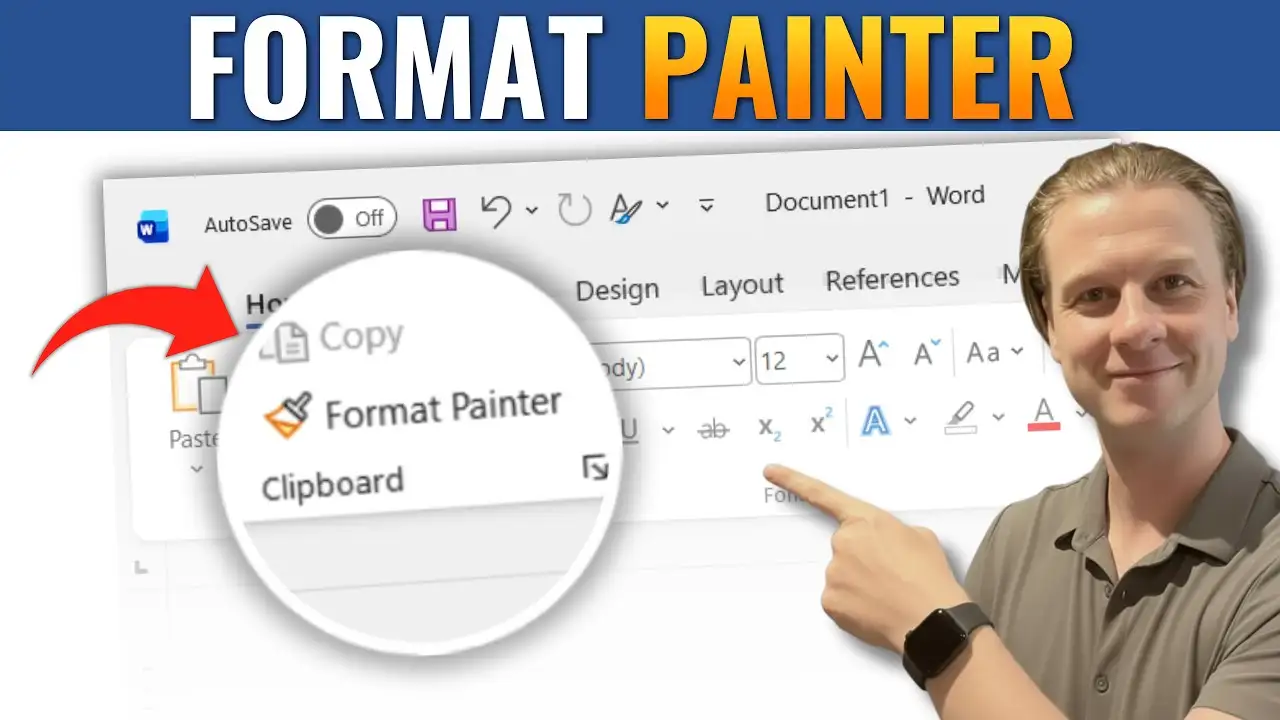
- Click Format Painter
- Click and drag over the text you want to format

The selected text will now match the original formatting exactly.
Use Format Painter Faster with Keyboard Shortcuts
If you prefer using shortcuts, Word makes the process even quicker — and you can find dozens more in our Microsoft Word keyboard shortcuts cheat sheet.
Shortcut Method
- Select the formatted text
- Press Ctrl + Alt + C (copy formatting)

- Highlight the text you want to update
- Press Ctrl + Alt + V (paste formatting)
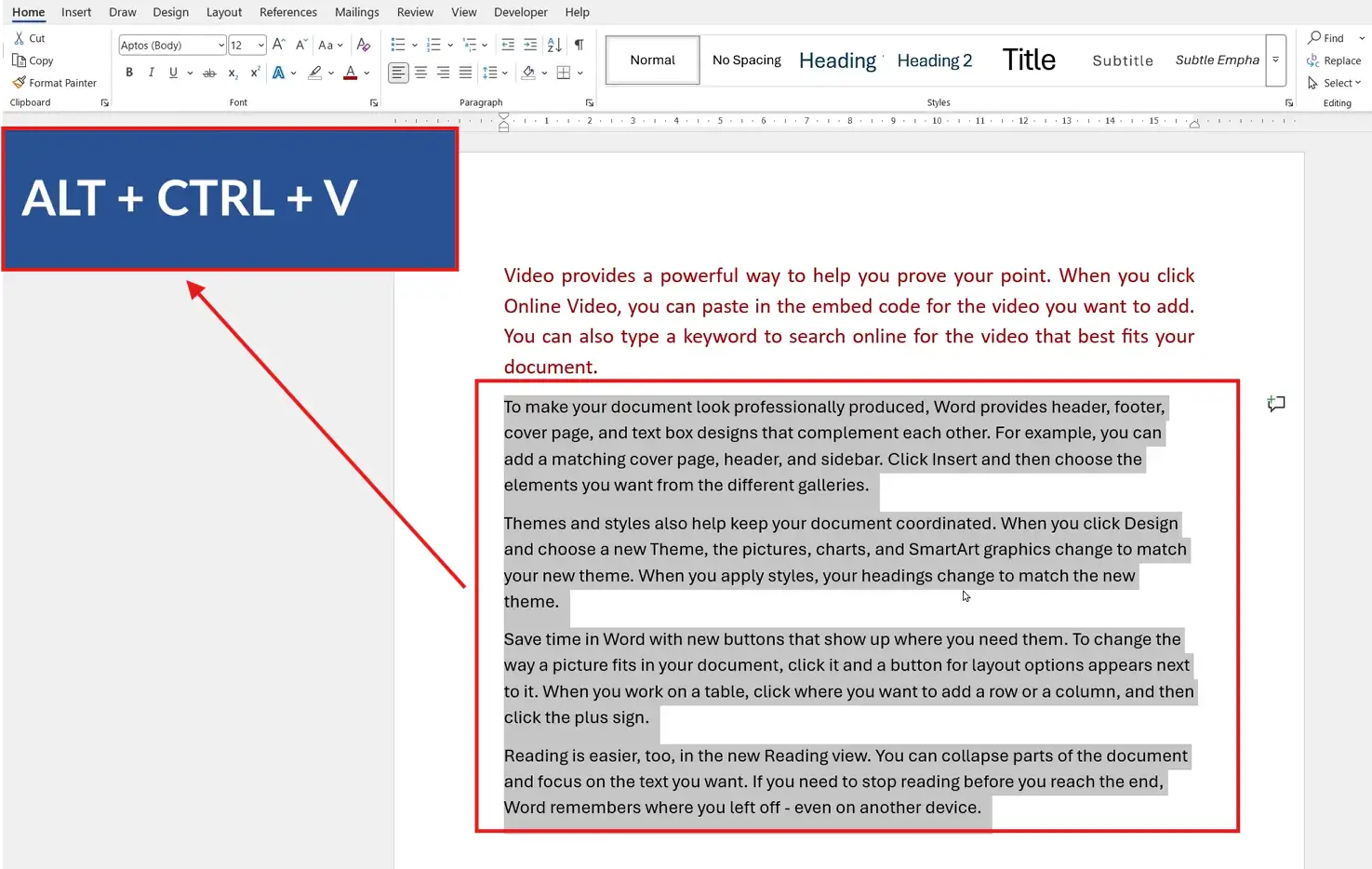
This method is ideal for speeding up repetitive formatting tasks.
Apply Format Painter to Multiple Sections
If you want to apply the same formatting to more than one area:
- Select your formatted text
- Double-click Format Painter
- Apply formatting to multiple sections
- Press Esc to turn it off
This saves time when working across long documents.
Use Format Painter for Shapes
Format Painter isn’t just for text it also works with shapes.
Steps:
- Select the formatted shape
- Click Format Painter
- Click another shape
The second shape will adopt the same style, including colors, outlines, and effects.
Use Format Painter for Images
You can also copy formatting between images — combine this with moving an image freely in Word for total layout control.
Steps:
- Select the formatted image
- Click Format Painter
- Click the target image

This applies the same image styles, borders, and visual effects.
Common Issues and Fixes
Format Painter Not Working
- Make sure you selected the correct source formatting
- Reapply Format Painter if needed
Formatting Only Partially Applies
- Some elements (like fonts or spacing) may differ due to document settings
Tool Turns Off Too Quickly
- Double-click Format Painter to keep it active
When to Use Format Painter
Format Painter is especially useful for:
- Editing long documents
- Creating consistent formatting
- Styling reports and presentations
- Matching headings and paragraphs
- Formatting shapes and images quickly
Pro Tips for Better Formatting
- Use shortcuts for faster workflow
- Combine Format Painter with Styles for consistency
- Double-click for repeated use
- Preview formatting before applying
FAQs
Where is Format Painter in Microsoft Word?
You can find it on the Home tab in the Clipboard group.
Can I use Format Painter multiple times?
Yes. Double-click the tool to apply formatting repeatedly.
Does Format Painter copy text content?
No. It only copies formatting not the text itself.
Can I use it on images and shapes?
Yes. Format Painter works on text, shapes, and images.
Is there a shortcut for Format Painter?
Yes. Use Ctrl + Alt + C to copy formatting and Ctrl + Alt + V to paste it.
Conclusion
Using Format Painter in Microsoft Word is one of the fastest ways to keep your document clean, consistent, and professional.
Whether you’re formatting text, shapes, or images, this tool can save you time and effort by applying styles instantly. Once you start using Format Painter regularly, you’ll notice a significant improvement in both speed and accuracy when working in Word.
Related Tutorials
- Microsoft Word Keyboard Shortcuts Cheat Sheet
- How to Change the Default Font in Microsoft Word
- How to Move an Image Freely in Word

Recent Microsoft Word Tutorials

Looking for more help with Microsoft Word? Browse all step-by-step Word tutorials covering formatting, layout, pages, and document setup.
👉 View all Microsoft Word tutorials: https://wordmadeeasy.org/microsoft-word/
👉 Need more support – check out the official guidance: https://support.microsoft.com/en-au

Prefer watching instead of reading? Many Word tutorials are also available as short, step-by-step videos on the Word Made Easy YouTube channel.






Leave a Reply