
If you want to learn how to move an image freely in Word, this guide covers the 5 easy steps. Knowing how to move an image freely in Word lets you place pictures anywhere on the page — inside paragraphs, beside text, or at the edges — instead of being stuck in line with your typing. You’ll learn how to move an image freely in Word using the Picture Format tab and text wrapping options.
By default, Word locks images in line with text — meaning the picture behaves like a large letter. The fix takes 5 seconds once you know what to click.
Why Images Don’t Move Freely in Word by Default
Before you learn how to move an image freely in Word, it helps to understand the default behaviour. Word places images in line with text. This means the picture behaves like a large letter, snapping into place alongside words and paragraphs.
While this works for basic documents, it becomes frustrating when you want:
- An image inside a paragraph
- Text to wrap neatly around a picture
- Full control over image placement
The good news? You can move an image freely in Word in seconds — once text wrapping is enabled.
Watch the Video Tutorial
If you prefer to see this in action, the full video walkthrough is below, showing each method step by step.
How to Move an Image Freely in Word: Step-by-Step
Step 1: Click the Image to Select It
Before you can move an image freely in Word, you need to select it.
- Click on the picture in your document
- You’ll see small sizing handles (dots) appear around the image
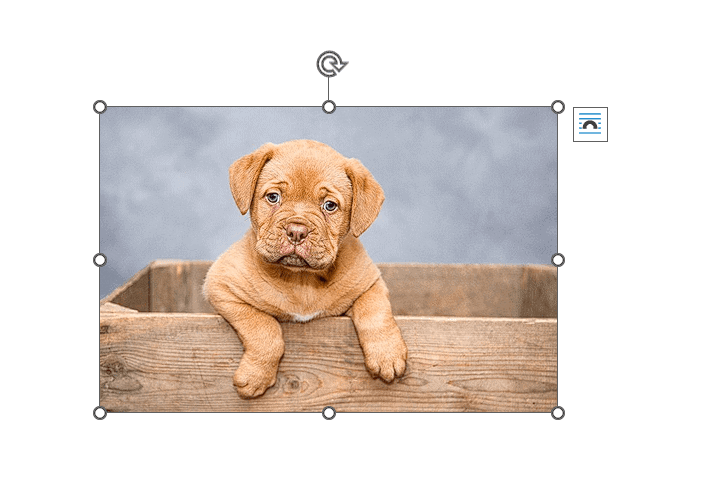
This tells Word the image is selected and ready to edit.
Step 2: Open the Picture Format Tab
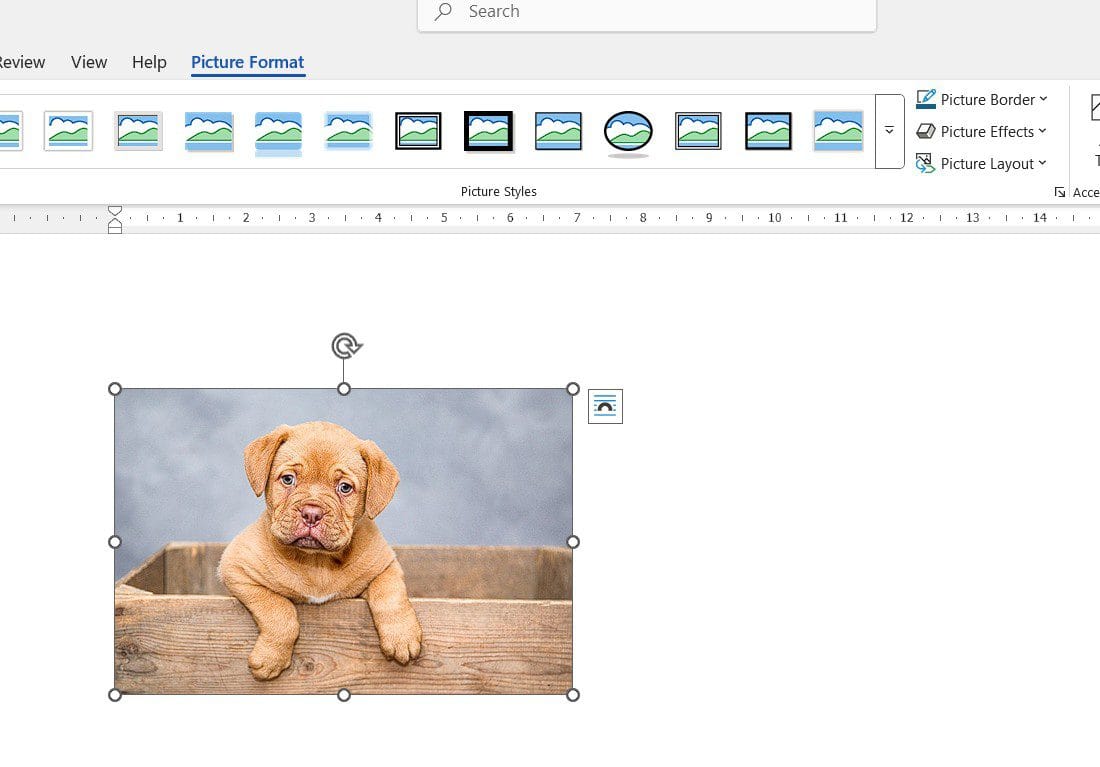
To move an image freely in Word, you need to open the Picture Format tab. This tab is where all image layout and positioning tools live.
- Go to the Picture Format tab at the top of Word
- This tab only appears after you click an image
Step 3: Click the Wrap Text or Position Button
To move an image freely in Word, you need to change the text wrapping. In the Picture Format tab:
- Find the Wrap Text button (or Position button)
- Click it to open the layout options

At this point, Word still restricts the image’s movement until you change the text wrapping setting.
Step 4: Choose a Text Wrapping Option
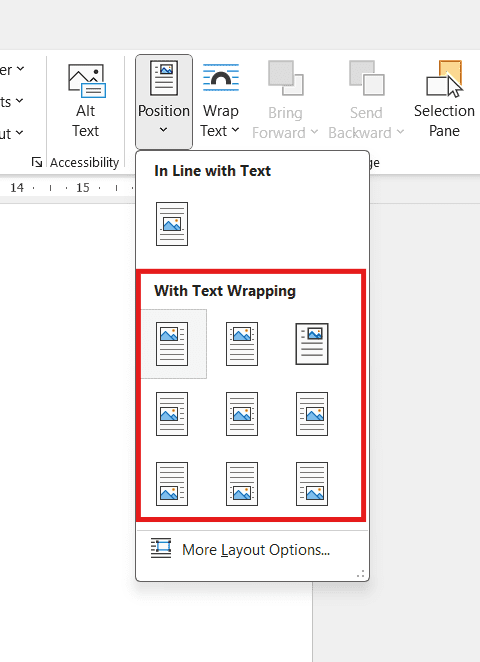
This is the key step to move an image freely in Word. Select any option that includes text wrapping:
- Square — text wraps around the image in a rectangle (best for most documents)
- Tight — text follows the image’s outline more closely
- Through — text flows through transparent areas of the image
- Top and Bottom — text appears only above and below, not beside
- Behind Text — image sits behind text (useful for backgrounds)
- In Front of Text — image sits on top of text
Once text wrapping is enabled:
- The text moves around the image
- The image becomes free to move anywhere on the page
Step 5: Drag the Image Where You Want It
Now you can move an image freely in Word to any position on the page:
- Click and drag the image
- Place it inside text, beside text, or anywhere on the page
- The surrounding text will automatically adjust to fit around the image
That’s it — your image now moves freely instead of being locked in line with text.
How to Resize an Image After Moving It Freely
Once you can move an image freely in Word, resizing is just as simple:
- Click on the image
- Drag one of the corner handles (these maintain the aspect ratio)
- Release when you’re happy with the size
Because text wrapping is enabled, the text will continue to flow neatly around the image as you resize it.
Best Text Wrapping Option to Move Images Freely
For most documents, Square text wrapping is the best option to move an image freely in Word because:
- It looks clean and professional
- It’s easy to control
- It works well with paragraphs and headings
- Text always stays a clean distance from the image
You can experiment with Tight or Through if your image has unusual edges, but Square is the safest default.
Common Problems When Moving Images in Word
Image Still Won’t Move Freely
Make sure text wrapping is not set to In Line with Text. This is the default and is what locks images in place. Switch to Square or Tight to fix it.
Text Overlaps the Image
Switch from Tight or Through wrapping to Square wrapping. Square keeps text a clean distance from the image edges.
Image Jumps When Moving
Zoom out slightly and drag more slowly. You can also hold the Alt key while dragging for finer control over positioning.
Image Moves When You Edit Text
Click the image, go to Picture Format → Position, and choose Fix position on page. This anchors the image to a specific location regardless of text changes.
Why Text Wrapping Lets You Move Images Freely
Text wrapping tells Word: this image is an object, not a letter. That single change unlocks full positioning control and makes document layout much easier.
Once your image is positioned freely, you may also want to learn how to add text over an image in Microsoft Word for captions, watermarks, or design elements.
FAQs
How do I move an image freely in Word?
Click the image, go to Picture Format, click Wrap Text, and select Square (or any option except In Line with Text). The image will then move freely anywhere on the page.
Why won’t my image move freely in Word?
Word’s default setting locks images “In Line with Text”, which treats them like a large letter. Change the text wrapping to Square or Tight to unlock free movement.
How do I move pictures in Word without moving the text?
Enable text wrapping (Square or Tight), then go to Picture Format → Position → Fix position on page. This anchors the image so it stays put even when you edit the surrounding text.
What’s the best wrapping option for moving images freely?
Square text wrapping is the best option for most documents. It looks clean, keeps text neatly around the image, and is the easiest to control.
Does this work on Word for Mac?
Yes. The steps to move an image freely in Word are nearly identical on Mac. The Picture Format tab and Wrap Text options work the same way.
Can I overlap images and text in Word?
Yes. Use Behind Text or In Front of Text wrapping to overlap. For text to flow through transparent parts of the image, use Through wrapping.
Will resizing the image affect the text layout?
No. As long as text wrapping is enabled, the text will automatically reflow around the image at its new size. Drag the corner handles to resize without distorting the image.
How do I lock an image in place in Word?
After enabling text wrapping, go to Picture Format → Position → More Layout Options → tick “Lock anchor”. This prevents the image from shifting when you edit text.
Conclusion
Now that you know how to move an image freely in Word in 5 easy steps — selecting the image, opening Picture Format, clicking Wrap Text, choosing a wrapping option, and dragging the image — you can position pictures anywhere on the page without fighting Word’s default in-line behaviour.
For most documents, Square text wrapping is the best choice when learning how to move an image freely in Word. Once you understand text wrapping, image placement becomes quick, simple, and predictable. If you want to go further with image styling, you can also learn how to insert a picture into a shape in Word to create circles, ovals, and other creative layouts.
Try it once, and you’ll never fight with images in Word again.
Related Tutorials
- How to Add Text Over an Image in Microsoft Word
- How to Make an Image Transparent in Word
- How to Insert a Picture into a Shape in Word
Word Tutorials
Recent Microsoft Word Tutorials
Browse the complete collection for help with formatting, layout, pages, tables, images, and document setup.
For Microsoft support documentation, visit the official Microsoft guidance.
Leave a Reply