
Working with tables in Microsoft Word is a great way to organize information — if you haven’t already, check out the guide on three ways to insert a table in Word before diving into merging them. However, you may sometimes end up with two separate tables that you want to combine into one.
In this guide, you’ll learn multiple ways to merge tables in Word including quick keyboard shortcuts, cut-and-paste methods, and a reliable workaround if nothing else works.
Why Tables Don’t Automatically Merge
Before merging tables, it’s important to understand why they may stay separate.
The most common reason is text wrapping settings. If tables are not set to “None,” Word treats them as floating objects rather than inline elements.
Watch the Video Tutorial
If you prefer to see this in action, the full video walkthrough is below, showing each method step by step.
Step 1: Set Text Wrapping to None
In order to ensure your tables can merge correctly:
For both tables:
- Select the table
- Right-click and choose Table Properties
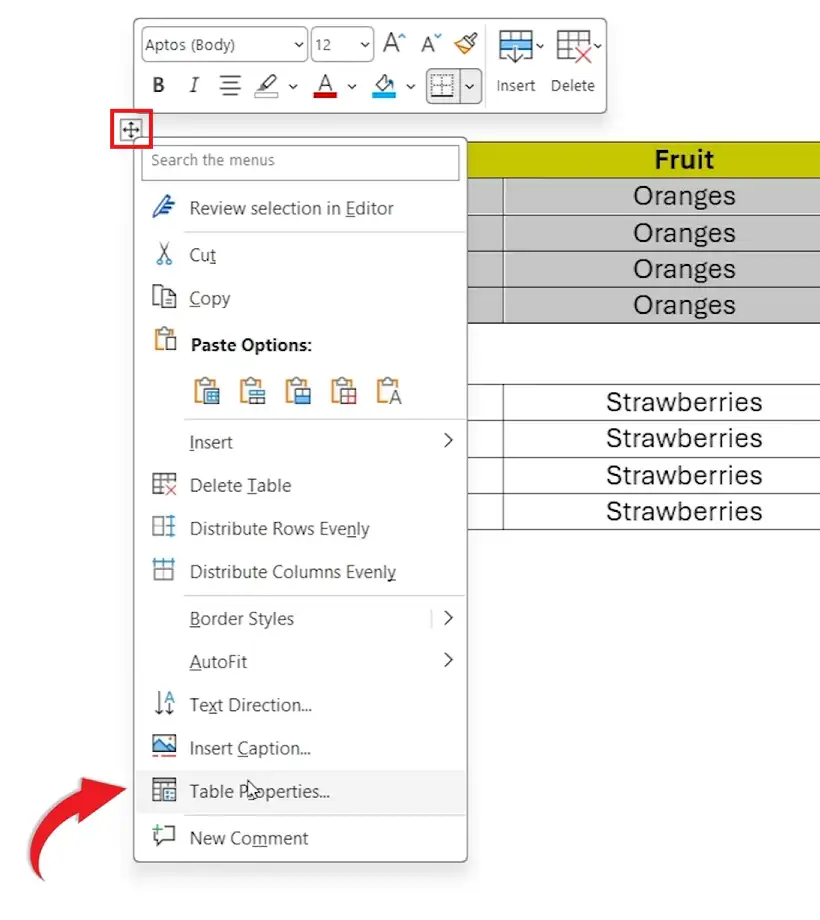
- Set Text Wrapping to None
- Then click OK
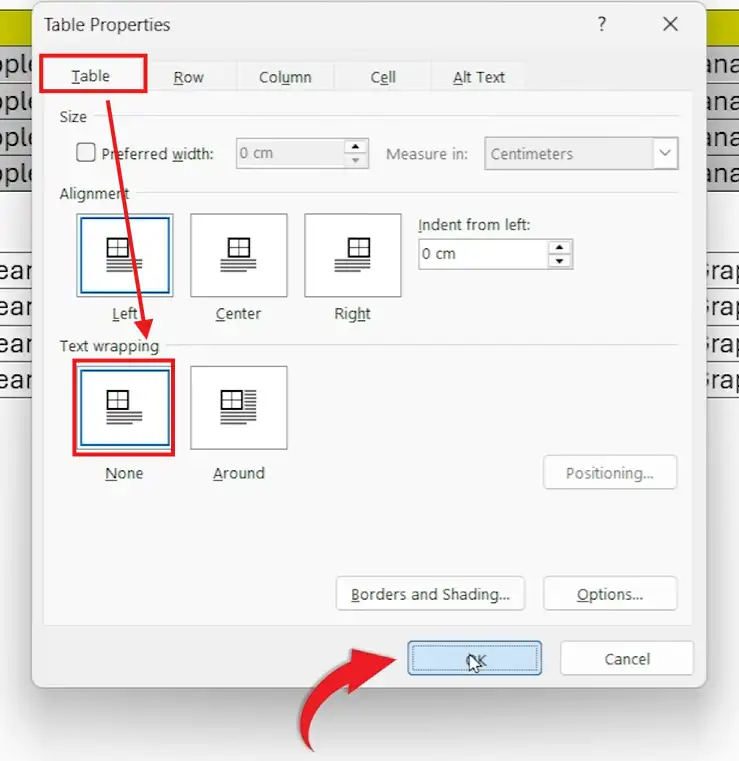
Repeat this for each table before attempting to merge them.
Method 1: Merge Tables Using Keyboard Shortcut (Fastest Way)
Once text wrapping is set correctly, you can merge tables instantly using a shortcut.
To merge the bottom table into the top table:
- Select the bottom table
- Press Alt + Shift + Up Arrow
👉This basically moves the table up and merges it with the one above.
To merge the top table into the bottom table:
- Click the top table
- Press Alt + Shift + Down Arrow
👉 This moves the table down and combines both tables.
Method 2: Merge Tables Using Cut and Paste
Whenever your tables are separated by multiple lines or pages, use this method:
Steps:
- Choose the table you want to move
- Press Ctrl + X (Cut)
- Then click just below the first table
- Press Ctrl + V (Paste)
👉 As a result, tables will now merge into one.
Method 3: Workaround (Convert to Text and Back)
If ever the above methods don’t work, use this reliable workaround.
Step 1: Convert Both Tables to Text
- Select the first table
- Go to Table Layout
- Click Convert to Text

- Choose Tabs and click OK
- Repeat for the second table

Step 2: Remove the Gap
- Start by removing space between the two text blocks.
- Press Backspace to bring them together
Step 3: Convert Back to a Table
- Highlight all the merged text.
- Go to Insert
- Click Table → Convert Text to Table
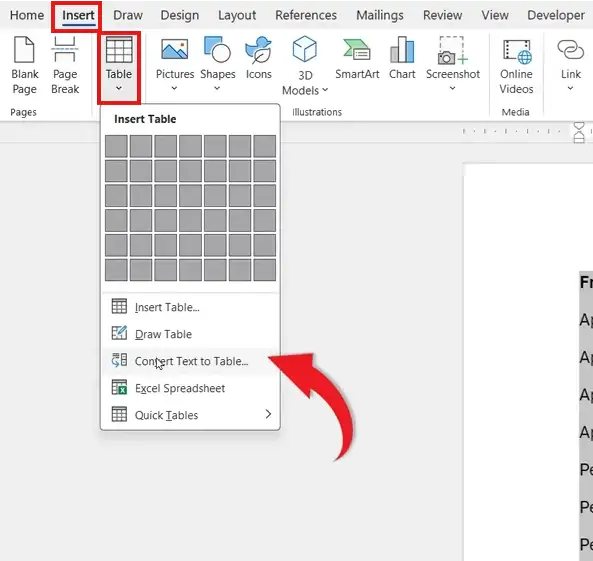
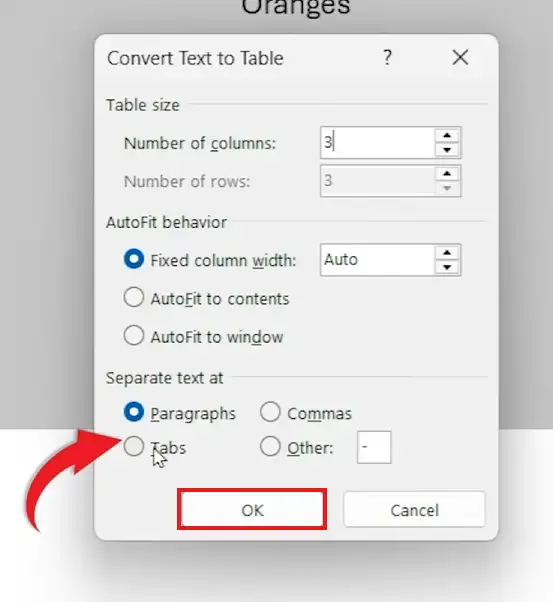
- Set the correct number of columns
- Choose Tabs
- Click OK
Step 4: Adjust Formatting
- If necessary, merge the cells.
- Realign text.
- Apply formatting to match your layout
When to Use Each Method
| Method | Best For |
|---|---|
| Keyboard Shortcut | Quick merges with adjacent tables |
| Cut & Paste | Tables separated by space or pages |
| Convert to Text | When Word refuses to merge tables |
Pro Tips for Merging Tables
- Always check text wrapping settings first
- Keep tables aligned with the same number of columns
- Use gridlines to stay organized during editing
- Preview your document after merging
FAQs
Why won’t my tables merge in Word?
Most likely because text wrapping is not set to “None,” or there’s content between the tables.
Can I merge tables with different column numbers?
Yes, but the formatting may break. You may need to manually adjust columns afterward.
Is there a shortcut to merge tables?
Yes. Use Alt + Shift + Arrow Keys to move and merge tables quickly. For a full list of useful Word shortcuts, see the Microsoft Word keyboard shortcuts cheat sheet.
Will merging tables affect formatting?
Sometimes. You may need to reapply formatting after merging.
What is the easiest method?
The keyboard shortcut is the fastest if your tables are directly next to each other.
Conclusion
Merging tables in Microsoft Word is simple once you understand how Word handles table positioning.
By setting text wrapping correctly and using shortcuts like Alt + Shift + Arrow Keys, you can quickly combine tables. And if that fails, the convert-to-text method gives you a reliable fallback.
Mastering these techniques will help you create cleaner, more professional documents with ease — and for further layout control, learning how to adjust margins in Word will give your tables even more breathing room on the page.
Related Tutorials
- Three Ways to Insert a Table in Word
- Microsoft Word Keyboard Shortcuts Cheat Sheet
- How to Adjust Margins in Word

Recent Microsoft Word Tutorials

Looking for more help with Microsoft Word? Browse all step-by-step Word tutorials covering formatting, layout, pages, and document setup.
👉 View all Microsoft Word tutorials: https://wordmadeeasy.org/microsoft-word/
👉 Need more support – check out the official guidance: https://support.microsoft.com/en-au

Prefer watching instead of reading? Many Word tutorials are also available as short, step-by-step videos on the Word Made Easy YouTube channel.




















Leave a Reply