
Adding a page border is a quick and easy way to make your document look more professional and visually appealing. In Microsoft Word, you can insert a border around your entire document in just a few clicks no extra tools or software needed.
In this guide, you’ll learn how to add a basic page border, customize it, and control where it appears in your document.
What Is a Page Border in Word?
A page border is a line (or decorative design) that surrounds the edges of your document pages.
It can be used to:
- Enhance presentations or reports
- Create certificates or formal documents
- Add structure to printed materials
- Make documents stand out visually
Watch the Video Tutorial
If you prefer to see this in action, the full video walkthrough is below, showing each method step by step.
How to Insert a Basic Page Border
Adding a simple border in Word only takes a few seconds.
Follow these steps:
- Open your document in Microsoft Word
- Click the Design tab on the ribbon
- Select Page Borders
- Make sure you are on the Page Border tab
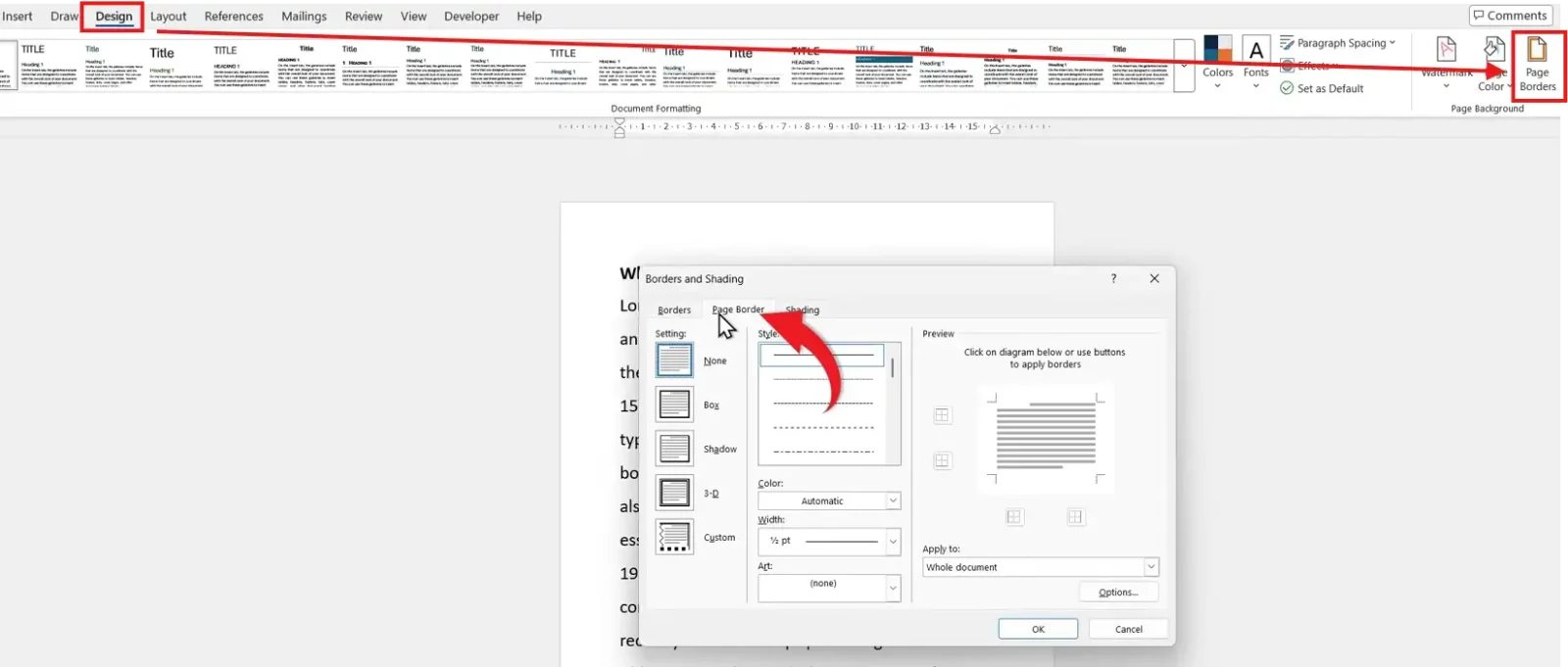
By default, the setting will be None (no border).
Choose a Border Style
Word provides several built-in border options:
- Box – A simple border around the page
- Shadow – Adds a shadow effect to the border
- 3D – Gives the border a raised appearance
- Custom – Lets you apply borders to specific sides
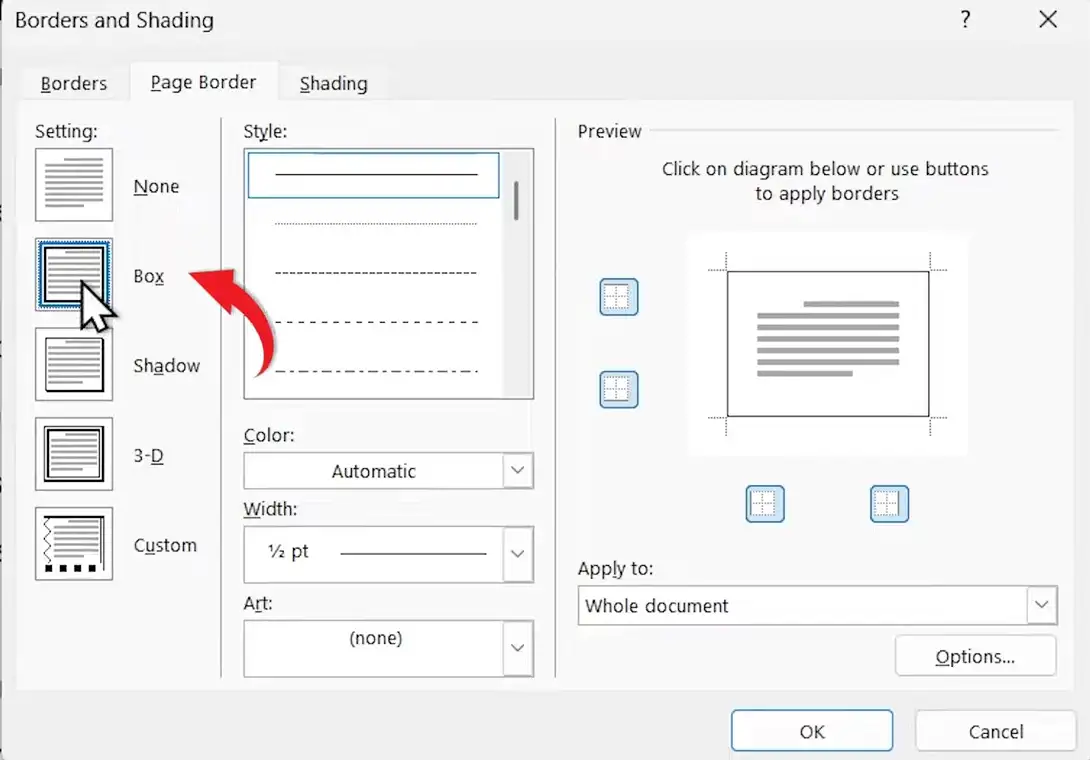
For most documents, selecting Box is the easiest and cleanest option.
Customize Your Page Border
Once you’ve chosen a style, you can personalize your border:
- Style – Choose different line designs
- Color – Pick a color that matches your document
- Width – Adjust thickness of the border
- Art – Add decorative borders (e.g., patterns or graphics)
These options allow you to create anything from a minimal border to a more decorative design.
Apply the Border to Your Document
Before finishing, decide where the border should appear.
You can apply it to:
- Whole document
- This section only
- First page only
- All except the first page
For most use cases, select Whole document.

Then click OK.
👉 Your page border will instantly appear around your document.
When to Use Page Borders
Page borders are especially useful for:
- Reports and assignments
- Certificates and awards
- Invitations and flyers
- Business documents
Used correctly, they can make your document look more polished and professional — pair them with a table of contents for a fully structured, formal document.
Pro Tips for Better Borders
- Keep borders simple for professional documents
- Avoid overly thick lines unless for emphasis
- Use subtle colors for a clean design
- Combine borders with proper margins for best results
FAQs
Can I add a border to just one page in Word?
Yes. Use the “Apply to” dropdown and select This section only or First page only.
Why is my border not showing properly?
It may be too close to the page edge. Adjust margins or border settings in the options menu — and make sure your text alignment is consistent throughout the document for a polished result.
Can I create a custom border design?
Yes. Use the Custom option and manually apply borders to specific sides.
Do page borders print in Word?
Yes. Unlike gridlines, page borders are visible and will print.
Conclusion
Adding a page border in Microsoft Word is a simple way to enhance your document’s appearance in seconds.
With just a few clicks, you can create a clean, professional look or a decorative design depending on your needs. Once you get familiar with the border settings, you’ll be able to customize your documents with ease.
Related Tutorials
- How to Adjust Margins in Word
- How to Align Text in Microsoft Word
- How to Create a Table of Contents in Microsoft Word

Recent Microsoft Word Tutorials

Looking for more help with Microsoft Word? Browse all step-by-step Word tutorials covering formatting, layout, pages, and document setup.
👉 View all Microsoft Word tutorials: https://wordmadeeasy.org/microsoft-word/
👉 Need more support – check out the official guidance: https://support.microsoft.com/en-au

Prefer watching instead of reading? Many Word tutorials are also available as short, step-by-step videos on the Word Made Easy YouTube channel.














Leave a Reply