
If you want to learn how to align text in Word, this guide covers the 4 easiest methods. Knowing how to align text in Word properly improves readability, structures your content, and gives essays, letters, and reports a polished, professional look. You’ll learn how to align text in Word using left, center, right, and justified alignment, plus advanced paragraph settings for indentation and line spacing.
Why Text Alignment Matters in Word
Before you learn how to align text in Word, it helps to understand why it matters. Text alignment controls how your content sits on the page. Poor alignment can make documents look messy, while correct alignment improves readability and presentation — especially for reports, letters, and formal documents. For similar reasons, it is also worth knowing how to adjust margins in Word to control the overall layout of your page.
Microsoft Word gives you both quick alignment tools and advanced paragraph controls, which we’ll cover step by step.
Watch the Video Tutorial
If you prefer to see this in action, the full video walkthrough is below, showing each method step by step.
Step 1: Select the Text You Want to Align in Word
Before you can align text in Word, you must first select your text. You can do this in two ways:
- Press Ctrl + A to select the entire document
- Click and drag with your left mouse button to highlight specific text

Step 2: How to Align Text in Word Using the Toolbar Buttons
The fastest way to align text in Word is from the toolbar:
- Go to the Home tab
- Locate the Paragraph section on the toolbar
You’ll see four alignment options to align text in Word:

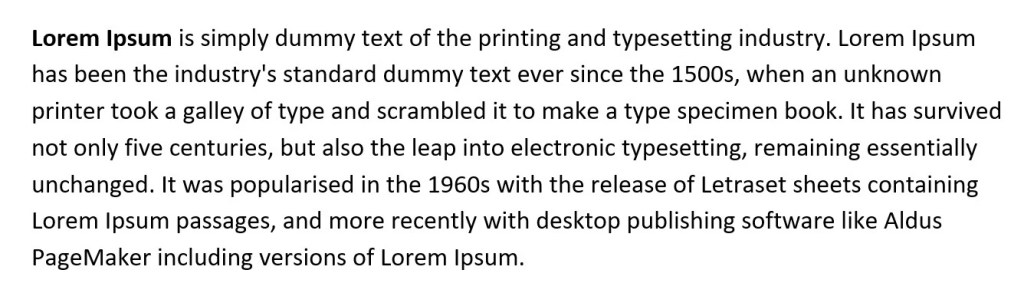
Align Left (Ctrl + L)
Align Left – Text aligns to the left margin. This is the default in Word and is most common for everyday documents, letters, and emails.

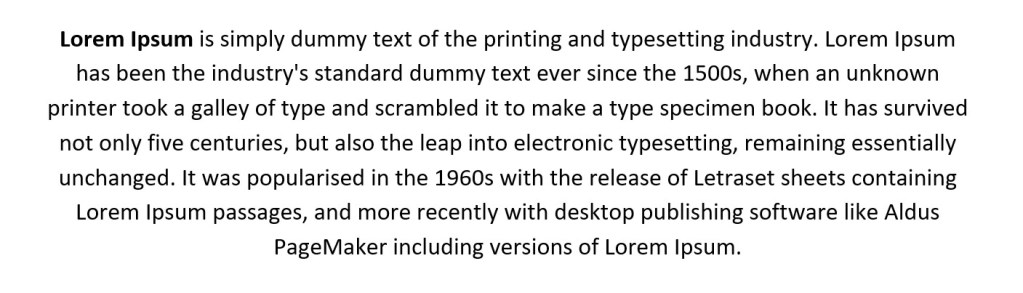
Center (Ctrl + E)
Center – Text is centered on the page. Use this for titles, headings, cover pages, and short standout content.

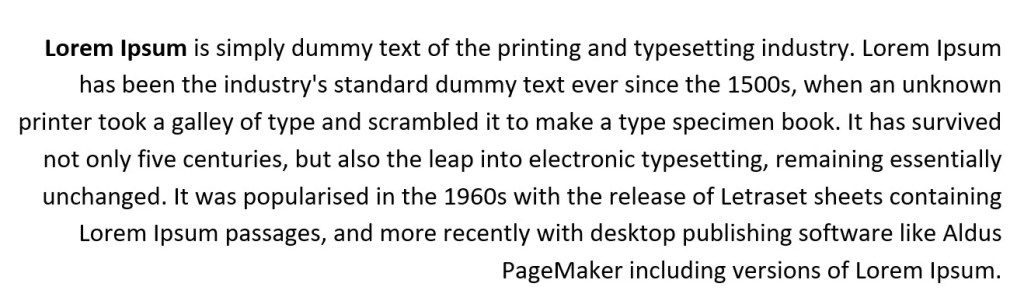
Align Right (Ctrl + R)
Align Right – Text aligns to the right margin. Commonly used for dates on letters, page numbers, and decorative formatting.

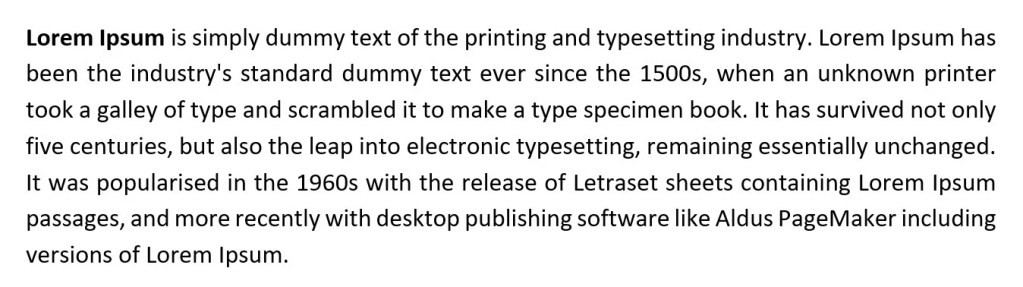
Justify (Ctrl + J)
Justify – Text is evenly spaced across both margins. This is the most professional option for reports, books, and formal documents — it’s also covered in detail in the guide on how to justify text in Microsoft Word.

Tip: Most users prefer Justify, as it creates clean, evenly aligned paragraphs that look neat and professional.
Step 3: How to Align Text in Word Using Keyboard Shortcuts
If you want to align text in Word fast, keyboard shortcuts are the quickest method. Highlight your text first, then press one of these:
- Ctrl + L — Align Left
- Ctrl + E — Center
- Ctrl + R — Align Right
- Ctrl + J — Justify
These shortcuts work in all modern versions of Word, including Word for Microsoft 365, Word 2021, and earlier versions.
Step 4: How to Align Text in Word Using Advanced Paragraph Settings
For full control over how to align text in Word, use the Paragraph dialog box:
- In the Paragraph section, click the small arrow in the bottom-right corner
- The Paragraph dialog box will open
- Select Indents and Spacing

This gives you full control over alignment, indentation, and spacing.
Adjust Text Indentation
Indentation controls how far text sits from the margins. From the Indentation section, you can:
- Increase the Left indent
- Increase the Right indent
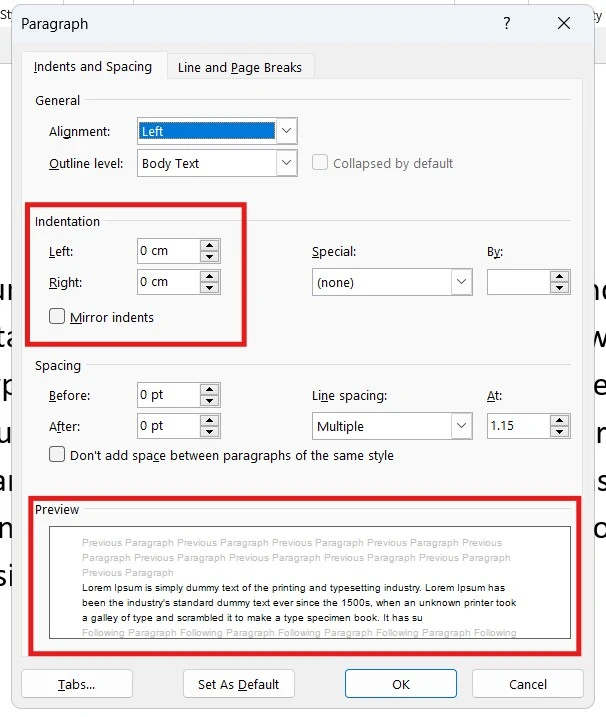
Word shows a live preview at the bottom as you make changes. For a full guide covering all three indentation methods, see how to indent in Word.
Change Paragraph Spacing
Paragraph spacing controls the space before and after paragraphs. You can adjust:
- Before – space above the paragraph
- After – space below the paragraph
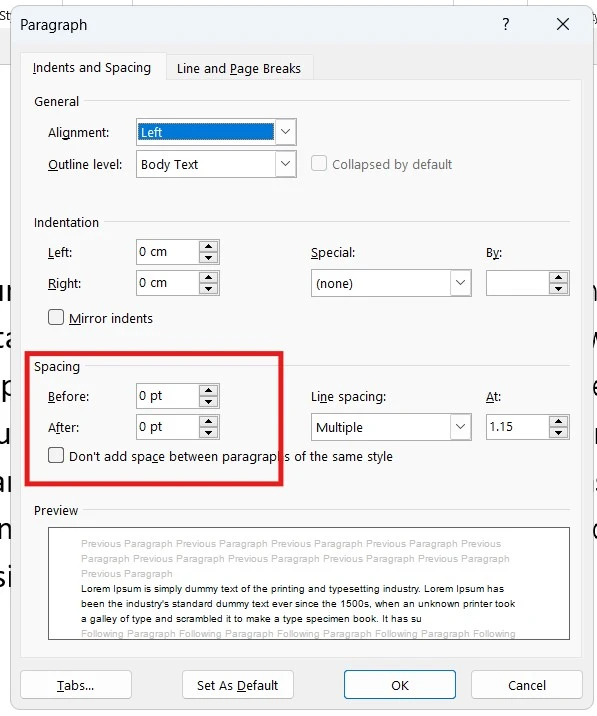
This is far better than pressing Enter multiple times and keeps formatting consistent.
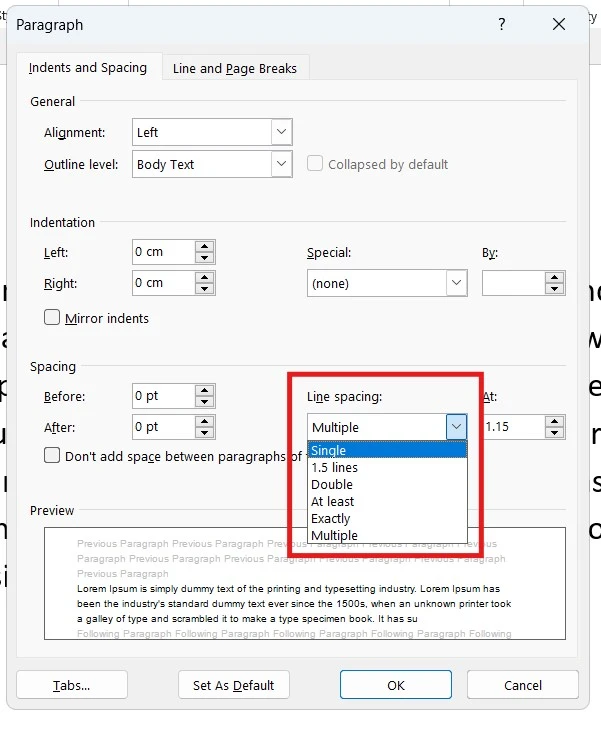
Adjust Line Spacing
Line spacing controls the distance between lines of text. Common options include:
- Single
- 1.5 lines
- Double (commonly required for academic work)
If you need a full walkthrough of how to apply this, see the guide on how to use double line spacing in Microsoft Word.
Step 5: Apply or Set as Default
Once you’re happy with how the text aligns:
- Click OK to apply the settings to the selected text
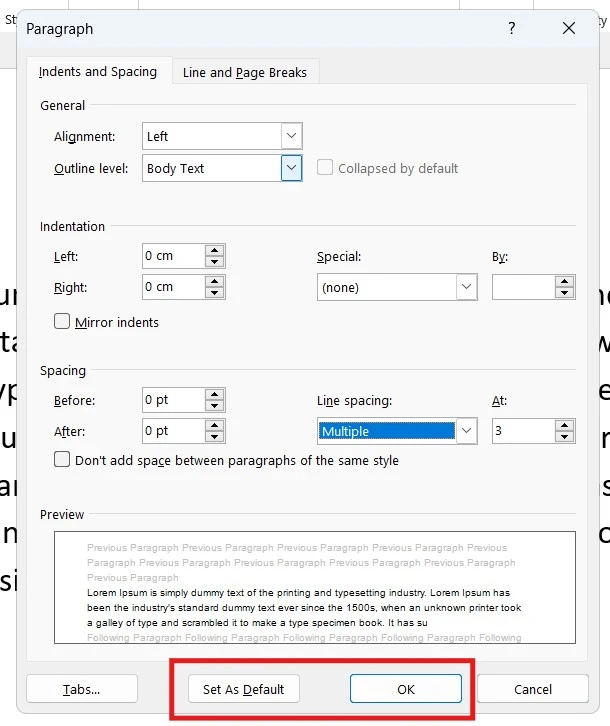
Important: Clicking Set as Default will apply these settings to:
- The rest of the current document
- Potentially all future Word documents
Only use this if you’re sure.
FAQs
How do I align text in Word quickly?
The fastest way to align text in Word is to highlight the text and press a keyboard shortcut: Ctrl + L for left, Ctrl + E for center, Ctrl + R for right, or Ctrl + J for justified.
How do I align text to the left margin in Word?
Highlight your text and click Align Left in the Paragraph section of the Home tab, or press Ctrl + L. This is the default alignment in Word.
How do I keep text aligned in Word?
To keep text consistently aligned across a document, use Ctrl + A to select all text first, then apply your chosen alignment. For permanent settings, open the Paragraph dialog box and click Set as Default.
What does justified text mean in Word?
Justified text aligns evenly along both the left and right margins, creating clean professional paragraphs commonly used in reports and books.
Why does my justified text look uneven?
Uneven spacing usually happens when lines contain long words or manual line breaks. Use Word’s hyphenation feature to fix this, or switch to left alignment.
What is the keyboard shortcut to align text in Word?
Use Ctrl + L (left), Ctrl + E (center), Ctrl + R (right), or Ctrl + J (justify) to align text in Word instantly.
Can I make alignment settings the default in Word?
Yes. In the Paragraph dialog box, click Set as Default. Be careful, as this will apply the settings to future documents as well.
Conclusion
Now that you know how to align text in Word four different ways — using toolbar buttons, keyboard shortcuts, the Paragraph dialog box, and advanced indentation settings — you can pick whichever method suits the document you’re working on.
For everyday formatting, the Ctrl shortcuts are the fastest. For visual control, the toolbar buttons are easiest. For precise control over indentation and line spacing, the Paragraph settings give you full flexibility.
Small adjustments like learning how to align text in Word make a big difference in the overall quality of your documents — keeping them neat, readable, and consistent every time.
New to Word? This tutorial goes with Chapter 5 of the free Microsoft Word Beginners Hub: Paragraphs, lists and styles. It covers the basics step by step, with screenshots, short videos and practice files.
👉 To centre a title or a whole page, see How to Center Text in Word.
Related Tutorials
- How to Justify Text in Microsoft Word
- How to Indent in Word
- How to Use Double Line Spacing in Microsoft Word
- How to Adjust Margins in Word
Word Tutorials
Recently Added on Word Made Easy
Browse the complete collection for help with formatting, layout, pages, tables, images, and document setup.
For Microsoft support documentation, visit the official Microsoft guidance.
Leave a Reply