
To hide a paragraph in Word, select it, press Ctrl + D, tick Hidden and select OK. The paragraph disappears from view and from printing, but it is not deleted, so you can bring it back at any time. It works on any amount of text, from one word to several pages. To see every hidden mark, see how to show or remove formatting marks in Word.
In this guide, you’ll learn how to hide a paragraph in Word, fix it when it stays visible and unhide it again.
Why Hide a Paragraph?
- Keep answers on a worksheet but print a blank copy
- Hide notes to yourself in a shared document
- Test a shorter version of a document without deleting anything
Watch the Video Tutorial
If you prefer to see this in action, the full video walkthrough is below, showing each method step by step.
How to Hide a Paragraph in Word
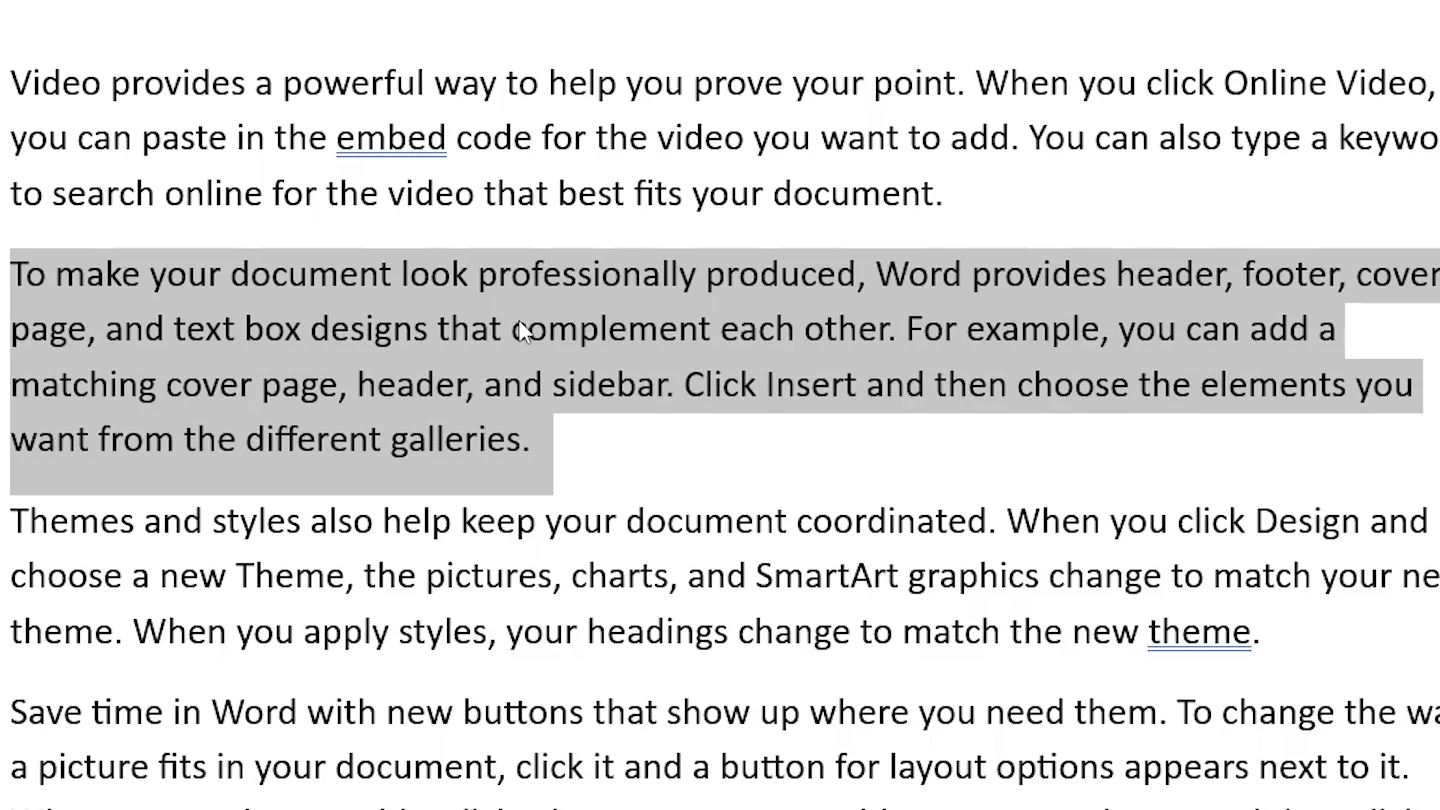
Step 1: Select the Paragraph
- Select the paragraph or text you want to hide. Triple-click inside a paragraph to select all of it.
Step 2: Tick Hidden in the Font Dialog
- Press Ctrl + D to open the Font dialog.

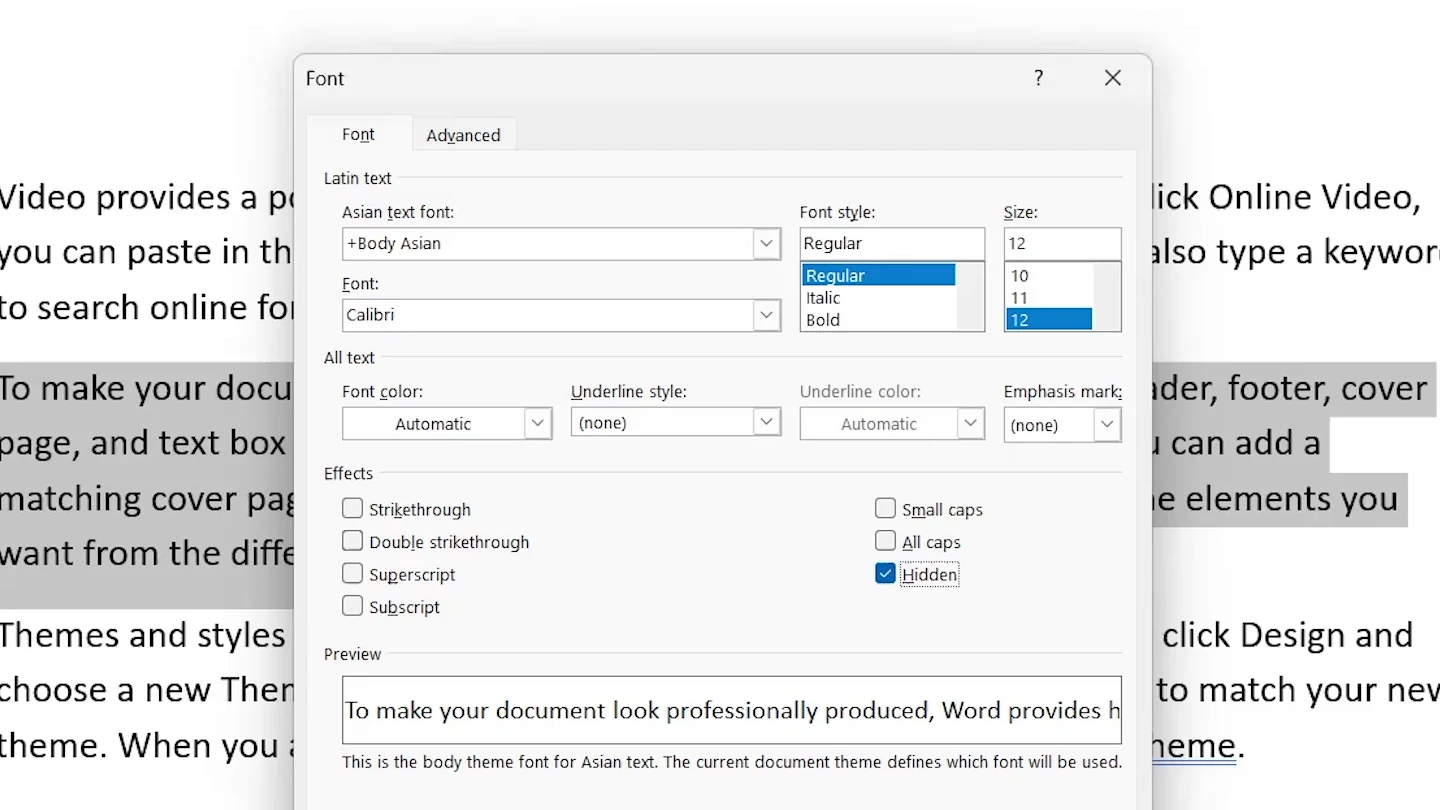
- Under Effects, tick Hidden.
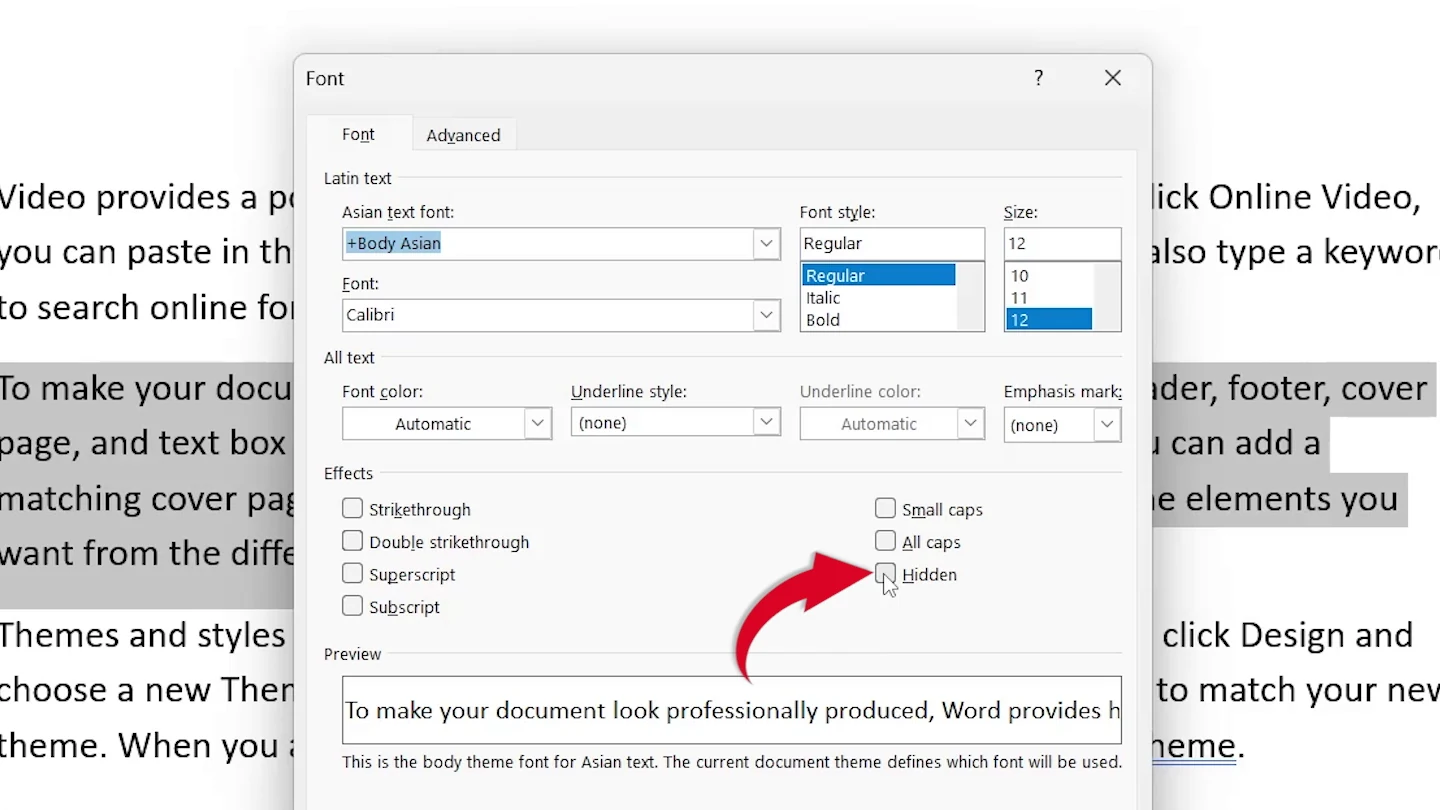
- Select OK.
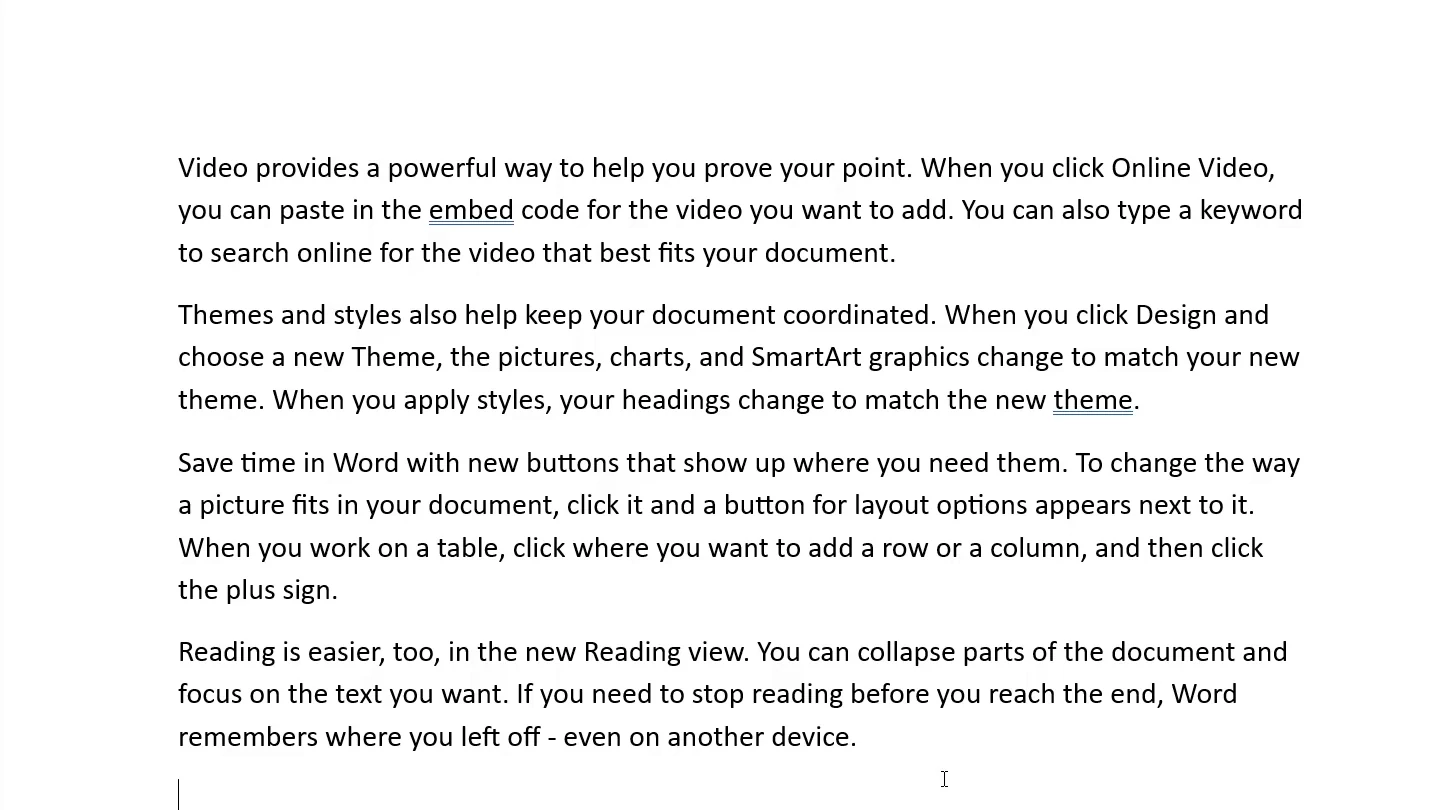
👉 The paragraph disappears. The shortcut Ctrl + Shift + H does the same in one step.
Step 3: Check the Hidden Text Settings
If you can still see the paragraph with a dotted underline, one of two settings is showing hidden text:
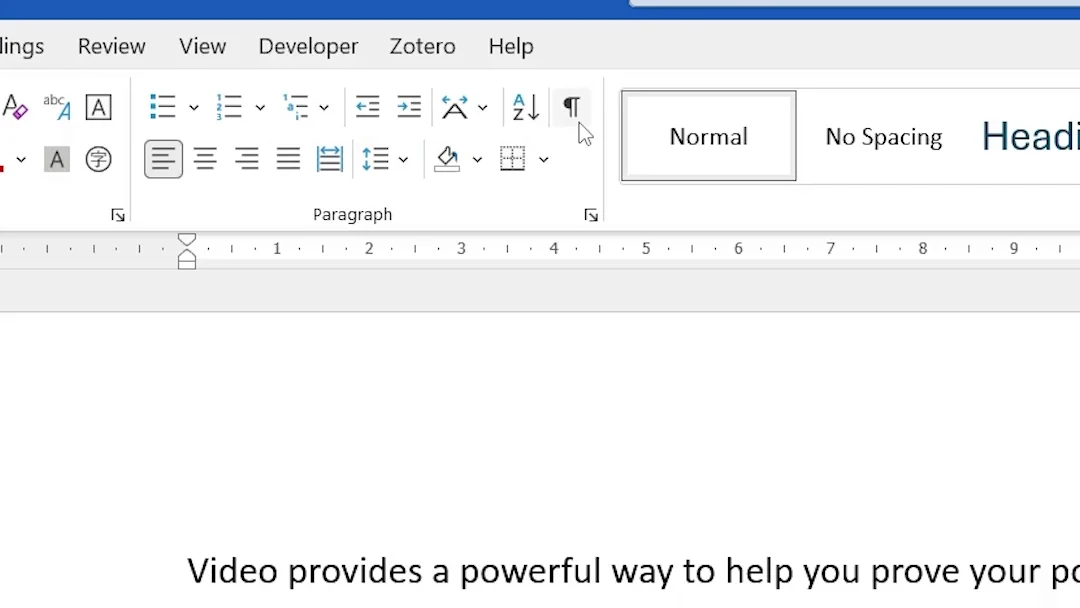
- On the Home tab, switch off Show/Hide ¶ (Ctrl + Shift + 8).
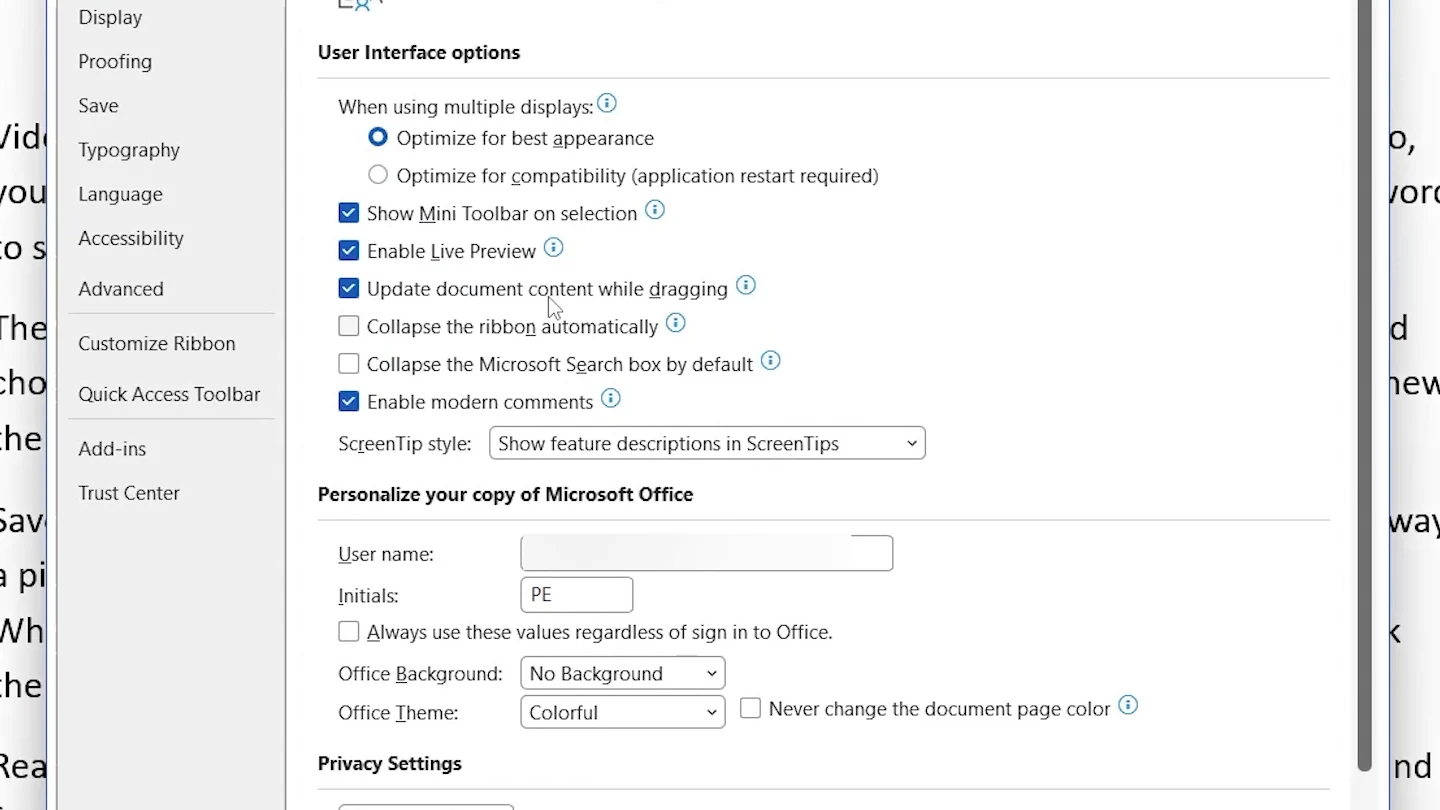
- Select File > Options.
- Select Display, untick Hidden text and select OK.
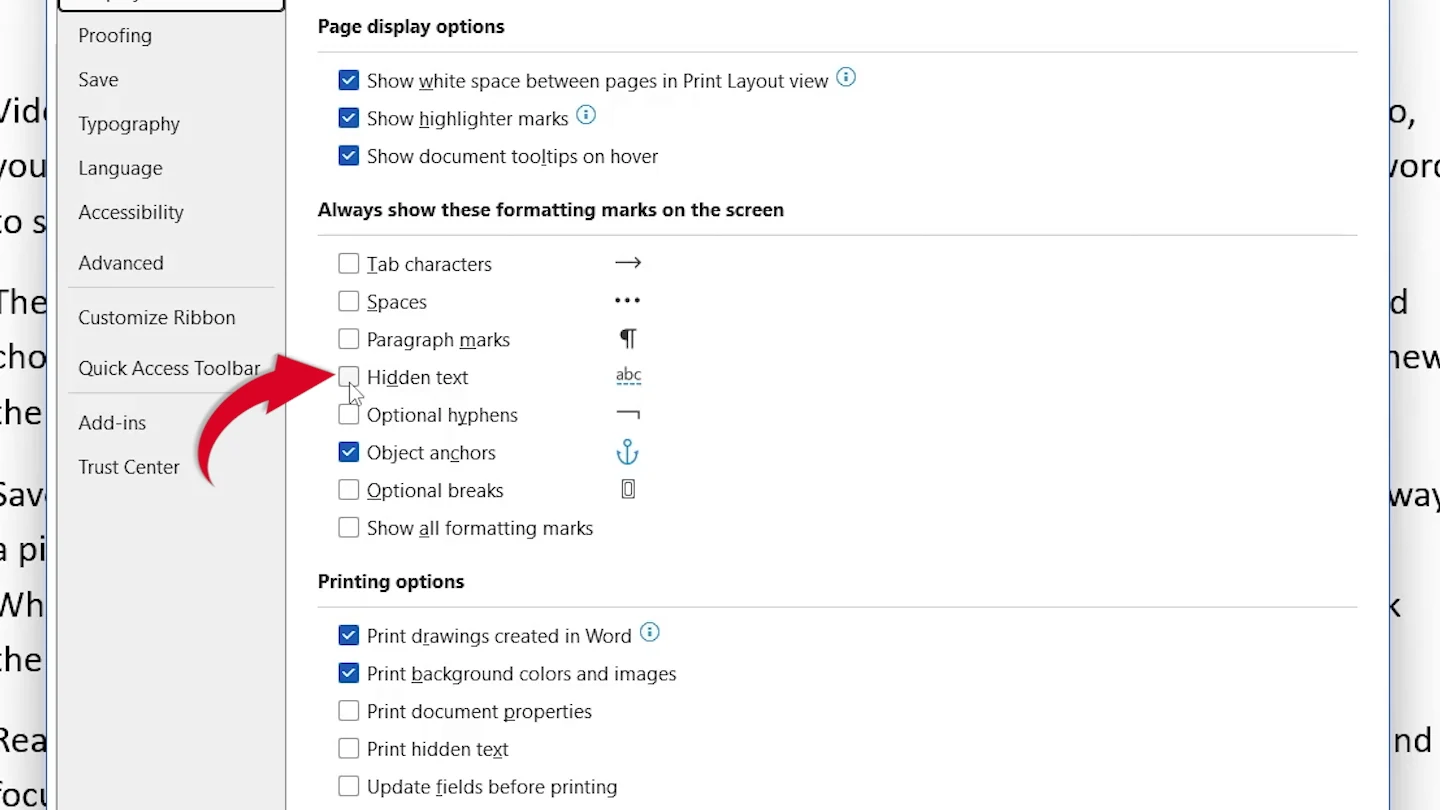
👉 The paragraph is hidden on screen and will not print.
How to Unhide a Paragraph in Word
- Switch on Show/Hide ¶. Hidden text appears with a dotted underline.

- Select the hidden paragraph.
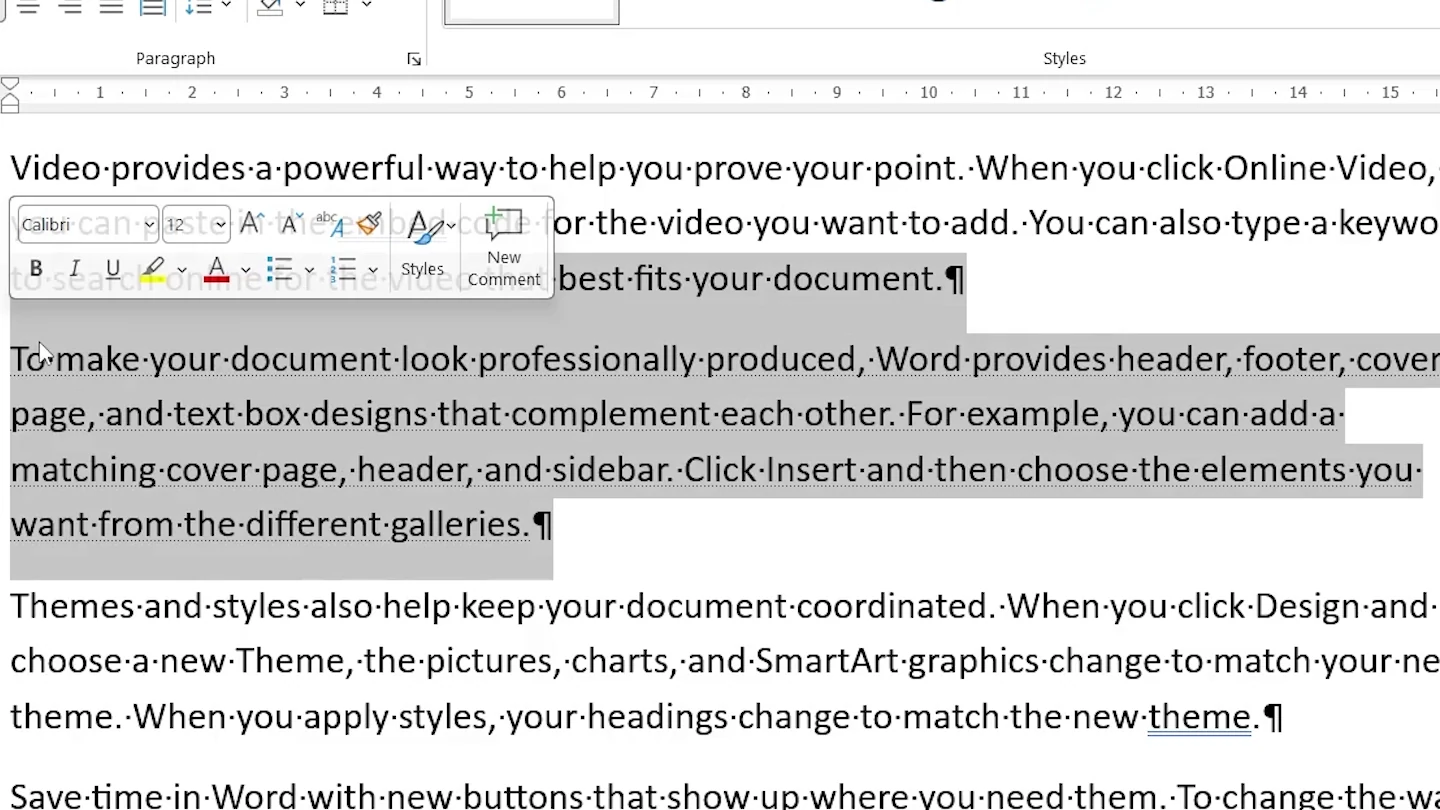
- Press Ctrl + D, untick Hidden and select OK.

- Switch off Show/Hide ¶.

👉 The dotted underline disappears and the paragraph stays visible. To unhide everything, press Ctrl + A first.
Quick Tips
Print Hidden Text
To print it anyway, tick Print hidden text in File > Options > Display.
Not a Password
Anyone can unhide the text. For private content, see how to password protect a Word document.
Find Hidden Text
File > Info > Check for Issues > Inspect Document lists and removes hidden text.
Blur Instead
To show text is there without revealing it, see how to blur text in Word.
FAQs
How do I hide a paragraph in Word?
Select the paragraph, press Ctrl + D, tick Hidden and select OK. The paragraph is hidden but not deleted.
Why can I still see my hidden text in Word?
Show/Hide ¶ is switched on, or Hidden text is ticked in File > Options > Display. Switch both off.
How do I unhide text in Word?
Switch on Show/Hide ¶, select the text with the dotted underline, press Ctrl + D and untick Hidden.
Does hidden text print in Word?
No, unless Print hidden text is ticked in File > Options > Display.
What is the shortcut for hidden text in Word?
Ctrl + Shift + H hides or unhides the selected text without opening the Font dialog.
Is hidden text secure?
No. Anyone with the file can show it again. Delete the text or password protect the file if it must stay private.
Conclusion
To hide a paragraph in Word, select it, press Ctrl + D, tick Hidden and make sure hidden text is not displayed. Microsoft lists the display options in Word Options (Display).
For other ways to shape your layout, see how to convert lines into one paragraph in Word.
Related Tutorials
Word Tutorials
Recently Added on Word Made Easy
Browse the complete collection for help with formatting, layout, pages, tables, images, and document setup.
For Microsoft support documentation, visit the official Microsoft guidance.
Leave a Reply