Tables, Images & Media
Tables, Images & Media in Microsoft Word – Complete Guide
Microsoft Word allows you to go beyond plain text by adding tables, images, audio, and other media elements. When used correctly, these features make documents clearer, more engaging, and easier to understand.
This section focuses on how to insert, format, and control visual elements in Microsoft Word.
Working with Tables in Word
Tables help organize information into structured rows and columns. They’re commonly used for:
- Data presentation
- Comparison charts
- Structured lists
- Classroom resources
- Reports and business documents
In this section, you’ll learn how to insert tables, adjust layout settings, modify borders, align content properly, and format tables for professional results.
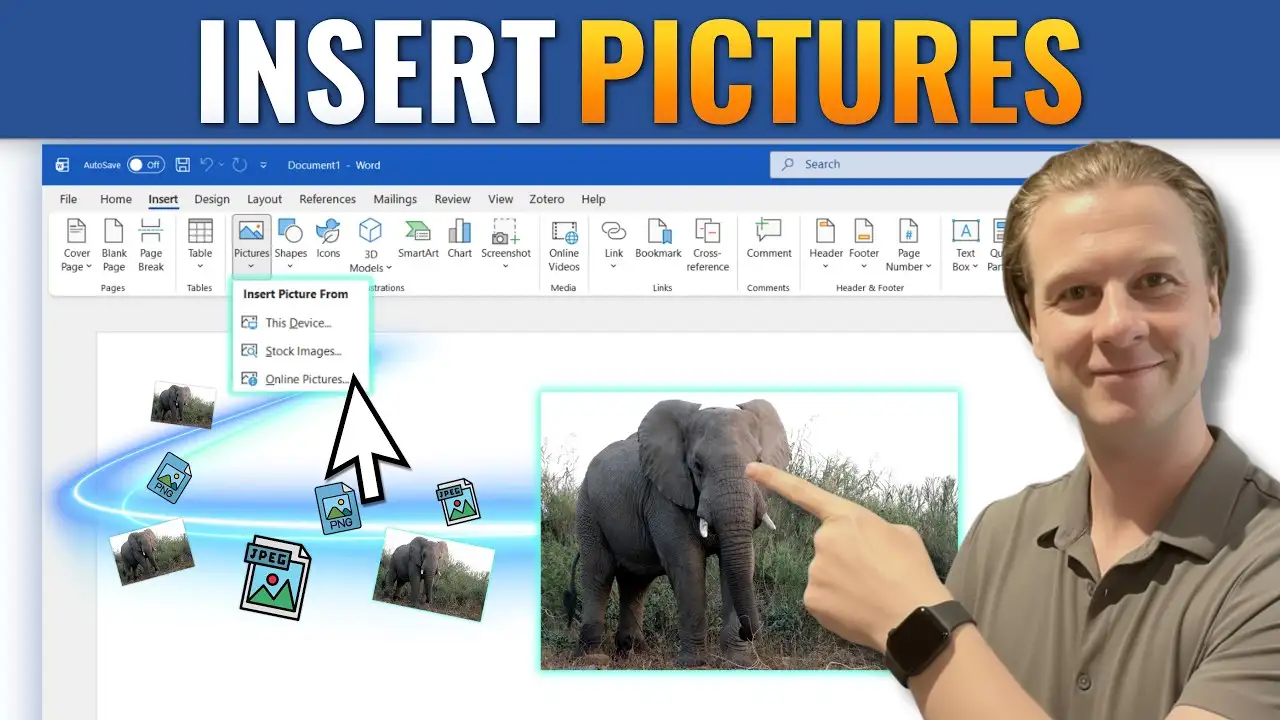
Adding and Formatting Images
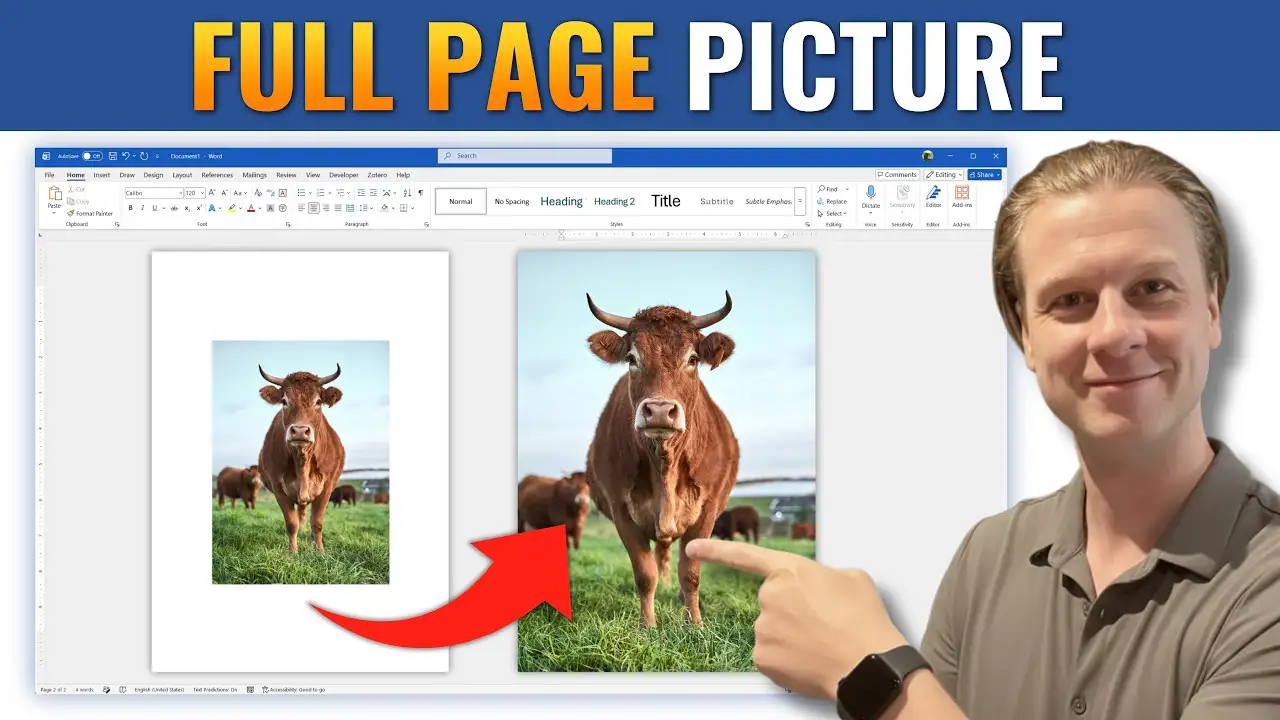
Images can enhance a document — but only when formatted correctly.
Common challenges include:
- Moving images freely
- Wrapping text around pictures
- Resizing without distortion
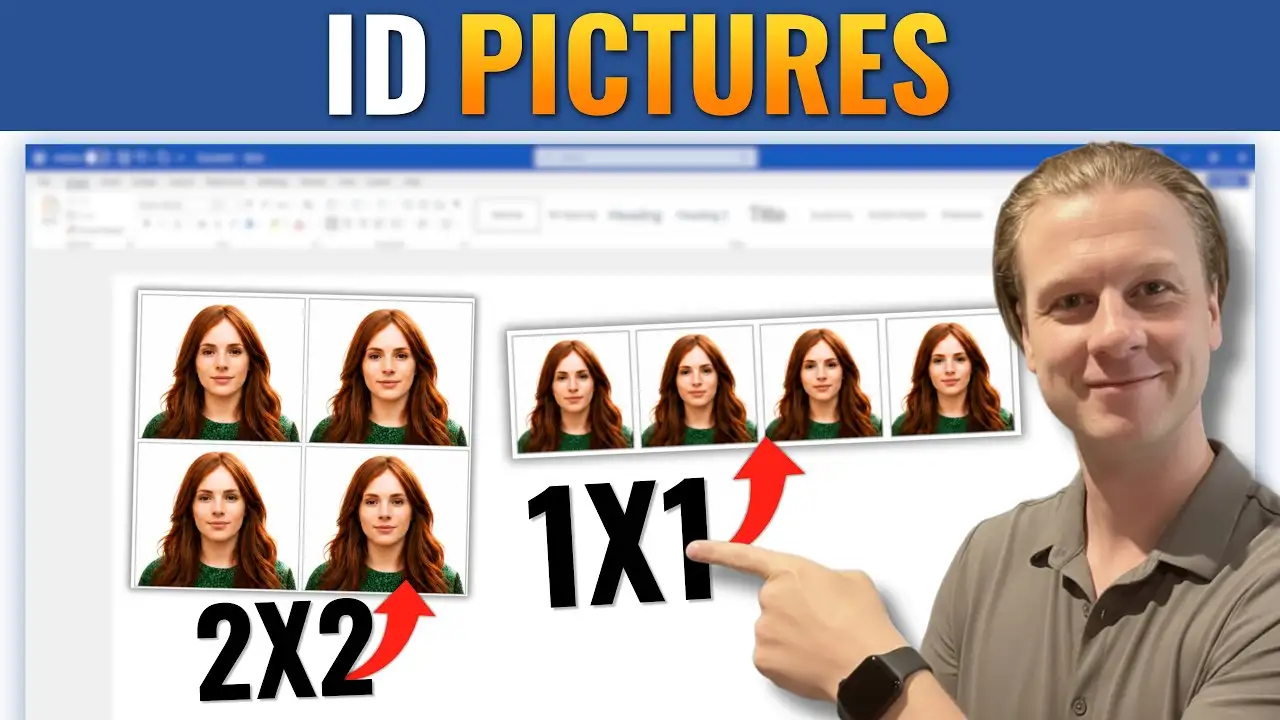
- Aligning images consistently
- Placing text over pictures
These tutorials show you how to control image positioning using Word’s built-in layout and wrap tools instead of manual adjustments.
Inserting Media and Advanced Visual Elements
Microsoft Word also supports:
- Audio file insertion
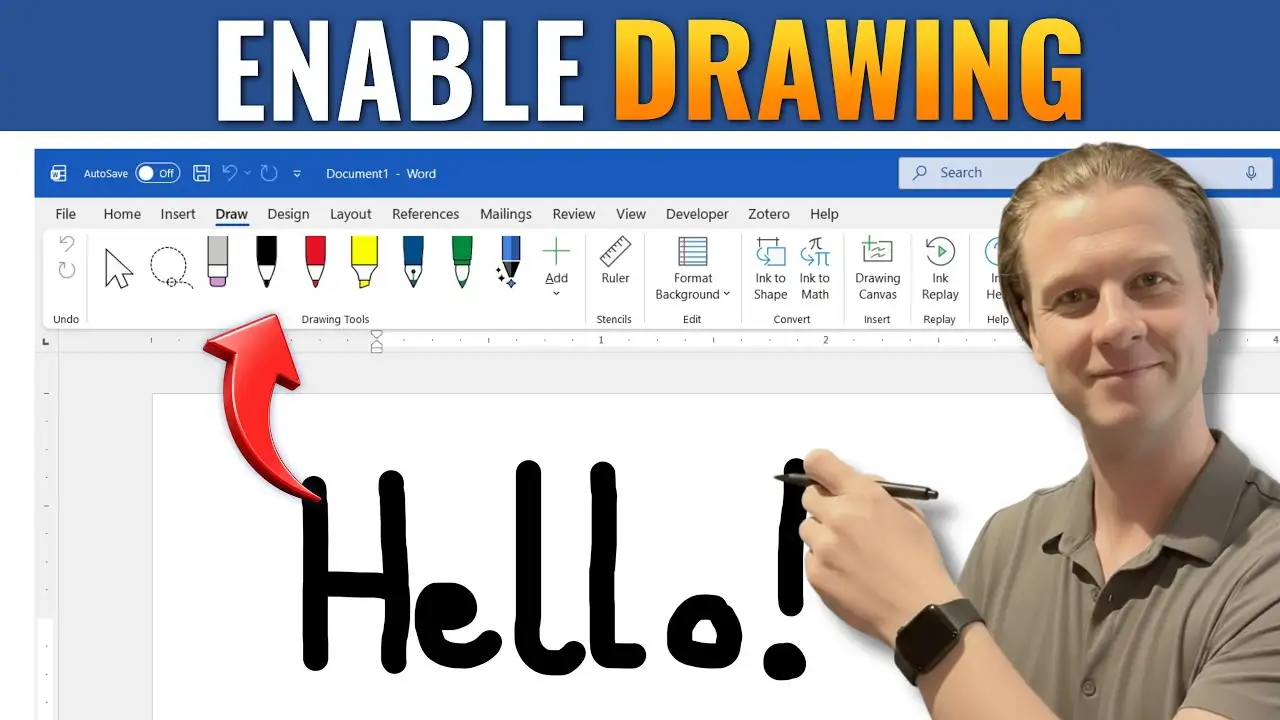
- Shapes and formatting
- SmartArt graphics
- Visual customization tools
Learning how these tools work ensures your documents remain clean and properly structured.
What You’ll Learn in This Section
- How to insert and format tables
- How to move and position images correctly
- How to wrap text around pictures
- How to avoid common layout mistakes
- How to create clean, professional visual layouts
Explore the guides below to master media and visual formatting in Microsoft Word.