
To add a shadow to a picture in Word, select the picture and open Picture Format → Picture Effects → Shadow. Hover over the available styles to preview them, then select the shadow you want.
In this guide, you’ll learn two methods: applying a preset shadow and customising the effect with Shadow Options. You’ll also learn how to remove a shadow afterwards. If your document does not contain an image yet, start with how to insert a picture in Word.
What Picture Shadows Do in Word
A picture shadow adds depth around an image and helps separate it visually from the page. When you add a shadow to a picture in Word, you can choose from outer, inner and perspective effects without changing the original image file.
Word previews each preset as you move the pointer across the Shadow gallery. That makes it quick to compare effects before selecting one. Picture positioning is controlled separately — if the image needs repositioning first, see how to move an image freely in Word.
- Use an outer shadow for a quick depth effect.
- Try inner or perspective styles when they suit the picture.
- Open Shadow Options when a preset needs further adjustment.
- Select No Shadow whenever you want to remove the effect.
Microsoft Support also documents picture effects such as shadows, reflections, glows, soft edges, bevels and 3-D rotations in its picture effects guidance.
Watch the Video Tutorial
If you prefer to see this in action, the full video walkthrough is below, showing each method step by step.
How to Add a Shadow to a Picture in Word: Step-by-Step
You have two practical ways to add a shadow to a picture in Word. Start with a preset for speed. Use Shadow Options only when you need more control over the finished effect.
Method 1: How to Add a Shadow to a Picture in Word Using a Preset
Preset shadows are the fastest option. The video recommends starting with one of the outer shadows because you can preview and apply the effect in a few clicks.
Select the Picture
- Open the document containing your picture.
- Select the picture you want to format.
- Open the Picture Format tab on the ribbon.
👉 The Picture Format controls appear while the picture is selected.
Open the Picture Shadow Gallery
- Select Picture Effects.
- Point to Shadow.
- Move the pointer across the outer, inner and perspective options.
- Watch the selected picture as Word previews each effect.
- Select the shadow you want to apply.
👉 Done. The shadow appears immediately. This is the quickest way to add a shadow to a picture in Word, and you can reopen the gallery at any time to choose another style.
Method 2: How to Add a Shadow to a Picture in Word with Shadow Options
Use Shadow Options when a preset is close to the result you want but needs adjustment. This gives you more control after you add a shadow to a picture in Word.
- Select the picture.
- Open Picture Format.
- Select Picture Effects → Shadow.
- Select Shadow Options at the bottom of the gallery.
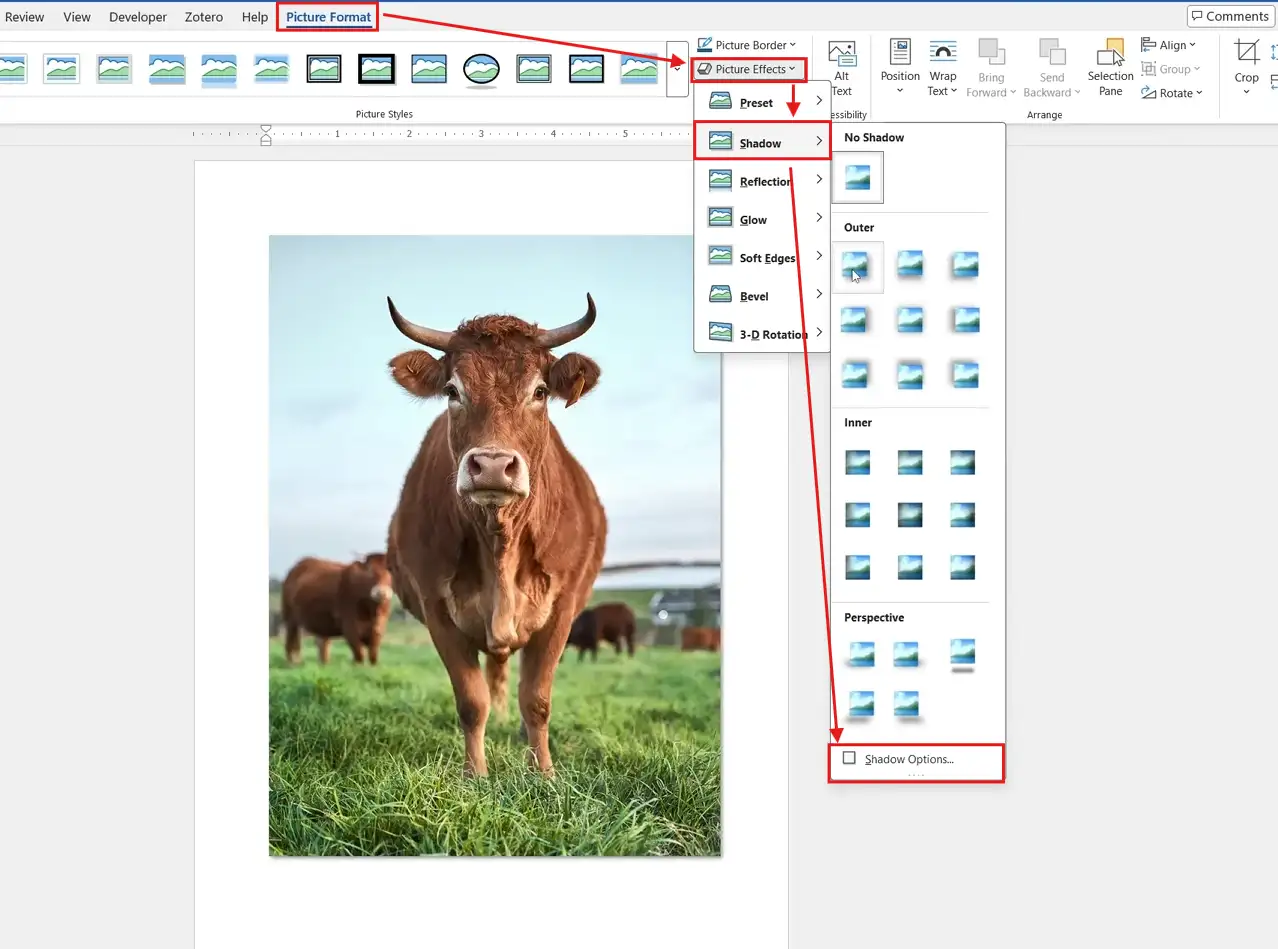
The Format Picture pane opens beside the document. Use the available shadow settings to refine the effect, and adjust one control at a time so you can see exactly what changes.
👉 Keep the effect subtle. A shadow should support the picture rather than overpower it.
How to Remove a Picture Shadow in Word
If you change your mind after you add a shadow to a picture in Word, you can remove the formatting without deleting or reinserting the picture.
- Select the picture.
- Open Picture Format.
- Select Picture Effects → Shadow.
- Select No Shadow.
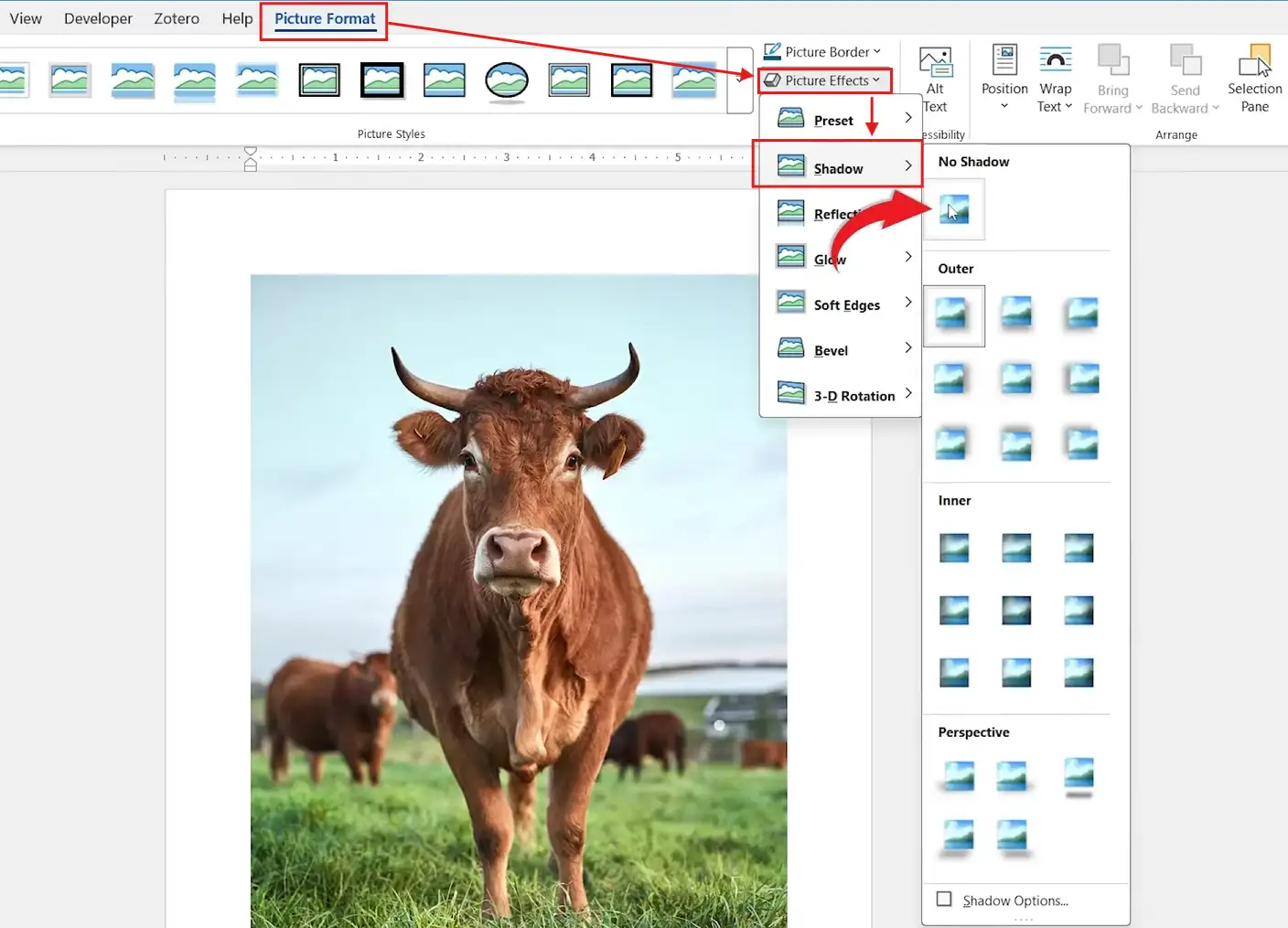
👉 The picture stays in place, but the shadow effect disappears.
Which Method Should You Use?
| Approach | Best For |
|---|---|
| Preset shadow | Adding a polished effect quickly |
| Shadow Options | Fine-tuning a shadow after choosing a preset |
| No Shadow | Removing the effect while keeping the picture |
Best choice: Start with an outer preset. It is the fastest way to add a shadow to a picture in Word. Open Shadow Options only when the preset needs more adjustment.
Common Picture Shadow Problems
Picture Format Is Missing
Select the picture first. The Picture Format tab is contextual, so its controls appear when Word recognises that a picture is selected.
Picture Effects Is Unavailable
Check that you selected the picture itself. Shapes, icons and text boxes use their own formatting controls, so their effect menus can look different.
The Shadow Is Hard to See
Open the Shadow gallery and preview another preset. A subtle effect can be difficult to see against a picture or page with similar tones.
The Shadow Looks Too Strong
Try another preset or open Shadow Options and reduce the effect. The goal is depth, not distraction.
Pro Tips for Picture Shadows
- Preview several shadow presets before selecting one.
- Use the same shadow style on similar pictures to keep a document visually consistent.
- Keep shadows restrained in reports, CVs and formal documents.
- Start with an outer preset when you need to add a shadow to a picture in Word quickly.
- If the picture itself still feels too dominant, reduce its visual weight — see how to make an image transparent in Word.
- To soften picture corners, see How to Add Rounded Corners to Picture in Word.
FAQs
How do I add a shadow to a picture in Word?
To add a shadow to a picture in Word, select the picture and open Picture Format → Picture Effects → Shadow. Preview the presets, then select the effect you want.
Where is the Shadow command in Word?
Select the picture first, then open Picture Format → Picture Effects → Shadow. The gallery contains the available picture shadow presets.
Can I customise a picture shadow in Word?
Yes. Open Picture Effects → Shadow and select Shadow Options to open additional controls in the Format Picture pane.
How do I remove a shadow from a picture in Word?
Select the picture, open Picture Format → Picture Effects → Shadow and choose No Shadow. The picture remains in the document.
Can I preview a picture shadow before applying it?
Yes. Move the pointer over the available shadow presets and Word previews the effect on the selected picture before you choose one.
What types of picture shadows are available in Word?
The Shadow gallery shown in the video includes outer, inner and perspective shadow options. Preview them to find the effect that suits your picture.
Does adding a shadow change the original picture file?
The shadow is applied as formatting inside the document rather than replacing the picture. If you still need to add an image, see how to insert a picture in Word.
Conclusion
To add a shadow to a picture in Word, select the image and use Picture Format → Picture Effects → Shadow. Start with a preset. It is faster, and Word lets you preview the result before applying it.
Use Shadow Options only when you need finer control, and choose No Shadow whenever you want to remove the effect.
Once the effect looks right, finish the layout by learning how to move a picture in Word without disturbing the rest of your document.
Related Tutorials
- How to Insert a Picture in Word
- How to Move an Image Freely in Word
- How to Make an Image Transparent in Word
Word Tutorials
Recently Added on Word Made Easy
Browse the complete collection for help with formatting, layout, pages, tables, images, and document setup.
For Microsoft support documentation, visit the official Microsoft guidance.

Leave a Reply