
To format APA in Word, select all your text, set it to Times New Roman 12 with double spacing, keep one-inch margins, indent each paragraph by half an inch, then add page numbers at the top right. Word’s References tab inserts the citations and builds the reference list for you. For the keyboard side, see the APA and MLA shortcuts in Word.
In this guide, you’ll follow the same steps as the video, from the page setup to the finished reference list, and see where the current APA 7th edition differs. The steps are for Word in Microsoft 365, Word 2021, Word 2019 and Word 2016 for Windows.
APA 6 or APA 7? Check Before You Start
Word’s built-in referencing tool still offers APA Sixth Edition only, so the video follows APA 6. The current manual is the 7th edition, and most of the layout is the same in both. Always follow your assignment brief first, because universities often set their own rules.
Running Head
APA 7 student papers need only a page number at the top right. Add the running head only if your tutor asks.
Spaces After a Full Stop
APA 7 uses one space. Two spaces was an APA 6 rule.
Fonts
APA 7 also accepts fonts such as Calibri 11 and Arial 11, not just Times New Roman 12.
Title Page
APA 7 student title pages add the course, instructor and due date, with the title in bold.
APA explains the full layout on its paper format guide.
Watch the Video Tutorial
If you prefer to see this in action, the full video walkthrough is below, showing each method step by step.
Step 1: Set the Font to Times New Roman 12
- Press Ctrl + A to select all the text.
- On the Home tab, choose Times New Roman and size 12.

Step 2: Double Space the Text
- With the text still selected, press Ctrl + 2, or select Line and Paragraph Spacing on the Home tab and choose 2.0.

👉 More options are in how to double space in Word.
Step 3: Set One-Inch Margins
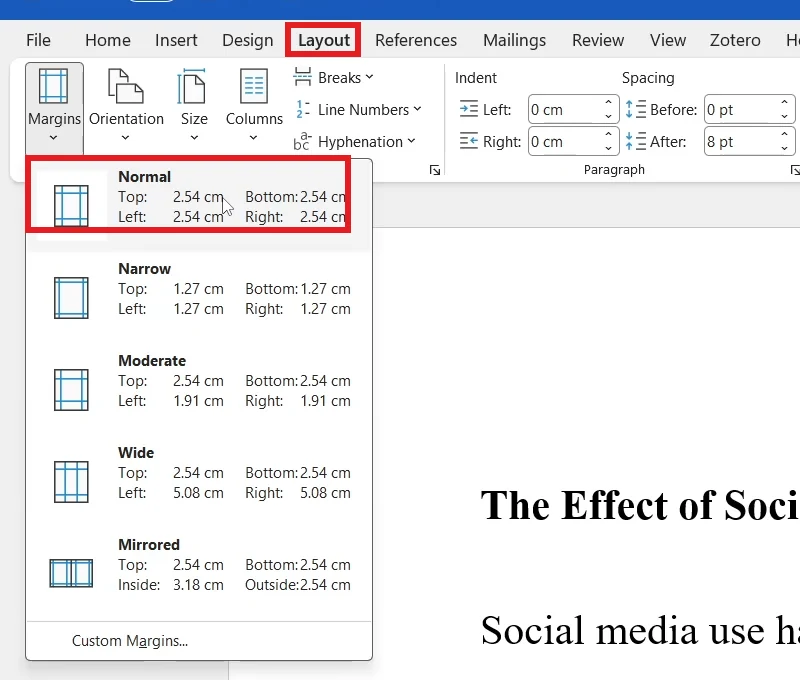
- Select the Layout tab, then Margins.
- Choose Normal: 2.54 cm, or one inch, on every side.
Step 4: Indent the First Line of Each Paragraph
- On the Home tab, select the arrow in the corner of the Paragraph group.
- Under Indentation, set Special to First line and By to 1.27 cm (0.5 inches).
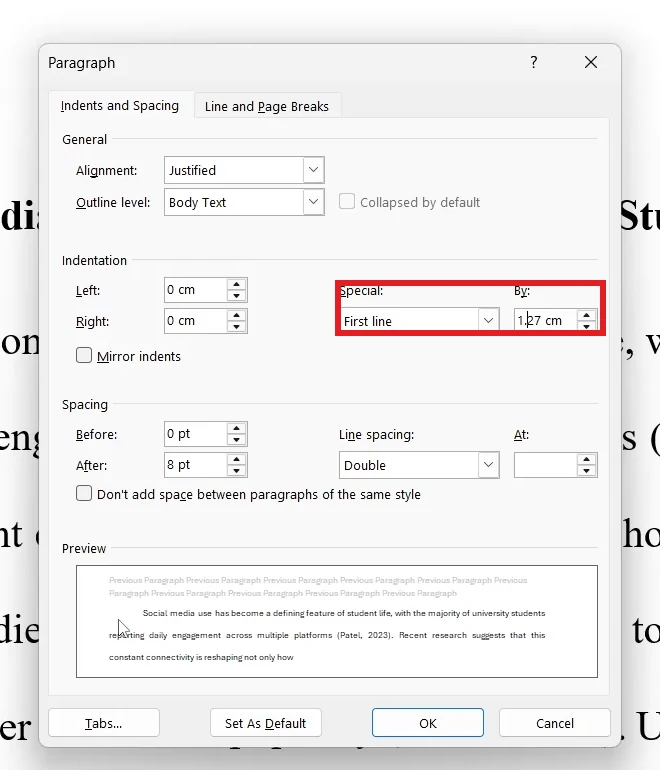
- Select Set As Default, choose This document only, then select OK.
👉 Setting it as the default for this document indents every paragraph, including new ones you type later.
Step 5: Add Page Numbers at the Top Right
- Select Insert > Page Number > Top of Page > Plain Number 3.
- Select Close Header and Footer.
👉 Every page now has its number at the top right. See how to add page numbers in Word for more layouts.
Step 6: Add a Running Head (APA 6 and Professional Papers)
A running head is a shortened title of no more than 50 characters, in capitals, at the top left of every page.
- Double-click the header area at the top of the page.
- Type or paste a shortened title. Check the length in the status bar word count, which shows characters with spaces.
- Select the text, then Home > Change Case > UPPERCASE.
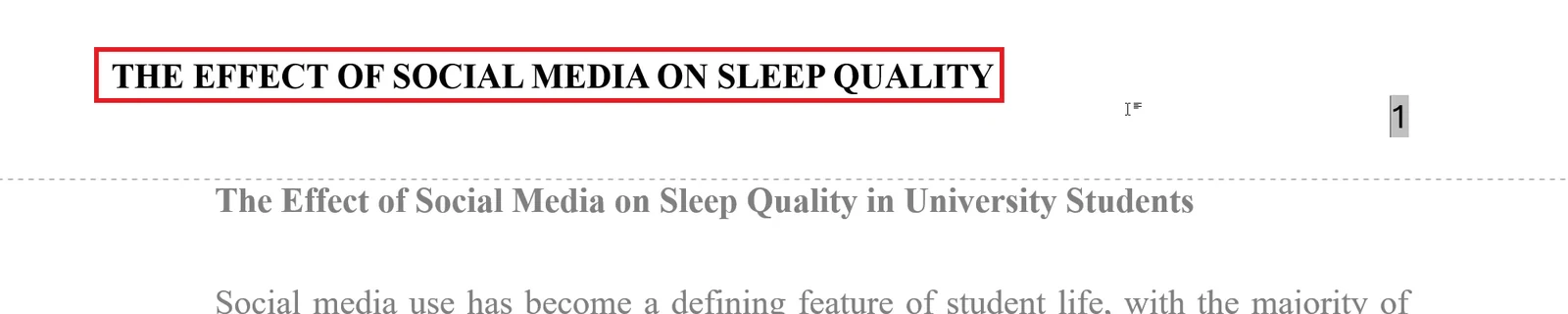
- Select Close Header and Footer.
Step 7: Use Two Spaces After Full Stops (APA 6 Only)
Skip this step for APA 7, which uses one space.
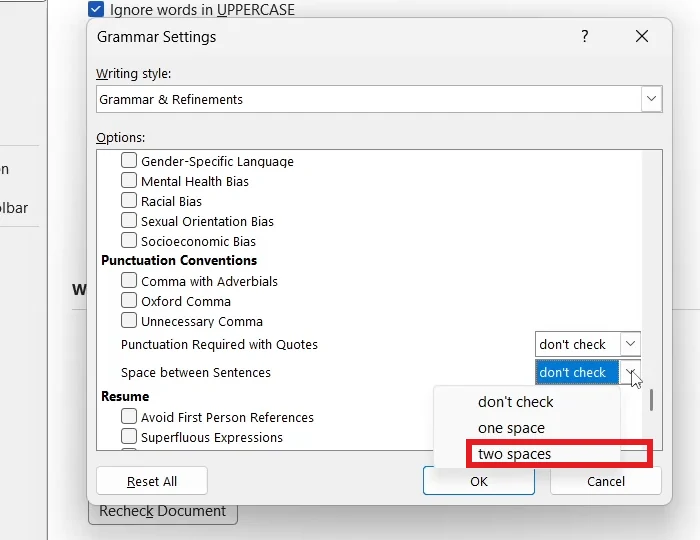
- Select File > Options > Proofing.
- Next to Writing Style, select Settings.
- Under Punctuation Conventions, set Space between Sentences to two spaces, then select OK twice.
- Press Ctrl + H. In Find what, type a full stop and one space; in Replace with, a full stop and two spaces.
- Select Replace All.
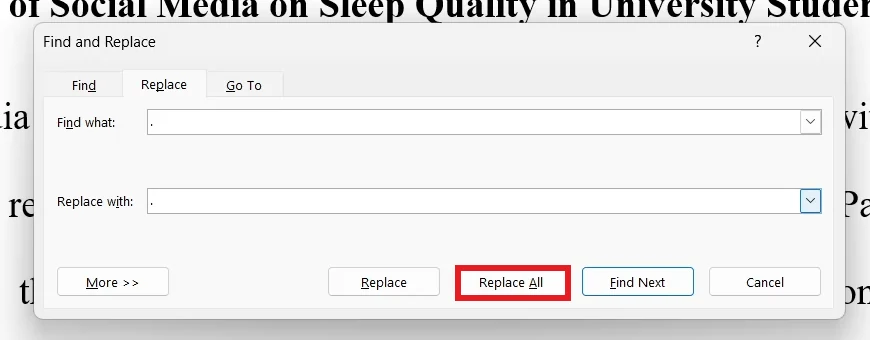
👉 Check the result afterwards: Replace All also changes abbreviations such as “e.g. ” and initials in names.
Step 8: Make the Title Page
- Click just before the first line of the essay, then select Layout > Breaks > Next Page.
- On the new first page, press Enter to move the title down to about a third of the page, then centre it.
- Under the title, add your name and university on separate lines, double spaced and centred.
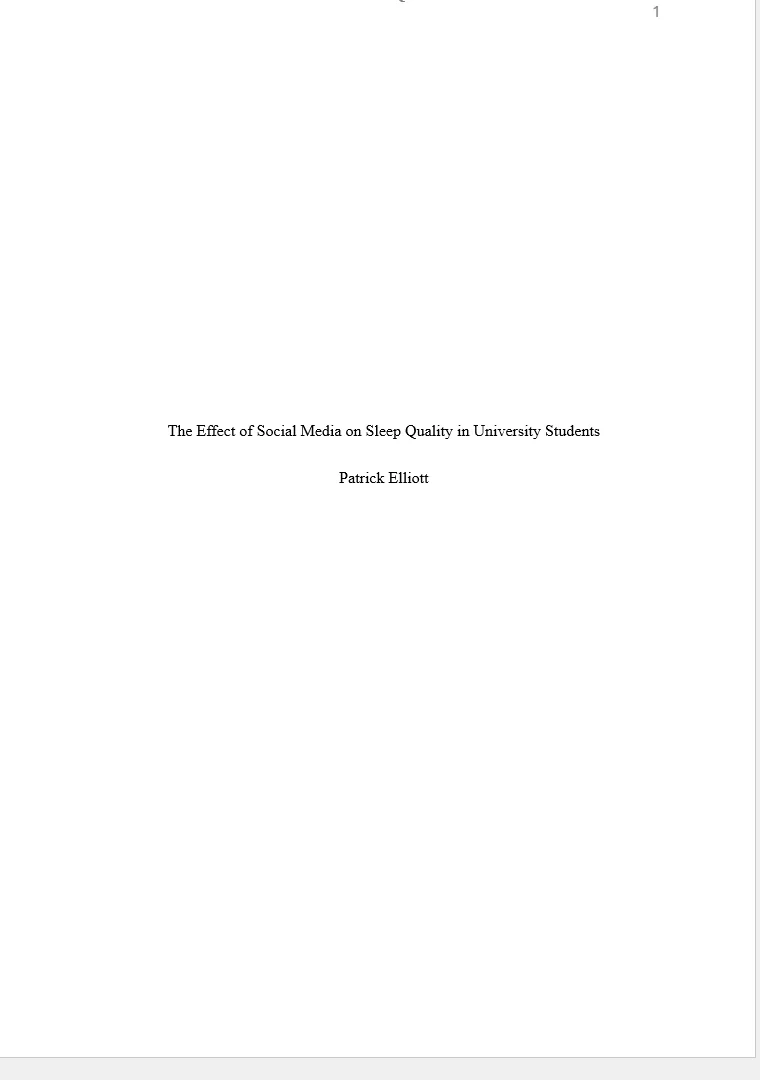
👉 The section break keeps the title page separate, so later edits do not push the essay around. APA 7 also wants the title in bold and the course details on student papers: see APA’s title page guide.
Step 9: Add Your Sources and Citations
- Select the References tab and set Style to APA.

- Select Manage Sources > New.
- Choose the Type of Source, such as Journal Article or Book, then fill in the author, title, year and other fields. Tick Show All Bibliography Fields for volume and issue.
- Select OK, add your other sources, then select Close.

- Click where a citation belongs, select Insert Citation and choose the source.
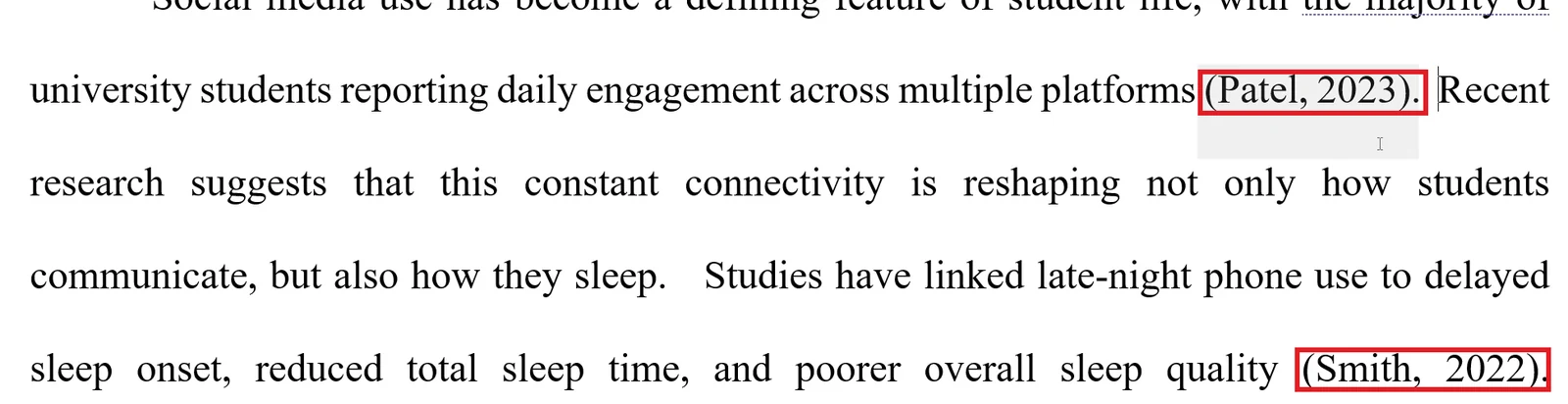
👉 Citations stay linked to their sources, so editing a source updates every citation. Prefer a reference manager? See how to add Mendeley Cite in Word.
Step 10: Create the Reference List
- After your conclusion, insert another Next Page section break.
- On the new page, select References > Bibliography > References.

- Centre the References heading, then set the list to Times New Roman 12 in black.
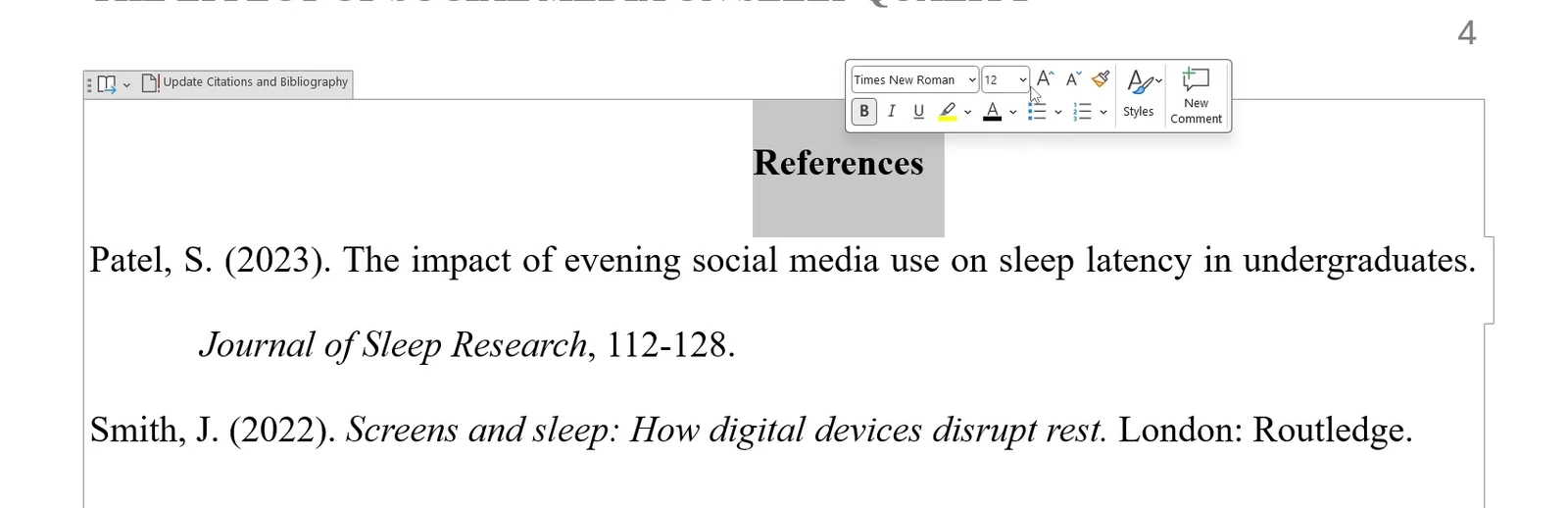
👉 Word sorts the list alphabetically and adds hanging indents for you. To fix one by hand, see how to do a hanging indent in Word.
Quick Tips
Left Align the Body
APA wants text aligned left with a ragged right edge, not justified. Select it and press Ctrl + L.
Build the List Last
Insert the reference list when the essay is finished, then use Update Citations and Bibliography.
Check the Brief
Your university’s rules override this guide for fonts, headers and spacing.
Keep the Settings
Save your finished layout as a template so the next essay starts formatted.
FAQs
How do I format APA in Word?
Use Times New Roman 12, double spacing, one-inch margins, half-inch first-line indents and page numbers at the top right, then add citations from the References tab.
Does Word have APA 7th edition?
No. Word’s built-in style is APA Sixth Edition. Follow APA 7 layout rules by hand, or use a reference manager with an APA 7 style.
Do APA 7 student papers need a running head?
No. Student papers need only the page number at the top right, unless your tutor asks for a running head.
How many spaces after a full stop in APA?
APA 7 uses one space. APA 6 used two.
How do I make a reference list in Word?
Add your sources with Manage Sources, insert citations, then select References > Bibliography > References.
How do I add a hanging indent to references?
Word adds it automatically to its reference list. For your own list, open the Paragraph dialog and set Special to Hanging.
What font is required for APA?
APA 7 accepts several, including Times New Roman 12, Calibri 11 and Arial 11. Check your brief for a preference.
Conclusion
To format APA in Word, set the font, double spacing, margins, indents and page numbers first, then let the References tab handle the citations and reference list. Check whether your course follows APA 6 or APA 7 before adding a running head or two spaces.
Speed up the rest of your essay with the reference shortcuts in Word.
Related Tutorials
- How to Do a Hanging Indent in Word: 3 Easy Methods
- How to Add Page Numbers in Word: 4 Easy Steps
- How to Double Space in Word (Double Line Spacing in Word): 3 Easy Methods
Word Tutorials
Recently Added on Word Made Easy
Browse the complete collection for help with formatting, layout, pages, tables, images, and document setup.
For Microsoft support documentation, visit the official Microsoft guidance.
Leave a Reply