
APA and MLA shortcuts in Word take the repetitive parts of academic formatting — double spacing, hanging indents, citations and the reference list — and turn each one into a single key press or a short sequence. The same keys work for Harvard referencing too. If you want every general Word shortcut in one place, start with the Microsoft Word keyboard shortcuts cheat sheet.
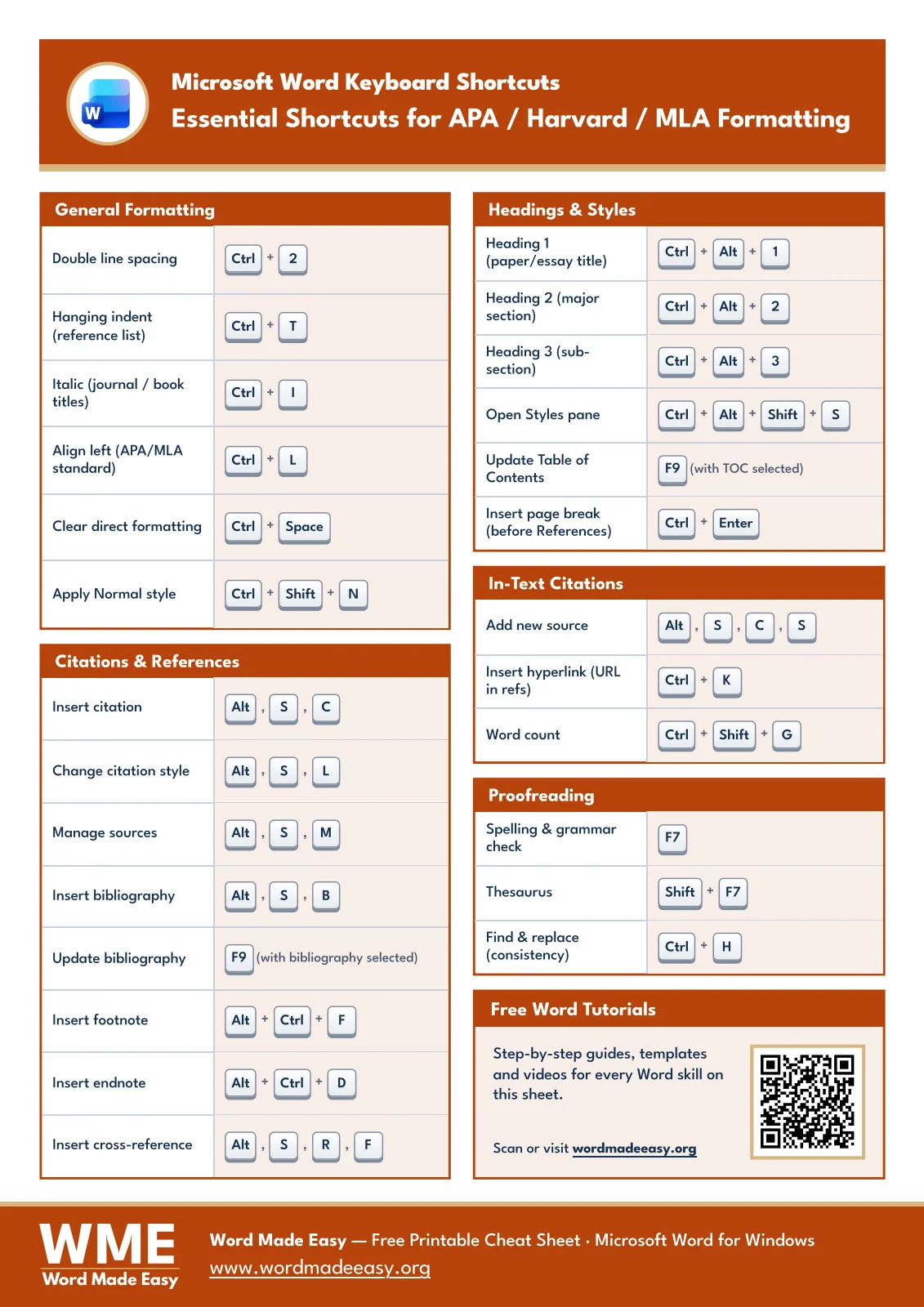
In this guide, you’ll learn all 26 shortcuts on the free APA, Harvard and MLA cheat sheet, grouped by task: general formatting, citations and references, headings and styles, in-text citations and proofreading. You’ll also learn how the References tab KeyTips work, so you can insert a citation or a bibliography without touching the mouse.
Download the Free PDF Cheat Sheet
The cheat sheet is a free one-page A4 printable PDF with clickable links. Print it and keep it beside you while you format an essay, report or dissertation. Click the image or the button to open it.
Get new free printables first: follow Word Made Easy on Pinterest
What Are APA and MLA Shortcuts in Word?
APA, MLA and Harvard are referencing and formatting styles. They set rules for spacing, indents, headings, citations and the reference list. Word does not enforce those rules for you. It gives you the tools, and APA and MLA shortcuts in Word put those tools under your fingers.
The sheet covers the tasks you repeat most often in an academic paper:
- Setting double line spacing and left alignment for the whole paper.
- Applying a hanging indent to every reference entry.
- Inserting citations, managing sources and building the bibliography with Word’s citation tools.
- Applying consistent heading levels and starting the reference list on a new page.
- Checking word count, spelling and consistency before you submit.
Before You Start
- Check which style and edition your course requires, for example APA 7th edition or MLA 9th edition.
- Word’s built-in Harvard option (Harvard – Anglia) may differ from your university’s Harvard variant, such as Cite Them Right. Compare the output with your guide.
- These shortcuts are for Word for Windows (Microsoft 365, Word 2021, 2019 and 2016). Mac keys differ.
- On a laptop, function keys such as F7 and F9 may need the Fn key.
How to Use KeyTip Shortcuts
Most citation commands live on the References tab and use KeyTips rather than a held combination. Shortcuts written with commas, such as Alt, S, C, are KeyTip sequences: press each key in turn. Do not hold them down together.
- Press Alt and release it. Letters appear over each ribbon tab.
- Press S to open the References tab.
- Press the next letter, for example C for Insert Citation.
👉 Shortcuts written with a plus sign, such as Ctrl + 2, work the usual way: hold the keys together.
General Formatting Shortcuts for APA, MLA and Harvard
These six APA and MLA shortcuts in Word set up the page-level rules that APA, MLA and most Harvard guides share. Select the whole paper with Ctrl + A first, then apply spacing and alignment in one go. For the other ways to set spacing, see the guide to double line spacing in Word.
| Task | Shortcut | Academic use |
|---|---|---|
| Double line spacing | Ctrl + 2 | APA, MLA and most Harvard guides ask for double spacing throughout |
| Hanging indent (reference list) | Ctrl + T | Every entry in the reference list or Works Cited page |
| Italic (journal / book titles) | Ctrl + I | Book, journal and website titles in the reference list |
| Align left (APA/MLA standard) | Ctrl + L | Body text stays left-aligned with a ragged right edge |
| Clear direct formatting | Ctrl + Space | Strips stray bold, italics or font changes from pasted text |
| Apply Normal style | Ctrl + Shift + N | Resets a paragraph that has picked up odd formatting |
Citations and References Shortcuts
This is the core of the sheet. Word’s citation tools store each source once, then format the in-text citation and the reference list in the style you choose. Change the style later and every citation updates with it. For the full menu walkthrough, see Microsoft’s guide to bibliographies, citations and references.
| Task | Shortcut | Academic use |
|---|---|---|
| Insert citation | Alt, S, C | Adds an in-text citation from your saved sources |
| Change citation style | Alt, S, L | Switches between APA, MLA, Harvard and other built-in styles |
| Manage sources | Alt, S, M | Edits, copies or deletes saved sources |
| Insert bibliography | Alt, S, B | Builds the reference list or Works Cited from your sources |
| Update bibliography | F9 (with bibliography selected) | Refreshes the list after you add or edit a source |
| Insert footnote | Alt + Ctrl + F | Notes for footnote-based referencing or extra comments |
| Insert endnote | Alt + Ctrl + D | Collects notes at the end of the paper instead |
| Insert cross-reference | Alt, S, R, F | Points readers to a table, figure or section by number |
👉 Click inside the bibliography before you press F9, otherwise Word has nothing to update.
Headings and Styles Shortcuts
Built-in heading styles keep levels consistent and feed Word’s automatic table of contents. Their default fonts and colours are not APA or MLA formatting, so modify each style once to match your guide. MLA papers often need no headings at all; APA 7th edition uses up to five levels.
| Task | Shortcut | Academic use |
|---|---|---|
| Heading 1 (paper/essay title) | Ctrl + Alt + 1 | Title or top-level heading |
| Heading 2 (major section) | Ctrl + Alt + 2 | Main sections such as Method or Discussion |
| Heading 3 (sub-section) | Ctrl + Alt + 3 | Sub-sections inside a main section |
| Open Styles pane | Ctrl + Alt + Shift + S | Modify heading and Normal styles to match your guide |
| Update Table of Contents | F9 (with TOC selected) | Refreshes page numbers after editing |
| Insert page break (before References) | Ctrl + Enter | Starts the reference list on a new page |
In-Text Citations Shortcuts
Use these while you write — they are the APA and MLA shortcuts in Word you will press most. Add a new source the moment you cite it, so the reference list builds itself as you go rather than in a rush before the deadline.
| Task | Shortcut | Academic use |
|---|---|---|
| Add new source | Alt, S, C, S | Saves a new source while you cite it |
| Insert hyperlink (URL in refs) | Ctrl + K | Links a DOI or URL inside a reference entry |
| Word count | Ctrl + Shift + G | Checks you are inside the word limit |
Proofreading Shortcuts
Run these three APA and MLA shortcuts in Word before you submit. Find and replace is the quickest way to fix an author name or a term you spelt two different ways across the paper.
| Task | Shortcut | Academic use |
|---|---|---|
| Spelling & grammar check | F7 | Final spelling and grammar pass |
| Thesaurus | Shift + F7 | Finds alternatives for repeated words |
| Find & replace (consistency) | Ctrl + H | Fixes inconsistent spellings or terms in one sweep |
Pro Tips for APA and MLA Shortcuts in Word
- Press Ctrl + T once per indent level. If you go too far, Ctrl + Shift + T reduces the hanging indent — for the ruler and Paragraph dialog methods, see how to create a hanging indent in Word.
- Set the style before you insert citations. Press the KeyTip for Style, pick APA, MLA or Harvard, then cite. Changing it later still works, but checking once saves time.
- Modify the Normal style rather than formatting text by hand. Then one change of font or spacing updates the whole paper.
- Need a reference manager? Word works with Mendeley too — see how to add Mendeley Cite in Word.
- If Ctrl + Shift + G or another Ctrl + Shift shortcut does nothing, a graphics-card overlay such as AMD Adrenalin may be intercepting it. Change or disable that overlay hotkey.
- Read the bibliography line by line. Word formats the data you enter; it cannot fix a missing year or a misspelt author.
FAQs
How do I use APA and MLA shortcuts in Word?
APA and MLA shortcuts in Word work in two ways. Hold combinations such as Ctrl + 2 together, and press KeyTip sequences such as Alt, S, C one key at a time.
What is the shortcut for a hanging indent in Word?
Press Ctrl + T to apply a hanging indent to the selected reference entries. Press Ctrl + Shift + T to reduce it.
How do I double space an APA or MLA paper in Word?
Select the whole paper with Ctrl + A, then press Ctrl + 2. Check that extra space before and after paragraphs is set to zero if your guide requires it.
How do I insert a citation in Word with the keyboard?
Press Alt, S, C to open Insert Citation, then choose a saved source. Press Alt, S, C, S to add a new source instead.
Does Word have a Harvard referencing style?
Yes. Word includes Harvard – Anglia in its citation Style list. Many universities use a different Harvard variant, so compare the output with your guide.
How do I update the bibliography in Word?
Click inside the bibliography and press F9. Word refreshes it with any sources you have added or edited.
Which heading shortcuts work for an APA paper?
Use Ctrl + Alt + 1, Ctrl + Alt + 2 and Ctrl + Alt + 3 for heading levels 1 to 3. They also feed an automatic contents page — see how to create a table of contents in Word.
Do these shortcuts make my paper APA or MLA compliant?
No, not on their own. They apply settings quickly, but your style guide and assignment brief decide which settings are correct.
Conclusion
APA and MLA shortcuts in Word cut the formatting work in an academic paper down to a handful of keys. Start with Ctrl + 2, Ctrl + T and Alt, S, C; those three cover most of the job.
Download the PDF, pin it beside your screen and add one new group each week. For footnotes, captions, tables of contents and indexes, move on to the full set of reference shortcuts in Word.
Related Tutorials
- Word Styles and Headings Shortcuts: 28 Keys (Quick Guide)
- How to Create a Hanging Indent in Word: 3 Easy Methods (Quick Guide)
- How to Check Spelling and Grammar in Microsoft Word
Word Tutorials
Recently Added on Word Made Easy
Browse the complete collection for help with formatting, layout, pages, tables, images, and document setup.
For Microsoft support documentation, visit the official Microsoft guidance.

Leave a comment
Stuck on a step, or know a quicker way? Ask or share it below.