Skip to content
Word Made Easy Shop
Home Word Tutorials Word Templates Resources Google Docs PowerPoint Tutorials YouTube Videos
Home Word Tutorials Word Templates Resources Google Docs PowerPoint Tutorials YouTube Videos Shop

How to Check Spelling and Grammar in Word (Spell Check): 4 Easy Steps

Microsoft Word, Word Productivity & Automation

Updated 13 November 2026 · By Patrick Elliott

You can check spelling and grammar in Word using built-in proofing tools that flag mistakes, confused words, and style issues as you type — no third-party software needed. If you write a lot, pairing this with clean formatting like justified text in Word gives you a genuinely professional document.

In this guide, you’ll learn how to enable proofing, set the correct language, review corrections through the Editor, and fix Word when it isn’t detecting errors at all.


Contents hide
1 Why Check Spelling and Grammar in Word?
2 How to Check Spelling and Grammar in Word: Step-by-Step
3 Step 1: How to Check Spelling and Grammar in Word by Enabling Proofing
4 Step 2: How to Check Spelling and Grammar in Word by Setting the Language
5 Step 3: How to Check Spelling and Grammar in Word by Reading the Underlines
6 Step 4: How to Check Spelling and Grammar in Word Using the Editor
7 Which Method Should You Use?
8 Common Problems When Checking Spelling and Grammar in Word
9 Pro Tips for Cleaner Proofing
10 FAQs
11 Conclusion
12 Related Tutorials
13 Word Tutorials

Why Check Spelling and Grammar in Word?

Word’s proofing tools catch mistakes before you share or print, which keeps your writing professional. This works in Word 2016, 2019, 2021, and Microsoft 365.

They can detect:

  • Spelling mistakes
  • Grammar errors
  • Frequently confused words
  • Repeated words
  • Writing style suggestions

Watch the Video Tutorial

If you prefer to see this in action, the full video walkthrough is below, showing each method step by step.

Keep goingHow to Turn Off AutoCorrect in Word (Disable It): 3 Easy StepsA step-by-step guide that goes well with this one.Read the tutorial →

How to Check Spelling and Grammar in Word: Step-by-Step

Four steps: turn proofing on, set the right language, read the underlines, and run the Editor for a full pass.


Step 1: How to Check Spelling and Grammar in Word by Enabling Proofing

If Word isn’t highlighting errors, proofing is probably switched off.

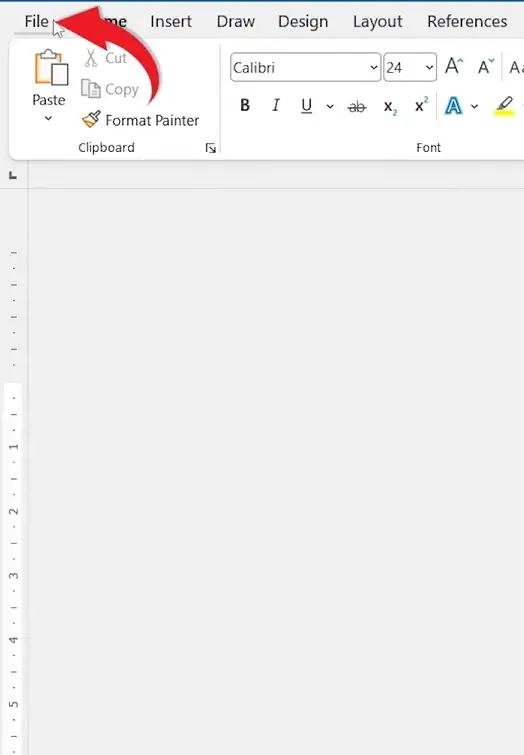
  1. Click the File tab.
Microsoft Word ribbon with the File tab selected to begin the check spelling and grammar in Word process
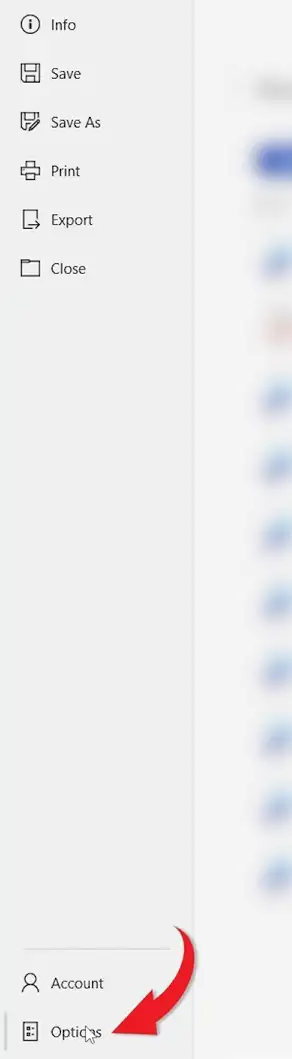
  1. Select Options.
Microsoft Word File menu with the Options button highlighted to open settings to check spelling and grammar in Word
  1. Click Proofing.
Microsoft Word Proofing settings showing Check spelling as you type and Mark grammar errors as you type enabled

Under When correcting spelling and grammar in Word, tick:

  • Check spelling as you type
  • Mark grammar errors as you type
  • Frequently confused words

👉 Click OK. Word starts flagging errors as you type.


Step 2: How to Check Spelling and Grammar in Word by Setting the Language

A common reason Word misses errors is the wrong proofing language.

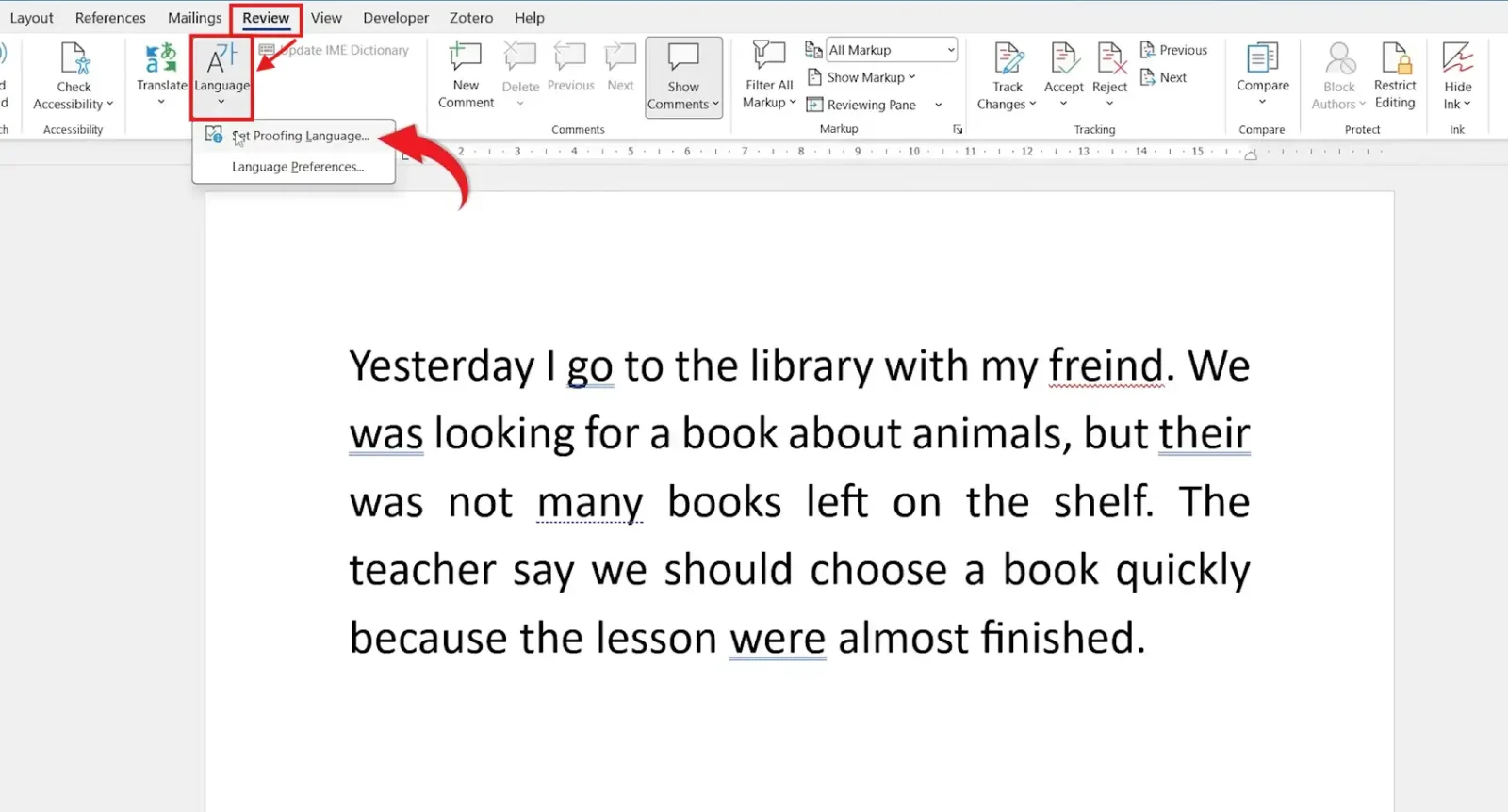
  1. Go to the Review tab.
  2. Click Language.
  3. Select Set Proofing Language.
Microsoft Word Review tab with the Language menu and Set Proofing Language open to check spelling and grammar in Word

Choose the language that matches your writing — for example English (United Kingdom), English (United States), or English (Australia).

  1. Make sure Do not check spelling or grammar is unchecked.
  2. Click Set As Default if you always write in this language, then OK.

👉 Word now proofs against the correct dictionary.


Step 3: How to Check Spelling and Grammar in Word by Reading the Underlines

Word uses coloured underlines to flag issues as you write.

  • Red underline — a possible spelling mistake.
  • Blue underline — a grammar issue or writing suggestion.

To fix one:

  1. Right-click the underlined word.
  2. Choose the correct suggestion, or select Add to Dictionary / Ignore.

👉 Add to Dictionary is ideal for names, technical terms, and industry vocabulary Word doesn’t recognise.


Step 4: How to Check Spelling and Grammar in Word Using the Editor

To review everything in one pass instead of word by word:

  1. Go to the Review tab.
  2. Click Spelling & Grammar (or Editor, depending on your version).
  3. For each item, choose Accept, Ignore, or move to the next.

👉 The Editor pane lists every detected issue — the best way to review a full document before sharing or printing.


Which Method Should You Use?

ApproachBest for
Coloured underlinesFixing errors live as you type
Right-click a wordQuick single corrections
Editor / Spelling & Grammar paneA full document review before sending

Common Problems When Checking Spelling and Grammar in Word

Word isn’t detecting any errors

Confirm both boxes are ticked in File → Options → Proofing, then save, close, and reopen the document to refresh the settings.

“Do not check spelling or grammar” is turned on

Select all text (Ctrl + A), open Review → Language → Set Proofing Language, and untick that box — it’s often applied to a template or pasted text.

The wrong language is flagging correct words

Set the proofing language to match your writing and click Set As Default so new documents inherit it.

Word ignores acronyms and URLs

In Proofing, untick Ignore words in UPPERCASE and Ignore internet and file addresses if you want those checked too.


Pro Tips for Cleaner Proofing

  • Build a custom dictionary for recurring names and jargon so they stop being flagged.
  • Proof faster with shortcuts — press F7 to open the Editor, and keep the Microsoft Word keyboard shortcuts cheat sheet nearby for the rest.
  • Do a final visual pass with formatting marks on so stray spaces don’t slip through.

FAQs

How do I check spelling and grammar in Word?

To check spelling and grammar in Word, enable proofing in File → Options → Proofing, then use the coloured underlines or the Review → Spelling & Grammar Editor.

Why isn’t Word checking my spelling?

Make sure Check spelling as you type is enabled in File → Options → Proofing and the proofing language is correct.

Why aren’t grammar mistakes showing?

Enable Mark grammar errors as you type and confirm Do not check spelling or grammar is unticked for the text.

What do the red and blue underlines mean?

A red underline flags a spelling error; a blue underline flags a grammar issue or writing suggestion.

What is the shortcut to check spelling in Word?

Press F7 to open the Spelling & Grammar Editor and step through every issue in the document.

How do I change the proofing language?

Go to Review → Language → Set Proofing Language, pick your language, and click OK.

Can I add words to the dictionary?

Yes. Right-click the underlined word and choose Add to Dictionary if it’s spelled correctly but not recognised.


Conclusion

You can now check spelling and grammar in Word by enabling proofing, setting the right language, reading the underlines, and running the Editor for a full pass.

With clean copy in place, finish the job with tidy layout — for example, learn how to align text in Word so your polished writing looks the part on the page.


New to Word? This tutorial goes with Chapter 10 of the free Microsoft Word for beginners guide: Check your document. It covers the basics step by step, with screenshots, short videos and practice files, and you can download the whole guide as a free PDF.

Related Tutorials

  • How to Justify Text in Word
  • How to Align Text in Word
  • How to Remove Formatting Marks in Word

Word Tutorials

Recently Added on Word Made Easy

  • How to Mail Merge Certificates in Word: 7 Easy Steps

    November 12, 2026
  • How to Split a Cell in Word: 2 Easy Methods

    November 11, 2026
  • How to Add Mendeley Citations in Word: 9 Easy Steps

    November 11, 2026

Browse the complete collection for help with formatting, layout, pages, tables, images, and document setup.

View all Word tutorials
Watch on YouTube

For Microsoft support documentation, visit the official Microsoft guidance.
← PreviousHow to Recover an Unsaved Word Document: 2 Methods
Next →How to Type Square Root Symbol in Word (√ Shortcut): 3 Easy Methods

Leave a comment Cancel reply

Stuck on a step, or know a quicker way? Ask or share it below.

Meet the Author

Patrick Elliott standing outdoors holding his dog.

I’m Patrick Elliott, the creator of Word Made Easy. I’ve worked in schools for over 10 years and I’m now an Inclusion Lead in the UAE. I use Microsoft Word and PowerPoint every day for planning, documentation and classroom resources.

Every guide is tested step by step before publishing (usually in Microsoft 365), and every free template is one I made myself in Word. You’ll also find practical walkthroughs on my YouTube channel.

Browse

  • Word TutorialsStep-by-step guides for every feature
  • Word Beginners HubFree 12-chapter Word course
  • Word TemplatesFree, editable downloads
  • ResourcesWorksheets, posters and puzzles
  • Word Shortcut Cheat SheetsFree printable PDFs
  • Google Docs TutorialsStep-by-step Docs guides
  • PowerPoint TutorialsClear, simple slide guides
  • YouTube VideosWatch the video walkthroughs

Watch on YouTube

Prefer to watch? Most guides have a short video walkthrough on the Word Made Easy channel.

  • 147videos
  • 1.88Mviews
  • 8,000+subscribers
Subscribe on YouTube

Recently Added

  • Christmas Math Games: 10 Free Printable Dice and Board GamesNovember 24, 2026
  • Money Worksheets: 10 Free Counting Coins and Change Sheets in 6 CurrenciesNovember 23, 2026
  • Multiplying Fractions Worksheets: 10 Free Printables with Models and AnswersNovember 23, 2026
  • Bus Stop Division Worksheets: 10 Free Short and Long Division SheetsNovember 23, 2026
  • Winter Brain Breaks: 10 Free Printable Brain Break Card SheetsNovember 23, 2026

Most Downloaded

  • Microsoft Word for Beginners: Free Guide and PDF88 downloads in the last 30 days
  • Free ILAW Lesson Plan Templates for Word: English and Filipino (DO 16, s. 2026)80 downloads in the last 30 days
  • Free Microsoft Word Keyboard Shortcuts Bundle: 14 Cheat Sheets (PDF)72 downloads in the last 30 days
  • Free Fillable Form Templates for Word: 4 Easy Forms63 downloads in the last 30 days
  • Free 1×1 and 2×2 Picture Templates for Word: 4 ID Photo Sheets57 downloads in the last 30 days

About

  • About Me
  • Contact
  • Shop

Microsoft Word

  • All Word Tutorials
  • Page Layout & Sections
  • Tables, Images & Media
  • Formatting Basics
  • Productivity & Automation
  • Beginners Hub
  • Shortcut Cheat Sheets

Word Templates

  • Business
  • Calendars and Planners
  • Home, Health and Money
  • School and Teacher Forms
  • Cards, Invitations and Labels
  • Paper and Grids
  • Holidays and Seasonal

Resources

  • Phonics and Reading
  • Handwriting
  • Writing
  • Maths
  • Puzzles and Activities
  • Classroom Display
  • Study Packs
  • Seasonal
  • Collections

More Tutorials

  • Google Docs Tutorials
  • PowerPoint Tutorials
  • YouTube Videos

Follow Us

  • YouTube
  • Facebook
  • Pinterest
Privacy Policy Cookie Policy Terms of Use
© 2012–2026 Word Made Easy. All rights reserved.
Manage your privacy

To provide the best experiences, we and our partners use technologies like cookies to store and/or access device information. Consenting to these technologies will allow us and our partners to process personal data such as browsing behavior or unique IDs on this site and show (non-) personalized ads. Not consenting or withdrawing consent, may adversely affect certain features and functions.

Click below to consent to the above or make granular choices. Your choices will be applied to this site only. You can change your settings at any time, including withdrawing your consent, by using the toggles on the Cookie Policy, or by clicking on the manage consent button at the bottom of the screen.

Functional Always active
The technical storage or access is strictly necessary for the legitimate purpose of enabling the use of a specific service explicitly requested by the subscriber or user, or for the sole purpose of carrying out the transmission of a communication over an electronic communications network.
Preferences
The technical storage or access is necessary for the legitimate purpose of storing preferences that are not requested by the subscriber or user.
Statistics
The technical storage or access that is used exclusively for statistical purposes. The technical storage or access that is used exclusively for anonymous statistical purposes. Without a subpoena, voluntary compliance on the part of your Internet Service Provider, or additional records from a third party, information stored or retrieved for this purpose alone cannot usually be used to identify you.
Marketing
The technical storage or access is required to create user profiles to send advertising, or to track the user on a website or across several websites for similar marketing purposes.
Statistics

Marketing

Features
Always active

Special features

Special purposes
Always active

  • Manage options
  • Manage services
  • Manage {vendor_count} vendors
  • Read more about these purposes
Manage options
  • {title}
  • {title}
  • {title}
Manage your privacy
To provide the best experiences, we use technologies like cookies to store and/or access device information. Consenting to these technologies will allow us to process data such as browsing behavior or unique IDs on this site. Not consenting or withdrawing consent, may adversely affect certain features and functions.
Functional Always active
The technical storage or access is strictly necessary for the legitimate purpose of enabling the use of a specific service explicitly requested by the subscriber or user, or for the sole purpose of carrying out the transmission of a communication over an electronic communications network.
Preferences
The technical storage or access is necessary for the legitimate purpose of storing preferences that are not requested by the subscriber or user.
Statistics
The technical storage or access that is used exclusively for statistical purposes. The technical storage or access that is used exclusively for anonymous statistical purposes. Without a subpoena, voluntary compliance on the part of your Internet Service Provider, or additional records from a third party, information stored or retrieved for this purpose alone cannot usually be used to identify you.
Marketing
The technical storage or access is required to create user profiles to send advertising, or to track the user on a website or across several websites for similar marketing purposes.
Statistics

Marketing

Features
Always active

Special features

Special purposes
Always active

  • Manage options
  • Manage services
  • Manage {vendor_count} vendors
  • Read more about these purposes
Manage options
  • {title}
  • {title}
  • {title}