
Microsoft Word keyboard shortcuts let you apply common commands without moving between the document and the ribbon, helping you keep your hands on the keyboard.
In this cheat sheet, you’ll find 30+ essential Microsoft Word keyboard shortcuts grouped by what they actually do — formatting, alignment, editing, document control, and proofreading — plus a free printable PDF you can keep next to your keyboard. If you also want to learn how to align text in Word in detail, that guide pairs naturally with the alignment shortcuts below.
This resource is built for:
- ✅ Students, professionals, and educators who write daily
- ✅ Free to download, print, and reference offline
- ✅ Tested in Microsoft 365 for Windows; availability can vary in older versions, Word for Mac and Word for the web.
Free Microsoft Word Keyboard Shortcuts Cheat Sheet
Tested in Microsoft 365. Schools, universities and educators may link to and share this resource with attribution to Word Made Easy.
Download the Free PDF Cheat Sheet
Download the Microsoft Word keyboard shortcuts cheat sheet as a free, one-page A4 printable PDF with clickable links. Print it and keep it beside your keyboard. Click the preview or the button below to open it.
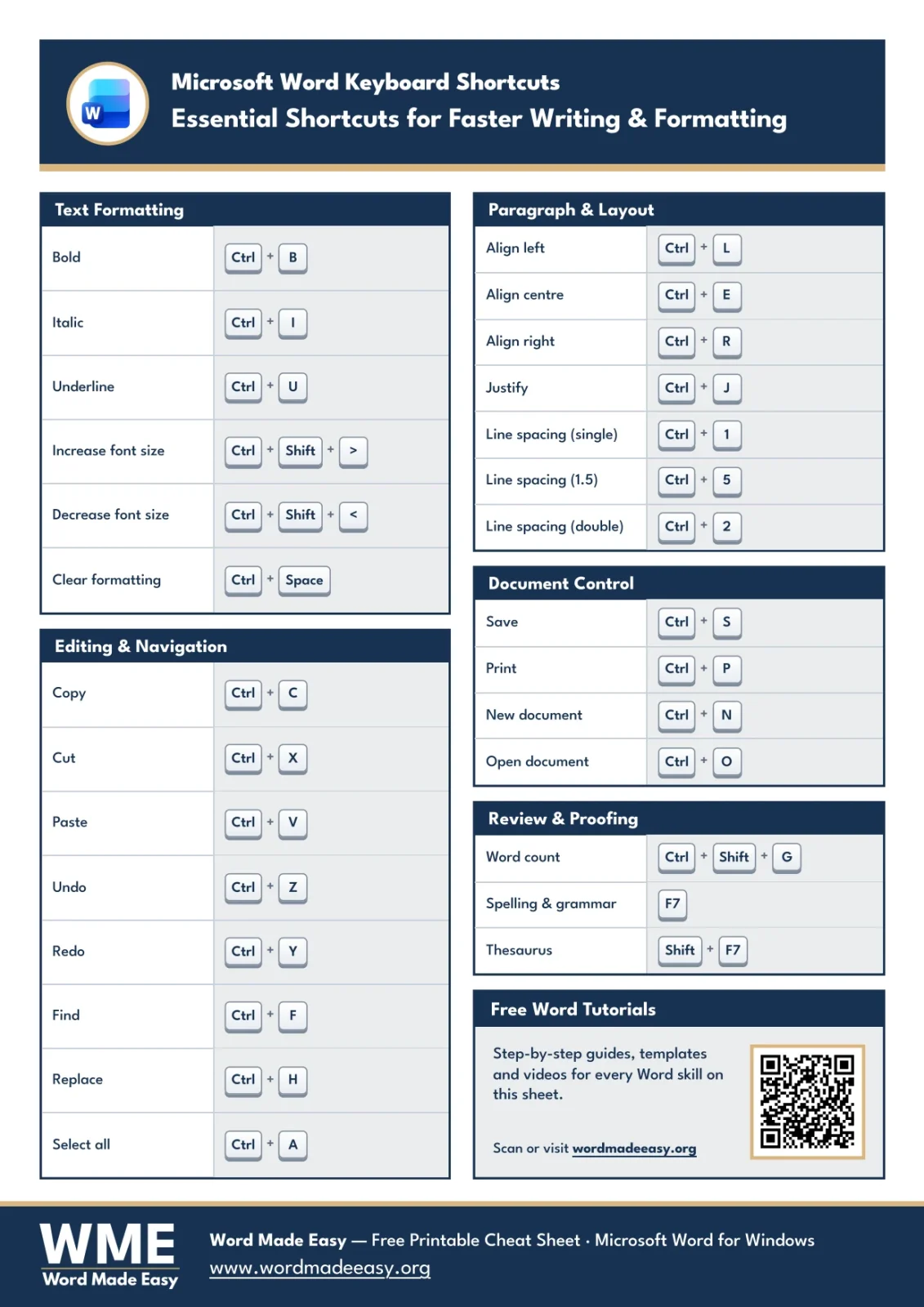
Why Use Microsoft Word Keyboard Shortcuts?
Keyboard shortcuts provide direct access to common Word commands. They can reduce repeated mouse and ribbon navigation when formatting, editing and moving through a document.
The real benefits:
- Apply common formatting and editing commands from the keyboard
- Use the same command consistently for repeated tasks
- Reduce trips to the ribbon for common commands
- Many shortcuts remain consistent across supported desktop versions, although exact availability varies by platform.
Essential Microsoft Word Keyboard Shortcuts: Text Formatting
Text formatting is the highest-frequency task in Word — these six shortcuts cover common character-formatting tasks.
| Action | Shortcut |
|---|---|
| Bold | Ctrl + B |
| Italic | Ctrl + I |
| Underline | Ctrl + U |
| Increase font size | Ctrl + Shift + > |
| Decrease font size | Ctrl + Shift + < |
| Clear all formatting | Ctrl + Spacebar |
👉 Pro tip: Ctrl + Spacebar is the cleanup shortcut every writer needs — it strips all character formatting from selected text in one go, perfect for pasting messy content from websites or PDFs.
Microsoft Word Keyboard Shortcuts: Paragraph Alignment and Layout
Alignment shortcuts are essential for any document where presentation matters — reports, essays, CVs, and formal letters all rely on consistent paragraph layout.
| Action | Shortcut |
|---|---|
| Align left | Ctrl + L |
| Align centre | Ctrl + E |
| Align right | Ctrl + R |
| Justify | Ctrl + J |
| Single line spacing | Ctrl + 1 |
| 1.5 line spacing | Ctrl + 5 |
| Double line spacing | Ctrl + 2 |
👉 For a deeper walkthrough on spacing options beyond the shortcuts, see double line spacing in Word — it covers when each spacing option is appropriate for different document types.
These shortcuts cover common editing and navigation commands in Word. Several also work in other Windows applications.
| Action | Shortcut |
|---|---|
| Copy | Ctrl + C |
| Cut | Ctrl + X |
| Paste | Ctrl + V |
| Paste as plain text | Ctrl + Shift + V |
| Undo | Ctrl + Z |
| Redo | Ctrl + Y |
| Find | Ctrl + F |
| Replace | Ctrl + H |
| Select all | Ctrl + A |
| Go to page | Ctrl + G |
👉 Pro tip: Ctrl + Shift + V pastes content as plain text — no source formatting, no hidden styles. Use it when you need to remove source formatting from pasted text.
Microsoft Word Keyboard Shortcuts: Document Control
These shortcuts provide direct access to common document commands such as Save, Open and Print.
| Action | Shortcut |
|---|---|
| Save | Ctrl + S |
| Save As | F12 |
| Ctrl + P | |
| New document | Ctrl + N |
| Open document | Ctrl + O |
| Close document | Ctrl + W |
👉 Pro tip: F12 opens Save As directly, bypassing the File menu entirely — useful when you need to version a document or save to a new location mid-edit.
Microsoft Word Keyboard Shortcuts: Review and Proofreading
These shortcuts provide direct access to common proofreading and review tools.
| Action | Shortcut |
|---|---|
| Word count | Ctrl + Shift + G |
| Spelling and grammar check | F7 |
| Thesaurus | Shift + F7 |
| Track Changes on/off | Ctrl + Shift + E |
👉 If you want a live word count inside your document rather than in a pop-up, see the guide on how to insert a word counter in Word — it embeds the count directly in your header or footer.
Pro Tips for Learning Microsoft Word Keyboard Shortcuts
- Don’t try to learn them all at once — pick five new shortcuts each week and force yourself to use them until they’re automatic
- Print the cheat sheet PDF and keep it next to your keyboard for the first month — the printed sheet gives you a quick reference while you practise
- Many shortcuts double as universal Windows shortcuts (Ctrl + S, Ctrl + Z, Ctrl + F) — learning them in Word transfers straight to Excel, PowerPoint, and most apps
- Combine these shortcuts with line spacing techniques from double line spacing in Word to format full documents in seconds
- To do all of this from the keyboard, see Header and Footer Shortcuts in Word.
- To set up pages from the keyboard, see Word Page Layout Shortcuts.
- To format a CV faster, see CV and Resume Shortcuts in Word.
- To look up any Word term in plain English, see Microsoft Word Glossary.
Official Microsoft Word Keyboard Shortcut Documentation
For a complete and always up-to-date reference, Microsoft maintains official documentation covering every Microsoft Word keyboard shortcut across every version and platform — useful when you need to verify a less common command or check version-specific differences.
👉 Microsoft Word keyboard shortcut documentation (official Microsoft support):
https://support.microsoft.com/en-US/accessibility/word/keyboard-shortcuts-in-word
FAQs
Are these Microsoft Word keyboard shortcuts for Windows only?
Yes — this cheat sheet covers Microsoft Word on Windows. Mac users should swap Ctrl for Cmd in most cases, though some shortcuts (like F7 for spell check) differ between platforms.
Do these shortcuts work in all Word versions?
This cheat sheet is tested in Microsoft 365 for Windows. Many of the listed shortcuts also work in Word 2016, 2019 and 2021, but Word for Mac and Word for the web can use different commands.
What is the keyboard shortcut for bold in Word?
Press Ctrl + B to bold selected text. Press it again on the same selection to remove bold formatting — it’s a toggle.
What is the keyboard shortcut to save in Word?
Press Ctrl + S to save the current document. Press F12 to open Save As if you need to save to a new location or filename.
Can beginners learn keyboard shortcuts easily?
Yes. Start with five core shortcuts — Ctrl + S, Ctrl + Z, Ctrl + C, Ctrl + V, Ctrl + B — and add more once they’re automatic.
Do Microsoft Word keyboard shortcuts really improve productivity?
Keyboard shortcuts can reduce repeated mouse and ribbon navigation for commands you use often. The practical benefit depends on your workflow and familiarity with the shortcuts.
Is the PDF cheat sheet free?
Yes. The Microsoft Word keyboard shortcuts PDF is free to download, print, and share for personal and educational use.
Conclusion
Learning a small set of Microsoft Word keyboard shortcuts gives you direct access to common formatting, editing and navigation commands. Practise a few at a time until they become familiar.
Bookmark this page, grab the printable PDF, and start using at least five shortcuts today. For the next layer of formatting speed, pair them with how to align text in Word and you’ll have additional ways to format and align documents efficiently.
New to Word? This tutorial goes with Chapter 12 of the free Microsoft Word Beginners Hub: Shortcuts and next steps. It covers the basics step by step, with screenshots, short videos and practice files.
Related Tutorials
Word Tutorials
Recently Added on Word Made Easy
Browse the complete collection for help with formatting, layout, pages, tables, images, and document setup.
For Microsoft support documentation, visit the official Microsoft guidance.
Leave a Reply