
Learning how to change background color in Word is one of the quickest ways to lift a plain document into something polished and on-brand — much like when you add a watermark in Microsoft Word to brand a page without overpowering the text.
In this guide, you’ll learn how to change background color in Word using three reliable methods, how to make the colour actually print, and how to use fill effects for gradients, textures, and image backgrounds.
What Is Page Background Color in Word?
By default, Microsoft Word documents use a plain white page. The Page Color setting lets you replace that white with a solid colour, a gradient, a texture, or even a custom image. Use it to:
- Improve on-screen readability
- Create visually engaging flyers, invitations, and handouts
- Match company branding or a design theme
- Highlight a single section or stand-alone page
Watch the Video Tutorial
If you prefer to see this in action, the full video walkthrough is below, showing each method step by step.
How to Change Background Color in Word: Step-by-Step
There are three reliable ways to change background color in Word, depending on whether you want a quick solid colour, a custom shade, or an advanced fill like a gradient or image. The methods below walk through each one in order.
Method 1: How to Change Background Color in Word Using the Design Tab
The Design tab is the fastest route. It gives you instant access to theme colours, standard colours, and a custom colour picker.
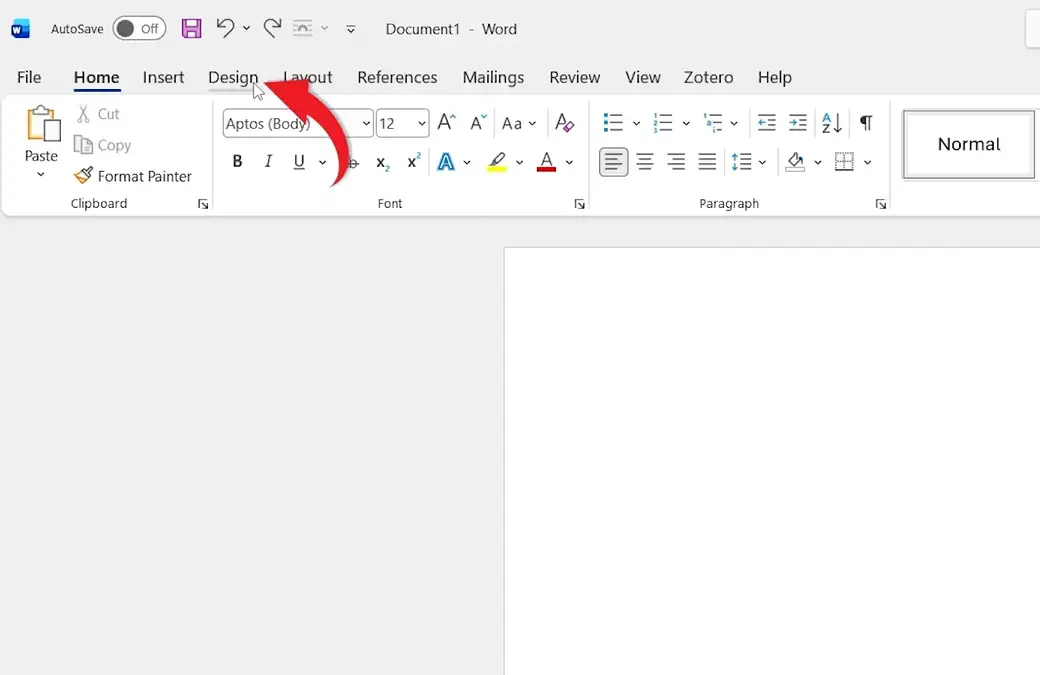
- Open your document and click the Design tab on the ribbon
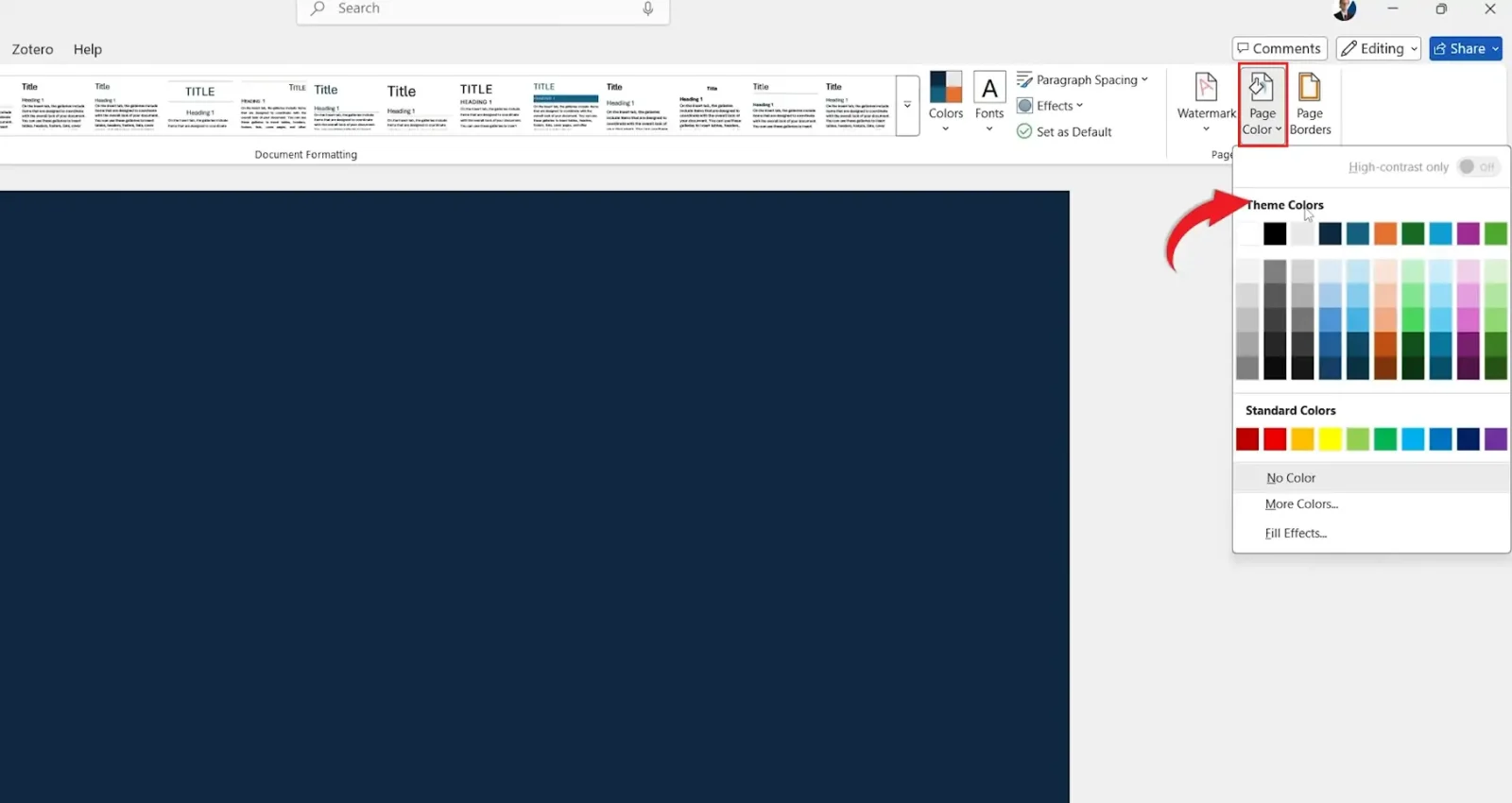
- Click Page Color in the Page Background group
- Pick a colour from the palette — Theme Colors, Standard Colors, or More Colors for a custom shade
👉 Result:
The entire document background updates instantly. The colour applies to every page — Word doesn’t let you change it page-by-page from the ribbon.
Method 2: How to Change Background Color in Word Using a Custom Colour
The default palette is small. Use More Colors when you need an exact brand shade or a specific hex value.
- Go to Design → Page Color
- Click More Colors at the bottom of the palette
- Switch to the Custom tab
- Type your RGB or hex value, or drag the colour picker, then click OK
👉 Result:
Your custom shade applies across the document. Save the file straight away — custom colours don’t always survive a format change to .doc or older Word formats.
Method 3: How to Change Background Color in Word Using Fill Effects
Fill Effects unlock four advanced background styles: gradients, textures, patterns, and image fills.
- Go to Design → Page Color → Fill Effects
- Pick the tab you need:
- Gradient — smooth two-colour transitions
- Texture — paper, fabric, parchment, marble
- Pattern — geometric foreground/background combinations
- Picture — your own image as a full-page background
- Configure the effect, then click OK
These effects let you build something far closer to a designed page — and if you want a faded image sitting behind your text rather than filling the whole background, see the guide on how to add a watermark in Microsoft Word.
👉 Result:
The chosen fill replaces the solid page colour. Picture fills can dramatically increase the file size, so compress the image before applying it.
How to Print Background Colors in Word
By default, Word does not print background colours, even though you can see them on screen. To make them print or export to PDF, you need to flip one setting.
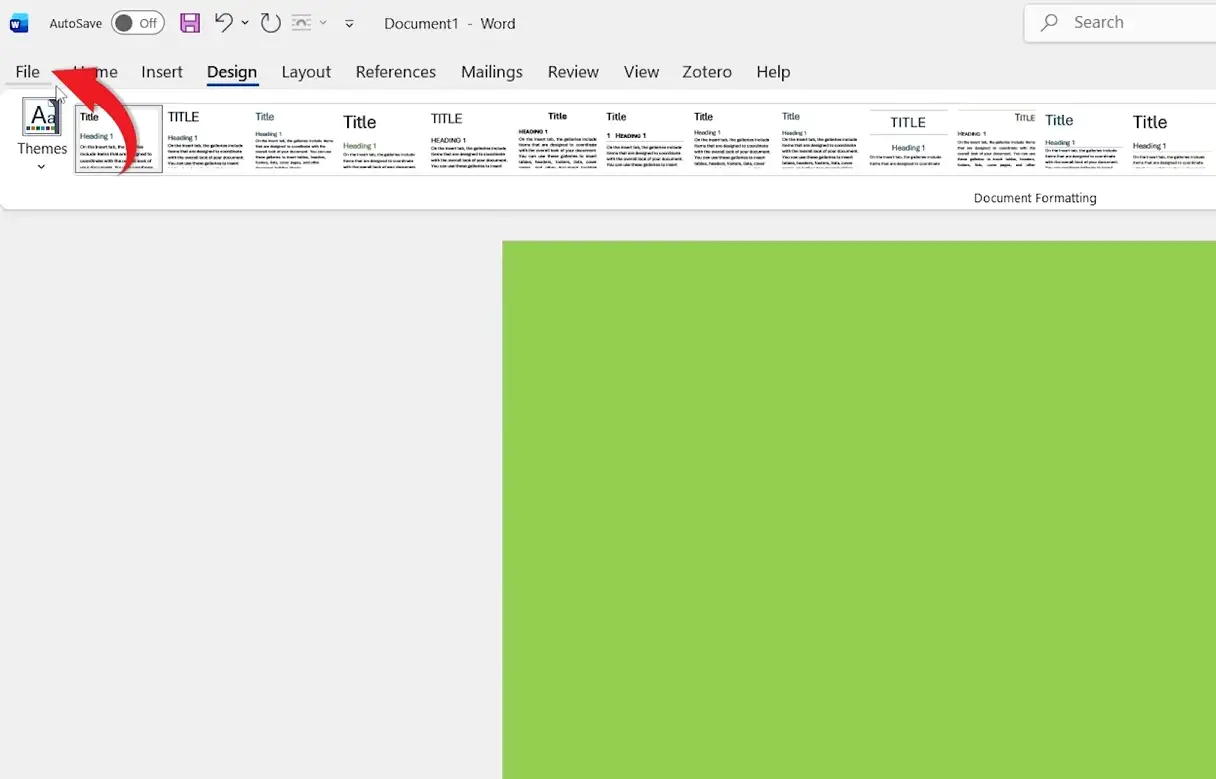
- Click File
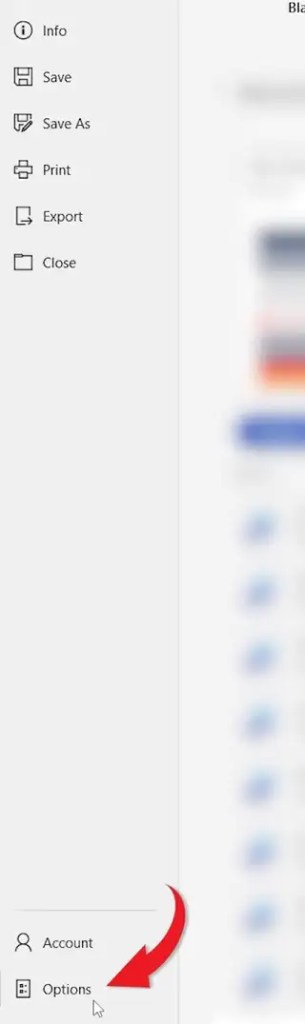
- Select Options
- Click Display in the left panel
- Tick Print background colors and images
- Click OK

👉 Result:
The background colour will now appear in printed copies and PDF exports. The setting is saved per machine, not per document, so you only have to do this once.
Which Method Should You Use?
| Method | Best For | Speed |
|---|---|---|
| Design tab → Page Color | Quick solid colours from the standard palette | Fastest |
| More Colors → Custom | Exact brand shades or hex values | Fast |
| Fill Effects | Gradients, textures, patterns, or image backgrounds | Slower |
Common Problems When Changing Background Color in Word
Background Colour Doesn’t Print
This is the most common issue. Go to File → Options → Display and tick Print background colors and images. The setting is off by default to save ink.
Printed Colour Looks Different From the Screen
Screens use RGB; printers use CMYK. Switch your printer to high-quality mode and check the paper type — matte and glossy papers shift the same colour noticeably.
Background Is Too Dark to Read
Dark backgrounds need light text. Either pick a lighter page colour, or change the font colour to white from the Home tab so the contrast works.
Background Applies to Every Page Instead of One
Word applies Page Color to the whole document. To colour a single page, insert a full-page rectangle from Insert → Shapes, fill it with your colour, and send it behind the text using Wrap Text → Behind Text.
Pro Tips for Better Design
- Stick to subtle, low-saturation colours for documents people will actually read
- Pair a coloured background with a clear page border for a framed, professional look — see the guide on how to add a page border in Microsoft Word
- Always test-print one page before printing the full document
- Use the same background colour across related documents to keep your branding consistent
FAQs
How do I change background color in Word?
To change background color in Word, go to the Design tab, click Page Color, and pick a colour from the palette. Use More Colors for custom shades or Fill Effects for gradients and textures.
Can I change the background colour of only one page in Word?
Not directly — Word applies Page Color to the whole document. To colour a single page, insert a full-page rectangle from Insert → Shapes, fill it with your colour, and use Wrap Text → Behind Text.
Will the background colour show in a PDF export?
Only if you’ve enabled Print background colors and images under File → Options → Display. Without that setting, Word strips the background when it generates the PDF.
Can I use an image as a background in Word?
Yes. Go to Design → Page Color → Fill Effects → Picture and select your image. For a faded look behind text, use the watermark feature instead.
Why is my background not visible when printing?
The print background option is disabled by default. Go to File → Options → Display and tick Print background colors and images, then reprint.
Does changing the background colour affect file size?
Solid colours add almost nothing. Gradients and textures add a small amount. Picture fills can inflate the document by several megabytes, so compress the image first.
How do I remove the background colour in Word?
Go to Design → Page Color and select No Color. The page returns to white instantly.
Does this work in Word for Mac?
Yes. The path is the same — Design → Page Color — though the icons sit in slightly different positions on the ribbon. The print setting is under Word → Preferences → Print on Mac.
Conclusion
Knowing how to change background color in Word turns a flat page into something far more useful — branded handouts, eye-catching flyers, and easier-to-read screen documents.
Stick with the Design tab for everyday colours, jump to More Colors when you need an exact brand shade, and use Fill Effects when you want gradients or textures. And once the colour is in place, pair it with clean page edges by following the guide on how to adjust margins in Word so the layout sits properly around your new background.
Related Tutorials
- How to Add a Watermark in Microsoft Word
- How to Remove a Watermark in Microsoft Word
- How to Apply a Bottom Border in Microsoft Word
Word Tutorials
Recent Microsoft Word Tutorials
Browse the complete collection for help with formatting, layout, pages, tables, images, and document setup.
For Microsoft support documentation, visit the official Microsoft guidance.
Leave a Reply