
If you want to learn how to single space in Word, this guide covers the 3 easy methods. Knowing how to single space in Word lets you create tight, professional layouts without wasted vertical space — and it’s one of the most useful formatting moves for reports, resumes, memos, and any document that needs to fit more content on each page. You’ll learn how to single space in Word using the Line and Paragraph Spacing toolbar button, a single keyboard shortcut, and the full Paragraph settings dialog — and if you also need to adjust the spacing between paragraphs, you can learn how to change line spacing in Microsoft Word.
By default, Word uses 1.15 spacing — slightly looser than single. That extra padding looks fine on screen but wastes space on the printed page. The fix takes 2 seconds once you know the shortcut.
What Is Single Spacing in Word?
Before you learn how to single space in Word, it helps to understand what single spacing actually is. Single spacing means lines of text sit at the minimum standard distance, with no extra vertical padding between them. In Word, this is the “1.0” setting in the Line and Paragraph Spacing menu.
Single spacing is the default choice for:
- Professional business documents and reports
- Memos and internal communications
- Resumes and CVs
- Forms, templates, and structured layouts
- Any document that needs to fit more content on a page
Word’s default of 1.15 spacing was introduced in Office 2007 to improve on-screen readability — but for printed work, true single spacing remains the cleanest option.
Watch the Video Tutorial
If you prefer to see this in action, the full video walkthrough is below, showing each method step by step.
How to Single Space in Word: Step-by-Step
There are three methods to single space in Word: the Line and Paragraph Spacing toolbar button, the Ctrl + 1 keyboard shortcut, and the full Paragraph settings dialog. Pick the one that suits how you work — all three produce the same result.
Method 1: How to Single Space in Word Using the Toolbar
This is the easiest method for new users — no shortcuts to remember, just a couple of clicks.
Steps:
- Press Ctrl + A to select all text (or click and drag to select a specific section)
- Go to the Home tab
- Click the Line and Paragraph Spacing icon (looks like two horizontal lines with arrows)
- Select 1.0

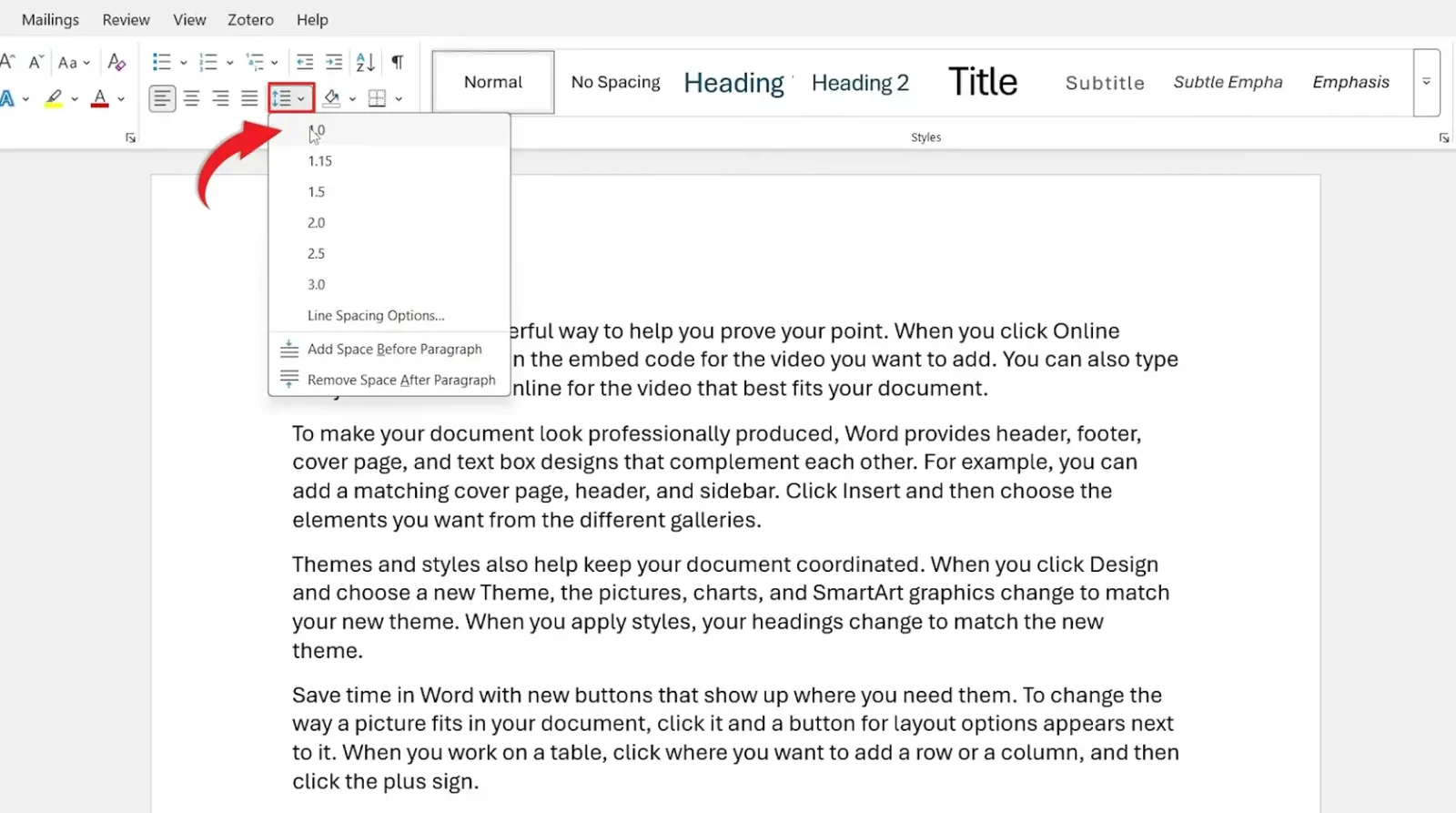
👉 The selected text switches to single spacing immediately. That’s it — no menus, no dialogs, no further setup.
Method 2: How to Single Space in Word With a Keyboard Shortcut
This is the fastest way to single space in Word — two keystrokes apply single spacing to the entire document. Worth memorising if you format documents often.
Steps:
- Press Ctrl + A to select all text
- Press Ctrl + 1

👉 Single spacing is applied to all selected text instantly. The matching shortcuts for other spacing are Ctrl + 2 for double spacing and Ctrl + 5 for 1.5 line spacing.
Method 3: How to Single Space in Word Using Paragraph Settings
The Paragraph settings dialog gives you full control over spacing — line spacing, space before, space after, and custom multiples. Use this method when single spacing alone doesn’t look right because of extra paragraph padding.
Steps:
- Press Ctrl + A to select your text
- On the Home tab, click the small arrow in the bottom-right of the Paragraph section

- In the Paragraph dialog box, find the Spacing section
- Under Line spacing, select Single
- Set Before and After spacing both to 0 pt for the tightest layout
- Click OK
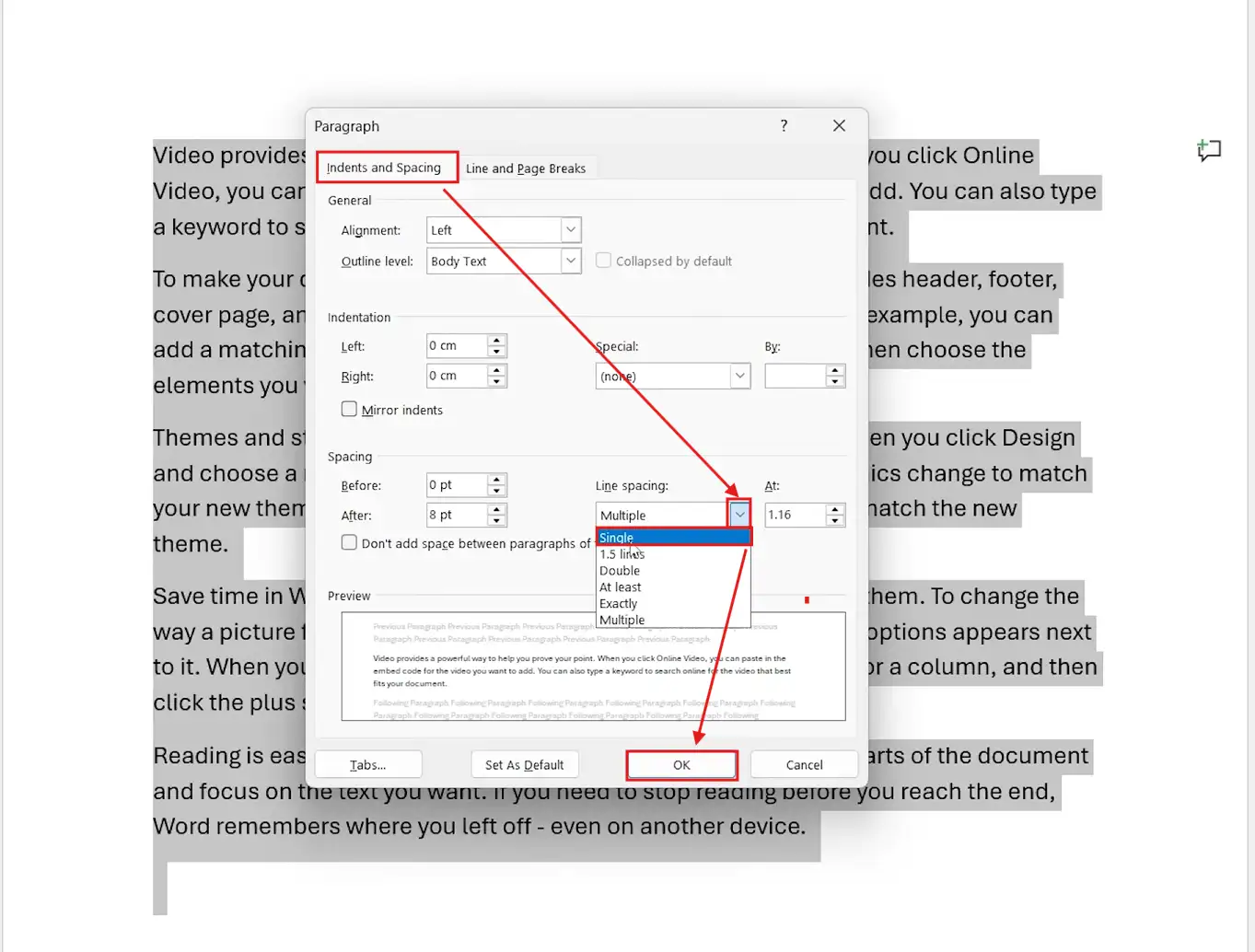
👉 This method removes both line padding AND paragraph padding — the gaps the other two methods sometimes leave behind.
Which Method Should You Use to Single Space in Word?
| Method | Best For |
|---|---|
| Toolbar (Method 1) | New users, occasional formatting changes |
| Keyboard Shortcut (Method 2) | Frequent formatting — the fastest option |
| Paragraph Settings (Method 3) | Stubborn gaps that won’t close with the other methods |
Other Line Spacing Options
Word offers several spacing presets beyond single. Each has its place:
- 1.15 — Word’s default. Slightly looser than single for better on-screen readability
- 1.5 lines — Easier reading for long-form documents, common in essays
- Double spacing — Standard for academic papers, manuscripts, and editing drafts
- At least / Exactly / Multiple — Custom spacing for precise layout control
Common Problems When Single Spacing in Word
Spacing Still Looks Too Wide After Setting Single
You’ve changed line spacing, but extra paragraph spacing (Before/After) is adding gaps. Open the Paragraph dialog (Method 3) and set both Before and After spacing to 0 pt.
Ctrl + 1 Shortcut Not Working
Text must be selected first. Press Ctrl + A to select everything, then press Ctrl + 1. If it still doesn’t work, check that no third-party keyboard customisation app (like AutoHotkey) is remapping the shortcut.
Inconsistent Spacing Throughout the Document
Different paragraphs are using different styles. The fastest fix: press Ctrl + A to select all, then press Ctrl + Space to clear character formatting, then apply single spacing with Method 2.
Spacing Reverts When You Open the Document Later
Your default template (Normal.dotm) is overriding your changes. To make single spacing permanent, modify the Normal style: right-click Normal in the Styles gallery, choose Modify, set line spacing to Single, and tick New documents based on this template.
When to Use Single Spacing in Word
Single spacing is the right call for:
- Business reports, internal memos, and meeting minutes
- Resumes and CVs — fits more relevant content on a single page
- Cover letters, contracts, and formal correspondence
- Forms, structured layouts, and reference materials
- Any printed document where paper usage matters
Avoid single spacing for academic essays, manuscripts, and any document a teacher or editor will mark up — those need wider spacing for comments.
Pro Tips for Single Spacing in Word
- Combine single spacing with properly set margins in Word for a cleaner, more polished layout
- Modify the Normal style to make single spacing the default for all new documents
- Set Space Before and Space After both to 0 pt — these are the hidden cause of “single spacing still looks too wide”
- Preview your document in Print Layout view before printing — single spacing looks tighter on paper than on screen
FAQs
How do I single space in Word?
To single space in Word, press Ctrl + A to select all text, then press Ctrl + 1. Alternatively, click the Line and Paragraph Spacing icon on the Home tab and select 1.0.
What is the default line spacing in Word?
The default line spacing in Word is 1.15, introduced in Office 2007 for better on-screen readability. It looks slightly looser than true single spacing. Switch it to 1.0 for the most compact layout.
What is the keyboard shortcut for single spacing in Word?
The keyboard shortcut for single spacing in Word is Ctrl + 1. Select the text first with Ctrl + A, then press Ctrl + 1 to apply single spacing instantly.
Why does my document still have gaps after single spacing?
Extra paragraph spacing (Space Before and Space After) is creating the gaps. Open the Paragraph dialog, find the Spacing section, and set both Before and After to 0 pt. This removes paragraph padding on top of line spacing.
Can I single space only part of my document?
Yes. Select only the text you want to change by clicking and dragging, then apply any of the three methods. The rest of the document keeps its existing spacing — and if you need wider spacing for academic work elsewhere, see the guide on how to use double line spacing in Microsoft Word.
How do I make single spacing the default in Word?
Modify the Normal style. Right-click Normal in the Home tab Styles gallery, choose Modify, set line spacing to Single, and tick New documents based on this template. Every new document will now open with single spacing.
Is single spacing good for printing?
Yes. Single spacing fits more content per page and reduces paper usage, making it ideal for printed reports, resumes, and business documents.
Does this work on Word for Mac?
Yes. The steps to single space in Word are identical on Mac. The keyboard shortcut becomes ⌘ + 1 after selecting text with ⌘ + A.
Conclusion
Now that you know how to single space in Word using 3 easy methods — the toolbar button, the Ctrl + 1 shortcut, and the full Paragraph settings dialog — you can create tight, professional layouts in seconds without fighting Word’s default 1.15 spacing.
For occasional changes, the toolbar is fine. For frequent formatting, Ctrl + 1 is the fastest. For stubborn gaps that won’t close, Method 3 handles paragraph padding too. With single spacing mastered, the natural next step is to learn how to set 1.5 line spacing in Microsoft Word for documents that need slightly more breathing room.
Related Tutorials
- How to Change Line Spacing in Microsoft Word
- How to Set 1.5 Line Spacing in Microsoft Word
- How to Use Double Line Spacing in Microsoft Word
Word Tutorials
Recent Microsoft Word Tutorials
Browse the complete collection for help with formatting, layout, pages, tables, images, and document setup.
For Microsoft support documentation, visit the official Microsoft guidance.
Leave a Reply