
Format Painter in Word is the fastest way to keep formatting consistent across a long document — copy the look of one paragraph, shape, or image, then paint it onto the next with one click. Once you know the shortcut and the double-click trick, you’ll wonder how you ever formatted documents without it.
In this guide, you’ll learn how to use Format Painter for text, the keyboard shortcut for instant copy-and-paste formatting, how to apply it across multiple sections in one go, and how it works with shapes and images.
What Is Format Painter in Word?
Format Painter is a built-in Microsoft Word tool that copies the visual styling of any element and applies it to another. It doesn’t touch the text or content itself — only the formatting layer on top.
The styling it carries across includes:
- Font family, size, weight, and colour — handy when you don’t want to permanently change the default font in Word
- Bold, italic, underline, and strikethrough
- Paragraph spacing, alignment, indentation, and line height
- Borders, shading, and highlight colours
- Shape fill, outline, and effects for graphics
Instead of rebuilding formatting block by block, you copy it once and apply it as often as you need.
Watch the Video Tutorial
If you prefer to see this in action, the full video walkthrough is below, showing each method step by step.
How to Use Format Painter in Word: Step-by-Step
There are five ways to run Format Painter, each suited to a different job — single-click for one application, double-click for batch use, the keyboard shortcut for speed, and dedicated workflows for shapes and images. Pick the method that matches what you’re doing.
Method 1: How to Use Format Painter in Word for Single Text Selections
This is the standard one-shot method — copy formatting from one place, paint it onto another, and Format Painter switches off automatically.
Steps to Copy Formatting to a Single Section
- Highlight the text whose formatting you want to copy — a word, a sentence, or a whole paragraph.
- Go to the Home tab.
- Click Format Painter in the Clipboard group (the paintbrush icon).
- Your cursor turns into a paintbrush — click and drag across the text you want to format.

👉 The target text instantly matches the source — same font, size, weight, colour, and spacing. To copy paragraph-level formatting (like alignment or line spacing), select the entire paragraph including the paragraph mark before clicking Format Painter.
Method 2: How to Use Format Painter in Word with the Keyboard Shortcut
The keyboard shortcut is the fastest way to use Format Painter — no ribbon trip needed. It’s two separate shortcuts, one to copy formatting and one to paste it.
Steps to Use the Format Painter Shortcut
- Highlight the text with the formatting you want to copy.
- Press Ctrl + Alt + C to copy the formatting.

- Highlight the text you want to apply the formatting to.
- Press Ctrl + Alt + V to paste the formatting.
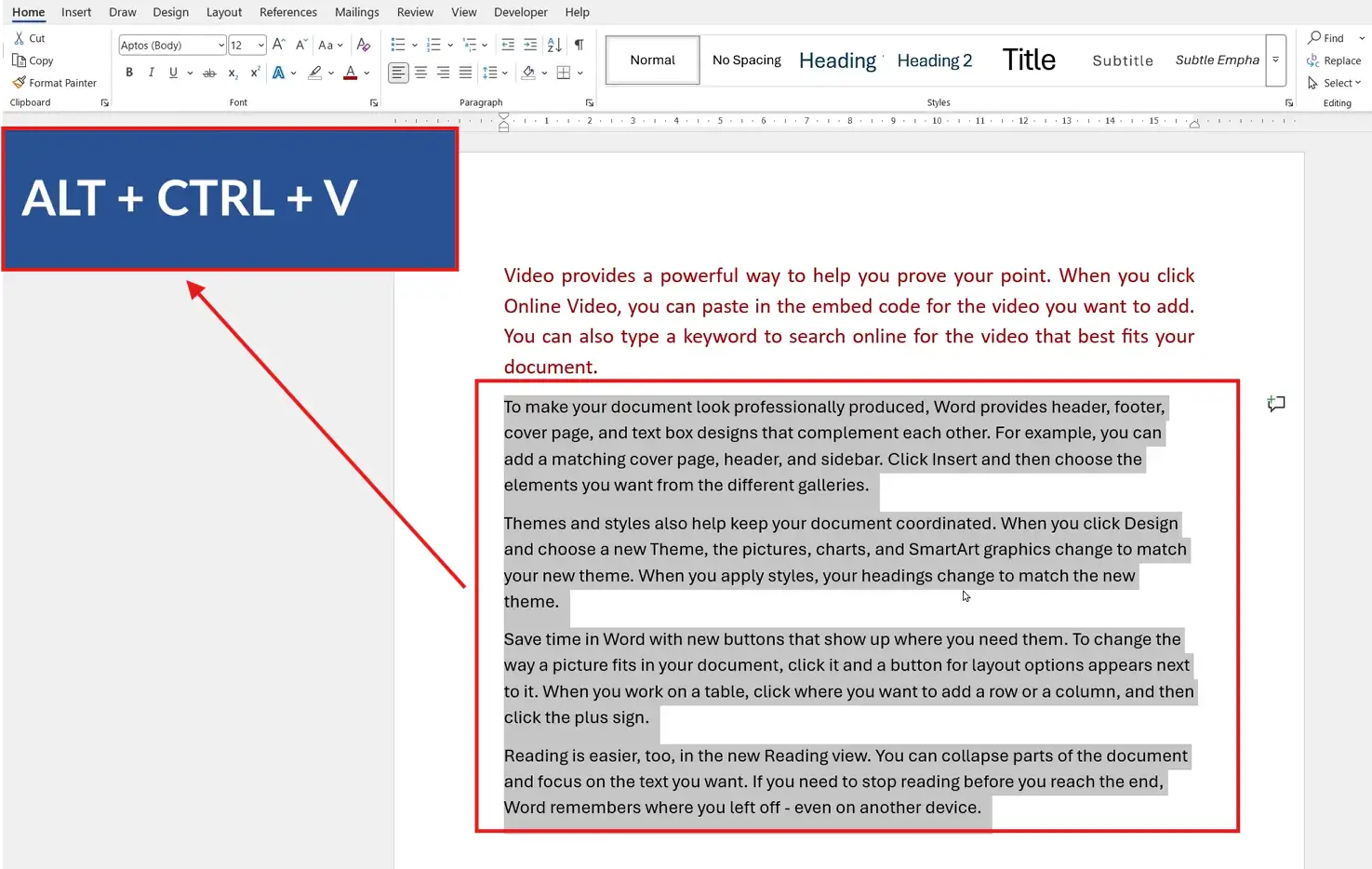
👉 The formatting copies and pastes as a clipboard operation, which means it survives across multiple paste actions — you can keep hitting Ctrl + Alt + V on different selections until you copy something else over it.
Method 3: How to Use Format Painter in Word Across Multiple Sections
When you’ve got the same formatting to apply in five different places, single-click mode forces you to start over each time. Double-click locks Format Painter on until you switch it off — far quicker for batch work.
Steps to Apply Format Painter to Multiple Sections
- Select the text with the formatting you want to copy.
- Double-click the Format Painter button on the Home tab.
- Click and drag across each section you want to format — Format Painter stays active between selections.
- When you’re done, press Esc or click Format Painter again to switch it off.
👉 This is the biggest time-saver in the tool — especially for matching heading styles, paragraph spacing, or coloured callouts across a long report.
Method 4: How to Use Format Painter in Word for Shapes
Format Painter isn’t limited to text — it works on shapes too, carrying across fill colour, outline, transparency, and visual effects like shadows or glows.
Steps to Copy Formatting Between Shapes
- Click the formatted shape to select it.
- Go to the Home tab and click Format Painter.
- Click the shape you want to apply the formatting to.
👉 The target shape inherits the full visual style. If you have several shapes to style, double-click Format Painter first so it stays active across all of them.
Method 5: How to Use Format Painter in Word for Images
Picture styles, borders, and visual effects copy across images the same way they do for shapes — useful when you want a consistent look across every screenshot or photo in your document. Pair this with the guide on how to move an image freely in Word if you also need to control where images sit on the page.
Steps to Copy Formatting Between Images
- Click the formatted image.
- Click Format Painter on the Home tab.
- Click the target image to apply the styling.

👉 Picture styles, border colour, border width, and effects like soft edges or reflections all carry over. Cropping and image size don’t — those have to be set per image.
Which Method Should You Use?
| Method | Best For | Speed |
|---|---|---|
| Single-click on Home tab | One-off formatting copy | Fast |
| Keyboard shortcut | Hands-on-keyboard editing | Fastest |
| Double-click (multi-section) | Applying the same style in many places | Most efficient for batch work |
| Shapes | Matching shape fill, outline, and effects | Fast |
| Images | Consistent picture styles across the document | Fast |
👉 Single-click for one quick fix. Double-click the moment you’ve got more than two places to apply the same formatting.
Common Problems When Using Format Painter in Word
Format Painter Doesn’t Apply the Formatting
Usually you’ve clicked Format Painter without selecting any source text first, so there’s nothing to copy. Click inside (or highlight) the formatted text, then click Format Painter. If the cursor doesn’t change to a paintbrush, the source selection didn’t take.
Only Some of the Formatting Carries Over
Paragraph-level formatting (alignment, line spacing, indents) only copies if you select the whole paragraph including the paragraph mark. Press Ctrl + Shift + 8 to show paragraph marks, then extend your selection to include the ¶ symbol before copying.
Format Painter Switches Off After One Use
Single-click activates Format Painter for one application only. Double-click it instead and it stays on until you press Esc or click the button again.
Formatting Reverts to a Different Style After Pasting
The target paragraph has a Style applied (like Heading 1 or a custom Style) that overrides direct formatting. Either change the paragraph Style to Normal first, or update the Style itself instead of using Format Painter.
Pro Tips for Faster Formatting
- Double-click Format Painter the moment you’ve got more than one section to format — single-click mode wastes clicks.
- Combine Format Painter with paragraph Styles for the cleanest workflow — Styles handle the structural formatting, Format Painter handles one-off tweaks. See the full Microsoft Word keyboard shortcuts cheat sheet for the shortcuts that pair with it.
- Select the paragraph mark (¶) when you want to carry across line spacing or alignment — text-only selection won’t bring it.
- Press Esc to exit Format Painter at any time — saves cursor confusion on long documents.
- For one-off formatting fixes, the Ctrl + Alt + C / Ctrl + Alt + V shortcut is faster than reaching for the ribbon every time.
FAQs
How do I use Format Painter in Word?
To use Format Painter in Word, select the text with the formatting you want to copy, click Format Painter on the Home tab, then drag across the target text. Or use the shortcut Ctrl + Alt + C to copy and Ctrl + Alt + V to paste.
Where is Format Painter in Word?
You’ll find it on the Home tab, in the Clipboard group on the far left — it’s the small paintbrush icon next to Cut, Copy, and Paste.
What’s the keyboard shortcut for Format Painter in Word?
Press Ctrl + Alt + C to copy formatting from selected text, then Ctrl + Alt + V to paste it onto another selection. The shortcut works even when the Format Painter button isn’t visible.
Can I use Format Painter multiple times in a row?
Yes. Double-click the Format Painter button instead of single-clicking it — it’ll stay active until you press Esc or click the button again.
Does Format Painter copy the text content?
No. Format Painter only copies the formatting — fonts, colours, sizes, spacing, borders. The actual text in the target stays the same.
Does Format Painter work on shapes and images?
Yes. It carries across shape fills, outlines, effects, picture styles, and borders. Cropping and image size aren’t included — those have to be set individually.
Why isn’t my paragraph spacing copying with Format Painter?
You need to select the entire paragraph including the paragraph mark (¶). Press Ctrl + Shift + 8 to make paragraph marks visible, then extend your selection to include the ¶ before clicking Format Painter.
Conclusion
Mastering Format Painter in Word is one of those small wins that compounds — every long document you format from here on takes a fraction of the time it used to. Single-click for one-offs, double-click for batches, keyboard shortcut for speed, and remember to include the paragraph mark when you need spacing to come along for the ride.
Pair Format Painter with paragraph Styles for the cleanest workflow, and if you’re applying it across a document full of images, the guide on how to move an image freely in Word will round out your layout control.
New to Word? This tutorial goes with Chapter 4 of the free Microsoft Word Beginners Hub: Formatting text. It covers the basics step by step, with screenshots, short videos and practice files.
Related Tutorials
- Microsoft Word Keyboard Shortcuts Cheat Sheet
- How to Change the Default Font in Word
- How to Move an Image Freely in Word
Word Tutorials
Recently Added on Word Made Easy
Browse the complete collection for help with formatting, layout, pages, tables, images, and document setup.
For Microsoft support documentation, visit the official Microsoft guidance.

Leave a Reply