
Learning how to insert an Excel sheet in Word is one of the most useful cross-app skills you can build — especially when you’re producing reports, invoices, or data-heavy documents and need the numbers to stay accurate. For broader table workflows, see the guide on how to merge tables in Word.
In this guide, you’ll learn how to insert an Excel sheet in Word using three reliable methods — a static paste, a live linked copy, and a fully embedded worksheet — so you can pick the right one for the job.
Why Insert an Excel Sheet in Word?
Microsoft Word and Microsoft Excel are built to work together. Pulling Excel data into a Word document lets you keep formulas, formatting, and live links in one place — without retyping figures or risking transcription errors. Use it to:
- Present data clearly inside reports and proposals
- Keep figures updated automatically when the source spreadsheet changes
- Maintain consistent formatting across documents
- Avoid manual data-entry errors
Watch the Video Tutorial
If you prefer to see this in action, the full video walkthrough is below, showing each method step by step.
How to Insert an Excel Sheet in Word: Step-by-Step
There are three reliable ways to insert an Excel sheet in Word, depending on whether you want a static snapshot, a live linked copy, or a fully editable embedded worksheet. The methods below walk through each one.
Method 1: How to Insert an Excel Sheet in Word Using Copy and Paste
This is the simplest method — a static snapshot of your Excel data. Fast, but the table won’t update when the source spreadsheet changes.
- Open your Excel file and select the table you want to copy
- Press Ctrl + C
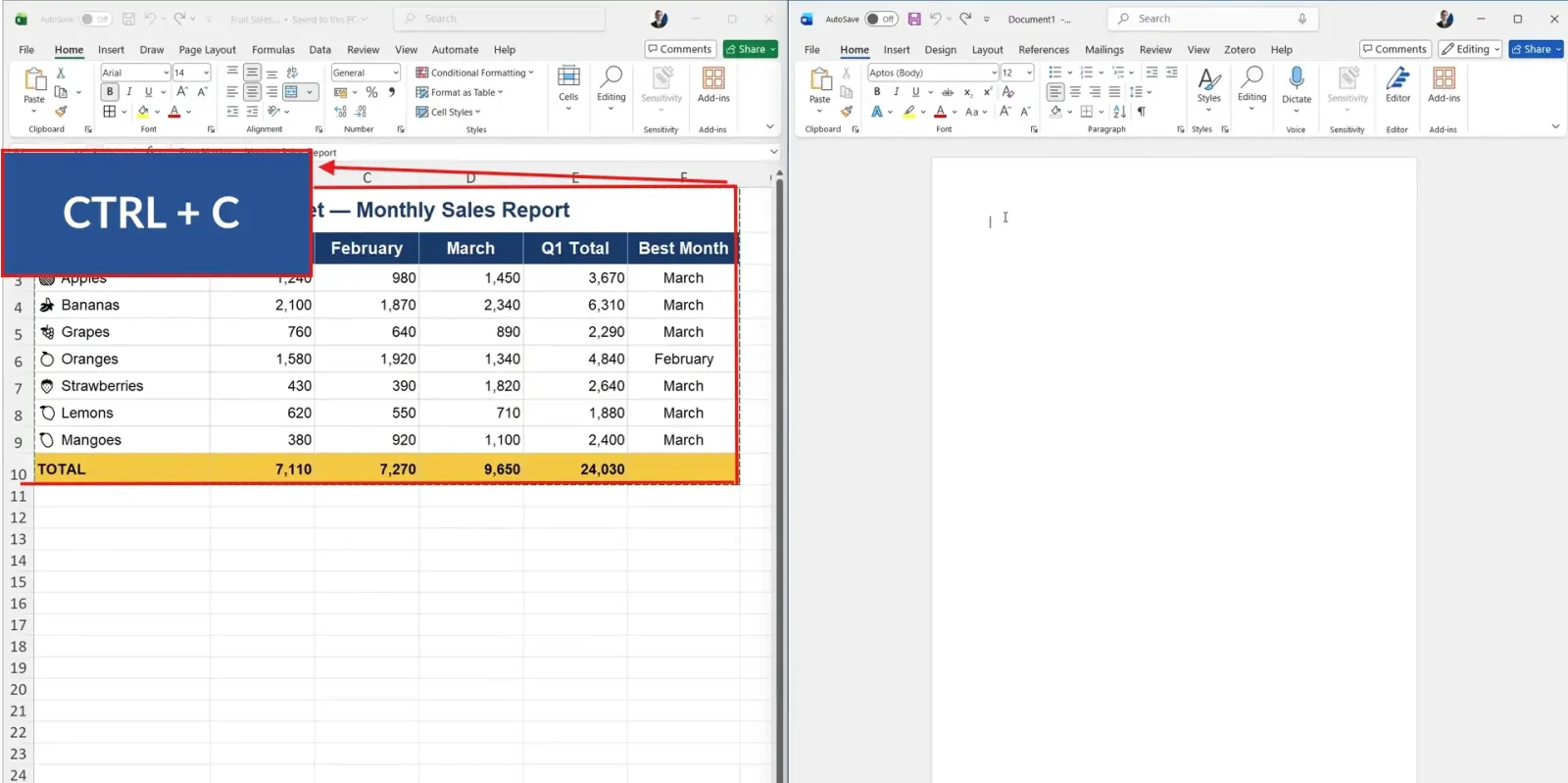
- Open your Word document and place the cursor where you want the table
- Press Ctrl + V

👉 Result:
The table appears in Word as a static copy. Any later changes in Excel will not flow through — this is best for one-off reports where the numbers are final.
Method 2: How to Insert an Excel Sheet in Word with a Live Link
This method creates a live connection between Excel and Word. When the source data changes, you can update the Word table with a single click.
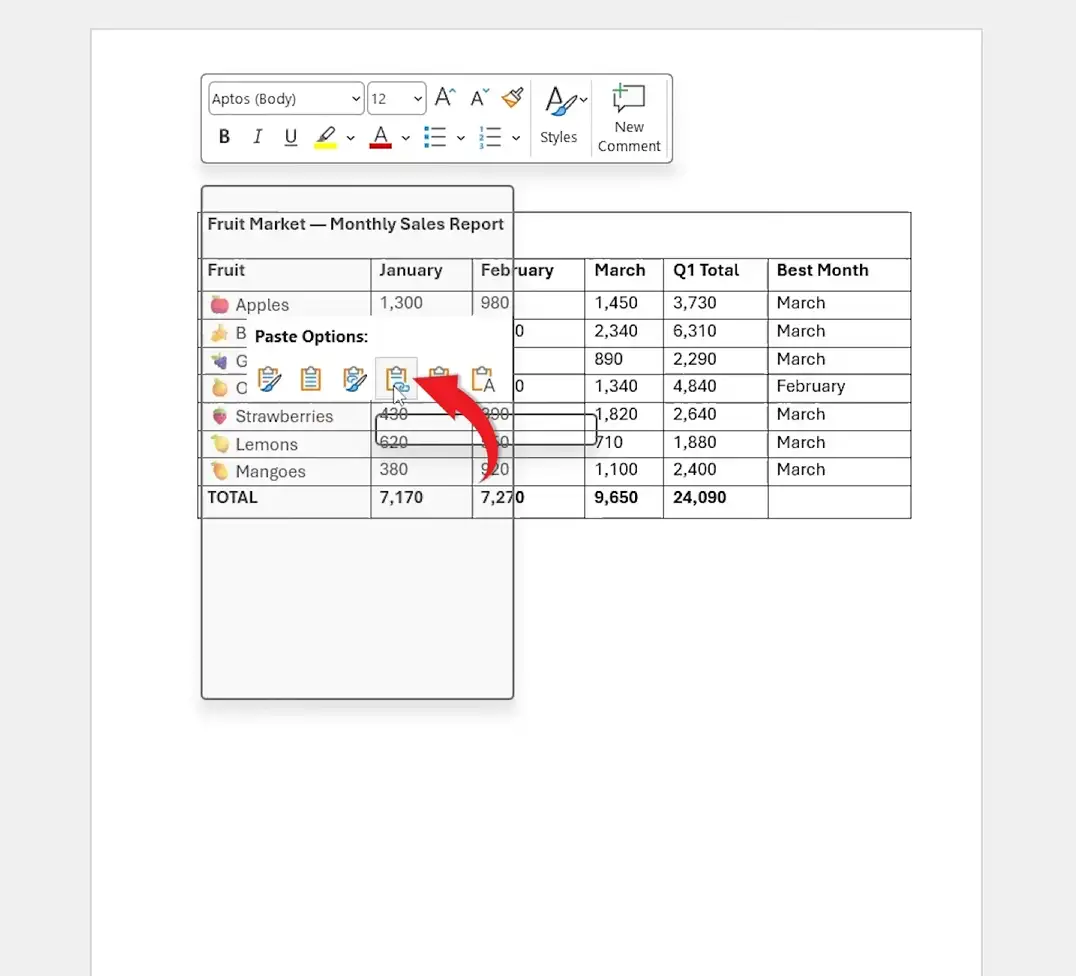
- Copy your Excel table with Ctrl + C
- Switch to your Word document and right-click where you want the table
- Under Paste Options, select Link & Use Destination Styles or Link & Keep Source Formatting
Result:
The table is inserted with a live link back to the original Excel file. To refresh the data after changes in Excel, save the spreadsheet, return to Word, right-click the table, and choose Update Link. Word will pull in the latest figures instantly.
Method 3: How to Insert an Excel Sheet in Word by Embedding
Embedding inserts a fully functional Excel worksheet inside Word. Double-click it and you’re editing in Excel without leaving the document — formulas and all. You can embed a brand-new sheet or an existing file.
Embed a New Excel Sheet
- Go to the Insert tab
- Click Object
- Select Microsoft Excel Worksheet
- Click OK

Embed an Existing Excel File
- Go to Insert → Object
- Switch to the Create from File tab
- Click Browse and select your Excel file
- Tick Link to File if you want it to update automatically
- Click Insert, then OK

Result:
A mini Excel spreadsheet sits inside your Word document. Double-click to edit it with Excel’s full feature set — formulas, sorting, conditional formatting — then click outside to drop back into Word. If you ticked Link to File, the embedded sheet also updates when the source file changes.
Which Method Should You Use?
| Method | Best For | Updates Automatically? |
|---|---|---|
| Copy & Paste | Quick static reports where figures are final | No |
| Paste with Link | Frequently updated data and live dashboards | Yes (on update) |
| Embed Excel Sheet | Interactive spreadsheets edited inside Word | Optional with Link to File |
Common Problems When Inserting an Excel Sheet in Word
Linked Data Isn’t Updating
Make sure the Excel file is saved after your changes. Then return to Word, right-click the table, and choose Update Link. Word doesn’t auto-refresh — you need to trigger the update.
The Link Is Broken
If you’ve moved or renamed the Excel file, the link breaks. Right-click the table, go to Linked Worksheet Object → Links → Change Source, and point Word to the new file location.
Formatting Looks Different in Word
Excel and Word use different default styles. When pasting, choose Keep Source Formatting to preserve the Excel look — or for a cleaner finish, learn how to hide table lines in Microsoft Word.
The Table Is Too Wide for the Page
Excel tables often exceed Word’s page width. Switch the page to landscape via Layout → Orientation, or resize the table by dragging its border. Adjusting margins also helps — see the guide on how to adjust margins in Word.
Pro Tips for Better Word and Excel Integration
- Keep linked Excel files in a fixed folder location — moving them breaks the connection
- Use clear, descriptive file names so links are easy to identify later
- Always click Update Link before printing or exporting to PDF — and if you also work with Excel tables that need merging, see the guide on how to merge tables in Word
- Use Break Link when sharing the document externally — it converts the table to static data and removes the dependency on the source file
FAQs
How do I insert an Excel sheet in Word?
To insert an Excel sheet in Word, copy your Excel data and use Ctrl + V for a static paste, right-click and choose Link & Use Destination Styles for a live link, or go to Insert → Object → Microsoft Excel Worksheet to embed a fully editable spreadsheet.
What’s the difference between embedding and linking an Excel sheet?
Embedding stores a complete copy of the Excel file inside the Word document — the file size grows but the data stays self-contained. Linking keeps the data in the original Excel file and pulls it into Word, so changes in Excel flow through when you update the link.
Can I edit Excel data inside Word?
Yes. Double-click any embedded Excel sheet and the Excel ribbon opens inside Word. You get full access to formulas, formatting, and Excel’s editing tools without leaving the document.
Will linked Excel data update automatically?
Not by default. You usually need to right-click the table and click Update Link. You can change this under File → Options → Advanced to update links on open.
What happens if I move the Excel file?
The link breaks because Word can no longer find the source. Fix it by right-clicking the table, choosing Linked Worksheet Object → Links → Change Source, and selecting the new location.
Can I remove the link later?
Yes. Right-click the table, go to Linked Worksheet Object → Links → Break Link. The table converts to a static copy with no connection to the original spreadsheet.
Does this work in Word for Mac?
Yes. The paths are the same — Insert → Object exists on Mac, and paste-with-link works identically. A few menu names differ slightly, but the workflow is unchanged.
Do Excel formulas still work after pasting into Word?
Formulas survive only when you embed or link the sheet. A plain Ctrl + V paste converts formulas to their displayed values, so future Excel updates won’t recalculate inside Word.
Conclusion
Knowing how to insert an Excel sheet in Word gives you three flexible ways to combine the two apps — a static paste for finished reports, a live link for changing data, or a full embed when you need Excel’s editing power inside Word.
Pick the method that matches your workflow — static for speed, linked for accuracy, embedded for editing — and you’ll save time while keeping every figure correct. For more table-handling techniques once your data is in place, see the guide on how to delete a row in a Microsoft Word table.
Related Tutorials
- How to Merge Tables in Word
- How to Hide Table Lines in Microsoft Word
- How to Delete a Row in a Microsoft Word Table
Word Tutorials
Recent Microsoft Word Tutorials
Browse the complete collection for help with formatting, layout, pages, tables, images, and document setup.
For Microsoft support documentation, visit the official Microsoft guidance.
Leave a Reply