
To replace text in Word, press Ctrl + H, type the word you are looking for in Find what, type the new word in Replace with, then select Replace All. Word changes every match in the document and tells you how many it made.
In this guide, you’ll learn 2 easy methods to replace text in Word, when to use Replace instead of Replace All, and the search options that stop it changing words you never intended to touch.
Why Use Find and Replace?
A name change across a forty-page report is a five-second job with Replace and a twenty-minute job without it. Word searches the whole document, swaps every match and reports the count so you can check it did what you expected.
Two things are worth knowing before you use it:
- Replace All is not selective. Searching for “form” also matches “format”, “former” and “information” unless you tell Word otherwise.
- One undo reverses the lot. Ctrl + Z after a Replace All puts every changed word back in a single step.
Watch the Video Tutorial
If you prefer to see this in action, the full video walkthrough is below, showing each method step by step.
How to Replace Text in Word: Step-by-Step
Both methods open the same window. Method 1 goes through the ribbon, Method 2 uses the shortcut. Learn the shortcut — it is one of the few worth committing to memory.
Method 1: How to Replace Text in Word Using the Home Tab
The ribbon route, for when you would rather see the command than remember it.
Open the Replace Tool
- Select the Home tab.
- In the Editing group at the far right, select Replace.

👉 The Find and Replace window opens on the Replace tab. On a narrow window the Editing group collapses to a single icon — select that to reach Replace.
Enter the Text You Want to Change
- Type the word or phrase you are looking for in Find what.
- Type the replacement in Replace with.
👉 Leave Replace with empty to delete every match instead of swapping it — useful for stripping a repeated phrase out of a document.
Replace One Occurrence at a Time
- Select Find Next to jump to the first match without changing it.
- Select Replace to change that match and move to the next one.
- Select Find Next again to skip any match you want to leave alone.
👉 Use this when some matches should change and others should not. Skipping is the whole point of working through them one at a time.
Replace All Occurrences
- Select Replace All.
- Read the count Word reports — it is your check that the search matched what you expected.
- Select OK, then Close.
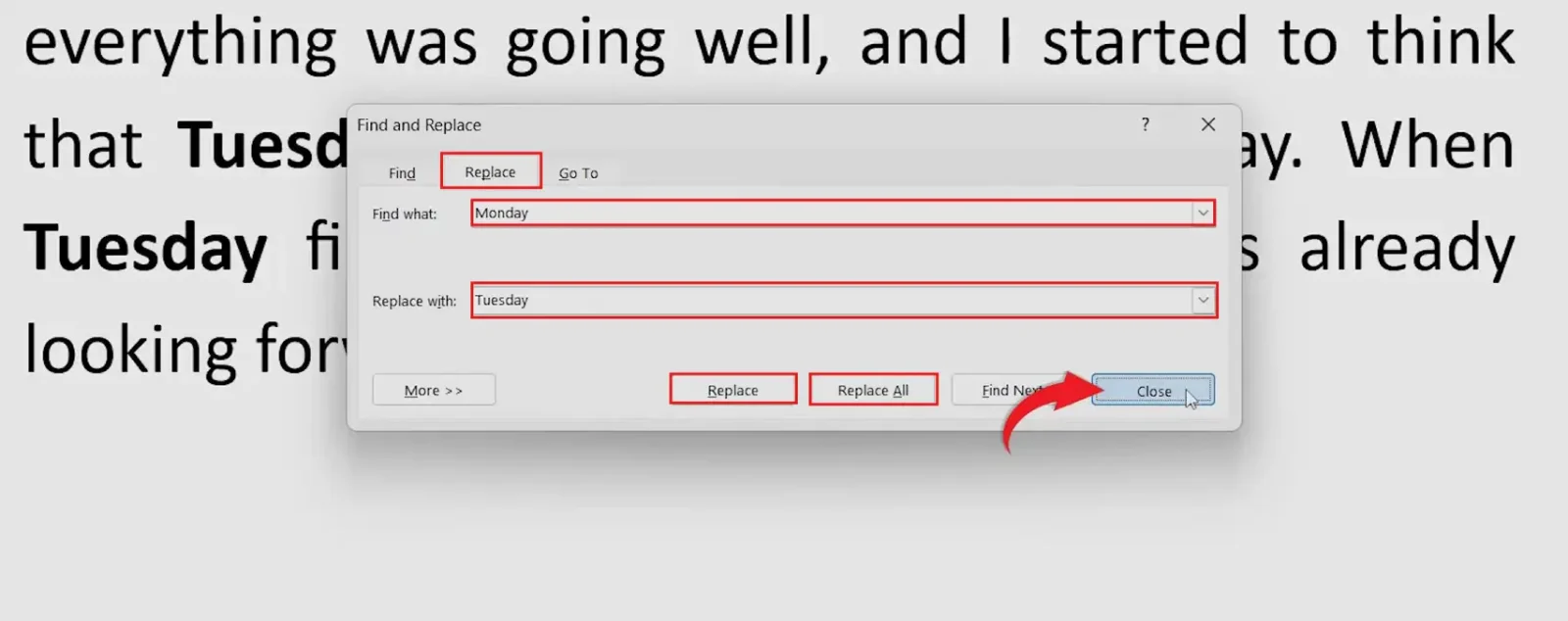
👉 The count is worth a second’s attention. Expecting six and seeing sixty means the search matched more than you intended — undo with Ctrl + Z and narrow it.
Method 2: How to Replace Text in Word with Ctrl + H
Same window, no ribbon. This is how most people who use Replace regularly open it.
- Press Ctrl + H.
- Type the original text in Find what.
- Press Tab and type the replacement in Replace with.
- Select Replace All.
- Select OK, then Close.

👉 Reversing a replacement is the same operation backwards: swap the two words round and run it again. For the rest of the editing shortcuts, see the Microsoft Word Keyboard Shortcuts Cheat Sheet.
Narrow the Search with More
Select More in the Find and Replace window to open the search options. Two of them prevent most Replace All accidents:
- Match case — searching for “May” no longer matches “may”. Essential for names, months and acronyms.
- Find whole words only — searching for “form” no longer matches “format” or “information”.
- Format — restrict the search to text in a particular font, style or colour.
- Special — find paragraph marks, tabs and page breaks rather than words.
These settings persist between sessions, so switch them off when you are done or your next search will quietly behave differently.
Which Method Should You Use?
| Approach | Best For | What You Do |
|---|---|---|
| Method 1 — Home tab | Occasional use, or finding the command visually | Home → Editing → Replace |
| Method 2 — Ctrl + H | Regular use | Press Ctrl + H |
| Replace | Some matches should change, others should not | Find Next to skip, Replace to change |
| Replace All | Every match should change | One click, then check the count |
Best choice: Ctrl + H with Replace All, provided you have checked what your search actually matches. Switch to Replace the moment some matches need to survive.
Common Problems When Replacing Text
Replace All Changed Words It Should Not Have
Your search term appeared inside longer words. Press Ctrl + Z to undo the whole operation, select More, tick Find whole words only and run it again.
Word Says It Cannot Find the Text
Check for a trailing space in Find what — the most common cause and the hardest to see. Then check whether Match case is still ticked from a previous search, and whether the text sits in a header, footer or text box, which the main search does not cover by default.
The Capitalisation Comes Out Wrong
With Match case off, Word inserts your replacement exactly as you typed it, so a sentence starting “Monday” becomes “tuesday”. Tick Match case and run the search twice — once for the capitalised form, once for lower case.
You Need to Undo the Replacements
Press Ctrl + Z once — a Replace All counts as a single action, so one undo reverses every change. If you have closed and reopened the document, run the replacement in reverse instead.
Pro Tips for Replacing Text
- Select Find Next once before Replace All. Seeing the first match tells you whether the search is aimed correctly.
- Leave Replace with empty to delete every match rather than swap it.
- Select part of the document first and Replace All offers to work within that selection only.
- Use Special → Paragraph Mark to clean up double line breaks — the same tool that removes formatting marks in Word works on the marks themselves.
- Save before a large Replace All. Undo covers the session, not a file you have already closed.
FAQs
How do I replace text in Word?
To replace text in Word, press Ctrl + H or select Home → Replace, enter the original text in Find what, the new text in Replace with, then select Replace All.
What is the shortcut to replace text in Word?
Ctrl + H opens Find and Replace on the Replace tab. On a Mac it is Control + H.
How do I stop Replace All changing parts of other words?
Select More and tick Find whole words only. Without it, searching for “form” also matches “format” and “information”.
How do I replace text without changing the capitalisation?
Select More and tick Match case, then run the search separately for the capitalised and lower-case versions of the word.
How do I undo a text replacement in Word?
Press Ctrl + Z. A Replace All counts as one action, so a single undo reverses every change it made.
Why can’t Word find the text I am searching for?
Usually a trailing space in Find what, or Match case left ticked from an earlier search. Text inside headers, footers and text boxes is also excluded by default.
Can I delete text using Find and Replace?
Yes. Enter the text in Find what, leave Replace with completely empty and select Replace All. Every match is removed.
Can I replace text in only part of a document?
Yes. Select the section first, then run Replace All — Word applies it to the selection and asks whether to continue through the rest of the document.
Conclusion
To replace text in Word, press Ctrl + H, fill in both fields and select Replace All. The count Word reports afterwards is the check that it matched what you meant.
The More button is what separates a clean replacement from a document full of “informTuesday”. Whole words only and Match case take one click each and prevent almost every version of this going wrong.
Find and Replace also handles images and formatting, not just words — how to check spelling and grammar in Word covers the other half of tidying a long document.
New to Word? This tutorial goes with Chapter 3 of the free Microsoft Word for beginners guide: Typing and editing. It covers the basics step by step, with screenshots, short videos and practice files, and you can download the whole guide as a free PDF.
Related Tutorials
- How to Remove Formatting Marks in Word: 5 Easy Methods
- How to Change Text Case in Word: 3 Easy Methods
- Microsoft Word Keyboard Shortcuts Cheat Sheet (Free PDF)
Word Tutorials
Recently Added on Word Made Easy
Browse the complete collection for help with formatting, layout, pages, tables, images, and document setup.
For Microsoft support documentation, visit the official Microsoft guidance.
Leave a Reply