Type, select and change your words, and undo any mistake in a moment. This chapter covers typing and editing, the skills you use every day.
In this chapter
Type text and move the cursor
Select a word, a paragraph or the whole document
Delete text and undo mistakes
Cut, copy and paste text
Find a word and replace it
Before you start: Open wme-guide-chapter-03-start.docx. If you see Enable Editing, click it. The steps in this chapter use it.
Using your own document? The steps use the practice newsletter, but they work the same on any document. Wherever a step names part of the newsletter, such as the title or the date, use the matching text in your own document.
Type text and move the cursor
The cursor is the thin blinking line on the page. Whatever you type appears where the cursor is.
Type a sentence. Don’t press Enter at the end of each line.Word moves the words to the next line on its own.
Press Enter when you want to start a new paragraph.The cursor moves down to a new line.
Click anywhere inside your text.The cursor jumps to where you clicked.You should see: The cursor sits between two words, ready for typing.
Press the arrow keys to move the cursor one letter or one line at a time.
Select text
Before Word can change words, you must select them. Selected text has a grey shading.
Double-click a word.The whole word is selected.You should see: One word selected.
Click three times quickly on any word in a paragraph.The whole paragraph is selected.You should see: A whole paragraph selected.
Click before a word, then hold Shift and press → a few times.The selection grows one letter at a time.
Press Ctrl + A.Everything in the document is selected.
Click once anywhere in the text.The grey shading disappears.
Watch it happen: Drag across the text and it turns grey as it is selected.
To select any amount of text, click before the first word and drag to the end of the last one. To select a whole word at a time, hold Ctrl + Shift and press →.
Delete text
There are two keys for removing letters. They work in different directions.
Click right after a letter, then press Backspace.The letter to the left of the cursor disappears.
Click right before a letter, then press Delete.The letter to the right of the cursor disappears.
Hold Ctrl and click anywhere in a sentence to select it, then press Delete.The whole sentence disappears.
Undo a mistake
Undo is your safety net. It reverses your last change, so you can always go back.
Look at the top left of the window, next to the Save button. If you can’t see Save there, look at the far left of the Home tab instead.Next to Save (1), click Undo (2) or Redo (3).
Click Undo (the arrow curving to the left).The sentence you deleted comes back.
Click Redo (the arrow curving to the right).The sentence is deleted again.
Click Undo once more to bring the sentence back.
Cut, copy and paste text
Cut moves text to a new place. Copy makes a second copy and leaves the first where it is. Paste puts the text where your cursor is.
Select the text you want to move.
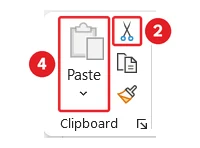
On the Home tab, in the Clipboard group, click Cut (the scissors button).Click Cut (2), click where the text should go, then click Paste (4). Copy is below Cut.The text disappears from the page.
Click where you want the text to go.
In the Clipboard group, click Paste (the clipboard button).The text appears at the cursor.
To copy instead, click Copy (the button showing two pages) in step 2. The text stays where it was.
Choose how pasted text looks
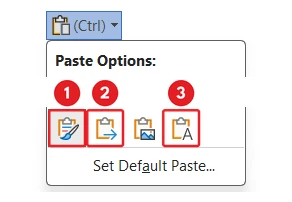
Pasted text can bring its old look with it, such as a different font. After you paste, a small Paste Options button appears next to the text. Click it, then point at each icon to see its name. Choose:
Keep Source Formatting keeps the text looking as it did before.Paste Options: Keep Source Formatting (1), Merge Formatting (2) and Keep Text Only (3).
Merge Formatting makes it match the text around it, but keeps bold and italic.
Keep Text Only removes all its formatting, so it matches the paragraph you pasted into.
Copying from a website? Press Ctrl + Shift + V to paste the words without their formatting.
Find and replace a word
Find shows you every place a word appears. Replace swaps it for another word, which saves you changing each one by hand.
Press Ctrl + F.The Navigation pane opens on the left with a search box.
Type the word you want to find, such as hall.Each match is highlighted on the page.
On the Home tab, in the Editing group, click Replace.The Find and Replace window opens.
In Find what, check or type the old word. In Replace with, type the new word.Fill in Find what and Replace with (4), then click Replace All (5).
Watch it happen: Replace All changes every match at once and tells you how many it changed.
Click Replace All.Word tells you how many changes it made.
Click OK. Then click Close (or Cancel) to close the Find and Replace window.
Mac and Word for the web: On a Mac, use Cmd in place of Ctrl for undo, cut, copy, paste, select all and find. In Word for the web, Replace is under Find on the Home tab.
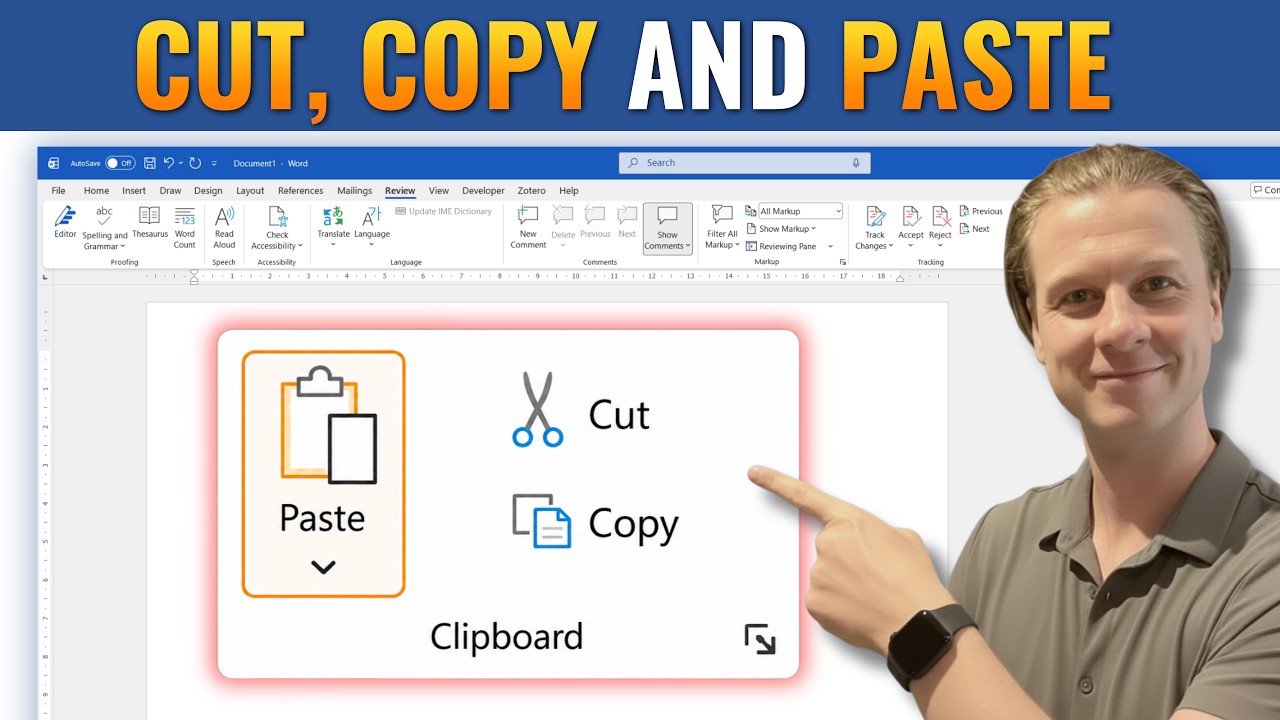
See it done in Word: How To Cut, Copy and Paste in Microsoft Word.
Manage your privacy
To provide the best experiences, we and our partners use technologies like cookies to store and/or access device information. Consenting to these technologies will allow us and our partners to process personal data such as browsing behavior or unique IDs on this site and show (non-) personalized ads. Not consenting or withdrawing consent, may adversely affect certain features and functions.
Click below to consent to the above or make granular choices. Your choices will be applied to this site only. You can change your settings at any time, including withdrawing your consent, by using the toggles on the Cookie Policy, or by clicking on the manage consent button at the bottom of the screen.
Functional
Always active
The technical storage or access is strictly necessary for the legitimate purpose of enabling the use of a specific service explicitly requested by the subscriber or user, or for the sole purpose of carrying out the transmission of a communication over an electronic communications network.
Preferences
The technical storage or access is necessary for the legitimate purpose of storing preferences that are not requested by the subscriber or user.
Statistics
The technical storage or access that is used exclusively for statistical purposes.The technical storage or access that is used exclusively for anonymous statistical purposes. Without a subpoena, voluntary compliance on the part of your Internet Service Provider, or additional records from a third party, information stored or retrieved for this purpose alone cannot usually be used to identify you.
Marketing
The technical storage or access is required to create user profiles to send advertising, or to track the user on a website or across several websites for similar marketing purposes.
To provide the best experiences, we use technologies like cookies to store and/or access device information. Consenting to these technologies will allow us to process data such as browsing behavior or unique IDs on this site. Not consenting or withdrawing consent, may adversely affect certain features and functions.
Functional
Always active
The technical storage or access is strictly necessary for the legitimate purpose of enabling the use of a specific service explicitly requested by the subscriber or user, or for the sole purpose of carrying out the transmission of a communication over an electronic communications network.
Preferences
The technical storage or access is necessary for the legitimate purpose of storing preferences that are not requested by the subscriber or user.
Statistics
The technical storage or access that is used exclusively for statistical purposes.The technical storage or access that is used exclusively for anonymous statistical purposes. Without a subpoena, voluntary compliance on the part of your Internet Service Provider, or additional records from a third party, information stored or retrieved for this purpose alone cannot usually be used to identify you.
Marketing
The technical storage or access is required to create user profiles to send advertising, or to track the user on a website or across several websites for similar marketing purposes.






 2:03
2:03