
To select a single page in Word, click anywhere on the page, press Ctrl + G, type \page and select Go To. Word highlights everything on that page and nothing else. Once it is selected, you can cut, copy and paste it, reformat it or delete it.
In this guide, you’ll learn three ways to select one page: dragging with the mouse, using Shift + click, and the Go To method that selects the whole page in one move. The steps are for Word for Windows; the Mac shortcut is in the FAQs.
What Selecting a Page Actually Does
Word has no “page object” to click. Pages are created by the flow of your text, so when you select a page you are selecting the content that currently sits on it: text, tables, images and paragraph marks. That matters because the selection follows the content. Add a paragraph above it and the page boundaries move.
Selecting one page is useful when you want to:
- Copy a page into another document or another part of the same file
- Apply formatting to one page without touching the rest
- Delete a page full of content in one keystroke
- Move a page’s content somewhere else in the document
Tip: page boundaries are easier to see in a multi-page view — see how to view two pages side by side in Word.
Watch the Video Tutorial
If you prefer to see this in action, the full video walkthrough is below, showing each method step by step.
Method 1: Select a Single Page in Word by Dragging
Use this when the whole page is visible on screen and you only need a quick selection.
Steps
- Scroll so the page you want is fully visible.
- Click just before the first character on the page.
- Hold the left mouse button and drag down to the last character on the page.
- Release the mouse button.
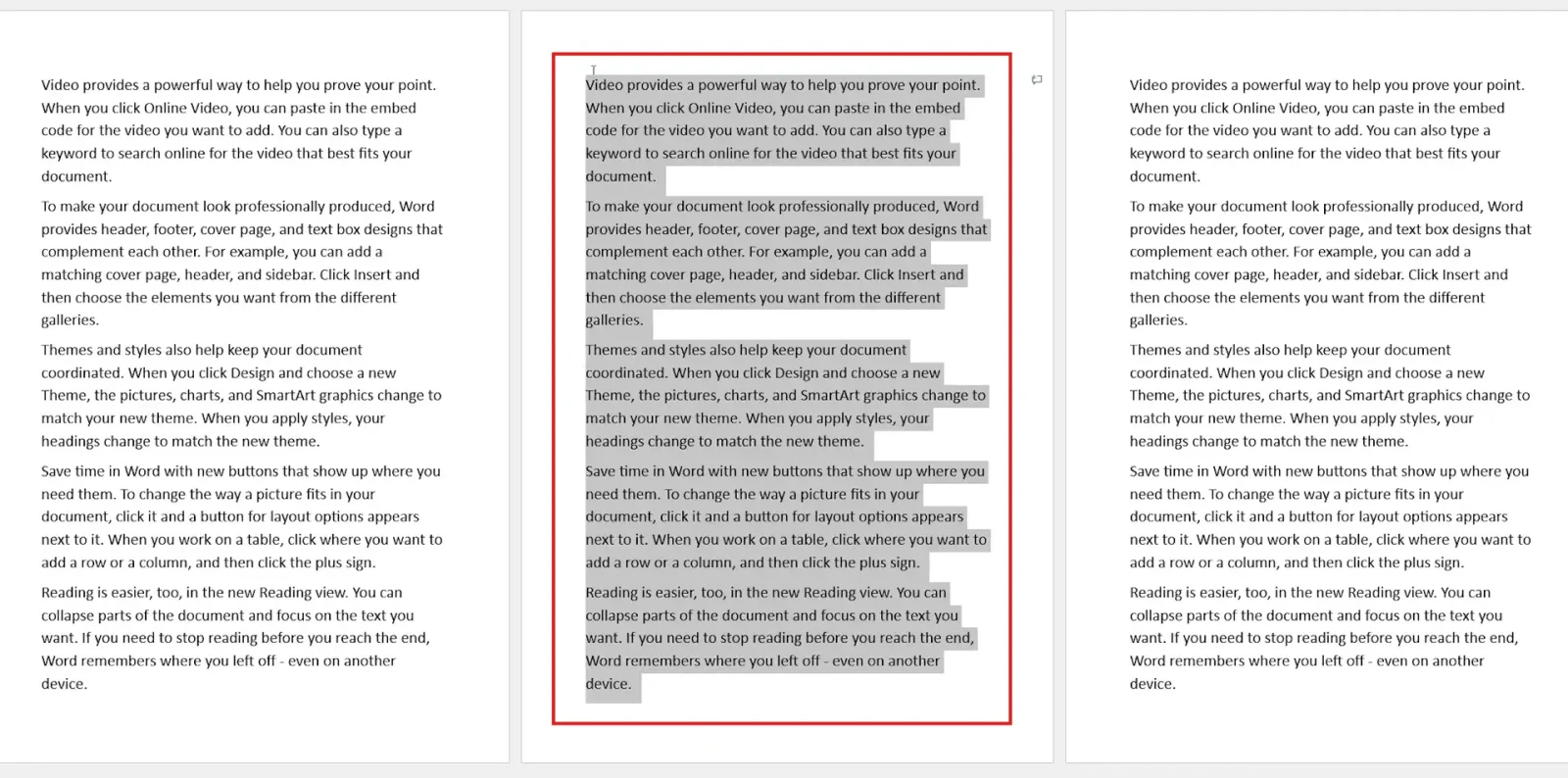
👉 The page’s content is highlighted in grey. If the selection runs onto the next page, drag back up slightly before releasing.
Method 2: Select a Single Page in Word with Shift + Click
Use this for long pages, or when dragging keeps overshooting. You mark the start and end, and Word fills in everything between.
Steps
- Click just before the first character on the page.
- Scroll to the end of the page.
- Hold Shift and click just after the last character on the page.
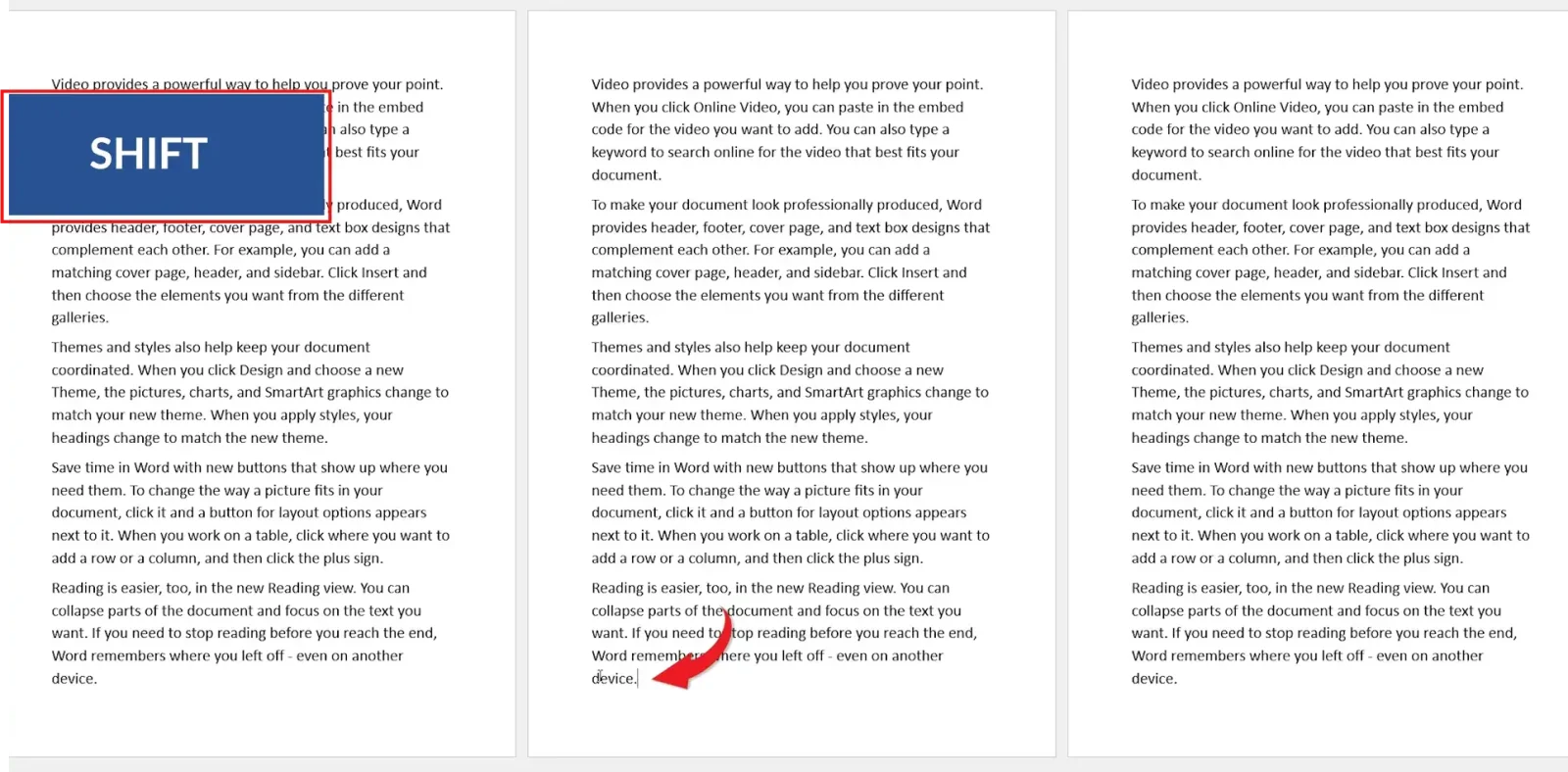
👉 Everything between your two clicks is selected. This works in either direction, and across several pages if you need more than one.
Method 3: Select a Single Page in Word with Go To (Most Precise)
This is the most reliable method. Word selects the exact page boundaries for you, so there is no guesswork at the edges.
Steps
- Click anywhere on the page you want to select.
- Press Ctrl + G. The Find and Replace dialog opens on the Go To tab.
- Under Go to what, make sure Page is selected.
- In the Enter page number box, type
\page. - Select Go To, or press Enter.
- Select Close.
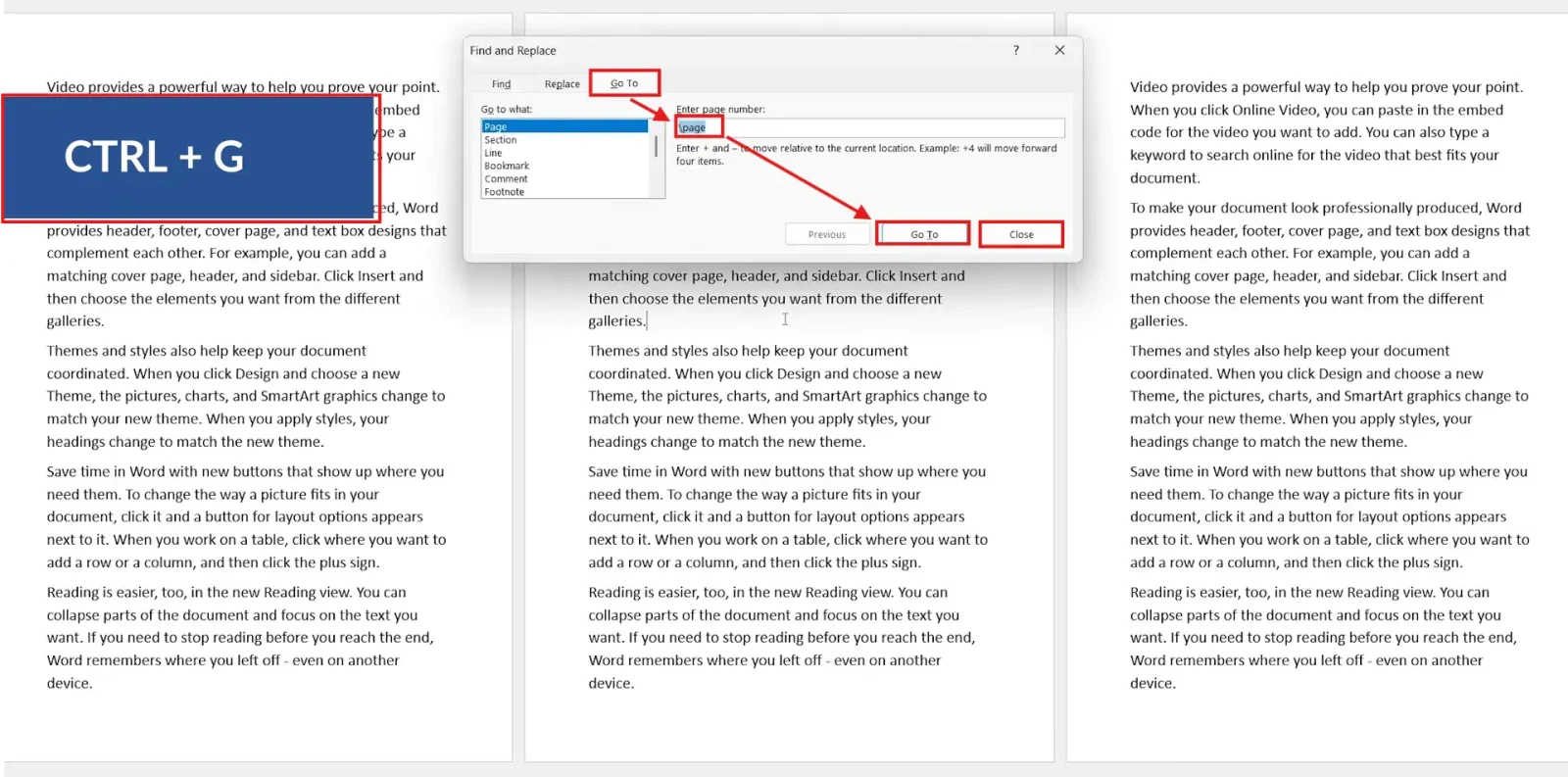
👉 The whole page is selected. No dragging. No overshooting.
\page is one of Word’s built-in bookmarks and always means “the page the cursor is on”. Microsoft documents the same steps in its guide to deleting a page in Word.
Which Method Should You Use?
- Short page, already on screen? Drag across it.
- Long page, or more than one page? Use Shift + click.
- Need exactly one full page, every time? Use Ctrl + G and
\page.
What to Do After Selecting a Page
- Press Ctrl + C to copy it — to reuse a page as a template, see how to duplicate a page in Word.
- Press Ctrl + X to cut it, then paste it elsewhere to reorder your document.
- Press Delete to remove the page’s content.
- Apply fonts, spacing or alignment to that page only.
- Save just that page as a PDF — see how to export a single page in Word.
Common Problems When Selecting a Page
The Whole Document Is Selected
Ctrl + A is Select All. It ignores page boundaries, so use one of the three methods above instead.
The Wrong Page Is Selected
\page selects the page containing the cursor, not the page you are looking at. Click inside the correct page before pressing Ctrl + G.
A Blank Line or Page Break Is Included
The selection includes the page’s final paragraph mark or page break. Turn on formatting marks with Ctrl + Shift + 8 to see exactly what is highlighted before you delete or move it.
Pro Tips for Selecting Pages in Word
- After selecting with Go To, close the dialog before typing — otherwise your keystrokes go into the dialog box.
- Press an arrow key to cancel a selection without changing anything.
- Want more time-savers like Ctrl + G? Keep the Microsoft Word keyboard shortcuts cheat sheet next to your keyboard.
FAQs
How do I select a single page in Word?
Click anywhere on the page, press Ctrl + G, type \page in the Enter page number box, then select Go To and Close. You can also drag across the page or use Shift + click.
How do I select a whole page in Word on a Mac?
Click anywhere on the page and press Option + Command + G. Type \page in the Enter page number box, press Return, then select Close.
What does \page do in Word?
\page is a predefined bookmark. Entered in the Go To box, it selects all the content on the page that contains your cursor.
Why does Ctrl + A select the whole document instead of one page?
Ctrl + A is Select All, so it always covers the entire document. Use \page in Go To when you want only the current page.
Can I select more than one page at once?
Yes. Click at the start of the first page, scroll to the last page you need, then hold Shift and click at the end of it. Everything between the two clicks is selected.
How do I delete a single page in Word?
Select the page with \page in Go To, check that only that page is highlighted, then press Delete. If the page is blank, see how to delete an extra page in Word instead.
Does selecting a page also select its headers and footers?
No. Page selection covers the main body content only. Headers and footers are edited separately by double-clicking in the header or footer area.
Conclusion
The quickest way to select a single page in Word is Ctrl + G, \page, Go To. Dragging and Shift + click work too, but Go To gets the boundaries right every time.
Try it on your next long document. Once a page is selected, you can move it, copy it or delete it in seconds — and if you need to reorder several pages, read how to rearrange pages in Word.
New to Word? This tutorial goes with Chapter 3 of the free Microsoft Word for beginners guide: Typing and editing. It covers the basics step by step, with screenshots, short videos and practice files, and you can download the whole guide as a free PDF.
Related Tutorials
- How to Duplicate a Page in Word: 2 Easy Steps
- How to Rearrange Pages in Word
- How to Delete an Extra Page in Word: 4 Easy Methods
- Word Text Selection Shortcuts: 30 Keys to Select and Move Text (Free PDF)
Word Tutorials
Recently Added on Word Made Easy
Browse the complete collection for help with formatting, layout, pages, tables, images, and document setup.
For Microsoft support documentation, visit the official Microsoft guidance.



Leave a comment
Stuck on a step, or know a quicker way? Ask or share it below.