
Unlike PowerPoint, Word doesn’t treat pages as objects you can drag and drop — pages are generated automatically based on your content, spacing, and page breaks. So when you need to rearrange pages in Word, you’re actually moving the content that creates those pages, not the pages themselves.
In this guide, you’ll learn three effective methods to reorganize content in reports, books, manuals, dissertations, and lengthy business documents.
Why Rearranging Pages in Word Is Different
Many users expect Word to behave like PowerPoint, where each slide is a separate object you can drag and reorder. In Word:
- Pages are created automatically based on content
- Content determines page layout, not the other way round
- Moving a “page” means moving the content that fills it
Understanding this prevents confusion when reorganising documents.
Watch the Video Tutorial
If you prefer to see this in action, the full video walkthrough is below, showing each method step by step.
How to Rearrange Pages in Word: Step-by-Step
Three methods work well depending on document size: cut and paste for short documents, the Navigation Pane for larger ones, and Outline View for advanced restructuring.
Method 1: How to Rearrange Pages in Word Using Cut and Paste
The simplest way to move page content. Best for short documents, one-off moves, and small sections.
- Select all the content on the page you want to move.
- Press Ctrl + X to cut it.

- Navigate to where you want the content to appear and place your cursor there.
- Press Ctrl + V to paste.
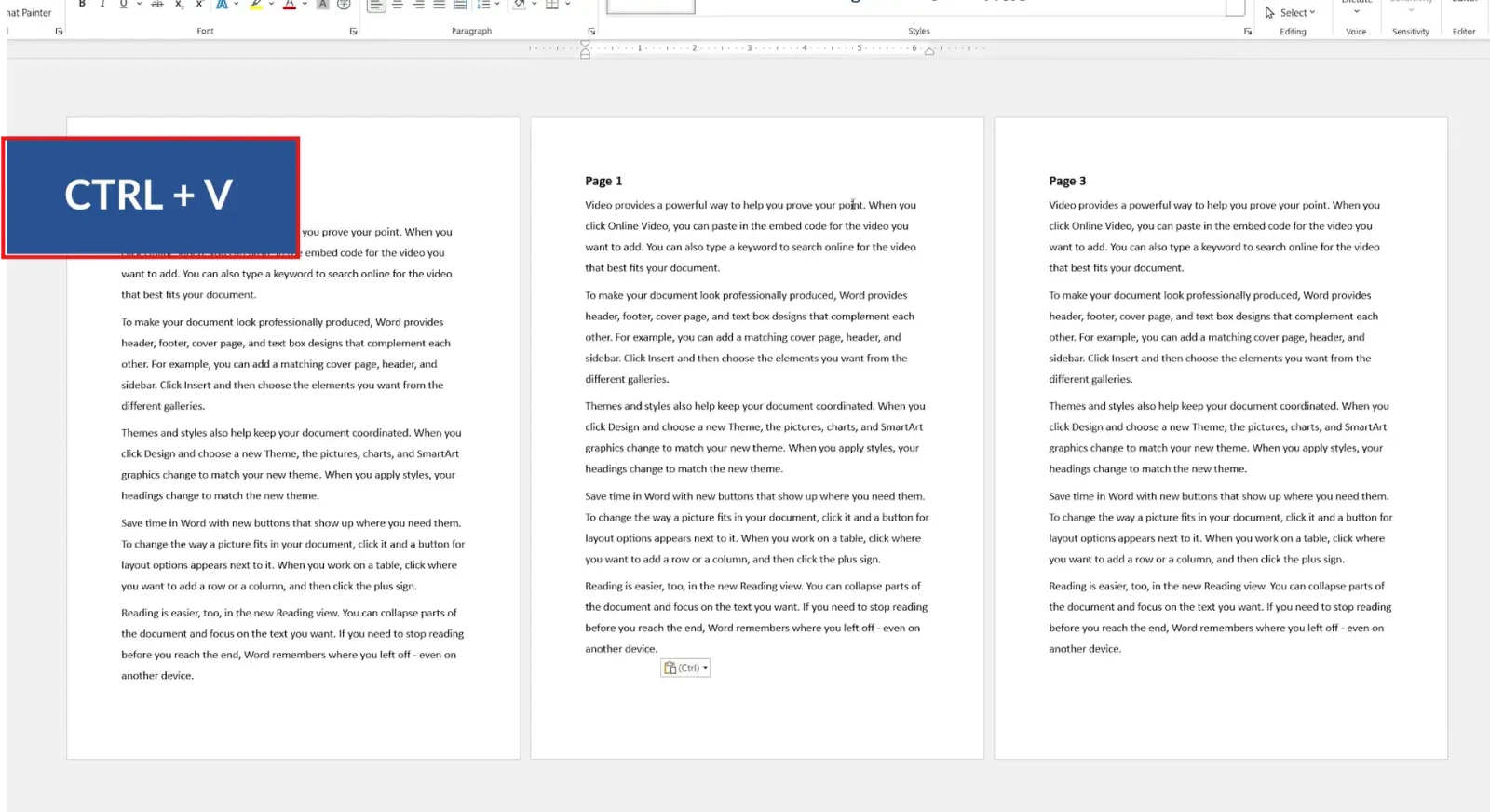
For example, with Page 1, Page 2, and Page 3, to make Page 3 become Page 1: cut the content from Page 3, paste it above Page 1, then adjust any spacing or page breaks. The pages reorganise themselves automatically.
This method works in every Word version, requires no special formatting, and handles text, images, and tables — but it gets time-consuming in large documents.
For larger documents, the Navigation Pane is faster and more organised. It displays headings, pages, and search results, letting you jump between sections and reorder them — but it only works on content formatted with heading styles.
Step 1: Open the Navigation Pane
- Click the View tab.
- Tick Navigation Pane.

Step 2: Apply Heading Styles
The Navigation Pane can only move sections that use headings. Select each section title, click the Home tab, and choose Heading 1 (or another heading style). Repeat for every major section — once done, the headings appear in the Navigation Pane.
Step 3: Drag and Drop Sections
- Open the Headings tab in the Navigation Pane.
- Click and hold a heading.
- Drag it to a new position and release.
Word automatically moves the heading and everything beneath it — text, images, tables, and other content. For example, dragging Page 1’s heading below Page 3’s reorders the document to Page 2, Page 3, Page 1, and the content updates instantly.
This makes the Navigation Pane ideal for reports, manuals, books, research papers, and large business documents — letting you visualise document structure without copying and pasting.
Method 3: How to Rearrange Pages in Word Using Outline View
Outline View also requires heading styles but offers more advanced organisation tools.
- Click the View tab and select Outline.

- Word displays the document structure based on headings.
- Select a heading and drag it to a new location, or use the built-in Move Up / Move Down commands.
- Everything under that heading moves with it.
For example, with the structure Page 1, Page 2, Page 3, moving Page 2 to the top produces Page 2, Page 1, Page 3 — content updates automatically. When finished, click Close Outline View to return to normal editing with the new structure applied.
Which Method Should You Use?
| Method | Best For | Requires Headings? |
|---|---|---|
| Cut and Paste | Short documents, one-off moves | No |
| Navigation Pane | Large documents, visual reordering | Yes |
| Outline View | Advanced restructuring, books, manuals | Yes |
Common Problems When Rearranging Pages
Can’t Drag Pages Directly
Word doesn’t allow page-level dragging — you must move content or sections instead (Methods 1–3 above).
Navigation Pane Shows No Headings
Apply heading styles via Home → Styles → Heading 1 before they’ll appear in the pane.
Content Doesn’t Move With the Heading
Only content directly associated with a heading moves in the Navigation Pane or Outline View — unstyled paragraphs above the next heading may stay behind.
Formatting Changes After Moving
Review page breaks, spacing, and section formatting after rearranging — if a stray blank page appears, see our guide on how to delete an empty page in Word.
Pro Tips
- Apply heading styles consistently from the start — it makes future reorganisation far easier with the Navigation Pane.
- Save a backup copy before any major reorganisation.
- If you need to duplicate a section rather than move it, see our guide on how to duplicate a page in Word.
- After reorganising, check your table of contents updates correctly — see how to create a table of contents in Word if you haven’t added one yet.
FAQs
Can I drag and drop to rearrange pages in Word?
No. Word pages are generated automatically, so you must move content rather than pages — use one of the three methods above.
What’s the easiest way to rearrange pages in Word?
For small documents, cut and paste (Method 1). For larger documents, the Navigation Pane (Method 2) is faster.
Why can’t I move sections in the Navigation Pane?
The content must use heading styles before it can be reordered.
Does Outline View work without headings?
No — Outline View relies on heading styles to display and reorder structure.
Will moving a heading move all its content too?
Yes — text, images, tables, and other content beneath the heading move together with it.
Which method is best for long documents?
The Navigation Pane is usually the fastest and most efficient option for long documents.
Will page numbers update automatically after rearranging?
Yes, if you’re using automatic page numbering — Word recalculates page numbers as content moves.
Conclusion
Now you know how to rearrange pages in Word using cut and paste, the Navigation Pane, or Outline View — and why Word handles this differently from PowerPoint.
If reorganising leaves you with extra blank pages at the end of the document, our guide on how to delete an extra page in Word will help you tidy things up.
Related Tutorials
- How to Duplicate a Page in Word
- How to Delete an Extra Page in Word
- How to Create a Table of Contents in Word
Word Tutorials
Recent Microsoft Word Tutorials
Browse the complete collection for help with formatting, layout, pages, tables, images, and document setup.
For Microsoft support documentation, visit the official Microsoft guidance.
Leave a Reply