
Adding superscript in Word takes seconds — for a maths equation, a footnote reference, or an ordinal number like 1st — and you can learn how to apply text formatting in Word using the same Font group on the Home tab.
In this guide, you’ll learn what superscript is, how to apply it using the Ribbon button, how to use the keyboard shortcut, and how to remove it when you’re done.
What Is Superscript in Word?
Superscript is a text formatting option that raises selected characters above the normal text baseline and reduces their size. It sits in the Font group on the Home tab and is represented by the X² icon.
Common uses include:
- Mathematical exponents and powers (X², 10³)
- Ordinal numbers (1st, 2nd, 3rd)
- Footnote and endnote reference markers
- Scientific notation (6.02 × 10²³)
- Trademark and copyright symbols (™, ®)
- Academic and technical writing references
Watch the Video Tutorial
If you prefer to see this in action, the full video walkthrough is below, showing each method step by step.
How to Use Superscript in Word: Step-by-Step
There are two ways to apply superscript in Word: the Ribbon button and a keyboard shortcut. Both toggle the formatting on and off, so the same method removes it too.
Method 1: How to Use Superscript in Word Using the Ribbon
This is the most straightforward method — ideal if you’re applying superscript occasionally and prefer clicking over keyboard shortcuts.
Steps:
- Open your Word document.
- Select the character or number you want to raise — for example, the “2” in X2.
- Click the Home tab.
- In the Font group, click the Superscript (X²) button.

👉 The selected character moves above the text baseline and reduces in size. The X² button in the Font group will appear highlighted, confirming the formatting is active.
Method 2: How to Use Superscript in Word With the Keyboard Shortcut
If you’re formatting frequently — for example, typing an entire document with mathematical notation — the keyboard shortcut is much faster than reaching for the Ribbon each time.
Steps:
- Select the text or character you want to format as superscript.
- Press Ctrl + Shift + Plus.
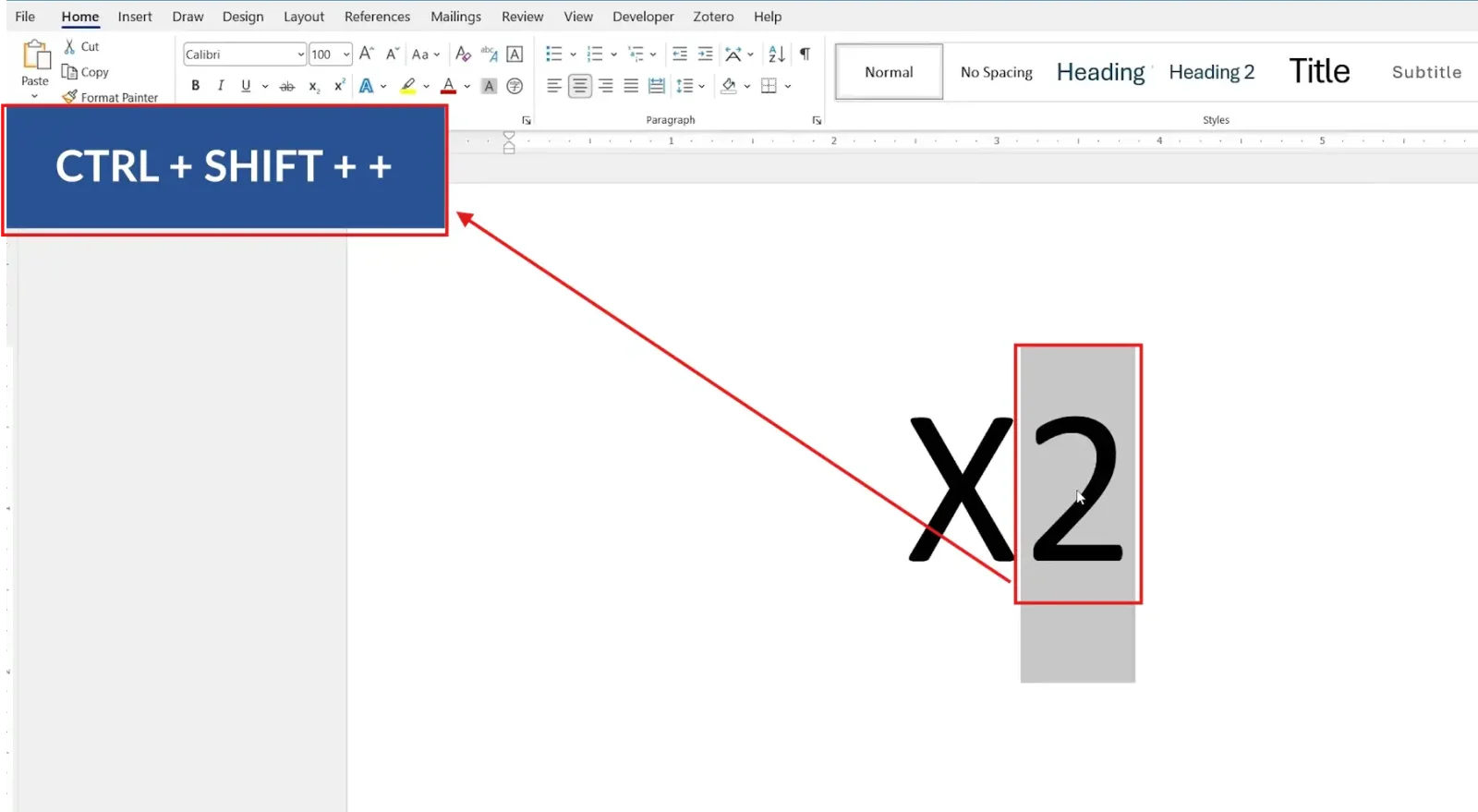
👉 Word immediately raises the selected text above the baseline. The X² button in the Ribbon highlights to confirm the formatting is applied.
Which Method Should You Use?
- Formatting occasionally? Use Method 1 — the Ribbon button is visible and easy to find.
- Typing lots of equations or footnotes? Use Method 2 — Ctrl + Shift + Plus is faster without leaving the keyboard.
- Need to remove superscript? Both methods act as toggles — apply the same action a second time to remove the formatting.
Common Problems When Using Superscript in Word
Superscript Button Not Working
The button only applies formatting to selected text. If nothing is selected when you click X², subsequent characters you type will appear as superscript — click the button again to turn it off before continuing.
Keyboard Shortcut Not Working
Check three things: Word must be the active window, text must be selected, and no other application (such as a remote desktop tool or custom AutoHotKey script) must be intercepting the Ctrl + Shift + Plus combination.
Superscript Text Looks Too Small
This is by design. Word automatically reduces the font size of superscript characters so they fit above the baseline without increasing line height. If you need a larger raised character, increase the base font size first, then apply superscript.
Superscript Applied to Wrong Text
Use Ctrl + Z to undo immediately, re-select the correct characters, then reapply. Double-click a word to select it precisely, or click and drag to select individual characters — for more control over text selection, see the guide on bold, italic, and underline in Word.
Pro Tips for Superscript in Word
- Superscript is a toggle. Pressing Ctrl + Shift + Plus a second time — or clicking X² again — removes the formatting without selecting any menu option.
- Subscript lives next door. The Subscript (X₂) button sits immediately beside the Superscript button in the Font group. Use it for chemical formulas like H₂O — for full formatting coverage, explore how to change font colour in Word to combine font styles in one document.
- Format as you type. Press Ctrl + Shift + Plus before typing your superscript character, type it, then press the shortcut again to return to normal text — no selection required.
- Clear all formatting if superscript gets stuck. Select the affected text and press Ctrl + Space to remove all manual character formatting, including superscript.
FAQs
How do I use superscript in Word?
Select the character you want to raise, then either click the X² button in the Font group on the Home tab, or press Ctrl + Shift + Plus. Both methods apply superscript instantly.
What is the keyboard shortcut for superscript in Word?
The shortcut is Ctrl + Shift + Plus. Select your text first, then press all three keys together. Press the same combination again to remove the formatting.
Where is the superscript button in Word?
It’s in the Font group on the Home tab, shown as an X² icon. It sits next to the Subscript (X₂) button.
How do I remove superscript formatting in Word?
Select the superscript text and click the X² button again, or press Ctrl + Shift + Plus a second time. The formatting toggles off and the text returns to the normal baseline.
What is the difference between superscript and subscript in Word?
Superscript raises text above the baseline (X²); subscript lowers text below it (H₂O). Both are in the Font group on the Home tab and work the same way.
Can I type in superscript mode without selecting text first?
Yes. Press Ctrl + Shift + Plus before typing, enter your characters, then press the shortcut again to switch back to normal text. This is useful when typing equations from scratch.
Does superscript work in all versions of Word?
Yes. The X² button and the Ctrl + Shift + Plus shortcut are available in Word 2010, 2013, 2016, 2019, 2021, and Microsoft 365.
Conclusion
Applying superscript in Word is straightforward: select your text and click the X² button on the Home tab, or press Ctrl + Shift + Plus for a faster keyboard-only workflow.
Both methods toggle the formatting on and off, so removing superscript is just as quick as applying it. For equations with multiple superscript characters, typing in superscript mode without pre-selecting text saves the most time.
Once you’re comfortable with character formatting, it’s worth exploring the wider range of font options available — see the full guide on how to change font size in Word to control how your text scales across headings and body copy.
Related Tutorials
Word Tutorials
Recently Added on Word Made Easy
Browse the complete collection for help with formatting, layout, pages, tables, images, and document setup.
For Microsoft support documentation, visit the official Microsoft guidance.
Leave a Reply