
Knowing how to change font color in Word is one of the fastest ways to make key text stand out, structure a document, and keep your formatting consistent — and it pairs neatly with knowing how to change font size in Word for full control over your text.
In this guide, you’ll learn how to apply standard colours, build custom shades, enter exact HEX and RGB values, and set a default font colour for every new document.
Why Change Font Color in Word?
Font colour is a formatting tool in Microsoft Word that controls the colour of your text. Used well, it guides the reader’s eye and reinforces the structure of a document rather than just decorating it.
Common uses include:
- Highlighting important information
- Improving document readability
- Matching brand or theme colours
- Creating visually engaging documents
- Organising notes and sections clearly
Watch the Video Tutorial
If you prefer to see this in action, the full video walkthrough is below, showing each method step by step.
How to Change Font Color in Word: Step-by-Step
There are three reliable ways to change font colour, depending on whether you want a quick preset, a precise custom shade, or a colour that applies to every future document. Each method below builds on the one before it.
Method 1: How to Change Font Color in Word Using the Font Color Button
This is the quickest method and works for everyday colour changes from the Home tab.
Steps:
- Select the text you want to change by clicking and dragging over it, or press Ctrl + A to select all text
- Go to the Home tab
- Locate the Font Color button — it looks like a capital A with a coloured line underneath
- Click the dropdown arrow beside it and choose your colour
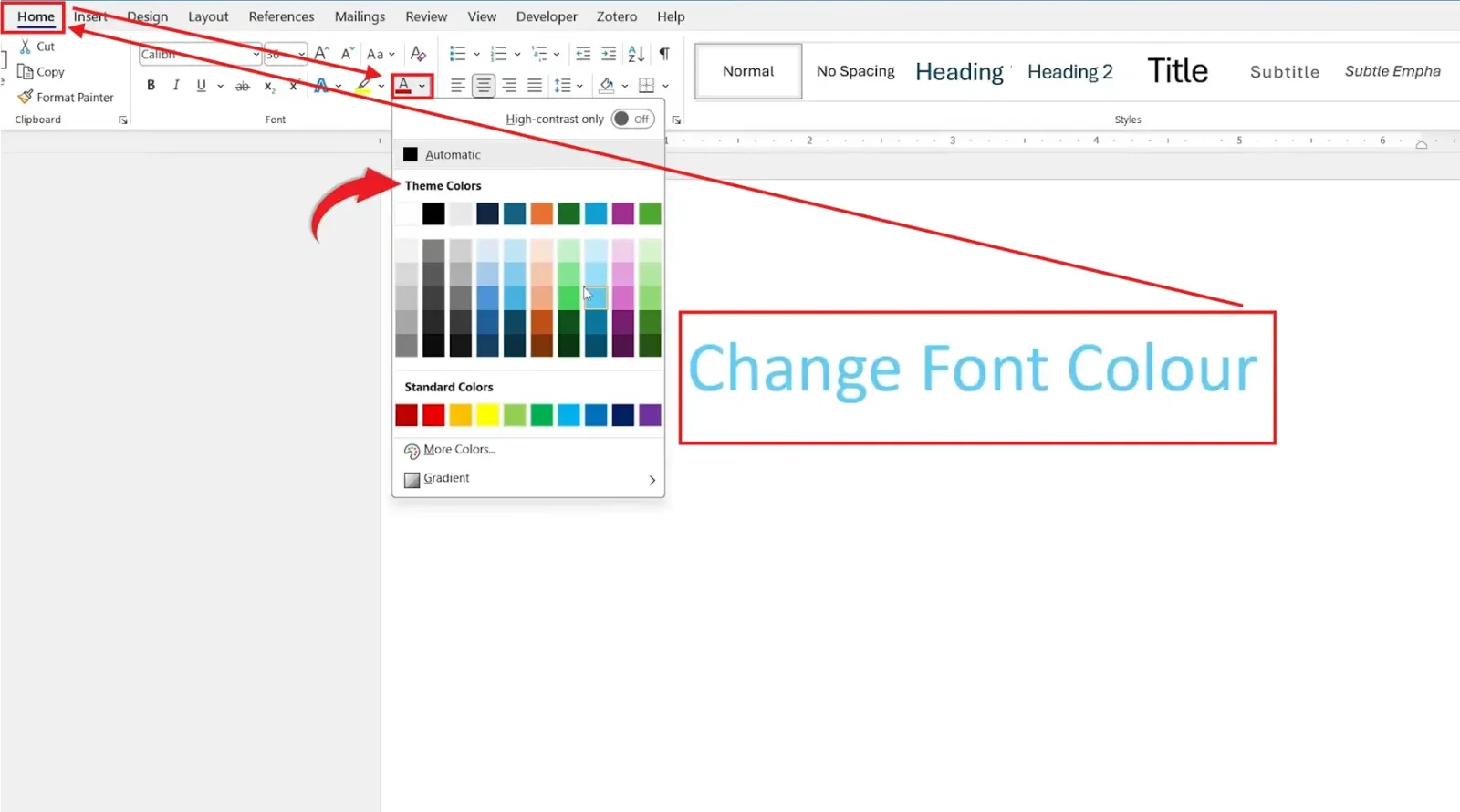
👉 Your selected text instantly changes to the colour you picked.
Choosing a Standard Colour
The Font Color dropdown gives you three quick groups to pick from:
- Theme colours — tied to your document theme
- Standard colours — the fixed default palette
- Recently used colours — colours you’ve already applied
👉 Click any swatch and the change applies to your selected text immediately.
Method 2: How to Change Font Color in Word Using Custom Colours
When the exact shade you need isn’t in the default palette, Word lets you mix your own custom colour.
Steps:
- Open the Font Color menu
- Click More Colors
- Go to the Custom tab and choose your preferred shade
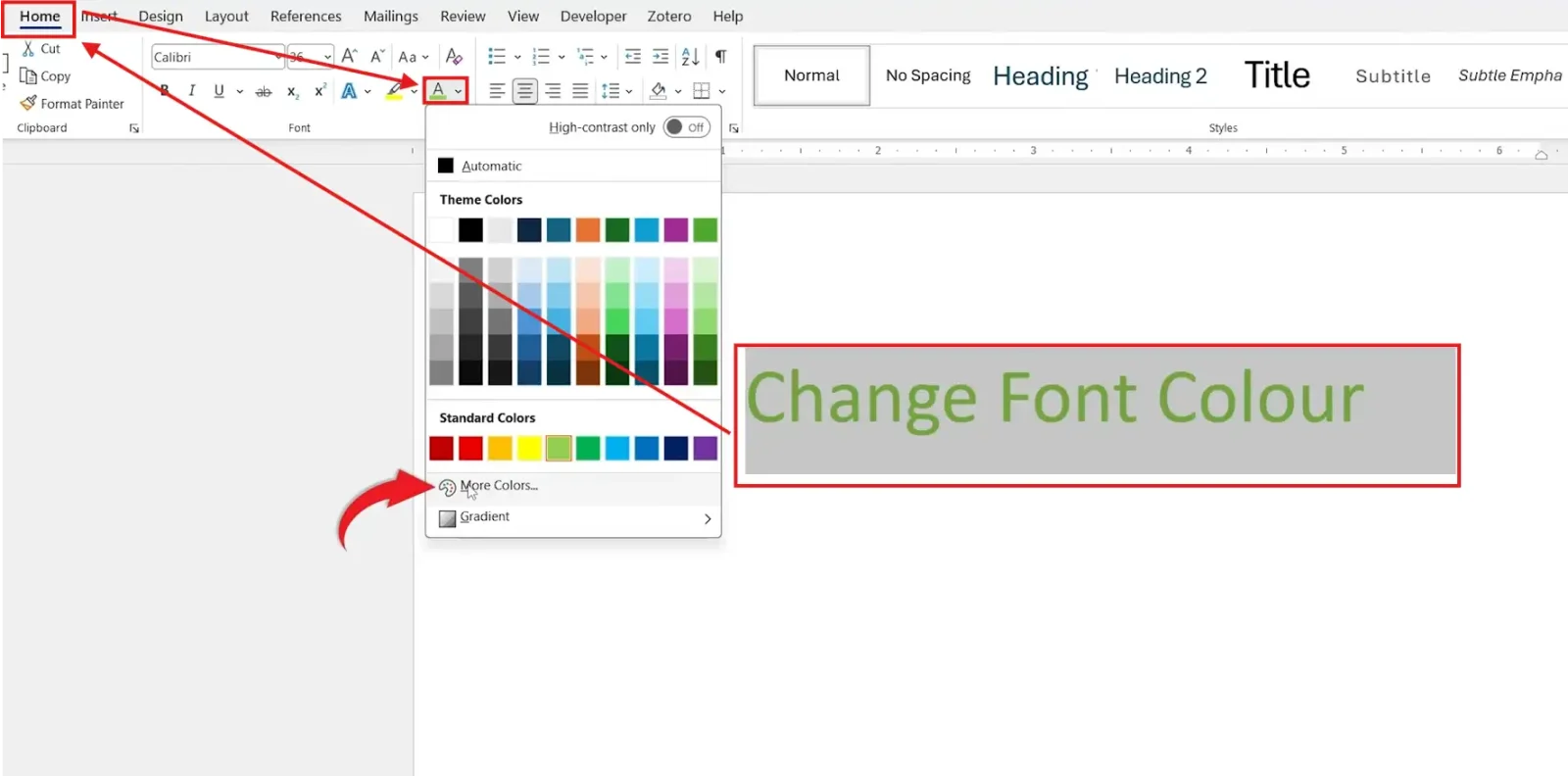
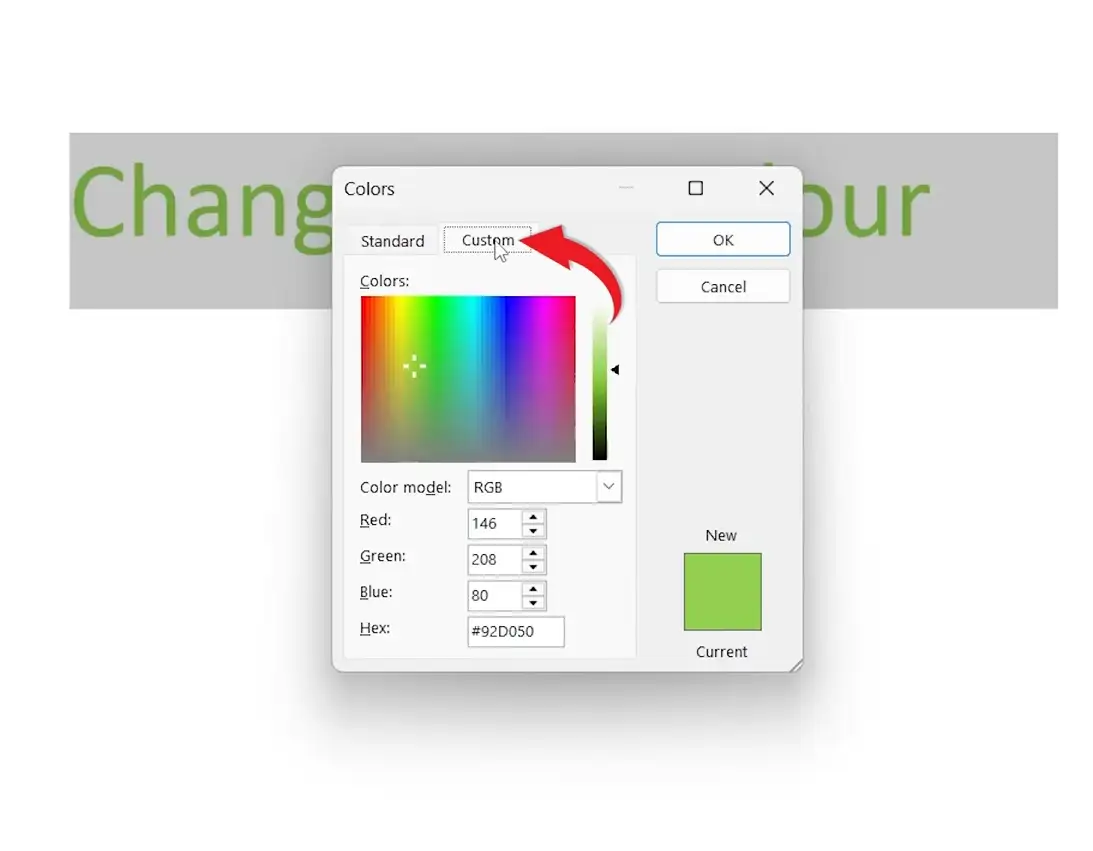
Inside the Custom tab you can:
- Adjust the brightness slider
- Choose lighter or darker shades
- Select a precise colour by hand
👉 The custom shade is applied to your text and added to your recent colours for reuse.
Using HEX or RGB Colour Codes
The Custom tab also supports exact colour entry using HEX codes and RGB values (Red, Green, Blue). This is useful for:
- Brand colours
- Matching a website palette
- Professional document design — and if you also style the page itself, see the guide on how to change background colour in Word
Simply type the HEX or RGB code into the custom colour fields to apply an exact match.
Method 3: How to Change Font Color in Word as the Default
If you always use the same colour, set it as the default so every new document starts with it.
Steps:
- Open the Font dialog box by clicking the small arrow in the Font section, or press Ctrl + D
- Choose your font colour, size, and style
- Click Set As Default
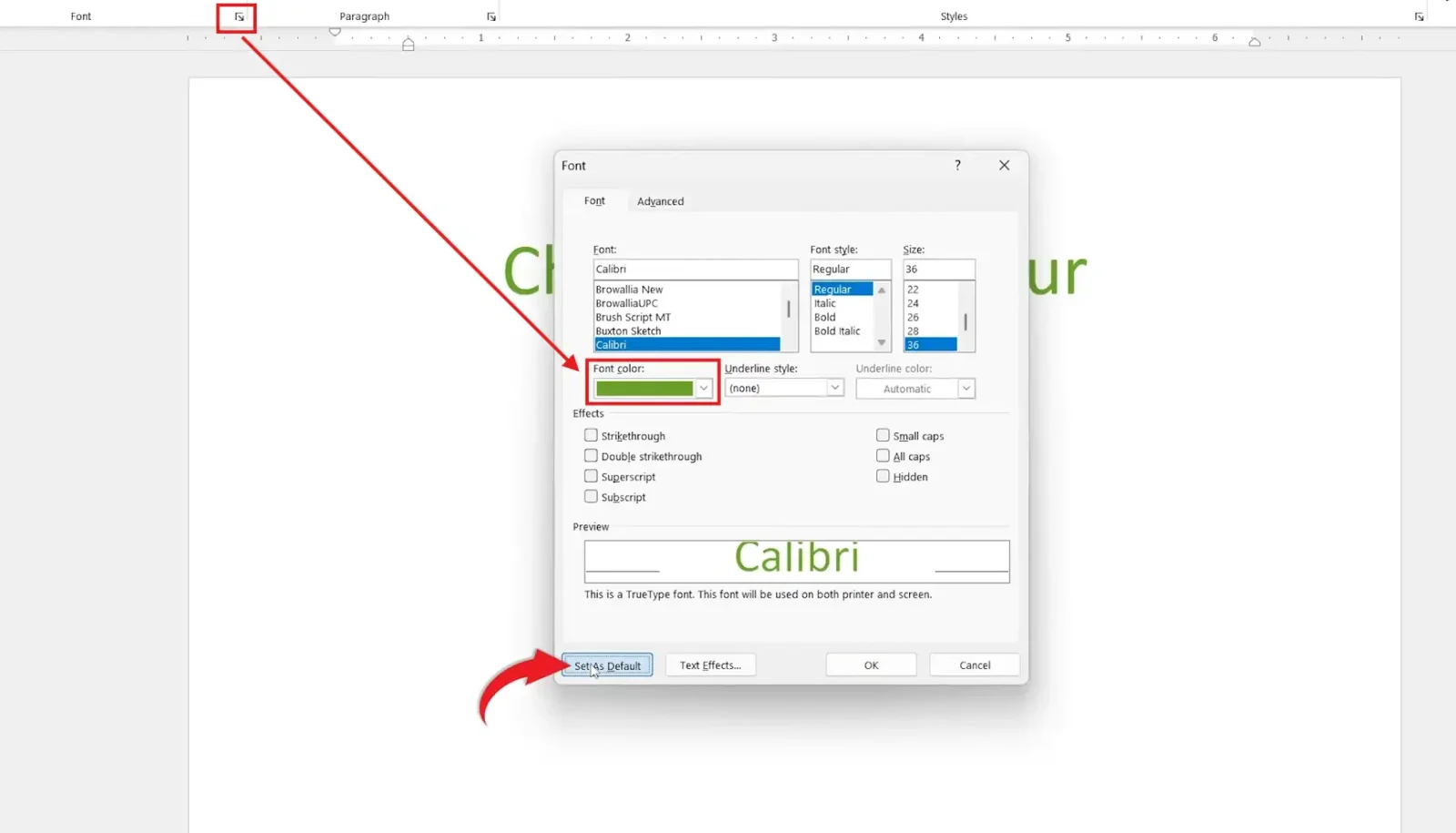

👉 Word now applies your chosen colour automatically in future documents.
Choosing the Default Scope
When you click Set As Default, Word asks how widely to apply it:
- This document only — affects the current file
- All documents based on the Normal template — affects every future Word document
Which Method Should You Use?
| Method | Best For |
|---|---|
| Font Color button | Quick, everyday colour changes from a preset palette |
| Custom colours / HEX & RGB | Exact brand shades and precise colour matching |
| Set As Default | Applying one colour to every new document automatically |
Common Problems When Changing Font Colour
Text colour won’t change
Make sure the text is selected before applying the new colour. Without a selection, Word has nothing to recolour.
Custom colour not showing correctly
Check your theme settings, print preview, and display mode — each can affect how a colour appears on screen versus in print.
Font colour keeps resetting
A built-in style or template is overriding your manual formatting. Update the style itself, or set your colour as the default to make it stick.
Font Color button is greyed out
This usually means the document is in a protected or restricted-editing mode. Turn off editing restrictions to regain access to formatting.
Pro Tips for Font Colour
- Stick to two or three colours per document for a clean, professional look
- Save brand HEX codes in your recent colours so they’re one click away
- Pair colour with other emphasis sparingly — for stronger contrast, combine it with bold, italic, and underline in Word
- Check colour contrast for readability, especially light text on light backgrounds
FAQs
How do I change font color in Word?
To change font color in Word, select your text, go to the Home tab, and click the Font Color button, then pick a colour from the dropdown.
Can I use custom colours in Microsoft Word?
Yes. Open the Font Color menu, click More Colors, and use the Custom tab to mix a shade or enter HEX and RGB values.
What is the shortcut to open Font settings in Word?
Press Ctrl + D to open the Font dialog box, where you can set colour, size, and style — and more shortcuts are in the Microsoft Word keyboard shortcuts cheat sheet.
How do I set a default font colour in Word?
Open the Font dialog box with Ctrl + D, choose your colour, click Set As Default, and apply it to all documents based on the Normal template.
Does Word support HEX colour codes?
Yes. The Custom tab in the More Colors window accepts HEX codes, so you can match an exact brand or website colour.
How do I change the colour of all text in Word?
Press Ctrl + A to select the whole document, then apply a colour from the Font Color button to recolour every line at once.
How do I change the font itself, not just the colour?
Use the font box on the Home tab to switch typeface. To install and use a brand-new typeface, see the guide on how to add a new font in Word.
Conclusion
Learning how to change font color in Word gives you a fast, reliable way to improve readability and control the look of any document.
Use the Font Color button for quick changes, the Custom tab for exact HEX and RGB shades, and Set As Default when you want one colour everywhere.
Once your colours are set, take your formatting further by learning how to align text in Word for a fully polished layout.
Related Tutorials
- How to Change Font Size in Word
- How to Change Background Color in Word
- How to Add a New Font in Word
Word Tutorials
Recent Microsoft Word Tutorials
Browse the complete collection for help with formatting, layout, pages, tables, images, and document setup.
For Microsoft support documentation, visit the official Microsoft guidance.
Leave a Reply