
If you need to change your username for Track Changes in Word, it’s because every edit, comment, and revision is tagged with an author name — and that name isn’t always the one you want others to see. Microsoft Word lets you set it manually or pull it from your Microsoft account, and it works alongside features like how to insert a hyperlink in Word during collaborative reviews.
In this guide, you’ll learn how to change your username for Track Changes in Word, how your Microsoft account affects author names, and why existing comments don’t update.
What Is the Username in Track Changes?
The username in Track Changes identifies the author of edits, comments, and revisions in a Word document. Whenever you add a comment, delete text, insert content, or suggest an edit, Microsoft Word records your name alongside the change.
This lets collaborators see who made each edit and provides accountability during document reviews.
Watch the Video Tutorial
If you prefer to see this in action, the full video walkthrough is below, showing each method step by step.
Why Change Your Track Changes Username?
You may want to update your username when:
- Your name appears incorrectly or as initials only
- You’ve recently changed your name
- Your organisation requires a specific author name
- You’re working on a shared computer
Using the correct username keeps collaboration professional and document tracking accurate.
How to Change Your Username for Track Changes in Word: Step-by-Step
There are two ways to set the name Word records. Use Method 1 to force a custom username, or Method 2 to use your Microsoft account identity. Both start from the same screen.
Open the Change User Name Screen
- Open your document and go to the Review tab.
- In the Tracking group, click the dropdown beside Track Changes (or Markup Options, depending on your version).
- Select Change User Name.
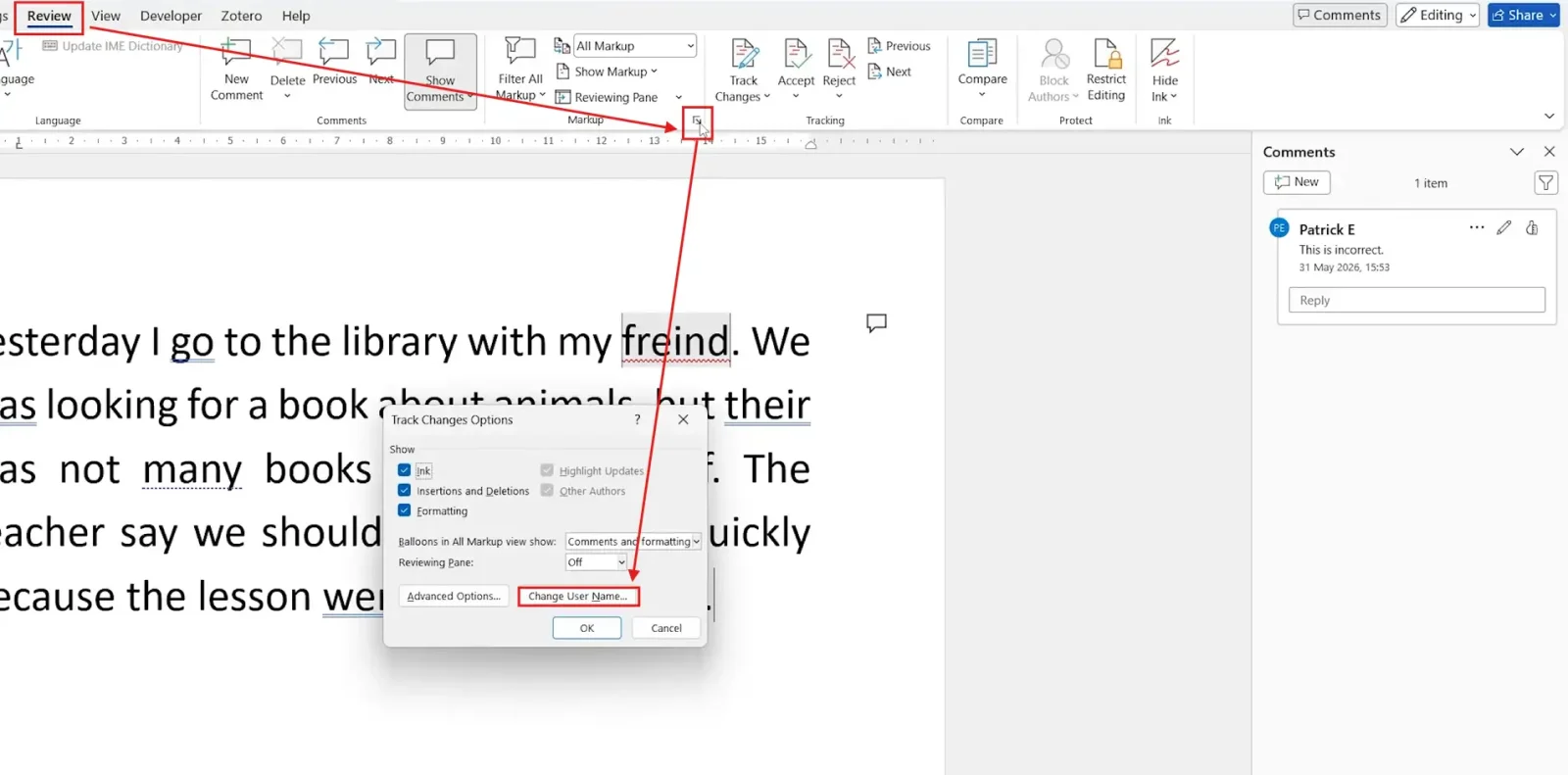
👉 Word opens the General settings page of Word Options, where the username fields live.
Method 1: How to Change Your Username for Track Changes in Word with a Custom Name
This forces Word to use the exact name you type, regardless of which account you’re signed in with.
- In the User name field, enter your preferred name.
- Update your Initials if needed.
- Tick Always use these values regardless of sign in to Office.
- Click OK.
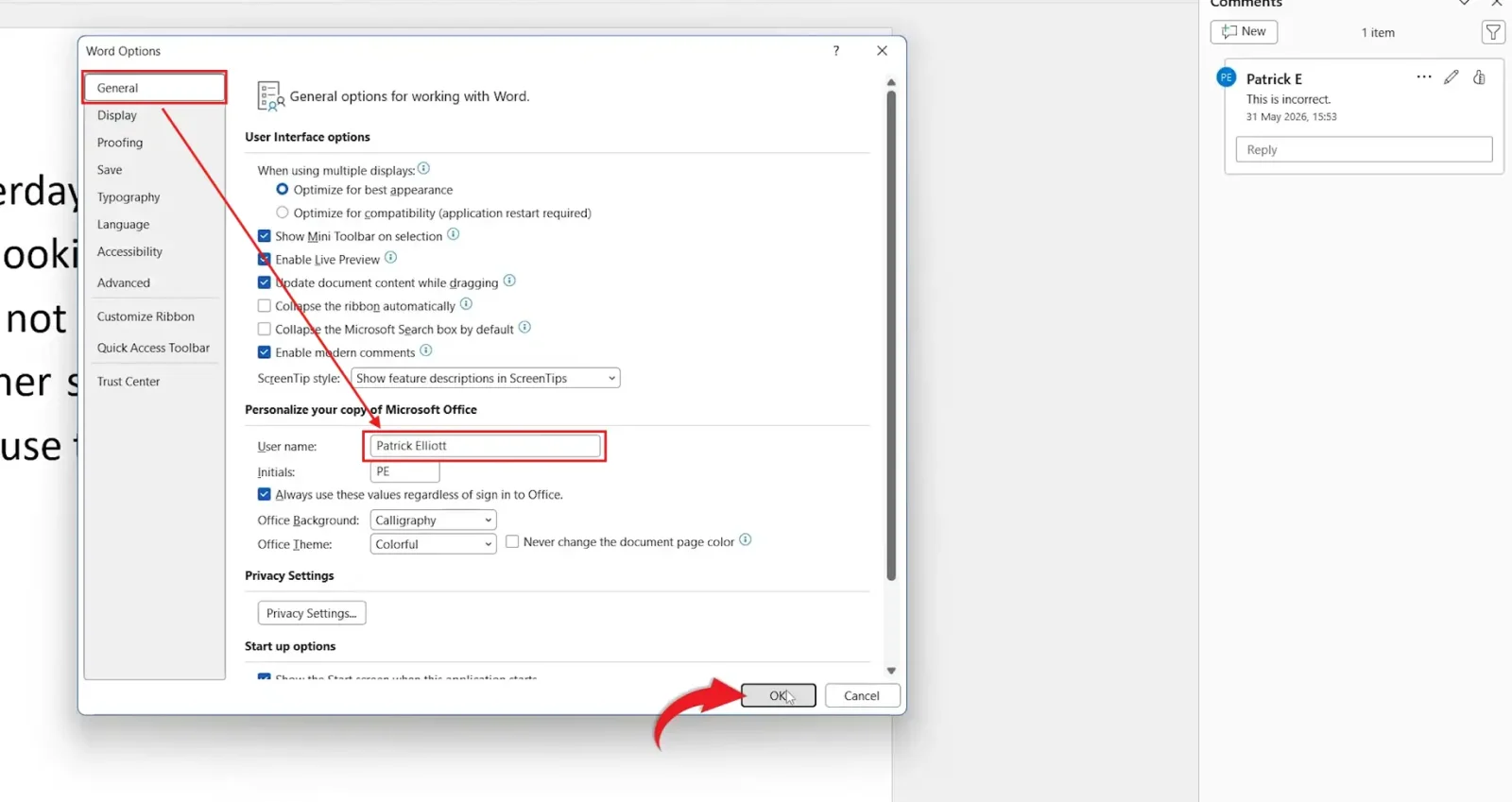
👉 Every future comment and tracked change now uses your custom username.
Method 2: How to Change Your Username for Track Changes in Word Using Your Microsoft Account
Some organisations require edits to be attributed to your official work or school identity. In that case, let Word pull the name from your account.
- Open Change User Name again.
- Untick Always use these values regardless of sign in to Office.
- Click OK.

👉 Word now uses your Microsoft account name, which may include your full name and organisational account details.
Which Method Should You Use?
- Want a fixed name on every device or a shared PC? Use Method 1 (custom name).
- On a work or school account that must show your official identity? Use Method 2 (Microsoft account).
- Switch between machines often? Method 1 keeps your name consistent everywhere.
Why Existing Comments Don’t Update
Word does not retroactively update comments or tracked changes. If an earlier comment shows Jane S and you later change your username to Jane Smith, the old comment still displays Jane S. Only new comments and future edits use the updated name.
Check the New Username Is Working
- Add a new comment to the document.
- Check the author name shown on it.
👉 The new comment should display your updated username. Remember only newly created comments and edits reflect the change.
Common Problems When Changing Your Track Changes Username
Old Comments Still Show the Wrong Name
This is normal. Existing comments keep the author information they were created with and can’t be relabelled automatically.
My Username Keeps Reverting
Your organisation may enforce account credentials through Office. Tick Always use these values regardless of sign in to Office to hold a custom name.
I Changed My Name but Nothing Happened
Create a new comment after saving. Existing tracked changes won’t change to match.
The Name Is Correct but Initials Are Wrong
Initials are a separate field on the same screen. Update the Initials box as well, since comment balloons sometimes display initials rather than the full name.
Pro Tips for Track Changes
- Set your username before you start reviewing, not after — it saves relabelling work.
- On a shared PC, always use Method 1 so your edits aren’t tagged with someone else’s name.
- Keep initials short and distinct — they’re what appears in comment balloons when space is tight.
- Reviewing is easier with a clean layout first — see how to remove formatting marks in Word before you share.
FAQs
How do I change my username for Track Changes in Word?
To change your username for Track Changes in Word, go to Review → Track Changes dropdown → Change User Name, enter your preferred name in the User name field, and click OK.
Why doesn’t my old comment show the new name?
Word only applies a username change to comments and revisions created after the change. Existing ones keep their original author.
Can I use my Microsoft account name automatically?
Yes. Untick the option that forces custom values and Word will use the name linked to your Microsoft account.
Can I use a custom name instead?
Yes. Tick Always use these values regardless of sign in to Office and type the name you want displayed.
Does changing my username affect existing documents?
No. Tracked changes and comments in existing documents keep their original author information.
Where do I change initials for Track Changes?
Initials are on the same Change User Name screen as the username, in the Initials field next to the User name box.
Does this work in Microsoft 365?
Yes. The steps are the same in Microsoft 365 and recent versions of Word, via Review and the Change User Name option.
Conclusion
Knowing how to change your username for Track Changes in Word ensures your comments and revisions are attributed to the correct author every time.
Whether you pick a custom name or your Microsoft account identity, set it before you start reviewing to avoid confusion. Once your edits are attributed correctly, you can keep your document tidy by learning how to remove headers and footers in Word before final sharing.
Related Tutorials
- How to Remove Hyperlinks in Word
- How to Check Spelling and Grammar in Word
- How to Create a Fillable Form in Word

Recent Microsoft Word Tutorials

Looking for more help with Microsoft Word? Browse all step-by-step Word tutorials covering formatting, layout, pages, and document setup.
👉 View all Microsoft Word tutorials: https://wordmadeeasy.org/microsoft-word/
👉 Need more support – check out the official guidance: https://support.microsoft.com/en-au

Prefer watching instead of reading? Many Word tutorials are also available as short, step-by-step videos on the Word Made Easy YouTube channel.

Leave a Reply