
Knowing how to insert a hyperlink in Word turns flat text into a navigable document — readers click straight through to websites, email addresses, or specific sections without scrolling. If you ever need to strip one back out, our guide on how to remove hyperlinks in Microsoft Word handles that side of the job.
In this guide, you’ll learn four ways to insert a hyperlink in Word, how to link to internal sections and email addresses, and how to customise the look without breaking the link itself.
Why Use Hyperlinks in Word
Before you insert a hyperlink in Word, it helps to know what they actually add to a document. Hyperlinks let you:
- Link out to websites, downloads, or online resources
- Jump to sections within the same document — particularly powerful when paired with our guide on how to create a table of contents in Word
- Create clickable email links that open the reader’s mail app pre-addressed
- Improve user experience and document interactivity in reports, proposals, and PDFs
Watch the Video Tutorial
If you prefer to see this in action, the full video walkthrough is below, showing each method step by step.
How to Insert a Hyperlink in Word: Step-by-Step
There are four reliable ways to insert a hyperlink in Word. Method 1 is the fastest with a single keyboard shortcut, Methods 2 and 3 use the right-click menu and the Insert tab, and Method 4 lets Word do it automatically when you type a URL.
Method 1: How to Insert a Hyperlink in Word Using Ctrl + K
The fastest way to insert a hyperlink in Word is the Ctrl + K shortcut — and it’s one of many time-savers covered in our Microsoft Word keyboard shortcuts cheat sheet.
Steps:
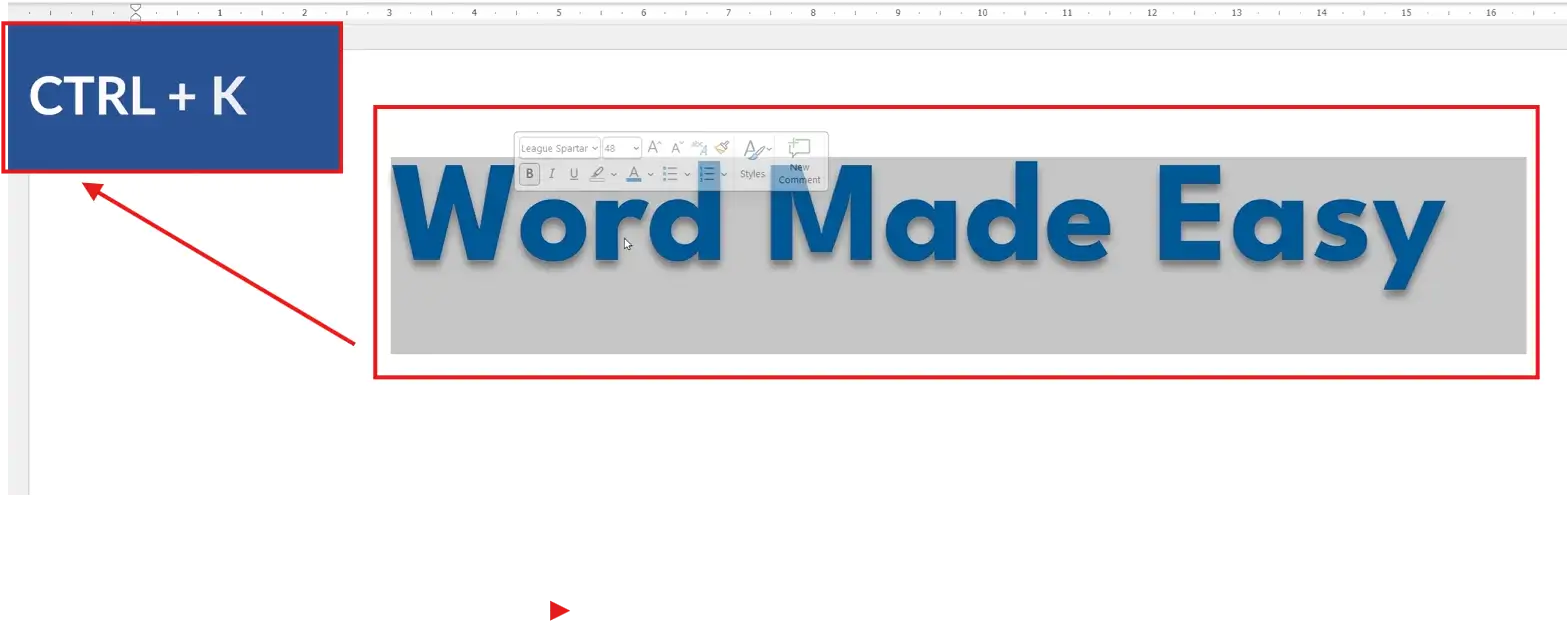
- Select the text you want to turn into a hyperlink
- Press Ctrl + K
- In the Insert Hyperlink dialog, click in the Address field
- Type or paste the full URL
- Click OK
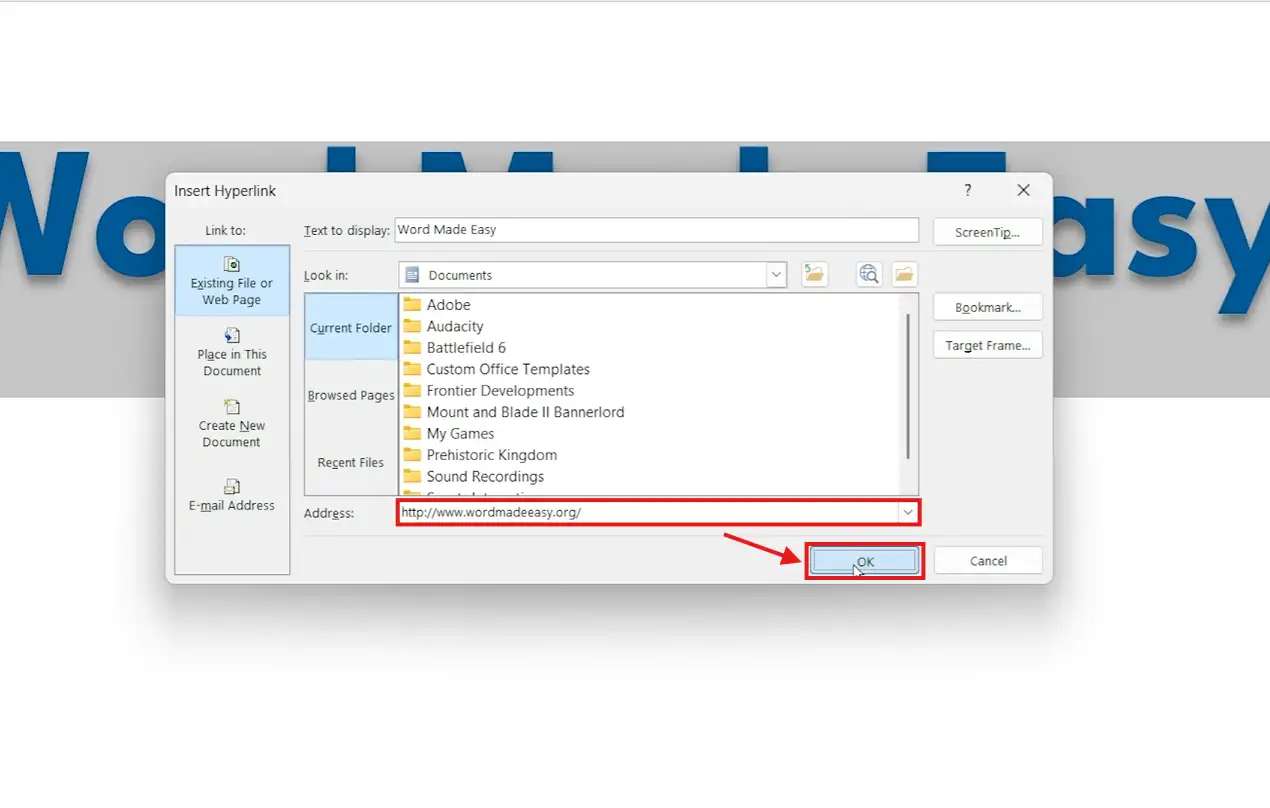
👉 The selected text turns blue and underlined — it’s now a live hyperlink. Hold Ctrl and click to follow it.
Method 2: How to Insert a Hyperlink in Word Using Right-Click
If your hands are already on the mouse, the right-click route opens the same dialog box without touching the keyboard.
Steps:
- Highlight the text you want to link
- Right-click and select Link

- Enter the URL in the Address field
- Click OK

👉 This opens the same dialog box as Ctrl + K — useful when the keyboard is out of reach.
Method 3: How to Insert a Hyperlink in Word From the Insert Tab
If you prefer the ribbon, the Insert tab gets you to the same dialog and is the easiest method to remember when you’re new to Word.
Steps:
- Select your text
- Go to the Insert tab on the ribbon
- Click Link (labelled Hyperlink in some Word versions)

- Enter your URL
- Click OK

👉 Same result as the previous methods, just navigated through the ribbon instead.
Method 4: How to Insert a Hyperlink in Word Automatically
Word automatically converts URLs into clickable links — perfect when you’re pasting addresses directly into running text.
Steps:
- Type or paste the full URL (must start with http://, https://, or www.)
- Press Space or Enter
👉 Word converts the URL into a live hyperlink instantly — no dialog box, no extra clicks.
How to Link to a Place in the Same Document
Hyperlinks aren’t just for websites — you can link to headings or bookmarks inside the document itself, which is how a clickable table of contents works.
Steps:
- Select your text
- Press Ctrl + K
- Click Place in This Document on the left of the dialog
- Choose a heading or bookmark from the list
- Click OK
👉 Clicking the link jumps the reader straight to that section — ideal for long reports and manuals.
How to Create an Email Hyperlink
You can also create clickable email links that open the reader’s mail app with the address and subject already filled in.
Steps:
- Select your text
- Right-click and choose Link (or press Ctrl + K)
- Click Email Address on the left of the dialog
- Enter the email address and a default subject line
- Click OK

👉 Clicking the link opens the reader’s email app with the address and subject pre-filled — saves them a copy-paste step.
How to Customise Hyperlink Appearance
By default, hyperlinks appear as blue, underlined text. You can change the colour and remove the underline without breaking the link itself.
Steps:
- Select the hyperlink
- Press Ctrl + U to remove the underline
- Use the Font Colour dropdown on the Home tab to change the text colour
👉 The link stays fully functional — only the styling changes. To strip a link entirely, see how to remove hyperlinks in Microsoft Word.
How to Follow a Hyperlink in Word
To open a hyperlink from inside the document:
- Hold Ctrl
- Click the link
👉 Your cursor turns into a hand icon as soon as you hold Ctrl — Word requires this to stop accidental navigation while you’re editing.
Which Method Should You Use?
| Method | Best For | Speed | Mouse or Keyboard |
|---|---|---|---|
| Method 1 — Ctrl + K | Fast, repeated linking | Fastest | Keyboard |
| Method 2 — Right-Click | Mouse-only workflows | Fast | Mouse |
| Method 3 — Insert Tab | Beginners, discoverable path | Medium | Mouse |
| Method 4 — Automatic | Pasting full URLs into text | Instant | Either |
For everyday use, Method 1 is the one to memorise — Ctrl + K works in every version of Word and across Outlook too.
Common Problems When Inserting Hyperlinks in Word
The link looks like text and doesn’t click
You probably pasted the URL without the http:// or www. prefix, so Word didn’t auto-convert it. Select the text, press Ctrl + K, and add the full URL in the Address field.
The link opens to a blank page or error
The URL is malformed — usually a missing colon, an extra space, or a copied tracking parameter. Right-click the link, choose Edit Hyperlink, and check the address against the original source.
Ctrl + Click does nothing
The Use Ctrl + Click to follow hyperlink setting may be turned off. Go to File → Options → Advanced and tick the box under Editing options to restore it.
The link keeps reverting to blue and underlined
Word’s Hyperlink style is overriding your manual formatting. Modify the Hyperlink style itself via Home → Styles → Hyperlink → Modify to make changes stick across the whole document.
Pro Tips
- Set a ScreenTip when you insert a hyperlink — it’s the hover tooltip that appears over the link. Click the ScreenTip button in the Insert Hyperlink dialog and add a short description.
- Use clickable internal links to build a navigable document — particularly effective alongside how to create a table of contents in Word, where every TOC entry becomes a hyperlink automatically.
- Press Ctrl + Shift + F9 to unlink everything in a selection at once — faster than removing links one by one.
- Type meaningful anchor text instead of pasting raw URLs — “see the latest report” reads better than a long, ugly link, and prints better too.
FAQs
How do I insert a hyperlink in Word?
The fastest way to insert a hyperlink in Word is to select the text, press Ctrl + K, paste the URL into the Address field, and click OK. The text turns into a clickable link instantly.
What is a hyperlink in Word?
A hyperlink is clickable text or an image that directs you to a webpage, email address, or another location in the same document.
Can I remove the underline from a hyperlink?
Yes. Select the hyperlink and press Ctrl + U to remove the underline. The link still works — only the styling changes.
Why do I need to press Ctrl to open a link?
Word requires Ctrl + click to prevent you accidentally following links while you’re editing the document. You can disable it under File → Options → Advanced.
Can I link to a specific section in my document?
Yes. Press Ctrl + K, click Place in This Document, then choose a heading or bookmark from the list. The link jumps straight to that section when clicked.
Do hyperlinks work in printed documents?
No. Hyperlinks only work in digital versions — on the printed page, the URL itself prints if it’s visible, but it can’t be clicked. PDF exports keep links live.
How do I edit a hyperlink in Word?
Right-click the hyperlink and choose Edit Hyperlink, then change the URL, display text, or ScreenTip in the dialog box. Click OK to apply.
What’s the shortcut to insert a hyperlink in Word for Mac?
Use Cmd + K instead of Ctrl + K. Every other step in the dialog box is identical to the Windows version.
Conclusion
Once you know how to insert a hyperlink in Word, every document becomes more usable — readers click straight to sources, addresses, and sections rather than hunting through pages. Stick with Ctrl + K as your default and the other methods become backup options for when your hands are on the mouse.
Whether you’re linking to websites, emails, or internal headings, these four methods give you complete control over how content connects. For the cleanest navigable documents, combine hyperlinks with our guide on how to create a table of contents in Word so every section is one click away.
Related Tutorials
- How to Remove Hyperlinks in Microsoft Word
- How to Create a Table of Contents in Word
- Microsoft Word Keyboard Shortcuts Cheat Sheet
Word Tutorials
Recent Microsoft Word Tutorials
Browse the complete collection for help with formatting, layout, pages, tables, images, and document setup.
For Microsoft support documentation, visit the official Microsoft guidance.
Leave a Reply