
Knowing how to remove gridlines in Word is the difference between a clean working document and one that looks like graph paper — and since backspace and delete don’t touch them, the fix has to come from the right setting. They behave similarly to formatting marks in Word, which also assist with structure but stay hidden by default.
In this guide, you’ll learn three ways to remove gridlines in Word — page gridlines, table gridlines, and the settings that stop them reappearing — plus how to fix the most common reasons they refuse to go away.
Why Gridlines Appear in Word
Before you remove gridlines in Word, it helps to know that what looks like one feature is actually two separate things — page gridlines (on the canvas) and table gridlines (inside tables). They live in different menus and behave differently:
- The gridlines view option was enabled — usually by accident from the View tab
- You’ve been working on layout or alignment tasks where they were useful
- A template or shared document had them switched on
- You’re inside a table, where gridlines appear independently of page gridlines
Unlike table borders, gridlines are part of the document view, not the content. That’s why pressing delete or backspace does nothing — there’s nothing to delete.
Watch the Video Tutorial
If you prefer to see this in action, the full video walkthrough is below, showing each method step by step.
How to Remove Gridlines in Word: Step-by-Step
There are three reliable ways to remove gridlines in Word. Method 1 handles page gridlines from the View tab, Method 2 hides table gridlines from the Table Layout tab, and Method 3 stops them coming back when you reopen the document.
Method 1: How to Remove Gridlines in Word From the View Tab
This is the standard fix for page gridlines — the faint grid pattern that covers the whole document background.
Steps:
- Go to the View tab on the ribbon
- Find the Show group
- Untick the Gridlines checkbox
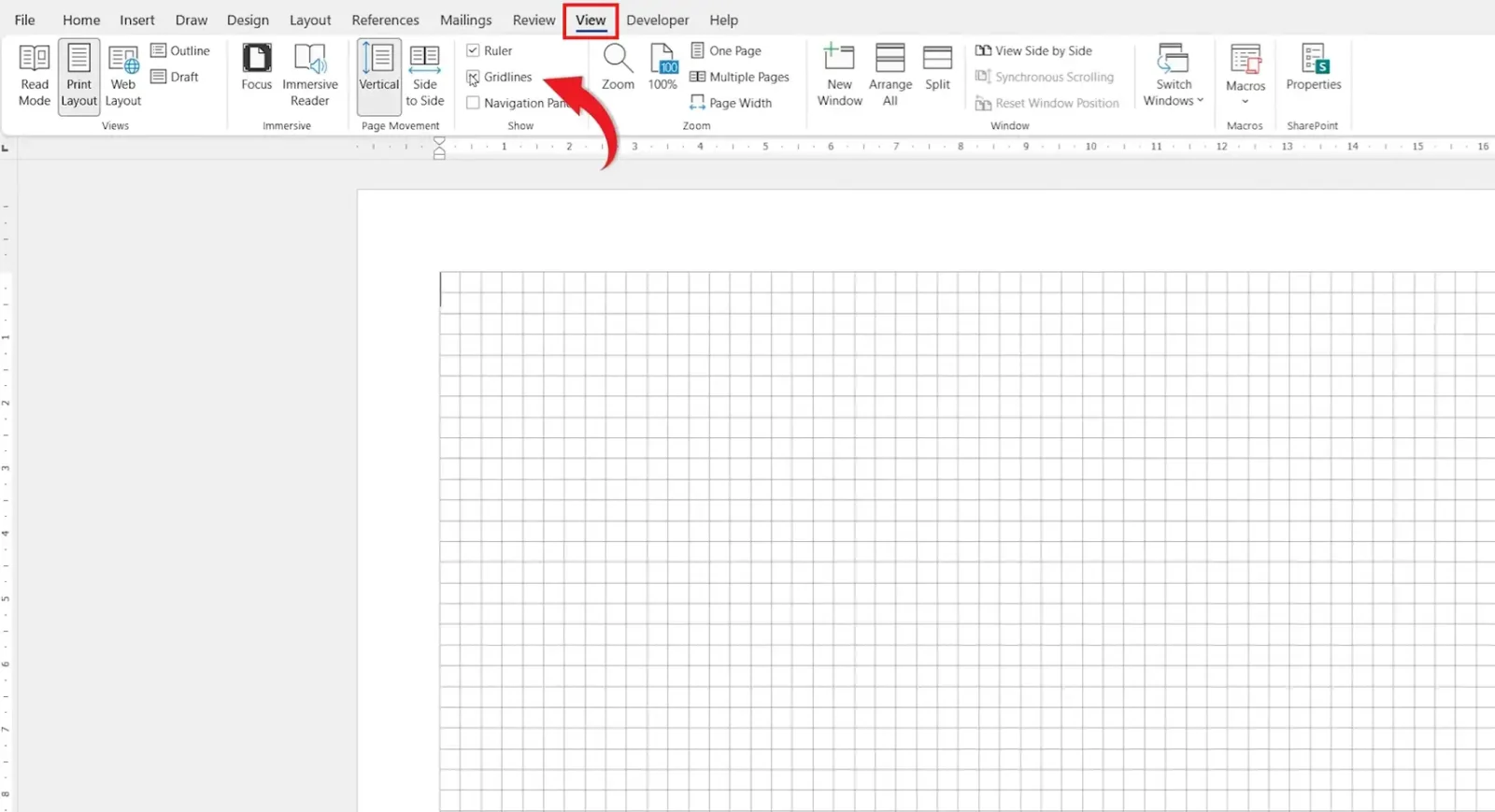
👉 The gridlines vanish instantly and your document looks like a normal page again. Tick the box back on whenever you need them for alignment work.
Method 2: How to Remove Gridlines in Word Tables
If the faint lines only appear inside a table, you’re looking at table gridlines — a separate setting from page gridlines, controlled from the Table Layout tab.
Steps:
- Click anywhere inside your table to activate the table tools
- Go to the Table Layout tab on the ribbon
- Click View Gridlines to toggle them off
- Click View Gridlines again whenever you need them back for editing
👉 Table gridlines are screen-only and never print, so this only changes how the document looks while you work.
Method 3: How to Stop Gridlines Reappearing in Word
If gridlines keep coming back every time you open the document, the template itself has them switched on. Saving the template with gridlines off fixes it permanently.
Steps:
- Turn off gridlines using Method 1 (View tab) and Method 2 (Table Layout tab) if needed
- Go to File → Save As
- Change Save as type to Word Template (*.dotx)
- Overwrite your existing template (or save as the default Normal.dotm)
👉 New documents based on this template open without gridlines. This is the fix when colleagues share files that always seem to come back gridded.
Which Method Should You Use?
| Method | Best For | What It Hides | Permanent? |
|---|---|---|---|
| Method 1 — View Tab | Page gridlines covering the document | Page-level gridlines | Per document |
| Method 2 — Table Layout | Faint lines inside tables only | Table gridlines | Per document |
| Method 3 — Template Save | Gridlines that keep coming back | Both, every time | Yes |
For most users, Method 1 solves the problem in two clicks. Reach for Method 3 only when the same document keeps reopening with gridlines on.
Why Backspace or Delete Doesn’t Work
Pressing backspace or delete doesn’t remove gridlines in Word because:
- Gridlines aren’t actual objects in the document
- They’re a display setting, not page content
- They don’t affect text, images, or formatting in any way
That’s why every method to hide them lives in a settings menu rather than the document body — there’s nothing on the page to act on.
Common Problems When Removing Gridlines in Word
Gridlines stay visible after unticking View → Gridlines
You’re seeing table gridlines, not page gridlines. Click inside the table, go to Table Layout → View Gridlines, and toggle them off separately.
Gridlines come back every time the document opens
The template the document is based on has gridlines enabled. Use Method 3 above to save the template with the setting turned off so new documents open clean.
Lines appear on the printed page
Gridlines never print. If lines show up on the printout, they’re actual table borders — see our guide on how to hide table lines in Word to remove them properly.
The Gridlines option is greyed out
You’re in Read Mode or Web Layout. Switch to Print Layout from the View tab and the Gridlines checkbox becomes available again.
Pro Tips
- Keep gridlines on while you’re laying out a document — they’re particularly helpful when you move an image freely in Word and need precise alignment, then switch them off before sharing the file.
- Press Ctrl + Z straight after unticking Gridlines if you change your mind — it toggles them back on without hunting through the ribbon.
- Use page gridlines together with margins for tight, structured layouts — combine them with our guide on how to adjust margins in Word for full control of your working area.
- Tick the Snap objects to grid option (under Page Layout → Align → Grid Settings) for pixel-perfect placement when gridlines are on.
FAQs
How do I remove gridlines in Word?
To remove gridlines in Word, go to the View tab and untick the Gridlines checkbox in the Show group. For table gridlines, click inside the table and toggle View Gridlines on the Table Layout tab.
Do gridlines print in Word?
No. Gridlines are only visible on screen and never appear when you print or export the document to PDF.
Are gridlines the same as table borders?
No. Table borders are part of the table itself and they print. Gridlines are screen-only visual guides. If lines appear on the printed page, they’re borders.
Why did gridlines suddenly appear in my document?
The Gridlines checkbox was ticked on the View tab — often by accidental click or by opening a document where they were already on. Untick it to turn them back off.
Can I customise gridline settings in Word?
Yes. Go to Page Layout → Align → Grid Settings to change the spacing between gridlines, set the origin point, and toggle the Snap objects to grid behaviour.
Is it safe to turn gridlines off?
Yes. Turning gridlines off is purely a display change — it has no effect on your text, formatting, images, or document content.
How do I remove gridlines from a table in Word?
Click inside the table, go to the Table Layout tab, and click View Gridlines to toggle them off. They’re separate from page gridlines and have to be hidden independently.
How do I remove gridlines in Word for Mac?
Same path as Windows: open the View tab and untick the Gridlines option. Table gridlines are controlled from Table Layout → Gridlines.
Conclusion
Once you know how to remove gridlines in Word, the fix takes two clicks and it never affects your actual content — they’re a display setting, not part of the page. Use Method 1 for everyday cleanup, Method 2 when the lines only show inside tables, and Method 3 when they refuse to stay gone.
If your real problem is lines that print on the page, you’re looking at table borders rather than gridlines — our guide on how to hide table lines in Word covers that fix end-to-end.
Related Tutorials
- How to Hide Table Lines in Word
- How to Remove Formatting Marks in Word
- How to Adjust Margins in Word
Word Tutorials
Recent Microsoft Word Tutorials
Browse the complete collection for help with formatting, layout, pages, tables, images, and document setup.
For Microsoft support documentation, visit the official Microsoft guidance.
Leave a Reply