
If you prefer the metric system, learning how to change inches to centimeters in Word makes page setup far easier — and it pairs naturally with knowing how to adjust the margins in Word. Microsoft Word can display measurements in inches, centimeters, millimetres, points, or picas, and switching takes under a minute.
In this guide, you’ll learn how to change inches to centimeters in Word, how to confirm the new units applied, and what to do if the display doesn’t update.
Why Change Measurement Units in Word?
By default, some versions of Microsoft Word use inches for settings such as margins, indents, tab stops, object positioning, and page layout. Many users prefer centimeters because they’re standard across metric countries.
Switching units makes it easier to:
- Set accurate page margins
- Follow academic formatting requirements
- Work with international templates
- Match the units used elsewhere in your project
Units affect your whole layout, so it helps to set them before you change the page size in Word or fine-tune spacing.
Watch the Video Tutorial
If you prefer to see this in action, the full video walkthrough is below, showing each method step by step.
How to Change Inches to Centimeters in Word: Step-by-Step
The whole change happens in one place — Word Options. First, it helps to confirm which unit Word is using now.
Check Your Current Measurement Units
- Open your document and click the Layout tab.
- Click Margins and look at the values.
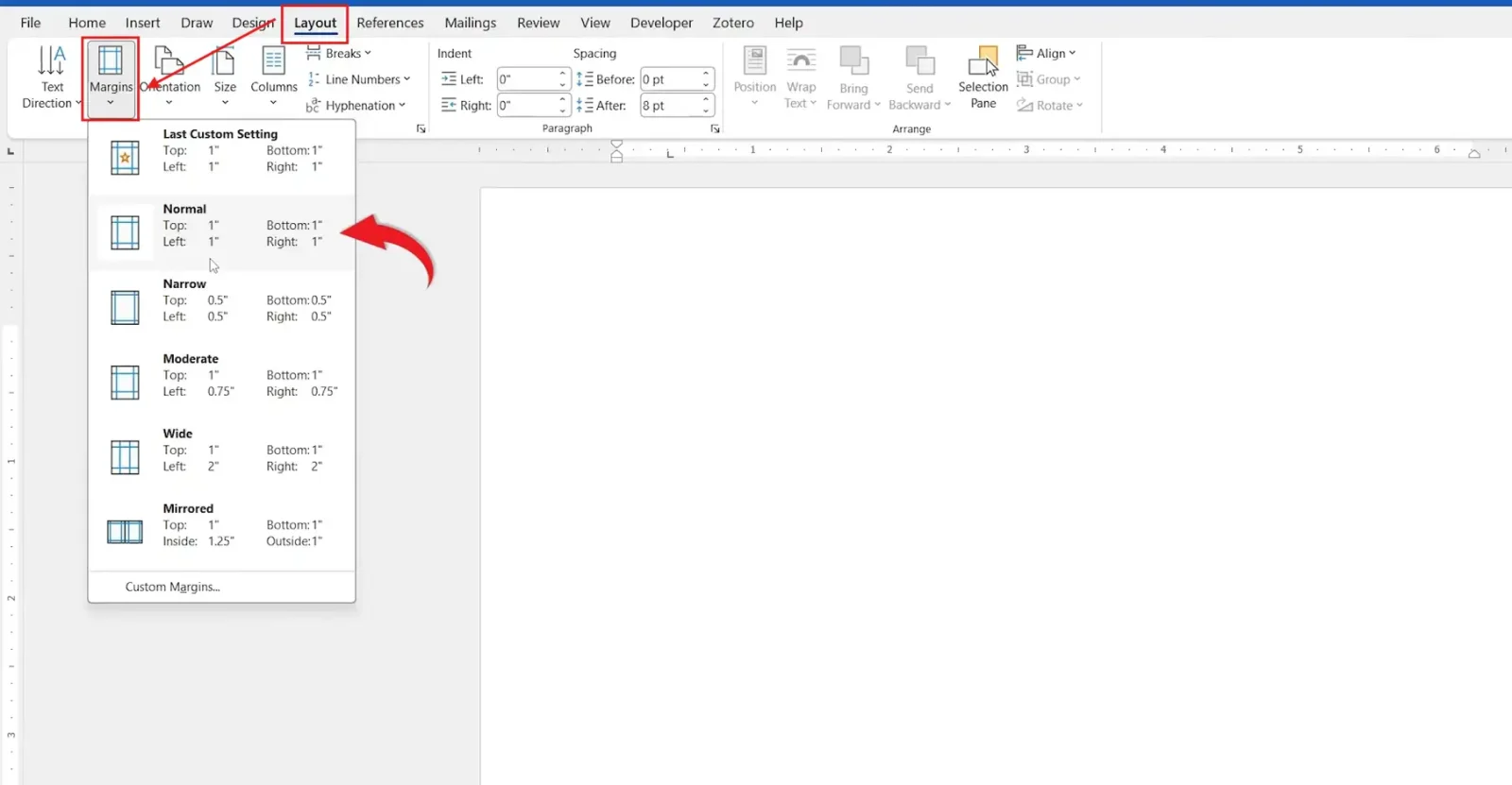
👉 If margins show as 1 in, 0.5 in, or 2 in, Word is currently using inches.
Method: How to Change Inches to Centimeters in Word via Word Options
This setting updates measurements across the whole application, not just the current document.
Step 1: Open Word Options
- Click File on the ribbon.
- Select Options to open the Word Options window.
Step 2: Open Advanced Settings
- Click Advanced in the left-hand menu.
- Scroll down to the Display section.
Step 3: Change the Measurement Unit
- Find Show measurements in units of.
- Open the dropdown and select Centimeters.
- Click OK to apply.
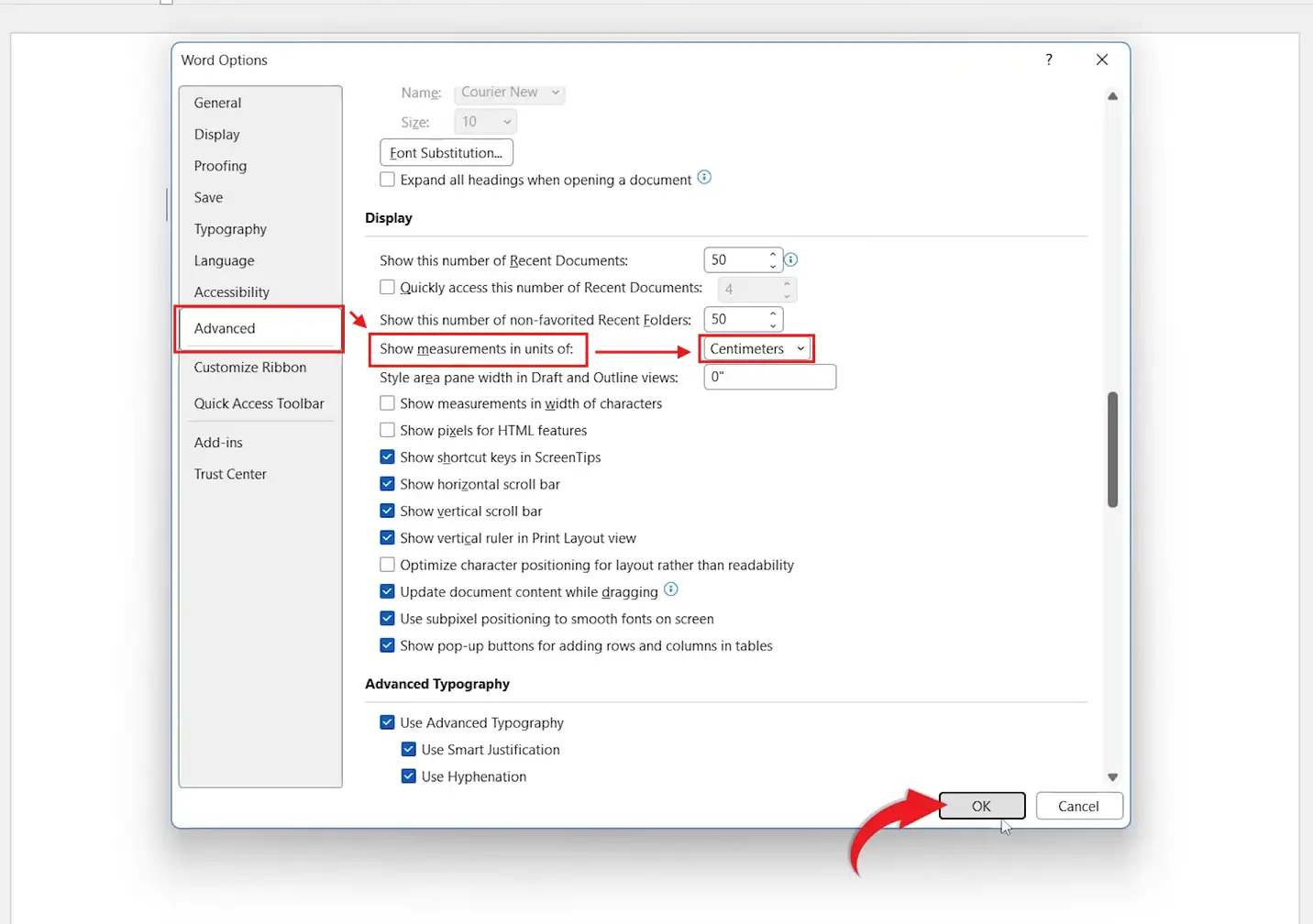
👉 Word now displays all measurements in centimeters. The dropdown also offers Inches, Millimeters, Points, and Picas if you need them.
Verify the Change Was Successful
- Click the Layout tab.
- Open Margins again.
👉 Values should now read in centimeters — for example, 2.54 cm instead of 1 in, and 1.27 cm instead of 0.5 in.
Which Unit Should You Use?
- Everyday metric documents? Use Centimeters.
- Precise technical layouts? Use Millimeters.
- US or imperial standards? Use Inches.
- Typography or print design? Use Points or Picas.
Common Problems When Changing Measurement Units in Word
Measurements Still Show in Inches
Save your work, close Word completely, then reopen it. The display sometimes refreshes only after a restart.
The Centimeters Option Is Missing
Make sure you’re in File → Options → Advanced → Display, not the regional settings. The unit dropdown lives in the Display section.
Margins Look Wrong After Switching Units
Nothing in your document actually moved. Word only converts the displayed numbers, so 1 in simply now reads as 2.54 cm.
The Setting Resets When You Reopen Word
On shared or IT-managed PCs, a profile policy can reset preferences at sign-out. Re-apply the setting, and ask your administrator if it keeps reverting.
Pro Tips for Measurement Units in Word
- The change is application-wide — every new and existing document will display in centimeters.
- You can type a unit directly in any dialog (e.g. “1.5 cm”) and Word converts it for you.
- Centimeters make indents far easier to set — see how to indent text in Word using exact metric values.
- Switch to Millimeters for very fine adjustments, then back to Centimeters for everyday work.
FAQs
How do I change inches to centimeters in Word?
To change inches to centimeters in Word, go to File → Options → Advanced → Display, then set Show measurements in units of to Centimeters and click OK.
Why does Word show my margins in inches?
Word displays inches when the measurement unit is set to Inches, which is the default in some regional installations. Changing the unit to Centimeters fixes it.
Do I need to restart Word after changing units?
Usually not, but if the new units don’t appear straight away, close and reopen Microsoft Word to refresh the display.
Does changing measurement units affect my document layout?
No. It only changes how measurements are displayed. The actual size and position of everything in your document stays the same.
Can I switch back to inches later?
Yes. Return to the same Display setting and select Inches to switch back at any time.
Can I show measurements in millimetres instead?
Yes. The same dropdown offers Millimeters, Points, and Picas alongside Centimeters and Inches.
Does this work in Microsoft 365?
Yes. The steps are identical in Microsoft 365 and recent versions of Word: File, Options, Advanced, Display.
Conclusion
Knowing how to change inches to centimeters in Word is a quick, one-time adjustment that makes metric formatting far easier.
Once your units display in centimeters, margins, indents, and object positions all become simpler to set precisely — which makes tasks like learning to create a hanging indent in Word much more intuitive.
Related Tutorials
- How to Insert a Picture in Word
- How to Set 1.5 Line Spacing in Word
- Microsoft Word Keyboard Shortcuts Cheat Sheet
Word Tutorials
Recent Microsoft Word Tutorials
Browse the complete collection for help with formatting, layout, pages, tables, images, and document setup.
For Microsoft support documentation, visit the official Microsoft guidance.
Leave a Reply