
To open two documents side by side in Word, open both files, then select View → View Side by Side in the Window group. Word tiles the two documents across the screen and links their scrolling so matching sections stay level.
In this guide, you’ll learn how to open two documents side by side in Word, how to switch Synchronous Scrolling on and off, and how to get back to a single full-width window when you are done.
What Does View Side by Side Do?
It arranges two open documents in vertical panes across your screen and, by default, ties their scrollbars together. Nothing is merged or changed — you are only altering how the two windows are positioned.
Three things this is good for:
- Checking two drafts of the same document against each other.
- Copying content between files without switching windows.
- Writing in one document while referring to another — notes, a brief, a source text.
One limitation worth knowing up front: this is a viewing tool, not a comparison tool. It shows you both documents but will not tell you what differs between them. For that, Word has a separate Review → Compare feature.
Watch the Video Tutorial
If you prefer to see this in action, the full video walkthrough is below, showing each method step by step.
How to Open Two Documents Side by Side in Word: Step-by-Step
Step 1 puts the documents side by side. Step 2 decides whether they move together. Both live in the same place on the View tab.
Step 1: How to Open Two Documents Side by Side in Word Using View Side by Side
Both documents must be open before you start. With only one open, View Side by Side is greyed out — Word has nothing to pair it with.
Open Both Documents
- Open the first document.
- Open the second document, so both are running in Word.
👉 With three or more documents open, Word asks which one to pair with the active document. Pick from the list and it uses that pair.
Select View Side by Side
- Select the View tab.
- Find the Window group towards the right of the ribbon.
- Select View Side by Side.
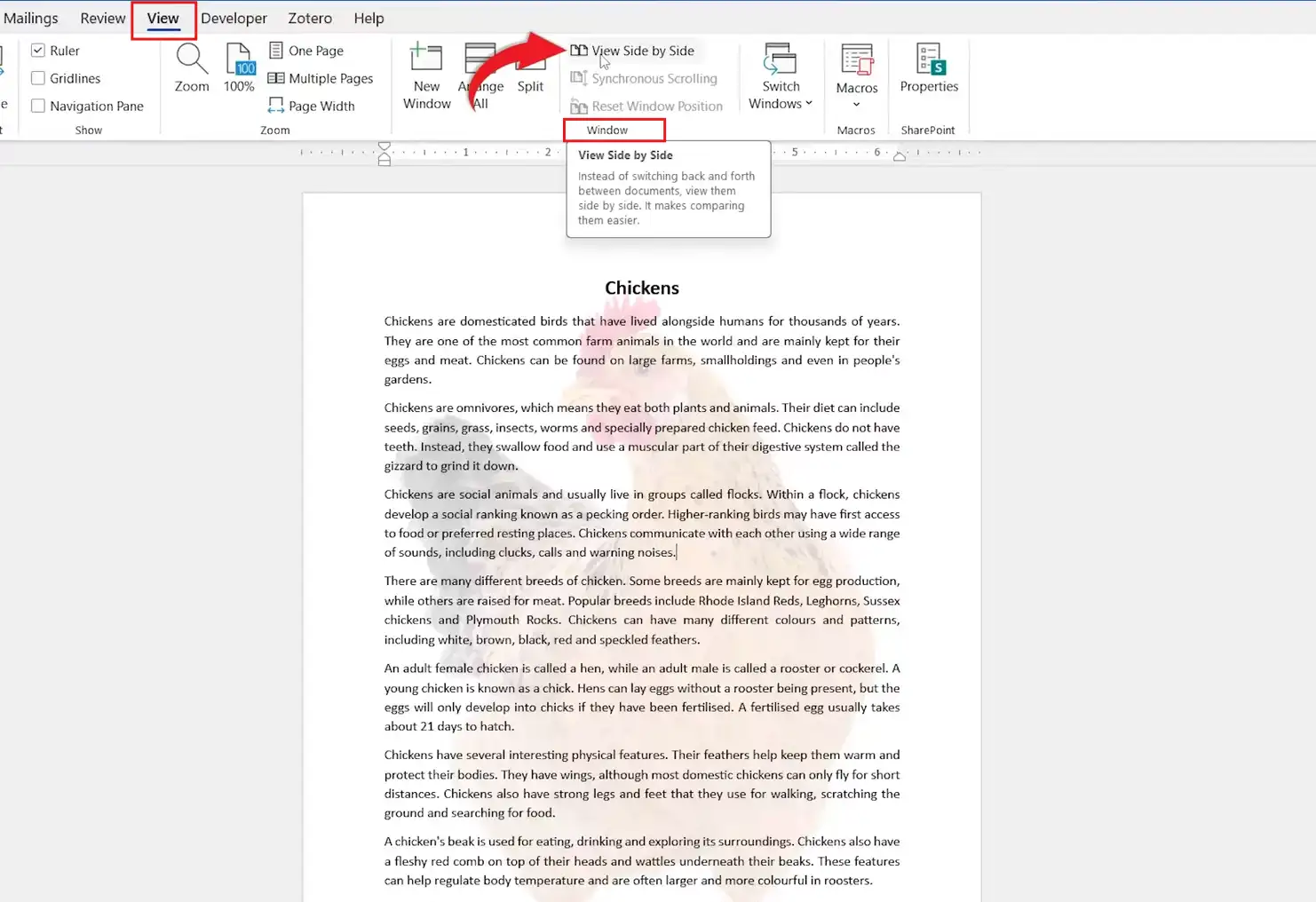
👉 Word tiles both documents immediately. The button stays highlighted while the view is active — selecting it again is how you exit.
Click inside either pane to make that document the active one. The ribbon then applies to whichever document you clicked, which matters as soon as you start editing rather than just reading — and if you end up wanting the content in one file, see how to merge documents in Word.
Step 2: Control Synchronous Scrolling
Word switches Synchronous Scrolling on automatically with side-by-side view. Scroll one document and the other follows. That is helpful for two versions of the same text and unhelpful for two unrelated files.
Turn Synchronous Scrolling Off
- Return to the View tab.
- Select Synchronous Scrolling in the Window group.
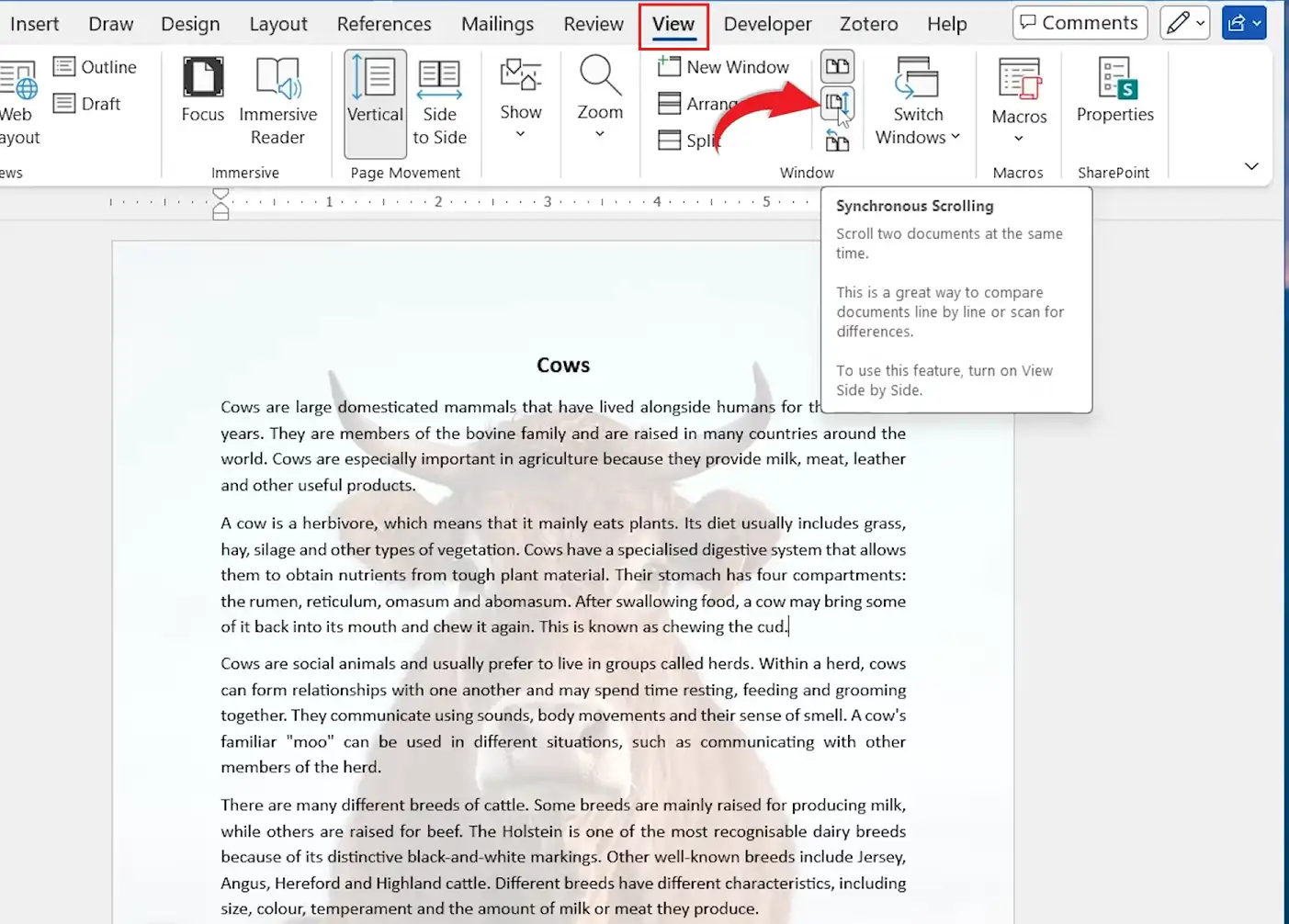
👉 It is a toggle. Each document now scrolls on its own, and selecting it again re-links them.
Reset the Window Position
If you have resized or dragged one of the panes and the layout looks uneven, select Reset Window Position in the same group. Word puts the two panes back to equal halves of the screen.
Which Setting Should You Use?
| Setting | Best For | Where It Is |
|---|---|---|
| View Side by Side | Displaying two open documents together | View → Window |
| Synchronous Scrolling on | Two versions of the same document | View → Window |
| Synchronous Scrolling off | Two unrelated documents | View → Window |
| Reset Window Position | Panes that have drifted out of alignment | View → Window |
Best choice: Leave synchronous scrolling on when the two files started as the same document. Switch it off for everything else — it fights you otherwise.
Common Problems When Opening Two Documents Side by Side in Word
View Side by Side Is Greyed Out
Only one document is open. Two files in two tabs of the same window still count as one document each — open the second file and the button becomes available.
Both Documents Scroll Together
That is the default, not a fault. Select View → Synchronous Scrolling to switch it off.
The Two Panes Are Different Sizes
One window has been resized or moved. Reset Window Position in the Window group restores them to equal halves without closing anything.
The Text Is Too Small to Read
Each pane is roughly half the width, so a full page no longer fits comfortably. Use the zoom slider at the bottom right of the active pane, or switch to Web Layout on the View tab — text reflows to the pane width instead of holding the page shape.
Pro Tips for Opening Two Documents Side by Side in Word
- Web Layout beats zooming out. Half-width panes suit reflowed text better than a shrunken page.
- Synchronous scrolling only tracks position, not content. Two documents of different lengths drift apart as you go.
- Drag and drop works between panes — select text in one, drag it into the other to move it, or hold Ctrl to copy instead.
- To see two parts of the same document, use View → Split rather than this feature.
- Comparing two drafts for actual differences is a different job — Review → Compare marks up what changed, and how to copy a Word document covers making the second version safely in the first place.
FAQs
How do I open two documents side by side in Word?
Open both files, then select View → View Side by Side in the Window group. Word tiles the two documents across the screen.
Why is View Side by Side greyed out in Word?
Only one document is open. The option needs two open documents before Word can pair them.
How do I stop two Word documents from scrolling together?
Select View → Synchronous Scrolling to toggle it off. Each document then scrolls independently.
Can I view two documents side by side if I have three open?
Yes. Word asks which document to pair with the active one and shows a list of the others to choose from.
How do I exit side-by-side view in Word?
Select View Side by Side again. It is a toggle, and the documents return to full-width windows.
Can I edit documents while viewing them side by side?
Yes. Click inside a pane to make that document active, then edit as normal. The ribbon applies to whichever pane you clicked.
How do I view two parts of the same document side by side?
Use View → Split instead. That divides one document into two scrollable panes within the same window.
Does View Side by Side show me what is different between two documents?
No. It only displays them together. Use Review → Compare to produce a marked-up document showing the actual differences.
Conclusion
To open two documents side by side in Word, open both files and select View → View Side by Side. Selecting it a second time closes the view — it is a toggle, not a mode you have to escape from.
Synchronous scrolling is on by default and is the one setting worth thinking about. Keep it for two versions of the same file; switch it off for anything else.
Once you have finished comparing and want the two files as one, see how to merge multiple Word documents into one file.
Related Tutorials
- How to Merge Documents in Word: 3 Easy Methods
- How to Copy a Word Document
- How to Rearrange Pages in Word
Word Tutorials
Recently Added on Word Made Easy
Browse the complete collection for help with formatting, layout, pages, tables, images, and document setup.
For Microsoft support documentation, visit the official Microsoft guidance.
Leave a Reply