
How to copy a Word document is useful when you want to create a second version without changing your original file. Word gives you two simple ways to do this: use Save As or copy the file directly on your computer.
In this guide, you’ll learn two easy methods for making a copy. The first creates a new version from inside Word, while the second lets you copy the file directly from your computer using either the right-click menu or Ctrl + C and Ctrl + V.
What Does Copying a Word Document Do?
When you copy a Word document, you create a separate file that you can edit without changing the original. This is particularly useful when you want to keep an earlier version before making major changes.
- Keep an original version as a backup.
- Create a new version of an existing document.
- Experiment with changes without affecting the original.
- Create another copy for a different purpose.
There are two straightforward approaches in this tutorial. You can use Save As inside Word, or copy and paste the file using File Explorer.
Watch the Video Tutorial
If you prefer to see this in action, the full video walkthrough is below, showing each method step by step.
How to Copy a Word Document: Step-by-Step
Before you begin, open the Word document you want to duplicate. You can then choose either of the methods below.
Method 1: How to Copy a Word Document Using Save As
The easiest way to make a new version from inside Word is to use Save As. This lets you give the copy a different name and save it wherever you want.
Open the Word document
Open the document you want to duplicate. This will be your original version.
👉 Once the document is open, you can create a separate version using Save As.
Select Save As
- Click File at the top of the ribbon.

- Select Save As.
- Choose where you want to save the new copy.
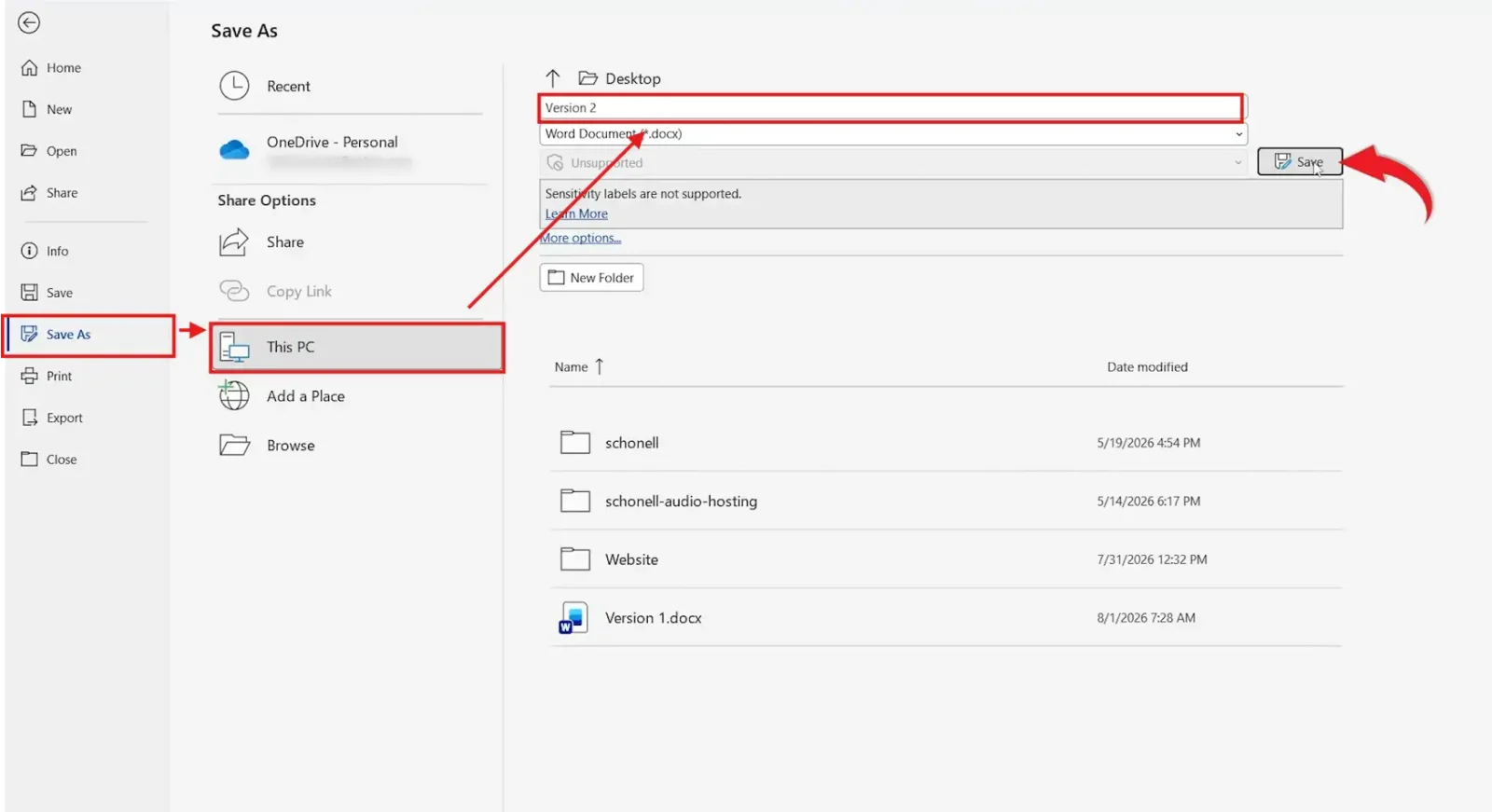
👉 Word will now let you choose a new name and location for your copy.
Give the copy a new name
Choose a new filename so you can distinguish the copy from the original. For example, if the original is Version 1, you could name the copy Version 2.
👉 Using a different filename makes it clear which document is the new version.
Save the new version
Click Save. Word creates the new file and opens the new version.
👉 The new version is now open, while your original document remains unchanged. You can also use how to merge documents in Word if you later need to combine separate Word files.
Method 2: How to Copy a Word Document Using File Explorer
You don’t have to open Word to make a copy. You can also find the document on your computer and copy the file directly.
Find the Word document on your computer
Open the folder containing the Word document you want to copy. You should see the original file in the folder.
👉 You can now copy the file without opening it in Word.
Copy and paste the Word file
- Right-click the Word document.
- Select Copy
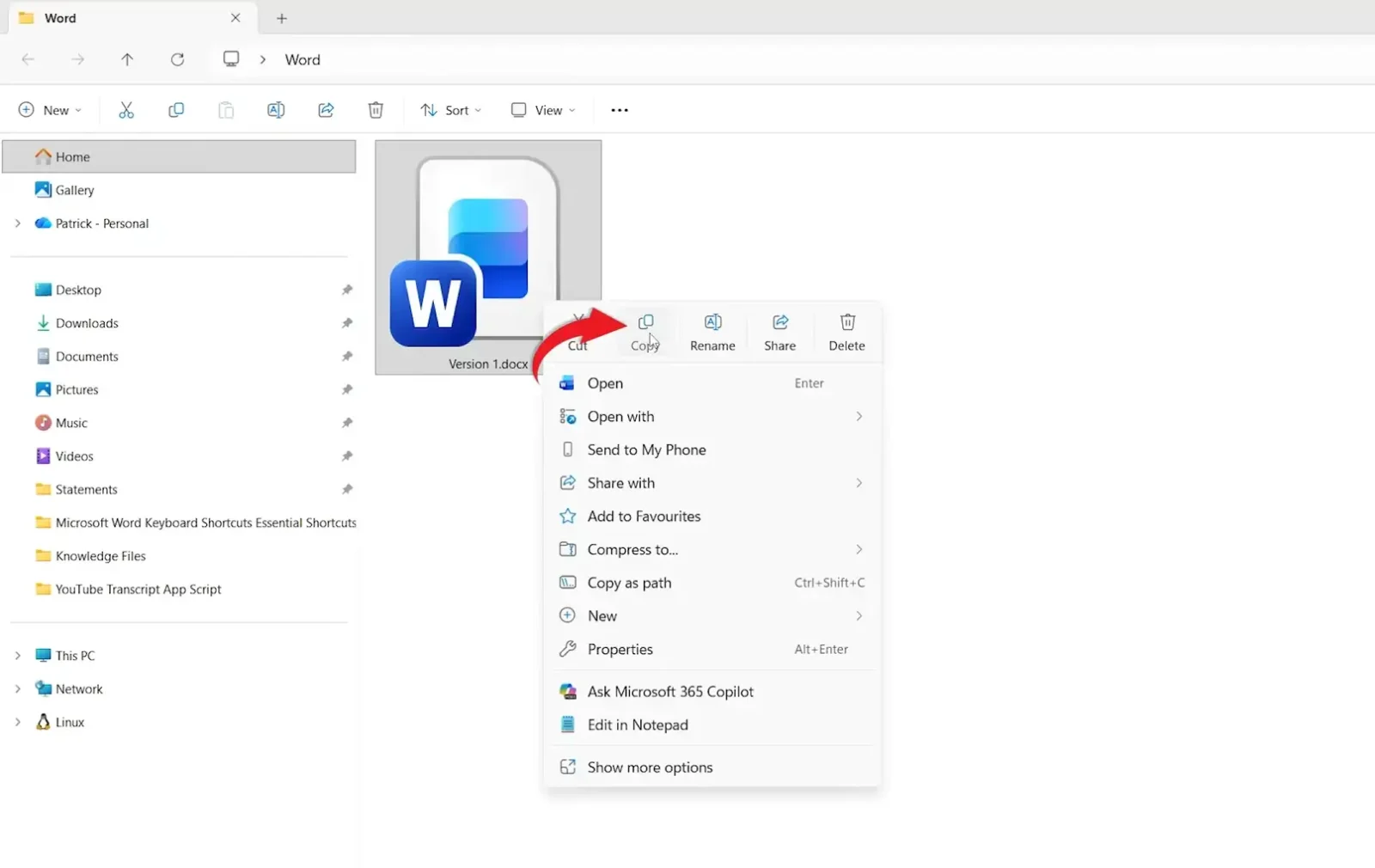
- Navigate to the folder where you want the copy.
- Right-click in an empty space.
- Select Paste.
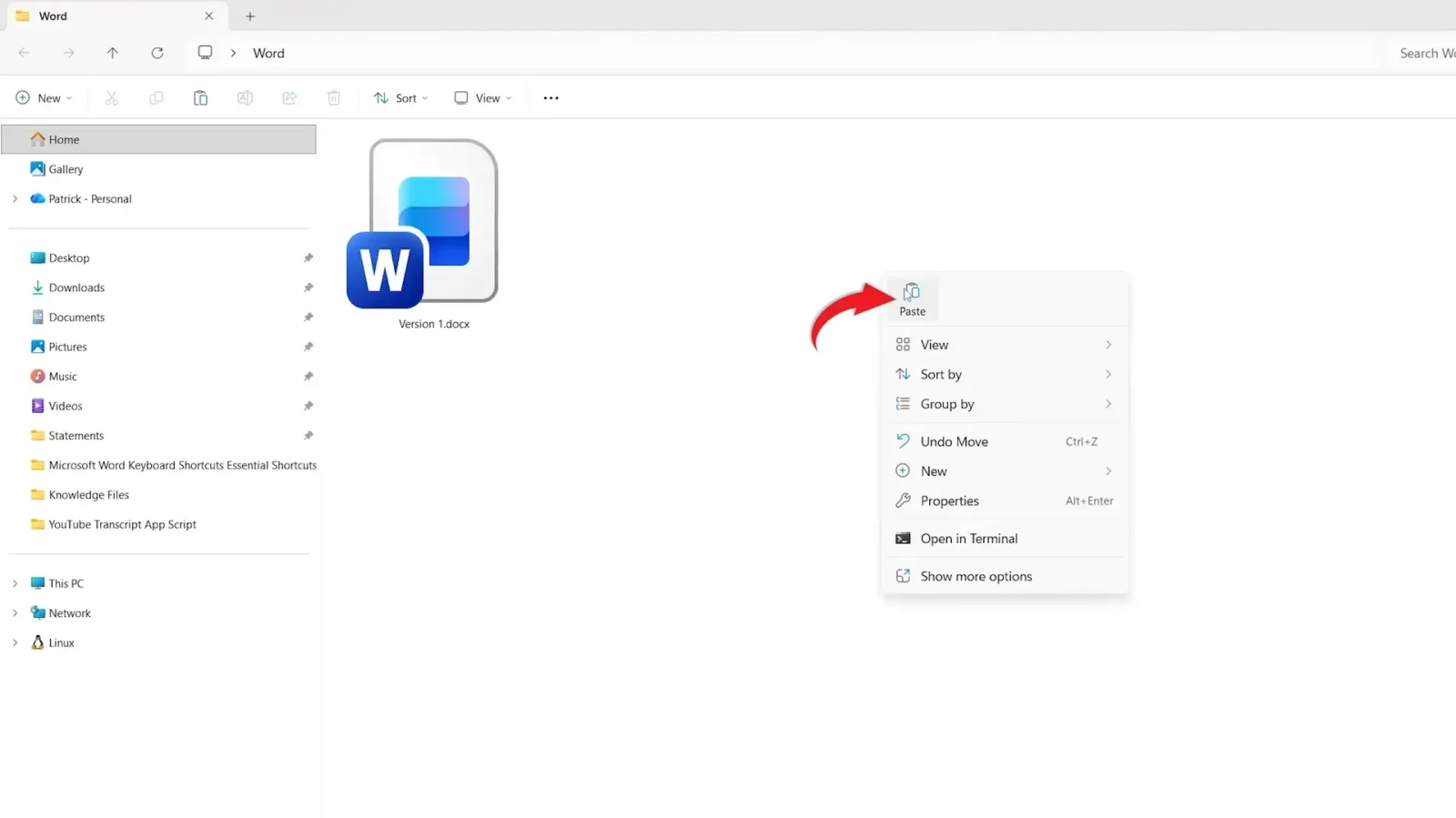
👉 A new copy of the Word document now appears in the folder.
Use keyboard shortcuts to copy the file
You can make the same copy even faster with keyboard shortcuts.
- Select the Word document.
- Press Ctrl + C to copy it.
- Click an empty area in the destination folder.
- Press Ctrl + V to paste the copy.
👉 The copied file will appear in the destination folder. You can then rename it if necessary.
For more everyday Word shortcuts, see Microsoft Word keyboard shortcuts cheat sheet.
Which Method Should You Use?
| Method | Best for | Main advantage |
|---|---|---|
| Save As | Creating a new version while working in Word | Choose a new filename and location immediately |
| Copy and Paste | Duplicating an existing file on your computer | Works without opening Word |
| Ctrl + C / Ctrl + V | Quick file duplication | Fastest method when using File Explorer |
My pick: Use Save As when you’re already editing the document and want to create a new version. Use copy and paste when the file is already saved and you simply need another copy.
Common Problems When Copying a Word Document
The original document changed
If you use Save rather than Save As, you’re still working on the same file. To create a separate version, use Save As and give the new file a different name.
I can’t find the copied file
Check the folder you selected as the destination. If you used Save As, check the location shown in the Save As window. If you used copy and paste, check the folder where you selected Paste.
The copy has the same name
When you copy and paste a file into the same folder, Windows normally gives the duplicate a modified filename. If you need a specific name, right-click the copied file and rename it.
Save As didn’t create a separate version
Check that you actually changed the filename or selected a different destination before saving. Then check the title bar to make sure you’re working with the new file.
Pro Tips for Copying a Word Document
- Give each version a meaningful filename, such as Report v1 and Report v2.
- Keep your original document unchanged if you’re experimenting with major edits.
- Use Ctrl + C and Ctrl + V when you want to duplicate a file quickly.
- If you need a duplicate of a page rather than the entire file, see how to duplicate a page in Word.
- Keep important versions in clearly named folders so they’re easy to find later.
👉 If you regularly work with multiple versions, a consistent naming system can make your documents much easier to manage.
Frequently Asked Questions
How to copy a Word document?
To learn how to copy a Word document, either use File → Save As to create a new version or find the file on your computer and use Ctrl + C followed by Ctrl + V.
How do I make a copy of a Word document?
Open the document, select File → Save As, choose where to save it, give it a new filename, and click Save. This creates a separate version while keeping the original file.
How do I duplicate a Word document?
You can duplicate a Word document by using Save As inside Word or by copying and pasting the file in File Explorer.
How do I copy a Word document with the keyboard?
Select the Word document in File Explorer and press Ctrl + C. Navigate to the destination folder and press Ctrl + V to create the copy.
Does Save As make a copy of a Word document?
Yes. When you use Save As and save the document with a new filename or in another location, Word creates a separate file. Your original document remains available.
How do I copy a Word document without opening it?
Find the file on your computer, right-click it, select Copy, right-click in the destination folder, and select Paste. You can also use Ctrl + C and Ctrl + V.
How do I create a second version of a Word document?
Open the original document and select File → Save As. Give the new file a different name, such as Version 2, and click Save.
Can I copy a Word document to another folder?
Yes. Find the document in File Explorer, select Copy, open the destination folder, and select Paste. The original remains in its existing location.
Conclusion
How to copy a Word document doesn’t have to be complicated. If you’re already working in Word, use File → Save As and give the new version a different name.
If the file is already saved on your computer, you can copy it directly from File Explorer using the right-click menu or the Ctrl + C and Ctrl + V keyboard shortcuts.
Both methods create a separate copy while leaving the original available. If you’re working with several Word files, you may also find how to merge documents in Word useful for managing your files.
New to Word? This tutorial goes with Chapter 2 of the free Microsoft Word Beginners Hub: Create, save and open documents. It covers the basics step by step, with screenshots, short videos and practice files.
Related Tutorials
- How to Cut, Copy and Paste in Microsoft Word
- How to Duplicate a Page in Word
- How to Merge Documents in Word
Word Tutorials
Recently Added on Word Made Easy
Browse the complete collection for help with formatting, layout, pages, tables, images, and document setup.
For Microsoft support documentation, visit the official Microsoft guidance.
Leave a Reply