Start a document, save it where you choose, and find it again whenever you need it. Here is how to save a Word document so you never lose your work.
In this chapter
Start a new document, blank or from a template
Save a document to OneDrive or to your PC
Rename a document and see where it is saved
Find and open a document again
Close a document and know your file types
Before you start: Open wme-guide-chapter-02-start.docx. If you see Enable Editing, click it. You will use it in the Try it task. For the saving steps, use the new document you make in the first task, or press Ctrl + N for a new blank one.
Using your own document? The steps use the practice newsletter, but they work the same on any document. Wherever a step names part of the newsletter, such as the title or the date, use the matching text in your own document.
Start a new document
You can start with an empty page or with a template. A template is a ready-made design that you fill in with your own words.
Click the File tab.The File screen opens.
Click New in the list on the left.Click New (2), then choose a template (3).You see Blank document and a choice of templates.
Click a template you like, such as a newsletter or a flyer.A larger preview opens.
Click Create.A new document opens with the design and some sample text.
Save your document
Saving keeps your work so that you can open it again later. Before you save, it helps to know about OneDrive and AutoSave.
OneDrive is Microsoft’s online storage. Files kept there are safe if your computer breaks, and you can open them on other devices.
AutoSave is the switch at the top left of the window. When it is On, Word saves your changes every few seconds. AutoSave only works for files kept in OneDrive or SharePoint. For a file saved on your PC, the switch stays Off.
Follow these steps the first time you save a document.
Press Ctrl + S.A small Save window opens.
Type a clear name in the File name box, such as Riverside News October.Type a name (2), choose a location (3), then click Save (4).
Click the location box below the name and choose where to save. Choose a OneDrive folder to keep AutoSave on, or Documents on your PC. If your folder isn’t in the list, click More options, then Browse.
Click Save. If the button says Confirm, click Confirm.The new name appears in the title bar.You should see: The title bar now shows your file name.
After the first save, keep saving as you work. If AutoSave is on, Word does this for you. If AutoSave is off, press Ctrl + S every few minutes. Word saves over the same file without asking again.
Mac and Word for the web: On a Mac, press Cmd + S. Word for the web always saves to OneDrive as you type, so it has no Save button.
Rename a document and see where it is saved
A good name helps you find a file again. You can rename a document without leaving Word.
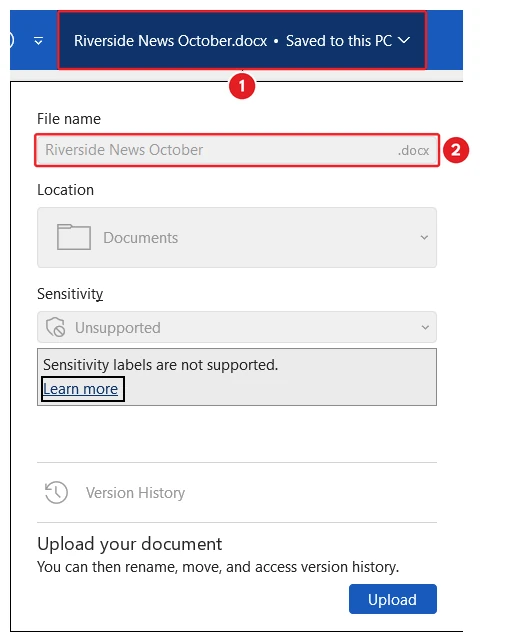
Click the document’s name in the title bar.Click the name (1), type a new one in the File name box (2). The location line shows where the file is.A small panel drops down showing the name and where the file is saved.
Click in the File name box and type the new name.
Press Enter.The new name appears in the title bar.
Renaming here works only for files saved in OneDrive. For a file on your PC, close it in Word first. Then rename it in File Explorer. Never rename or move a file while it is open in Word.
Open a recent document
Word keeps a list of the documents you used recently. This is often the quickest way back to your work.
Click the File tab.
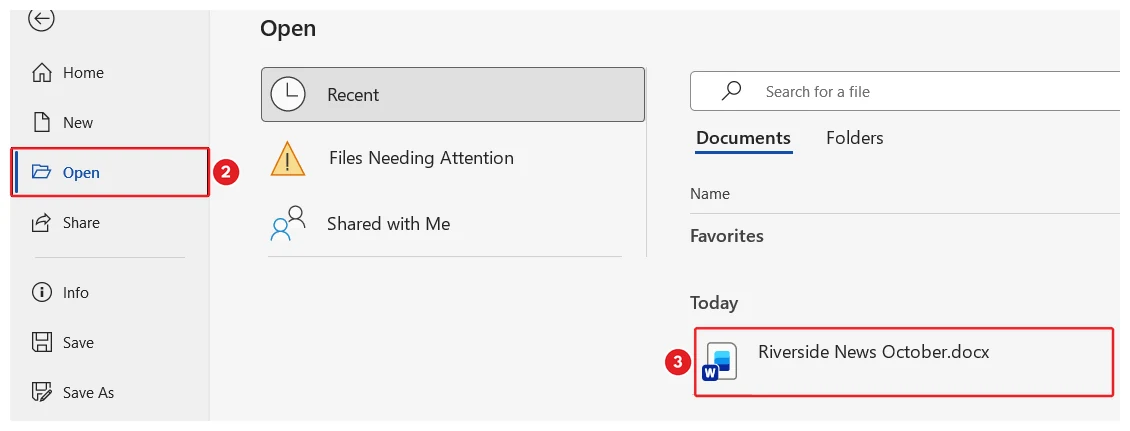
Click Open.Click Open (2), then click your document in the Recent list (3).The Recent list shows the documents you opened lately.
Click the name of the document you want.The document opens.
Open a document from a folder
If your document isn’t in the Recent list, look for it in the place where you saved it.
On the Open screen, click OneDrive or This PC, depending on where you saved it.
Click through the folders until you see your document.
Click the document.The document opens.
A file you download or open from an email may open in Protected View. A message bar says the file came from the internet. If you trust the file, click Enable Editing so that you can change it.
Close a document
Closing a document puts it away when you have finished. Word checks that your work is saved first.
Click the File tab.
Click Close.The document closes, or Word asks whether to save your changes.
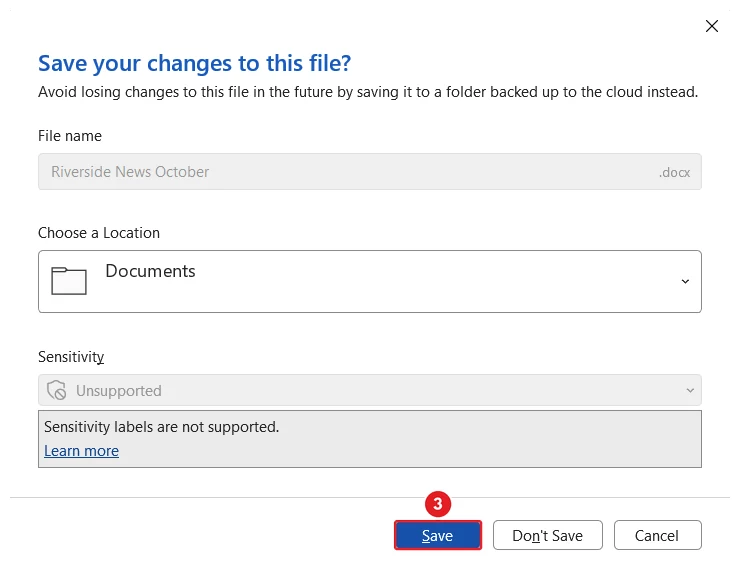
If Word asks, click Save to keep your changes.If Word asks, click Save (3).The document saves and closes.
You can also press Ctrl + W to close the document you are using.
Know your file types
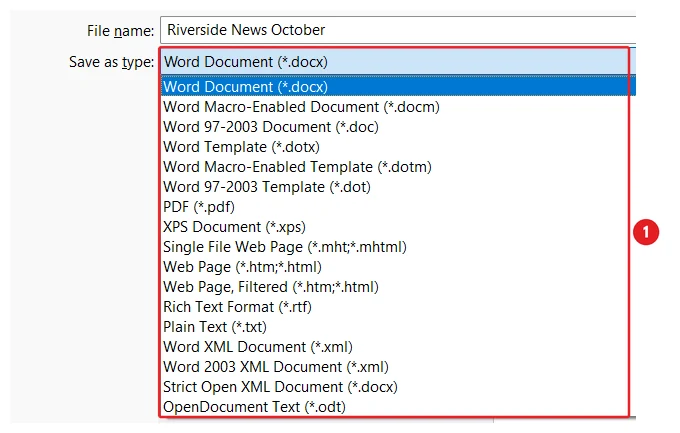
The letters after the dot in a file name show the file type. Windows may hide them, but Word lets you choose them when you save.
.docx is the normal Word document. Word uses it unless you choose something else.
.doc is the older Word format. When you open one, the title bar may say Compatibility Mode, and AutoSave won’t work. Save a copy as .docx to use every feature.
.pdf is a fixed copy that looks the same on every device. It is good for sharing and printing, but hard to edit. Chapter 11 shows you how to make one.
To pick a type, use File > Save As > Browse. Then choose from the Save as type list before you click Save.
To provide the best experiences, we and our partners use technologies like cookies to store and/or access device information. Consenting to these technologies will allow us and our partners to process personal data such as browsing behavior or unique IDs on this site and show (non-) personalized ads. Not consenting or withdrawing consent, may adversely affect certain features and functions.
Click below to consent to the above or make granular choices. Your choices will be applied to this site only. You can change your settings at any time, including withdrawing your consent, by using the toggles on the Cookie Policy, or by clicking on the manage consent button at the bottom of the screen.
Functional
Always active
The technical storage or access is strictly necessary for the legitimate purpose of enabling the use of a specific service explicitly requested by the subscriber or user, or for the sole purpose of carrying out the transmission of a communication over an electronic communications network.
Preferences
The technical storage or access is necessary for the legitimate purpose of storing preferences that are not requested by the subscriber or user.
Statistics
The technical storage or access that is used exclusively for statistical purposes.The technical storage or access that is used exclusively for anonymous statistical purposes. Without a subpoena, voluntary compliance on the part of your Internet Service Provider, or additional records from a third party, information stored or retrieved for this purpose alone cannot usually be used to identify you.
Marketing
The technical storage or access is required to create user profiles to send advertising, or to track the user on a website or across several websites for similar marketing purposes.
To provide the best experiences, we use technologies like cookies to store and/or access device information. Consenting to these technologies will allow us to process data such as browsing behavior or unique IDs on this site. Not consenting or withdrawing consent, may adversely affect certain features and functions.
Functional
Always active
The technical storage or access is strictly necessary for the legitimate purpose of enabling the use of a specific service explicitly requested by the subscriber or user, or for the sole purpose of carrying out the transmission of a communication over an electronic communications network.
Preferences
The technical storage or access is necessary for the legitimate purpose of storing preferences that are not requested by the subscriber or user.
Statistics
The technical storage or access that is used exclusively for statistical purposes.The technical storage or access that is used exclusively for anonymous statistical purposes. Without a subpoena, voluntary compliance on the part of your Internet Service Provider, or additional records from a third party, information stored or retrieved for this purpose alone cannot usually be used to identify you.
Marketing
The technical storage or access is required to create user profiles to send advertising, or to track the user on a website or across several websites for similar marketing purposes.




 2:29
2:29