
Learning how to copy and paste in Word is one of the first skills that makes editing faster — whether you’re moving a paragraph, duplicating content, or rearranging sections. Microsoft Word gives you three quick ways to cut, copy and paste, and pairing them with the Microsoft Word keyboard shortcuts cheat sheet will speed you up even more.
In this guide, you’ll learn what cut, copy, and paste mean, three methods to copy and paste in Word, and the keyboard shortcuts that save the most time.
What Do Cut, Copy, and Paste Mean?
Each command does something slightly different:
- Cut removes the selected content and stores it temporarily so you can move it elsewhere.
- Copy duplicates the selection while leaving the original in place.
- Paste inserts whatever you cut or copied into a new location.
In short: cut moves content, copy duplicates it, and paste places it. All three work together every time you copy and paste in Word.
Watch the Video Tutorial
If you prefer to see this in action, the full video walkthrough is below, showing each method step by step.
How to Copy and Paste in Word: Step-by-Step
There are three ways to copy and paste in Word — the ribbon, keyboard shortcuts, and the right-click menu. Each one also handles cutting, so you can move content just as easily as duplicate it.
Method 1: How to Copy and Paste in Word Using the Ribbon
The ribbon is the most visual method. Every command lives in the Clipboard group on the Home tab. Start by highlighting the text, image, or object you want to work with.
Copy with the Ribbon
- Select your content.
- Go to the Home tab.
- Click Copy in the Clipboard group.
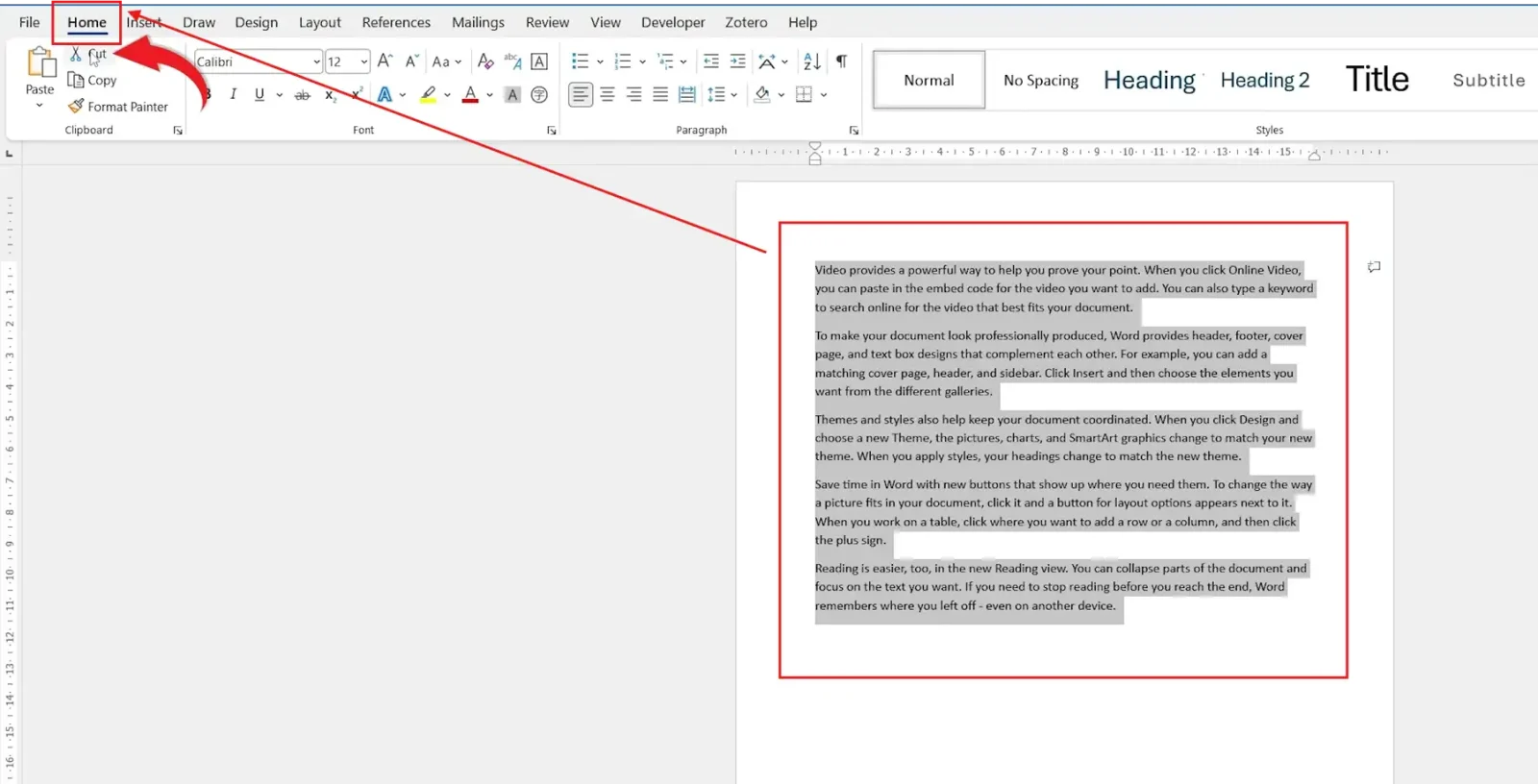
👉 The selection is now stored on the clipboard, ready to paste.
Cut with the Ribbon
- Select the content you want to move.
- On the Home tab, click Cut.

👉 The content disappears from its original spot and waits on the clipboard.
Paste with the Ribbon
- Click where you want the content to appear.
- On the Home tab, click Paste.
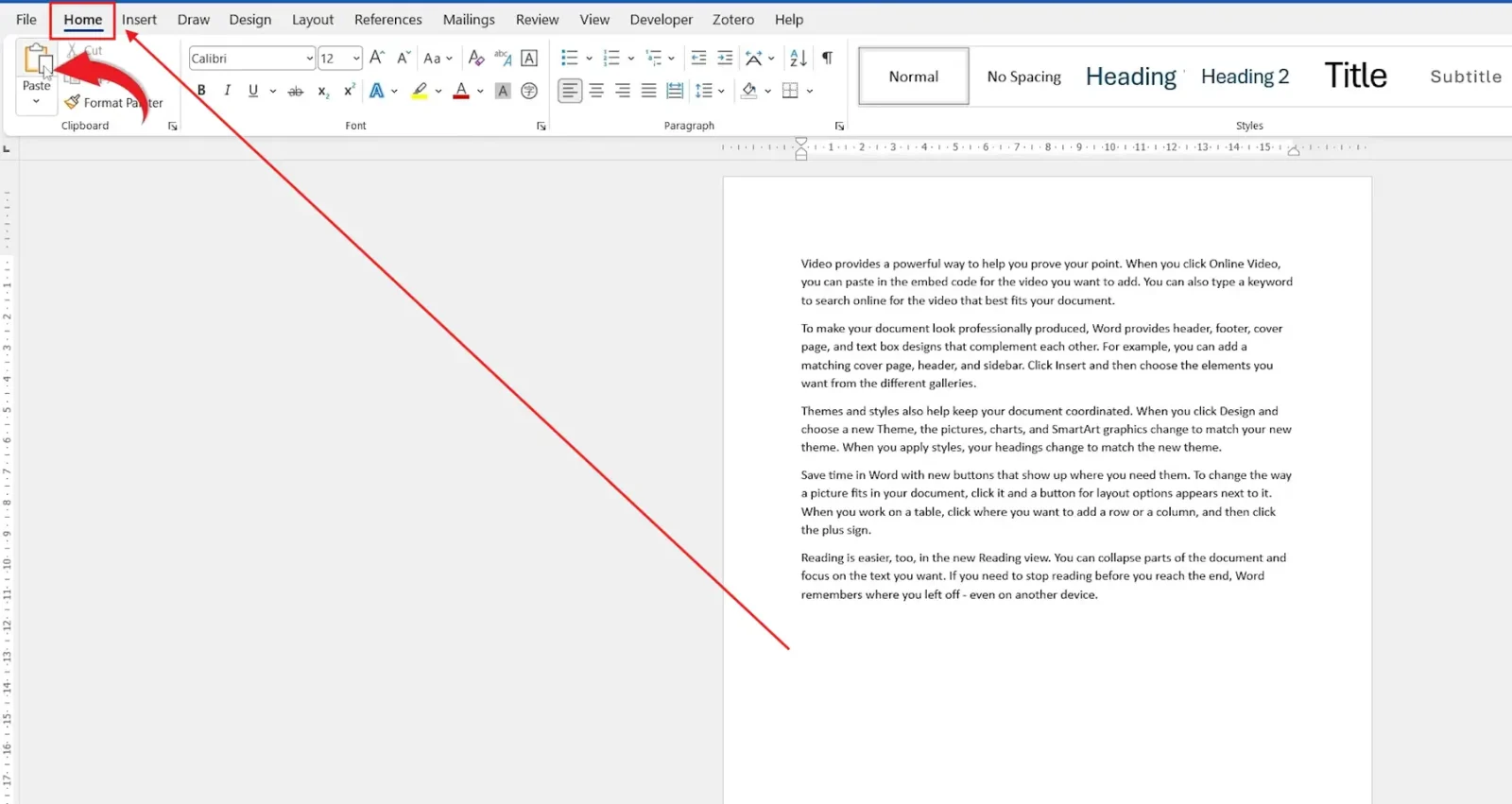
👉 Your copied or cut content appears instantly in the new location.
Method 2: How to Copy and Paste in Word Using Keyboard Shortcuts
Shortcuts are the fastest way to copy and paste in Word. Select your content first, then use:
| Action | Shortcut |
|---|---|
| Copy | Ctrl + C |
| Cut | Ctrl + X |
| Paste | Ctrl + V |
| Select All | Ctrl + A |
👉 Press Ctrl + C (or Ctrl + X) to capture the selection, click the new spot, then press Ctrl + V to paste.
Method 3: How to Copy and Paste in Word Using Right-Click
If you prefer the mouse, the right-click menu keeps everything in one place.
- Select your content.
- Right-click the selection.
- Choose Cut, Copy, or Paste from the menu.
👉 This is handy on a laptop trackpad where reaching for shortcuts is awkward.
Which Method Should You Use?
- New to Word or prefer visual buttons? Use Method 1 (the ribbon).
- Editing quickly and often? Use Method 2 (keyboard shortcuts) — by far the fastest.
- Working mostly with a mouse or trackpad? Use Method 3 (right-click).
Understanding Paste Options in Word
When you paste, Word often shows a small Paste Options button. The most-used choice is Keep Source Formatting, which preserves the original font styles, colours, sizes, and spacing.
If you’d rather copy only the look of text — not the text itself — you can use the Format Painter in Word instead.
Can You Copy and Paste More Than Text?
Yes. Anything you can select in Word can usually be cut, copied, and pasted, including:
- Images and shapes
- Tables and charts
- SmartArt graphics and text boxes
The same commands work for pictures too — once you insert a picture in Word, you can copy and paste it anywhere in your document.
Common Problems When You Copy and Paste in Word
Copy and Paste Is Not Working
Close any other open apps that may be locking the clipboard, then restart Word. A quick restart clears most clipboard glitches.
Pasted Text Has the Wrong Formatting
Click the Paste Options button that appears after pasting and choose Keep Text Only to strip unwanted styles, or Keep Source Formatting to match the original.
Ctrl + V Pastes Something Unexpected
Your clipboard may still hold an earlier item. Copy the content again with Ctrl + C immediately before pasting to be sure.
Cut Removes Content but Nothing Pastes
If you cut content but copied something else before pasting, the cut item is overwritten. Cut, then paste straight away with Ctrl + V before copying anything new.
Pro Tips for Copy and Paste in Word
- Press Ctrl + A to select an entire document before copying it elsewhere.
- Open the Office Clipboard (the arrow in the Clipboard group) to paste up to 24 recent items.
- Need an exact duplicate of a whole page? Copying and pasting works, but it’s often quicker to duplicate a page in Word directly.
- Use Ctrl + Z to undo a paste instantly if it lands in the wrong place.
FAQs
How do I copy and paste in Word?
To copy and paste in Word, select your content, press Ctrl + C (or click Copy on the Home tab), click the new location, then press Ctrl + V to paste.
What is the difference between cut and copy?
Cut removes content from its original location, while copy creates a duplicate and leaves the original in place. Both store the content on the clipboard ready to paste.
What is the keyboard shortcut to copy and paste in Word?
Use Ctrl + C to copy, Ctrl + X to cut, and Ctrl + V to paste.
Why does my pasted text look different?
Your pasted text picked up a different paste option. Choose Keep Source Formatting to preserve the original look, or Keep Text Only to match the destination.
Can I cut and paste images in Word?
Yes. Word supports cutting, copying, and pasting images, shapes, tables, and other objects using the same commands and shortcuts as text.
How do I copy and paste without formatting in Word?
After pasting, click the Paste Options button and select Keep Text Only, or press Ctrl + Shift + V in newer versions to paste plain text.
Why is copy and paste not working in Word?
A frozen clipboard, an add-in conflict, or another open program can block it. Restart Word, and if needed restart your computer, to clear the clipboard.
Conclusion
Knowing how to copy and paste in Word is one of the most valuable skills for editing faster and keeping your formatting consistent.
Whether you move text with Cut, duplicate it with Copy, or place it with Paste, combining the ribbon, keyboard shortcuts, and right-click menu lets you edit with confidence. Once you’re comfortable, the same clipboard skills make it easy to merge multiple Word documents into one file.
Related Tutorials

Recent Microsoft Word Tutorials

Looking for more help with Microsoft Word? Browse all step-by-step Word tutorials covering formatting, layout, pages, and document setup.
👉 View all Microsoft Word tutorials: https://wordmadeeasy.org/microsoft-word/
👉 Need more support – check out the official guidance: https://support.microsoft.com/en-au

Prefer watching instead of reading? Many Word tutorials are also available as short, step-by-step videos on the Word Made Easy YouTube channel.




Leave a Reply