
You can merge documents in Word into a single file in seconds, without copying and pasting each one by hand. If you are compiling a long report, it is also the right moment to create a table of contents in Word so the finished file is easy to navigate.
In this guide, you’ll learn three fast methods to combine multiple Word files: Text from File for large batches, copy and paste for full control, and drag and drop for two open documents.
Why Merge Word Documents?
Merging combines several separate Word files into one continuous document, so everything opens, edits, and prints together. It is faster and cleaner than pasting content one file at a time.
It is especially useful for:
- Reports and fact files built from separate sections
- Assignments and training materials
- Compiling chapters into one manuscript
- Combining drafts from multiple contributors
Watch the Video Tutorial
If you prefer to see this in action, the full video walkthrough is below, showing each method step by step.
How to Merge Documents in Word: Step-by-Step
There are three reliable ways to merge documents in Word. Use the method that matches how many files you are combining and how much control you need over the result.
Method 1: How to Merge Documents in Word Using Text from File
This is the fastest method for combining many files at once. Word pulls the full contents of each file into a single document.
- Open Microsoft Word and make sure the files you want to combine are saved.
- Create a new blank document. Go to File → New → Blank document. This becomes the master file.

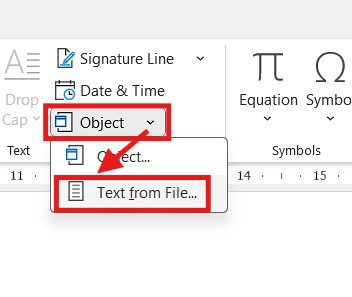
- On the ribbon, click Insert, then click the Object drop-down arrow and choose Text from File.
- Select all the Word documents you want to combine.
- Click Insert. Word adds the contents of each selected file into your master document.

👉 All selected files are now combined into one document. This is the fastest method by far when you are merging several files at once.
Method 2: How to Merge Documents in Word by Copying and Pasting
Copy and paste gives you full control over exactly where each block of content lands. It suits merging two or three files.
- Open your master document and the file you want to add.
- In the second file, press Ctrl + A to select everything, then Ctrl + C to copy.
- Switch to the master document, click where the content should go, and press Ctrl + V.
- Repeat for each remaining file.
👉 The copied content appears exactly where you placed the cursor. Use Paste Options → Keep Source Formatting if the styles need to match the original.
Method 3: How to Merge Documents in Word Using Drag and Drop
Drag and drop is quickest when you only need to combine two open documents.
- Open both documents. On the View tab, click Arrange All so the windows sit side by side.
- In the source document, press Ctrl + A to select the text.
- Hold the mouse button and drag the selection into the target document at the insertion point.
- Release to drop the content into place.
👉 The dragged text moves straight into the target document. Hold Ctrl while dragging to copy the text instead of moving it.
Which Method Should You Use?
| Method | Best For |
|---|---|
| Text from File | Merging many files at once, quickly |
| Copy and Paste | Two or three files where you control placement |
| Drag and Drop | Two documents open on screen together |
Common Problems When Merging Word Documents
Formatting Changes After Merging
Files built with different styles can shift on merge. Use Text from File, then apply one consistent style set, or use Clear All Formatting on affected sections and reapply your headings.
Documents Merge in the Wrong Order
Word inserts files in the order you select them. Rename the files numerically (01, 02, 03) before selecting so the sequence is correct.
Images or Tables Shift Position
Embedded images and tables usually carry over, but wrapping can change. Check each image’s text wrapping and review tables after merging.
Extra Blank Pages Appear Between Files
Merged files can leave stray page or section breaks. Turn on formatting marks with Ctrl + Shift + 8, then delete any unwanted breaks.
Pro Tips for Merging Word Documents
- Save the master document first, so every insert is captured in one file.
- Apply the same heading styles across all files before merging for a seamless result.
- Set your page layout once on the master file — for a consistent finish, adjust the margins in Word before you insert anything.
- Use Text from File for large batches; it is far quicker than pasting file by file.
FAQs
How do I merge documents in Word?
To merge documents in Word, open a blank document, then go to Insert, click the Object drop-down, and choose Text from File. Select the Word files you want to combine and click Insert to pull them all into one document.
Does merging Word documents change the formatting?
Sometimes. Most formatting is kept, but headings, spacing, or styles may need small adjustments after merging — especially if the original files use different styles.
Can I merge Word documents in a specific order?
Yes. Documents merge in the order you select them, so rename the files numerically first to control the sequence. If your merged document has several sections, you may also want to insert different page numbers for each part.
Is Text from File faster than copying and pasting?
Yes. Text from File is much faster than copying and pasting, especially when you are combining many documents at once.
Can I merge Word documents with images and tables?
Yes. Images, tables, and most embedded content are included when you merge documents, but review the final file to make sure everything appears correctly.
Does this work on all versions of Microsoft Word?
This method works in most modern versions, including Word 2016, 2019, 2021, and Microsoft 365 on Windows.
Can I undo a merge if something goes wrong?
Yes. Press Ctrl + Z straight away to undo the merge, or close the document without saving and start again.
Can I merge Word documents on a Mac?
Yes, but the steps differ slightly. Mac users can still insert text from files, though some menu labels and locations vary.
Conclusion
You can merge documents in Word in seconds using Text from File, copy and paste, or drag and drop. Text from File is the fastest for large batches, while copy and paste gives you the most control.
Once your files are combined, do a quick pass to tidy headings and spacing. If any of your source material is a PDF, you can also convert a PDF to Word first and merge it in the same way.
Related Tutorials
- How to Create a Table of Contents in Word
- How to Save a Word Document as a PDF
- How to Align Text in Word
Word Tutorials
Recent Microsoft Word Tutorials
Browse the complete collection for help with formatting, layout, pages, tables, images, and document setup.
For Microsoft support documentation, visit the official Microsoft guidance.
Leave a Reply