
The long bond paper size in Word is 8.5 × 13 inches. Word may not show this as a ready-made paper size, but you can create it by entering the width and height manually.
In this guide, you’ll learn how to set the page to long bond paper, save the setting for your document, and check that the correct custom size has been applied.
What Is the Long Bond Paper Size in Word?
The long bond paper size in Word uses a width of 8.5 inches and a height of 13 inches. Depending on where you live, you may also hear this size called F4 or Folio.
Word may start with another paper size, such as A4. If the size you need isn’t listed, you can create a custom paper size instead.
- Width: 8.5 inches
- Height: 13 inches
- Type: Custom paper size
Watch the Video Tutorial
If you prefer to see this in action, the full video walkthrough is below, showing each method step by step.
How to Set Long Bond Paper Size in Word: Step-by-Step
There are two simple parts to the process: open the paper size settings and enter the custom width and height.
Method 1: How to Set Long Bond Paper Size in Word from Layout
This is the main method from the video. You can change the paper size directly from the Layout tab.
- Open your Word document.
- Click the Layout tab at the top of the ribbon.
- Click Size.

👉 If long bond isn’t listed in the menu, don’t worry. You can enter the dimensions yourself.
Open More Paper Sizes
- Scroll to the bottom of the Size menu.
- Click More Paper Sizes.
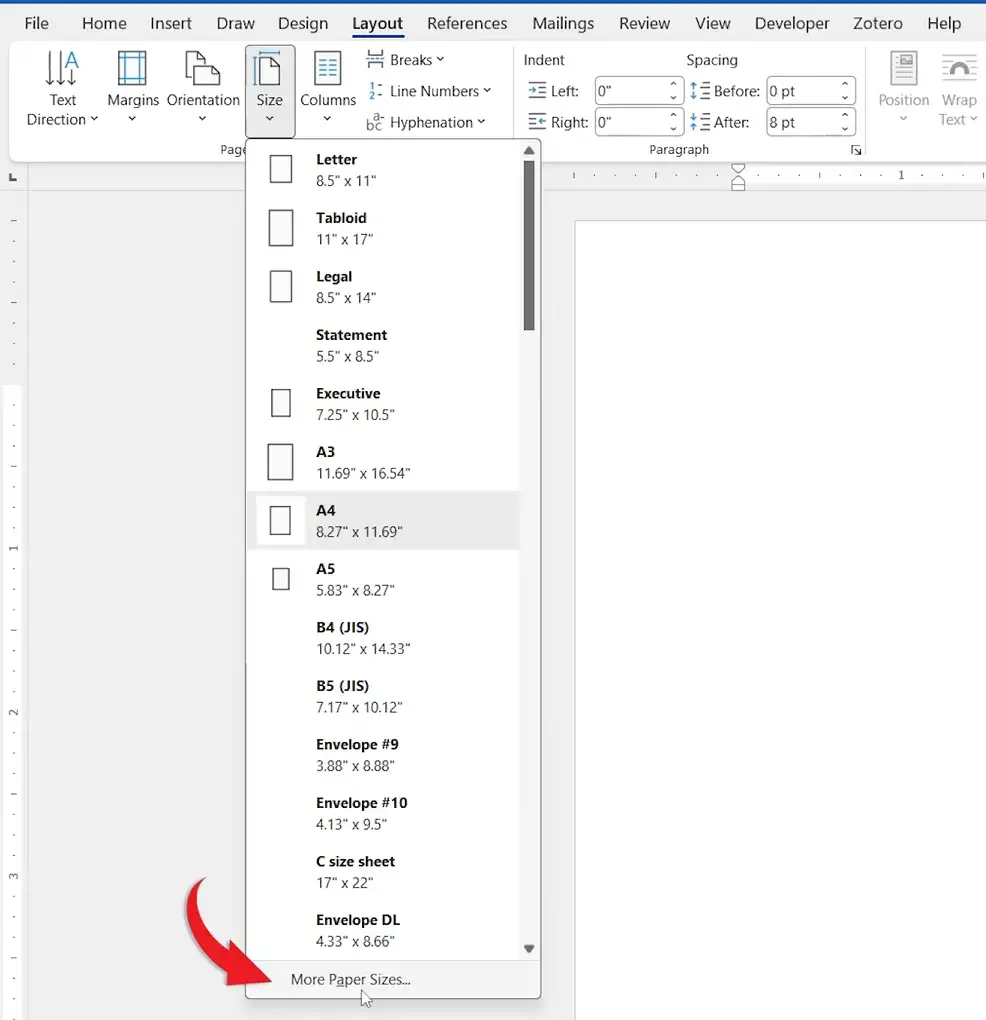
👉 This opens the page setup window, where you can enter a custom paper size.
Method 2: How to Set Long Bond Paper Size in Word with Custom Dimensions
Once you’ve opened the paper size settings, enter the exact dimensions for long bond paper.
Enter the Width and Height
- Find the Width setting.
- Enter 8.5 inches for the width.
- Find the Height setting.
- Enter 13 inches for the height.
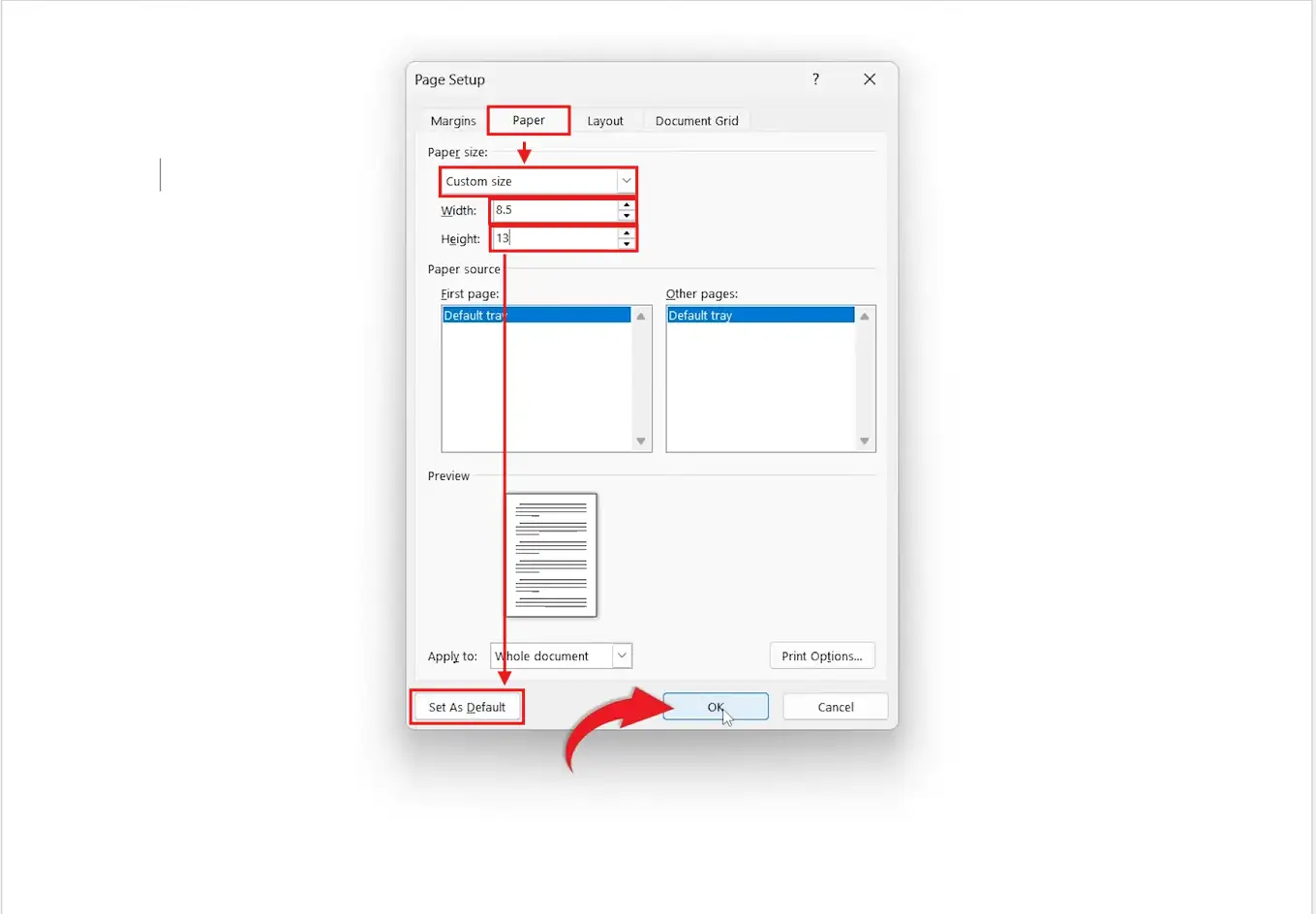
Word should now show the paper size as a custom size.
Set the Size as Default
If you want the paper size to apply as the default setting, select Set As Default before confirming the changes.
👉 If you only want the size for the current document, you can continue without making it the default.
Confirm the Paper Size
- Click OK to apply the custom paper size.
- Return to Layout → Size.
- Check that the previous paper size is no longer selected.
- Open More Paper Sizes again if you want to verify the dimensions.
👉 The document is now using the custom paper size.
If you also need to change the page dimensions for another document, see how to change page size in Word.
Which Method Should You Use?
| Method | Best for |
|---|---|
| Layout → Size | Finding an existing paper size quickly |
| More Paper Sizes | Creating the custom 8.5 × 13 inch size |
| Set As Default | Using long bond paper as the default size |
My pick: Use More Paper Sizes because long bond paper isn’t available as a native preset in the video’s version of Word. Entering 8.5 inches by 13 inches gives you the custom size you need.
Common Problems When Setting Long Bond Paper Size in Word
Long bond paper is not listed
This is expected in the video. Instead of looking for a preset, select Layout → Size → More Paper Sizes and enter the dimensions manually.
Word keeps showing another paper size
Open Layout → Size and check the selected size. Then open More Paper Sizes and confirm that the width is 8.5 inches and the height is 13 inches.
The page size does not change
Make sure you entered both dimensions before clicking OK. The width should be 8.5 inches and the height should be 13 inches.
I want long bond paper for future documents
Select Set As Default after entering the custom dimensions if you want the setting to become the default. If you normally work with A4 instead, you may prefer to set A4 as the default in Word.
Pro Tips for Setting Long Bond Paper Size in Word
- Remember the custom dimensions: 8.5 × 13 inches.
- Use More Paper Sizes when the paper isn’t available as a preset.
- Use Set As Default if you regularly create documents using this paper size.
- Check the paper size again before printing so the document and printer use the size you expect.
- If your document needs more usable space, you can also adjust the margins in Word.
Other Page Formatting Options
Changing the paper size is only one part of preparing a document for printing. You can also adjust the margins, spacing, and other page settings to suit your layout.
FAQs
What is the long bond paper size in Word?
The long bond paper size in Word is 8.5 inches wide and 13 inches high. You can enter these dimensions as a custom paper size.
How do I set long bond paper size in Word?
Go to Layout → Size → More Paper Sizes, then enter 8.5 inches for Width and 13 inches for Height.
Why can’t I find long bond paper in Word?
Long bond paper may not appear as a preset. Use Layout → Size → More Paper Sizes to create the custom 8.5 × 13 inch size.
What are the dimensions of long bond paper in Word?
The dimensions are 8.5 inches in width and 13 inches in height.
Can I make long bond paper the default size in Word?
Yes. Enter the custom dimensions and select Set As Default before confirming the paper size.
Is long bond paper the same as A4?
No. Long bond paper uses a custom size of 8.5 × 13 inches, while A4 is a different paper size.
How do I check that long bond paper is selected?
Go to Layout → Size and open More Paper Sizes. Check that Width is 8.5 inches and Height is 13 inches.
Conclusion
You can now set the long bond paper size in Word by going to Layout → Size → More Paper Sizes and entering 8.5 inches for the width and 13 inches for the height.
If you regularly use this paper size, select Set As Default. Otherwise, simply apply the custom size to the document you’re working on.
Once the page size is correct, you can fine-tune the rest of the document by learning how to adjust margins in Word.
Related Tutorials
Word Tutorials
Recently Added on Word Made Easy
Browse the complete collection for help with formatting, layout, pages, tables, images, and document setup.
For Microsoft support documentation, visit the official Microsoft guidance.
Leave a Reply