Skip to content
Word Made Easy
Home Word Tutorials Word Templates Google Docs PowerPoint Tutorials YouTube Videos

Word for Mac Track Changes Shortcuts: 19 Keys (Free PDF)

Keyboard Shortcut Cheat Sheets, Microsoft Word

Published 27 October 2026 · By Patrick Elliott

Word for Mac track changes shortcuts start with one key combination: ⌘ Cmd + ⇧ Shift + E switches tracking on and off. Add ⌘ Cmd + ⌥ Option + A for a new comment and you can review a whole document from the keyboard. This free cheat sheet lists 19 review, footnote and field shortcuts on one page.

It covers the jobs that come with checking a document: comments, spelling and the thesaurus, footnotes and endnotes, and fields for the date, time and page number.


Contents hide
1 Download the Free PDF Cheat Sheet
2 No Alt KeyTips on a Mac
3 Track Changes and Comment Shortcuts
4 Spelling and Proofing Shortcuts
5 Footnote and Endnote Shortcuts
6 Field Shortcuts
7 Mac Review Keys Compared with Windows
8 Pro Tips for Word for Mac Track Changes Shortcuts
9 FAQs
10 More Word for Mac Cheat Sheets
11 Conclusion
12 Related Tutorials
13 Word Tutorials

Download the Free PDF Cheat Sheet

This free cheat sheet groups the 19 shortcuts into Track Changes & Comments, Spelling & Proofing, Footnotes & Endnotes, and Fields. The ZIP file has a US Letter PDF and an A4 PDF.
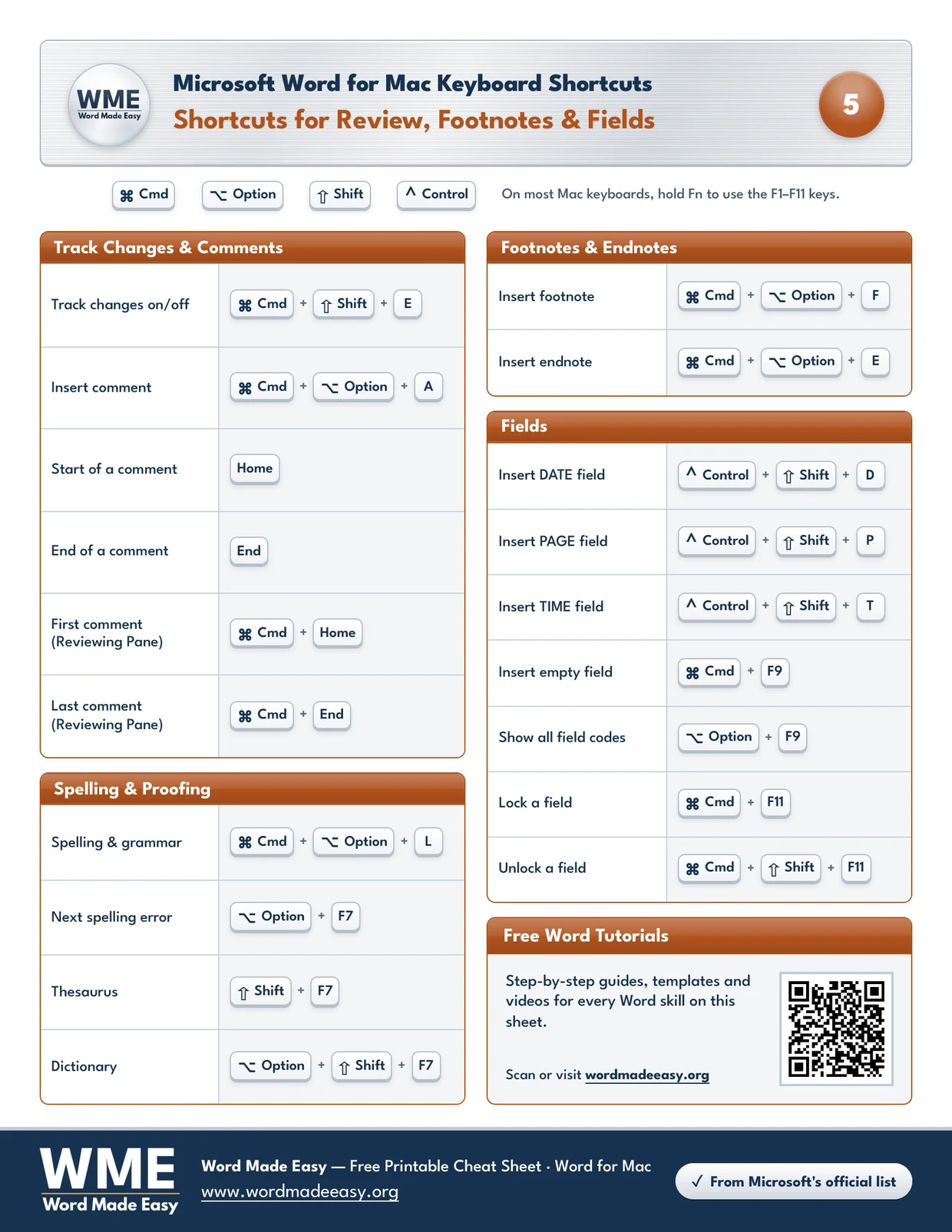
Word for Mac track changes shortcuts cheat sheet with comments, spelling, footnotes, endnotes and fields

Get the free Word for Mac cheat sheet

Enter your email address to download a ZIP file with this cheat sheet as two PDFs, one in US Letter size and one in A4. You can also choose to receive occasional emails about new free Word Made Easy resources.

Choose your email preference

I agree that Word Made Easy may email me occasional updates about new free Word cheat sheets, templates and tutorials. I can unsubscribe at any time. Choose Download only if you do not want marketing emails.

Read the Privacy Policy for details about storage, retention and your rights.


No Alt KeyTips on a Mac

On Windows, many review commands are ribbon KeyTips: you tap Alt, then a letter for each menu. Word for Mac has no KeyTips, so commands such as Accept and Reject have no keys in Microsoft’s macOS list. Use the Review tab for those, and the shortcuts on this sheet for everything else.

Fields are small pieces of code that Word fills in for you, such as today’s date or the page number. Locking a field stops it updating, which is useful when a date must stay as it was on the day you signed.


Track Changes and Comment Shortcuts

Home and End move to the start or end of the comment you are typing. With Command, they jump to the first or last comment in the Reviewing Pane.

ActionShortcut
Track changes on/off⌘ Cmd + ⇧ Shift + E
Insert comment⌘ Cmd + ⌥ Option + A
Start of a commentHome
End of a commentEnd
First comment (Reviewing Pane)⌘ Cmd + Home
Last comment (Reviewing Pane)⌘ Cmd + End

Spelling and Proofing Shortcuts

⌥ Option + F7 jumps straight to the next spelling mistake, so you can fix errors one at a time without opening the full check.

ActionShortcut
Spelling and grammar⌘ Cmd + ⌥ Option + L
Next spelling error⌥ Option + F7
Thesaurus⇧ Shift + F7
Dictionary⌥ Option + ⇧ Shift + F7

Footnote and Endnote Shortcuts

Word puts the note number at the insertion point and moves you to the note, ready to type.

ActionShortcut
Insert footnote⌘ Cmd + ⌥ Option + F
Insert endnote⌘ Cmd + ⌥ Option + E

Field Shortcuts

DATE, PAGE and TIME fields insert the current value and can update later. Show all field codes switches between the codes and their results.

ActionShortcut
Insert DATE field⌃ Control + ⇧ Shift + D
Insert PAGE field⌃ Control + ⇧ Shift + P
Insert TIME field⌃ Control + ⇧ Shift + T
Insert empty field⌘ Cmd + F9
Show all field codes⌥ Option + F9
Lock a field⌘ Cmd + F11
Unlock a field⌘ Cmd + ⇧ Shift + F11

Mac Review Keys Compared with Windows

The shortcuts that do exist on both platforms swap Ctrl for Command, and Alt for Option:

ActionWord for MacWord for Windows
Track Changes on/off⌘ Cmd + ⇧ Shift + ECtrl + Shift + E
Insert footnote⌘ Cmd + ⌥ Option + FAlt + Ctrl + F
Thesaurus⇧ Shift + F7Shift + F7

👉 The Windows keys come from our track changes shortcuts in Word and reference shortcuts in Word guides.


Pro Tips for Word for Mac Track Changes Shortcuts

  • Turn tracking on with ⌘ Cmd + ⇧ Shift + E before you make any changes, so every edit is recorded.
  • If your name shows wrongly on tracked changes, see how to change your username for Track Changes in Word.
  • Lock a DATE field in a signed letter so the date does not change when you open it later.
  • Function key shortcuts such as the thesaurus need Fn on most Mac keyboards.

FAQs

What are the Word for Mac track changes shortcuts?

The main one is ⌘ Cmd + ⇧ Shift + E, which turns tracking on or off. ⌘ Cmd + ⌥ Option + A inserts a comment. This sheet adds shortcuts for spelling, footnotes and fields in Word for Mac.

How do I accept or reject changes with the keyboard on a Mac?

Microsoft’s macOS list has no shortcuts for Accept or Reject, so use the buttons on the Review tab.

What is the footnote shortcut in Word for Mac?

Press ⌘ Cmd + ⌥ Option + F for a footnote or ⌘ Cmd + ⌥ Option + E for an endnote.

How do I insert today’s date as a field on a Mac?

Press ⌃ Control + ⇧ Shift + D. ⌃ Control + ⇧ Shift + T inserts the time and ⌃ Control + ⇧ Shift + P the page number.

How do I stop a field from updating?

Click in the field and press ⌘ Cmd + F11 to lock it. Press ⌘ Cmd + ⇧ Shift + F11 to unlock it again.

How do I check spelling in Word for Mac?

Press ⌘ Cmd + ⌥ Option + L or F7. See how to check spelling and grammar in Word for the full check.


More Word for Mac Cheat Sheets

The other sheets in the Word for Mac set, each with its own page and free download:

  • Word for Mac Keyboard Shortcuts: 26 Essential Keys (Free PDF)
  • Word for Mac Formatting Shortcuts: 23 Keys (Free PDF)
  • Word for Mac Text Selection Shortcuts: 24 Keys (Free PDF)
  • Word for Mac Table Shortcuts: 20 Keys and Mouse Moves (Free PDF)
  • Word for Mac Function Keys: 25 F1–F11 Shortcuts (Free PDF)
  • Free Word for Mac Keyboard Shortcuts Bundle: 6 Cheat Sheets (PDF): all six sheets in one PDF

Conclusion

Word for Mac track changes shortcuts keep a review moving: switch tracking on, comment as you read, then tidy up spelling, notes and fields. Print the sheet and keep it beside you for your next review.

If you write long documents, the Word for Mac function keys cheat sheet covers the F-keys used for fields and proofing.


Related Tutorials

  • How to Change Your Username for Track Changes in Word (Author Name): 2 Easy Methods
  • How to Check Spelling and Grammar in Microsoft Word
  • Track Changes Shortcuts in Word: 24 Keys (Free PDF)

Word Tutorials

Recently Added on Word Made Easy

  • How to Mail Merge Letters in Word: Easy Step-by-Step Guide

    October 24, 2026
  • How to Use Mail Merge in Word: Send Personalised Emails

    October 24, 2026
  • How to Format APA in Word: Easy Step-by-Step Guide

    October 23, 2026

Browse the complete collection for help with formatting, layout, pages, tables, images, and document setup.

View all Word tutorials
Watch on YouTube

For Microsoft support documentation, visit the official Microsoft guidance.

Like this:

Like Loading…
Cheat Sheet Footnotes Free PDF Keyboard shortcuts Track Changes Word fields Word for Mac Word for Mac keyboard shortcuts
←Word for Mac Table Shortcuts: 20 Keys and Mouse Moves (Free PDF)
Word for Mac Function Keys: 25 F1–F11 Shortcuts (Free PDF)→

Comments

Leave a Reply Cancel reply

Meet the Author

Patrick Elliott standing outdoors holding his dog.

I’m Patrick Elliott, the creator of Word Made Easy. I’ve worked in schools for over 10 years and I’m now an Inclusion Lead in the UAE. I use Microsoft Word and PowerPoint every day for planning, documentation and classroom resources.

Every guide is tested step by step before publishing (usually in Microsoft 365), and every free template is one I made myself in Word. You’ll also find practical walkthroughs on my YouTube channel.

Browse

  • Word TutorialsStep-by-step guides for every feature
  • Word Beginners HubFree 12-chapter Word course
  • Word TemplatesFree, editable downloads
  • Word Shortcut Cheat SheetsFree printable PDFs
  • Google Docs TutorialsStep-by-step Docs guides
  • PowerPoint TutorialsClear, simple slide guides
  • YouTube VideosWatch the video walkthroughs

Watch on YouTube

Prefer to watch? Most guides have a short video walkthrough on the Word Made Easy channel.

  • 147videos
  • 1.88Mviews
  • 8,000+subscribers
Subscribe on YouTube

Recently Added

  • Free Word for Mac Keyboard Shortcuts Bundle: 6 Cheat Sheets (PDF)October 27, 2026
  • Word for Mac Function Keys: 25 F1–F11 Shortcuts (Free PDF)October 27, 2026
  • Word for Mac Track Changes Shortcuts: 19 Keys (Free PDF)October 27, 2026
  • Word for Mac Table Shortcuts: 20 Keys and Mouse Moves (Free PDF)October 27, 2026
  • Word for Mac Text Selection Shortcuts: 24 Keys (Free PDF)October 27, 2026
Word Made Easy

Free, step-by-step Microsoft Word tutorials, written and tested by teacher Patrick Elliott.

Subscribe on YouTube Follow on Facebook Follow on Pinterest

Explore

  • Home
  • Word Tutorials
  • Word Templates
  • Google Docs Tutorials
  • PowerPoint Tutorials
  • YouTube Videos

Microsoft Word

  • Page Layout & Sections
  • Tables, Images & Media
  • Formatting Basics
  • Productivity & Automation
  • Beginners Hub
  • Templates
  • Shortcut Cheat Sheets

Google Docs

  • Basics
  • Formatting
  • Page Layout
  • Tables & Images
  • Files & PDFs
  • Sharing & Signing
  • Writing & Research
  • Templates

About

  • About Me
  • Contact
Privacy Policy Cookie Policy Terms of Use
© 2012–2026 Word Made Easy. All rights reserved.
Manage your privacy

To provide the best experiences, we and our partners use technologies like cookies to store and/or access device information. Consenting to these technologies will allow us and our partners to process personal data such as browsing behavior or unique IDs on this site and show (non-) personalized ads. Not consenting or withdrawing consent, may adversely affect certain features and functions.

Click below to consent to the above or make granular choices. Your choices will be applied to this site only. You can change your settings at any time, including withdrawing your consent, by using the toggles on the Cookie Policy, or by clicking on the manage consent button at the bottom of the screen.

Functional Always active
The technical storage or access is strictly necessary for the legitimate purpose of enabling the use of a specific service explicitly requested by the subscriber or user, or for the sole purpose of carrying out the transmission of a communication over an electronic communications network.
Preferences
The technical storage or access is necessary for the legitimate purpose of storing preferences that are not requested by the subscriber or user.
Statistics
The technical storage or access that is used exclusively for statistical purposes. The technical storage or access that is used exclusively for anonymous statistical purposes. Without a subpoena, voluntary compliance on the part of your Internet Service Provider, or additional records from a third party, information stored or retrieved for this purpose alone cannot usually be used to identify you.
Marketing
The technical storage or access is required to create user profiles to send advertising, or to track the user on a website or across several websites for similar marketing purposes.
Statistics

Marketing

Features
Always active

Special features

Special purposes
Always active

  • Manage options
  • Manage services
  • Manage {vendor_count} vendors
  • Read more about these purposes
Manage options
  • {title}
  • {title}
  • {title}
Manage your privacy
To provide the best experiences, we use technologies like cookies to store and/or access device information. Consenting to these technologies will allow us to process data such as browsing behavior or unique IDs on this site. Not consenting or withdrawing consent, may adversely affect certain features and functions.
Functional Always active
The technical storage or access is strictly necessary for the legitimate purpose of enabling the use of a specific service explicitly requested by the subscriber or user, or for the sole purpose of carrying out the transmission of a communication over an electronic communications network.
Preferences
The technical storage or access is necessary for the legitimate purpose of storing preferences that are not requested by the subscriber or user.
Statistics
The technical storage or access that is used exclusively for statistical purposes. The technical storage or access that is used exclusively for anonymous statistical purposes. Without a subpoena, voluntary compliance on the part of your Internet Service Provider, or additional records from a third party, information stored or retrieved for this purpose alone cannot usually be used to identify you.
Marketing
The technical storage or access is required to create user profiles to send advertising, or to track the user on a website or across several websites for similar marketing purposes.
Statistics

Marketing

Features
Always active

Special features

Special purposes
Always active

  • Manage options
  • Manage services
  • Manage {vendor_count} vendors
  • Read more about these purposes
Manage options
  • {title}
  • {title}
  • {title}
%d